
Apple Adds HBO Go to Apple TV – Finally!

apple_TV_HBO_GO

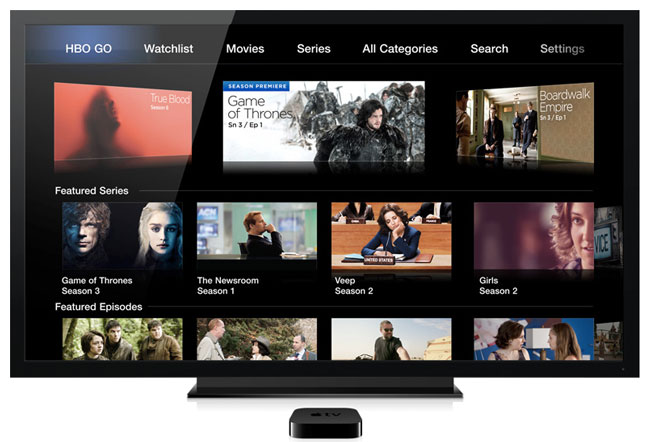
Last night I saw the news that there was a software update to Apple TV that finally added HBO Go, as well as Watch ESPN, SkyNews, Quello, and Crunchieroll (anime). I stopped what I was doing and immediately did the update. As with all HBO Go devices and apps you will need to have an actual subscription to HBO through a compatible cable/satellite provider. I have Comcast Xfinity and it works.

Why on Apple TV?

If you have HBO already on your cable/satellite box then you might be wondering why you would want/need it on your Apple TV? That’s an easy one. At home I have Comcast/Xfinity and TiVo DVRs. Each TV has a box that can play HBO just like all the other channels. However, at my studio (a commercial building) Comcast doesn’t allow premium channels like HBO. I have Apple TVs at the studio and now I can have HBO on them. I’m a huge fan of Boardwalk Empire and often catch up on it while on the road or in studio. I have the HBO Go app on my iPad and now on my Apple TV. I can of course watch other HBO content, specials, concerts, etc. I also like the fact that they post episodes on HBO Go within about 10 minutes after they air live.
AppleTV_Main-Menu_Movies_US-ONLY_PRINT

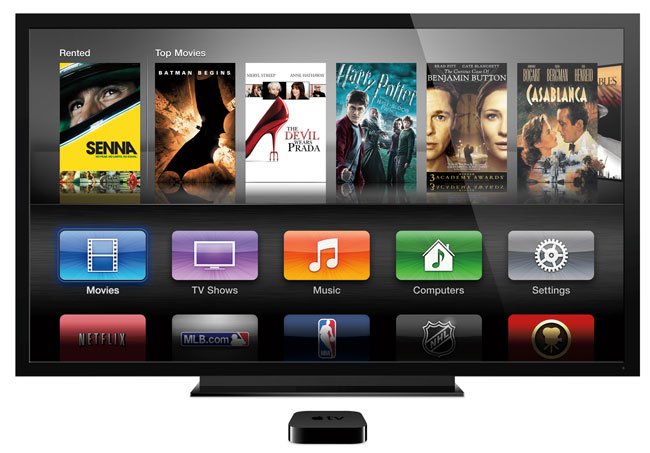
While other set-top boxes like Xbox 360 had HBO Go I never figured out why it wasn’t available in Apple TV. My wait is finally over. Apple TV just keeps getting better with each update. Also the relatively low cost of entry makes it a no-brainer. I’ve said it once and I’ll say it again, I think HBO is missing out! More and more people I talk to are cutting or have cut the cable. However, many of these folks would gladly pay a low monthly cost to get HBO Go. It’s a shame that it has to be tied to a home cable/satellite provider.

You can get an Apple TV here on sale.
FaceTime Over AT&T 4G Cellular For All In 2013 – Finally!

facetime-ATT-cellular

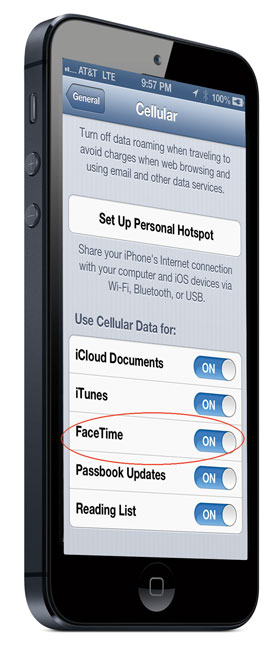
Last November I wrote a post about how AT&T was hinting at allowing those of us who were grandfathered in to unlimited data plans to be able to use FaceTime over cellular. It seemed like a pipe dream as the feature worked for a few, but not for most including me. Yesterday, I saw the news that AT&T was FINALLY going to allow all customers to use video calling features over 4G by the end of 2013. Just for the heck of it, I checked my settings and to my surprise it was already enabled! Just to be sure I turned off WiFi and attempted a FaceTime call over 4G. It worked!

I’m glad that AT&T finally came to their senses on this one. It didn’t make much sense that I could use Skype, Google+ Hangouts, etc, but not the built-in FaceTime. I’m on a corporate dataplan via my employer, however, if I had to buy my own plan I would have definitely considered other carriers. AT&T has restored a little (very small amount) of faith with this move. Thanks!

Long and Short Lightning Cables

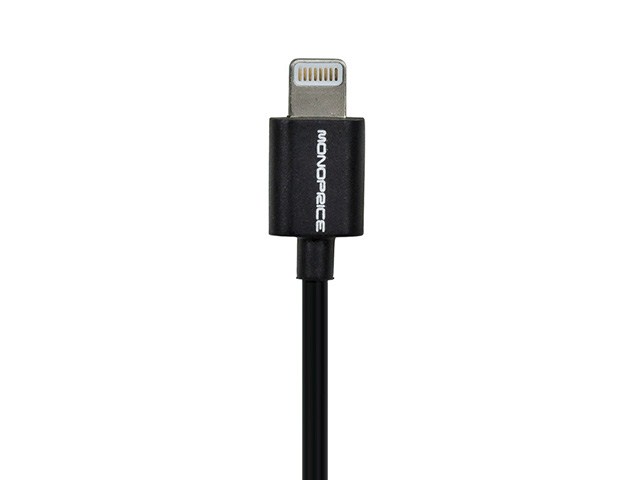
monoprice_black_lightning

Ever since I upgraded to the iPhone 5 and got an iPad mini I’ve been slowly but surely replacing my old 3o pin iDevice cables with newer Lightning cables. While the price of Apple’s Lightning cables are a bit on the expensive side, what bugs me more is being limited to a fixed 1m length. While 3rd party 30 pin iDevice cables are a dime a dozen and can be found in many different lengths and configurations, 3rd party Lightning cables are just now starting to become widely available. There were some really cheap knockoffs that appeared early on and as the saying goes you get what you pay for. I tried a few of the different cables and found that either they didn’t work at all, didn’t work reliably or stopped working after a while. One problem is that many of the cheap ones aren’t “reversible.” That’s one of the main benefits of Lighting cables is that there is no front/back up or down. You can plug it in either way and it just works. Many of the cheap ones only worked one way. I did find some 10 foot cheap 3rd party ones that worked properly. However, over time one by one they simply stopped working or started acting very flaky. I decided to wait until some of the trusted brands I’d used in the past. I wanted both shorter cables and longer ones than the 1m Lighting cables that Apple sells.

6 foot and 10 foot Lightning Cables

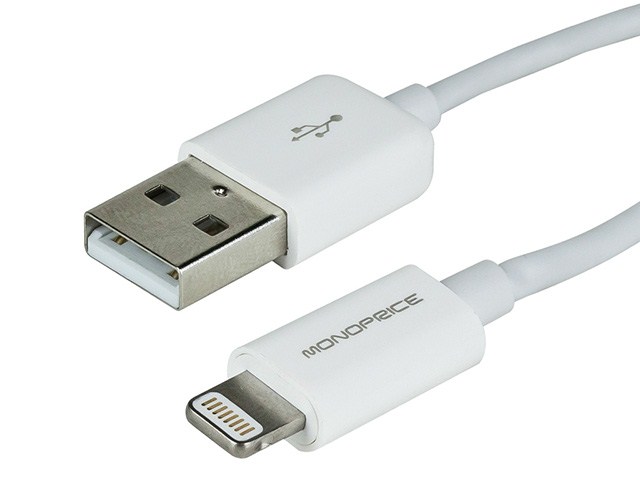
monoprice_lightningcables

One of my favorite sources for low price, quality cables and gear is Monoprice.com. Monoprice has listed both 6 foot and 10 foot Lightning cables for a while now, but they recently started shipping. Before these cables became available I was using USB extension cables to make my Apple cables longer, but I prefer to have a single cable that’s long enough. I bought a few of each length and as I expected they work perfectly. You can get them in either white or black here.


Very short Lightning Cables

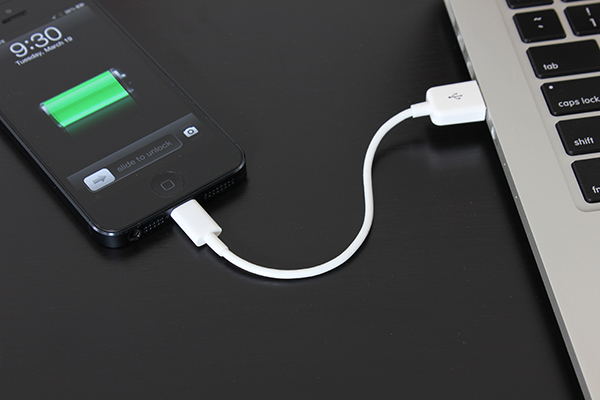
LL-situational__34560_zoom

CableJive is known for selling a variety of different specialty cables and as I had hoped they just started selling pocket sized 12cm Lighting cables. This cables are short for a variety of different uses when you don’t want a long cable that you’d have to coil up. They are a bit pricey for the length, but they fit the bill for always having a Lightning cable for charging my devices, in my pocket.

Amazon has them here.


Lastly a lower priced 1m Lightning Cable

Amazon has their own brand of cables and they are offering a 1m Lighting Cable for less than Apple sells them for here. Monoprice also has some 1m cables cheaper too, here.

Belkin Thunderbolt Express Dock Review

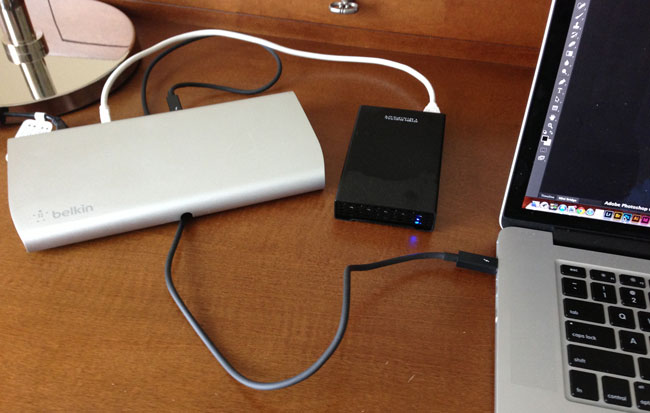
belkin_thunderbolt_express_dock

For the last few years I’ve used a MacBook Pro as my primary computer. I even sold my Mac Pro tower a few months ago as I just couldn’t justify hanging on to it for the few times I used it to do heavy duty video rendering. Sure it was faster than my notebook, but I just found that I was using my notebook more often than heading over to the Mac Pro. Now that I’m on the MacBook Pro most of the time, when I’m at my desk I want to connect all my peripherals. I’ve got a Wacom Cintiq 24HD display, Gigabit Ethernet drop, a 7 port USB 3.0 hub with a Logitech C920 webcam, Rode Podcaster Mic, Bose Speakers, Apple Wireless Keyboard, wireless Magic Mouse and an occasional external hard drive to transfer data from here and there.

What is the Belkin Thunderbolt Express Dock?

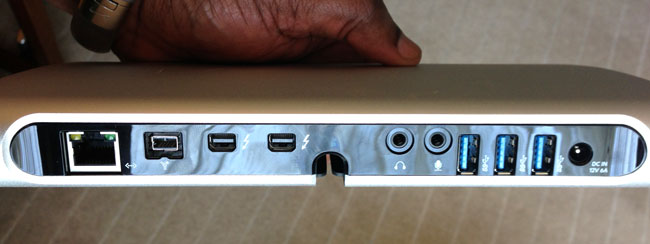
belkin_thunderbolt_express_back

It’s an external piece of hardware that sits on your desk and connects to your Thunderbolt port on your computer. Once connected it adds 1 Gigabit Ethernet, 1 Firewire 800 port, an additional Thunderbolt port, an audio in and audio out port, and 3 high speed USB 3.o ports.

Before the Belkin Thunderbolt Express Dock I would have to plug in the power and four cables before waking my MacBook Pro up. The beauty of a dock is that it can give you not only the convenience of having all your peripherals plugged into one device so that you can just plug in one cable, but it also can give you ports that you didn’t have. For example, on the MacBook Pro 15″ Retina Display Apple has eliminated Firewire and Ethernet ports. While I have the Thunderbolt Adapters to add these ports back in, the Belkin Thunderbolt Express Dock has them built-in plus one that I don’t have an adapter for and that is a standard 3.5mm audio in jack.

The design of the dock is appealing to my eyes and it has all of the connections in the back with a pass through to the front for the Thunderbolt cable (which is not included). I was a little disappointed by the rather large power brick, but then I reminded myself that I won’t likely be traveling with this dock. It’s designed to sit on your desk with everything connected to it so that I just plug in the Thuderbolt cable to my MacBook Pro when I get to my office.

I’ve connected a couple of hard drives to it for testing and  noticed no difference in speed. The other ports seem to work as expected.

The Bottom Line

This dock has been a long time coming. For a MacBook Pro owner it’s nice to have. For a MacBook Air owner it becomes an even better accessory since MacBook Airs have even fewer ports built-in to them. I would have loved to have seen one more Thunderbolt port and for the price I feel that it should have included a Thunderbolt cable. Otherwise it’s a solid piece of gear that will make my MacBook Pro feel even more like a desktop computer when I’m at my desk.

You can get the Belkin Thunderbolt Express Dock here.

You can get the needed Thunderbolt Cable here.

How To Use Adobe Photoshop Touch for iPhone and Android

PStouchIcon

In this episode of the Adobe Creative Suite Podcast, Terry White shows how to use the New Adobe Photoshop Touch for phones to composite images, remove a background and add a logo before sending it to the desktop version of Photoshop layers and all.

You can get Photoshop Touch for iPhone here
iTunes

You can get Photoshop Touch for iPad here
iTunes

Yes you can also get it for Android here.


Are you missing out on my Bonus Content?

See more of my Adobe Creative Suite Videos on my Adobe Creative Suite Podcast and get the App below. It features EXCLUSIVE CONTENT that no one else gets to see. This episode has a BONUS CLIP that is available only in the App! My iOS App is a Universal App for iPhone, iPad and iPod touch. I also have an Android version on the Amazon App Store:

Learn Adobe Creative Suite with Terry White - Wizzard Media


To make it even better, get one of these

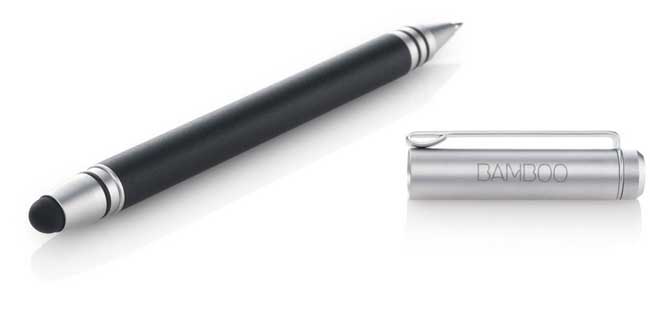
Brushing with your finger is ok, but if you want more precision I highly recommend getting one of these Wacom Bamboo Styluses for touch screens.

You can get one here.


Traveling with an Apple TV

AppleTV-2010

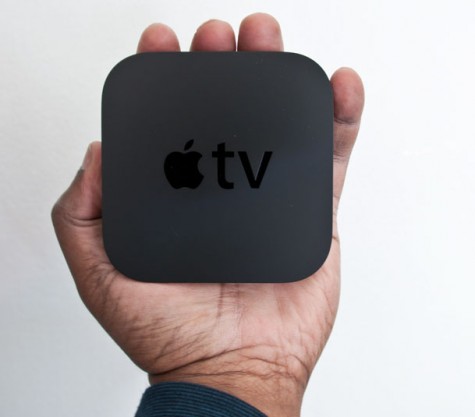
Im quite fond of the Apple TV for streaming content, watching movies and displaying my photos throughout my studio. This little box does a lot and with each software update Apple adds more capabilities to it. Recently I saw a deal on a refurbished one and I decided to snag it and use it as my “on the road” Apple TV. The idea is that since I travel so much and it seems that most hotels now have flat screen HDTVs in their rooms that I could potentially use an Apple TV to stream my own content during down time. However, the thing you have to keep in mind is that the Apple TV was never really designed to be taken on the road.


It needs a network connection

AirportExpress_2012

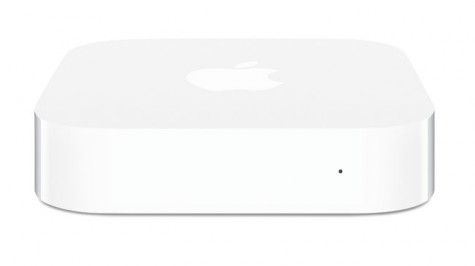
Unlike the 1st generation Apple TV, the newer models don’t have hard drives in them. So there really is no effective way to load it up with content before heading out. You have to either stream to it from a computer/iOS Device or you have to stream to it from the internet. The Apple TV has both WiFi and an Ethernet port. That helps a lot! Although it has WiFi it was not really designed to connect to random hotspots. There’s no web browser and therefore no way to really accept the terms and conditions even if the WiFi is free. I have been traveling with an AirPort Express Base Station for years. If my hotel room has an ethernet port I can just plug the AirPort in and provide WiFi to all my devices, including an Apple TV. Also the newer AirPort Express Base Station has an additional Ethernet jack so that you can even plug in a wired device to share the connection, such as an Apple TV. However, if there is no Ethernet port in the room and the WiFi network isn’t wide open you would be pretty much out of luck. You could use a MiFi or tethering to a smartphone/iOS device. You could also share the hotel WiFi connection from your laptop using Internet Sharing to the Ethernet port on your Apple TV. Before I’d do the latter I’d have to really really want to use my Apple TV. Otherwise I could just plug the computer into the TV and bypass the Apple TV altogether.

Continue reading “Traveling with an Apple TV”

Adobe Photoshop Touch for iPhone and Android Smartphones

Photoshop_touch_iphone5

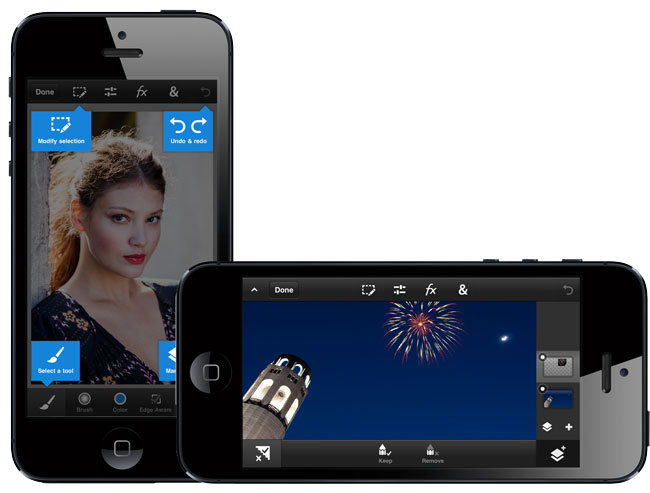
Just in case you missed my post over at bestappsite.com, I wanted to give you a heads-up that Photoshop Touch has just been released for iPhone and Android Smartphones.

 Adobe Photoshop Touch for phone offers powerful new capabilities for smartphone users:

·         Enhance images using popular Photoshop features such as layers, selection tools, filters, tonal and color adjustments

·         Apply effects and add graphical text for endless creative possibilities

·         Edit images as large as 12 megapixels with layers

·         Combine images together quickly using the Scribble Selection feature, and easily refine your selection with the Refine Edge tool

·         Automatically sync images to Adobe Creative Cloud™ with free 2GB of storage

You can get Photoshop Touch for iPhone here
iTunes

You can get Photoshop Touch for iPad here
iTunes

Yes you can also get it for Android here.


To make it even better, get one of these

Brushing with your finger is ok, but if you want more precision I highly recommend getting one of these Wacom Bamboo Styluses for touch screens.

You can get one here.

Logitech Ultrathin Keyboard mini Review

logitech_ultrathin_mini_stand

If I think about my favorite iPad accessories, there’s no question that the Logitech Ultrathin Keyboard Cover is my favorite. The iPad is great and the on screen keyboard is fine for typing short messages or replies. However, when it comes to heavy text input or writing blog posts like this one, nothing beats a physical keyboard. The Logitech Ultrathin Keyboard Cover is the best one on market IMHO. It attaches magnetically and works just like an Apple Smart Cover. Read my original review here.


A physical keyboard for the iPad mini?

logitech_ultrathin_mini

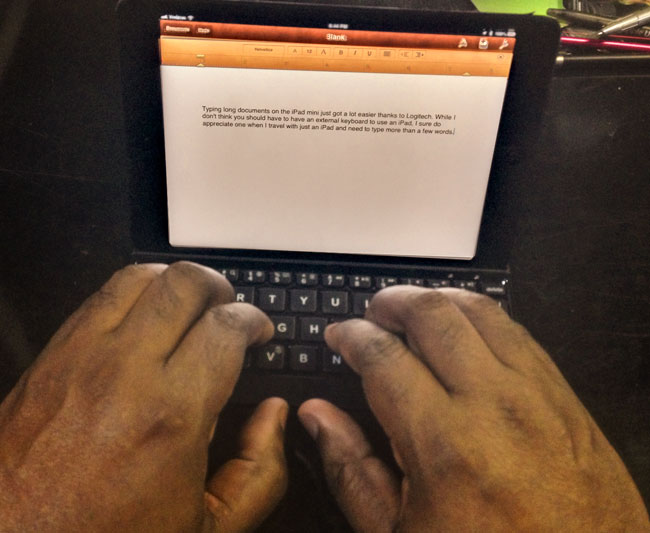
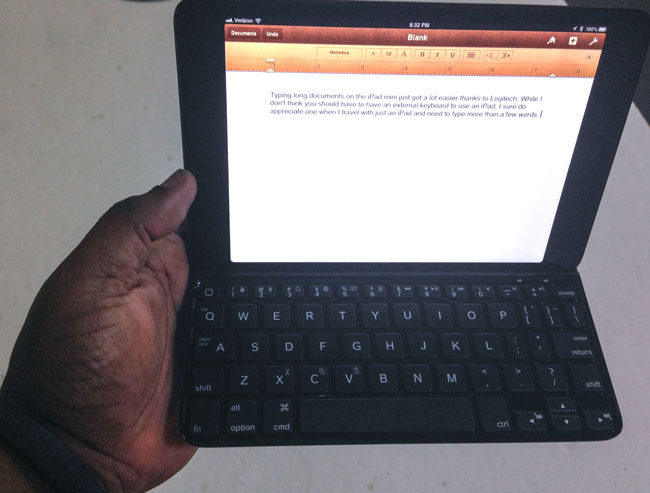
When I saw that Logitech introduced an Ultrathin Keyboard mini for the iPad mini, the first thing I thought was “no way! It’s going to be too small.” The thing I like best about the original Ultrathin Keyboard Cover for the full size iPads is that it doesn’t feel cramped. It feels like a full-sized keyboard. I figured that the iPad mini was just too small and that if someone made a keyboard, it probably wouldn’t be a good experience. Nevertheless I was tempted and had to try the new Logitech Ultrathin Keyboard mini. The first thing I did when I took it out of the box was put my fingers on the home row.

logitech_ultrathin_mini_my_hands

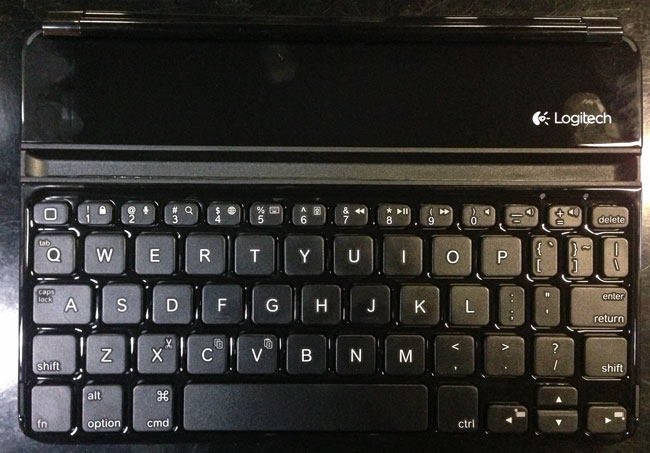
I was amazed! It felt fine. Sure it was a little smaller, but not bad at all. I was also pleasantly surprised to see Shift keys on both sides. Other keyboards I’ve tried for the 10″ iPads sometimes remove one of the Shift keys to make the layout fit better. I NEED BOTH SHIFT KEYS! However, Logitech did make a couple of compromises. The Caps Lock key shares the same key as the “A” key and you use the Function key to activate it. The Tab key also shares the same key as the letter “Q”. These were much smarter compromises than eliminating a Shift Key.


Great smart cover like design

logitech_ultrathin_mini_cover

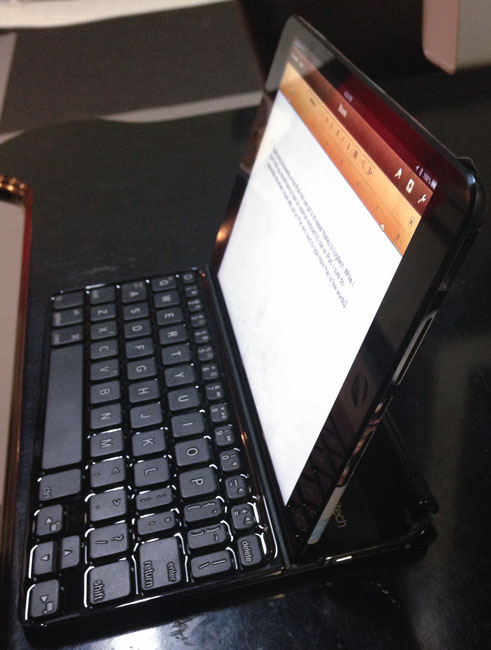
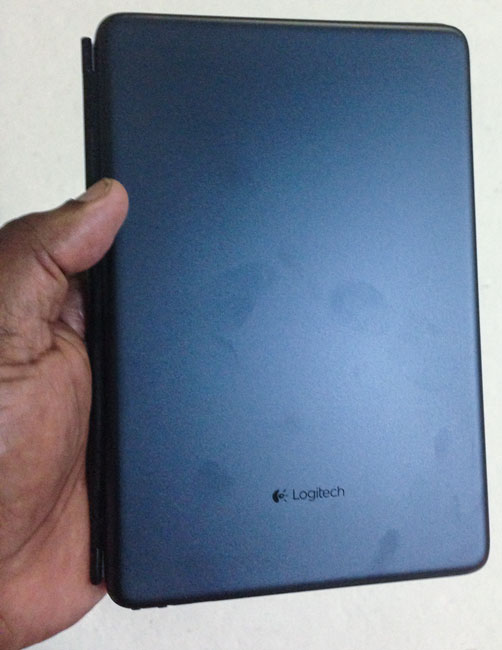
Like the regular Ultrathin Keyboard Cover, the Ultrathin Keyboard mini works as a smart cover and a stand for your iPad mini. As you can see in the photo, it shows off finger prints quite well too. It also has a “home” key that works like the home button on your iPad. Not to mention other iPad specific keys like volume controls, find, slideshow and text selection buttons. The Ultrathin Keyboard mini connects via Bluetooth and has a built-in rechargeable battery that lasts about 3 months between charges assuming you’d use it 2 hours per day!


The Bottom Line

logitech_ultrathin_mini_stand_in_my_hand

Many will jump to tell me that “If you use an iPad there is no need for a physical keyboard or a stylus” and to those people I would say that you’re right. “Need” is a strong word, but I would also say that while the iPad and iPad mini work perfectly with your fingers, that doesn’t mean that there aren’t times where a physical keyboard wouldn’t make things easier. Not to mention that only the Sith deal in absolutes 😉 The Logitech Ultrathin Keyboard mini and Logitech Ultrathin Keyboard Cover are great for those that want to travel with just an iPad/iPad mini and still get a lot of work done.

You can get the Logitech Ultrathin mini for iPad mini here in black or directly from Logitech in black or white.

You can get the Logitech Ultrathin Keyboard Cover for iPad 2 and higher here in black or white

PlugBug World Can Charge your MacBook Pro and Your Mobile Devices Too


plugbug_world

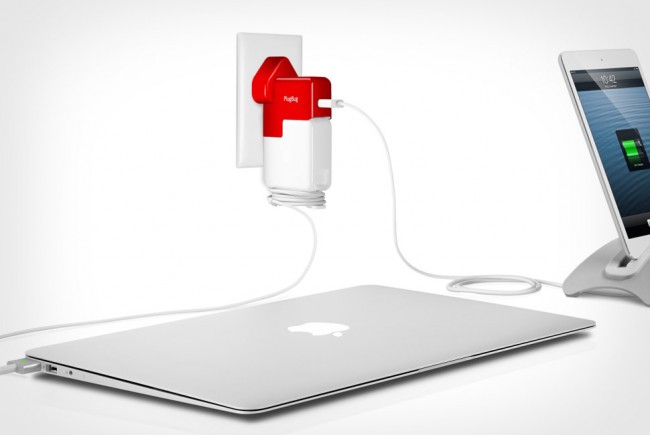
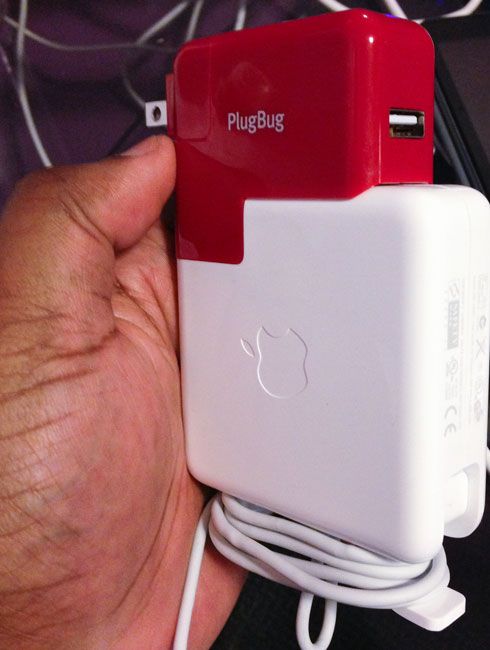
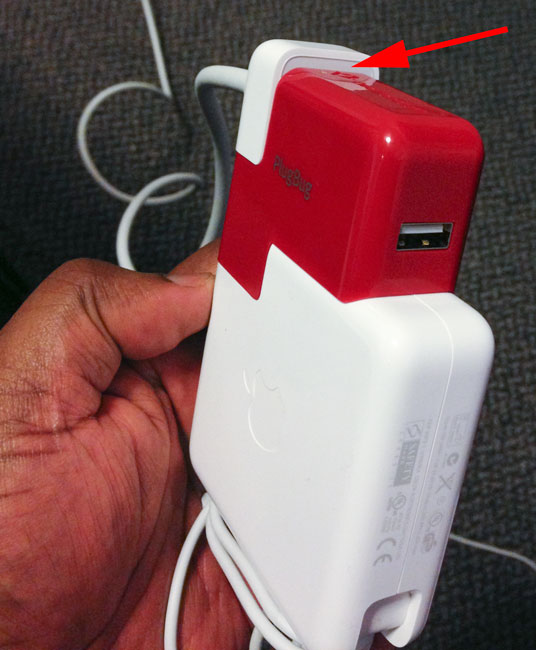
As a frequent traveler I’m always looking for ways to charge my multiple devices with fewer chargers or taking up less outlets in a hotel room. I saw an ad for PlugBug and decided to order one and see if I liked it or not. The idea behind PlugBug is that it replaces the standard plug of your MacBook Pro or MacBook Air Adapter with one that has a USB (2.1 Amp) port built-in. This way you can charge both your laptop AND any USB power device at the same time. The concept is simple and it takes all of 2 seconds to install. I opted for the PlugBug World, which comes with all the necessary adapters to plug into various outlets around the globe. It works as advertised and although it’s “short” on the 85w MacBook Pro adapter, it doesn’t hender its use.

plugbug_1

How could it be better?

The 1st thing that I wasn’t crazy about was that it replaces the “extended cord” on the MacBook Pro adapter. I know that you can simply plug the adapter into the wall with or without a PlugBug, but I prefer using the optional extended cord that comes with the MacBooks so that I don’t take up so much space on a power strip and I get a longer cord.

plugbug_2

That’s a personal thing with me, but the product works as advertised. Although I CAN use the extended cord, it’s clear by the way it sticks up over the PlugBug that they didn’t design it to be used this way. While we’re at it, I’d also like to see TWO USB ports instead of just one. It would make it much more useful to me if I could use one plug to charge my MacBook, iPhone and iPad at the same time. So make it a little taller to accomodate the extended cord AND a second USB port and I’d “love” it.

You can get a PlugBug here or PlugBug World here.