
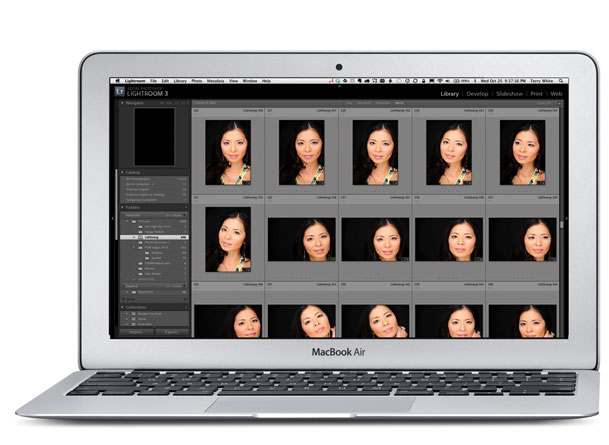
Photographers: MacBook Air vs. iPad

When the iPad arrived in April I had high hopes (I still do) for it to become a great tool for photographers and in many ways it has. More photographers showed their portfolios at Photoshop World this past September electronically than they did in print. Just recently I published my list of 8 Must Have iPad Apps for Photographers. Yes, progress is being made, but yesterday Apple released the long awaited update to the MacBook Air and the more I looked the specs the more it made me think about this new MacBook as a better choice for photographers in the field. 


The iPad appeal
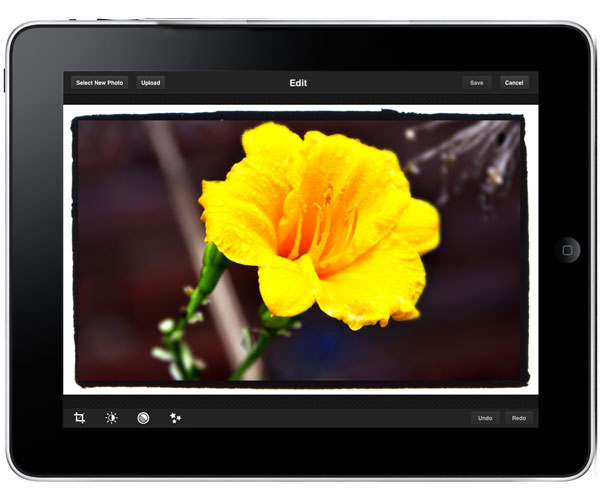
The iPad is/was appealing because it was small, lightweight, has a relatively long battery life, relatively large display and is capable of importing images via the Camera Connection Kit. It can do moderate photo editing on the go. Also the instant on and not having to manage a file system are pluses in many ways.


The NEW MacBook Air offers so much more for not much more money
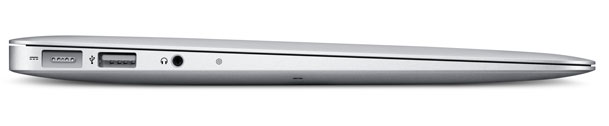
The most fair comparison I can make is to compare the 64GB iPad Wi-Fi model ($699) with the new 64GB 11.6" MacBook Air ($999). Yes, the MacBook Air is $300 more and weighs 0.7 lbs. more. The MacBook Air is also a few inches bigger.


MacBook Air iPad

Size and weight

Height:
0.11-0.68 inch (0.3-1.7 cm)
Width:
11.8 inches (29.95 cm)
Depth:
7.56 inches (19.2 cm)
Weight:
2.3 pounds (1.06 kg)1

Size and weight1

Height:
9.56 inches (242.8 mm)
Width:
7.47 inches (189.7 mm)
Depth:
0.5 inch (13.4 mm)
Weight:
1.5 pounds (0.68 kg) Wi-Fi model;


Once you get past the slightly larger size and weight of the MacBook Air, you can then start to justify it for what it offers over the iPad. The MacBook Air (MBA) has the ability to run your standard Mac applications (or even Windows Applications using Parallels or other Virtualization apps). So instead of trying to find replacement Apps on the iPad, it can actually fun Adobe Photoshop Lightroom 3 and Photoshop CS5. Instead of having to use the Camera Connection Kit with low power/speed CF Cards/Readers, you can plug in any standard USB Card Reader and Import photos from any memory cards. With the MBA you can also more easily offload your images onto another hard drive just by plugging it in to the USB port and doing a standard file copy. Also since many photographers publish their websites using Adobe Flash, you can view those sites on the MacBook Air by installing the latest Flash Player if you choose to. Lastly, and probably one the biggest reasons is that the you can shoot tethered to a MacBook Air and see your images on the nice big 11.6" display. Lightroom 3 already does native tethering and that means that the MBA can already do this. Yes, the MBA is $300 more, but you get a much more capable device for that $300.


What I would have liked to have seen

There are two things that I would have liked to have seen on the MacBook Air. The first is a built-in option for 3G connectivity. That's one of the things I love about my iPad is that I can take it out of my bag and get online pretty much anywhere. Sure I can use my MiFi or a 3G USB Stick, but a contract free 3G option built-in the MBA would have been killer. The next thing I would have loved to have seen is a TRUE HYBRID between these two devices. Imagine a MBA in the same form factor, but if you open the lid and flip it over it becomes an iPad and can run iOS Apps. While it's true that a touch screen on a vertical display would be a pain, there's no reason that the display has to stay vertical if it swiveled and reversed. That would have truly been the best of both worlds!


What will I do now?

Believe it or not I have no plans to get a MacBook Air pretty much for the same reasons that I didn't buy myself the first model. When I travel for business I need the most full featured and powerful MacBook Pro available and the MacBook Air just isn't enough muscle for what I do. Since it's not going to replace my current MacBook Pro I see no need to travel with TWO laptops. A MacBook Pro and iPad will continue to be my tools of choice. However, if you're a photographer that doesn't demo software for a living like I do, then the MacBook Air might be a GREAT tool for you! If I didn't need the power of a MacBook Pro, I would seriously consider the Air!
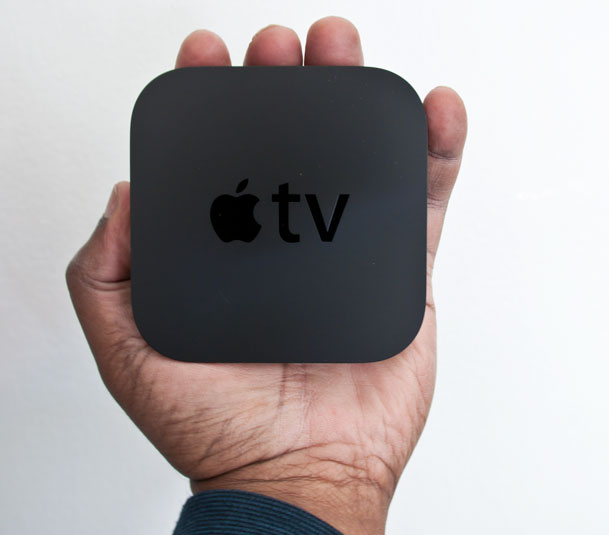
The New Apple TV: New Users Might Love It, Old Users Might Hate It

I've been a fan of Apple's "hobby" Apple TV since day one! I've got more than a couple of them around the house. 🙂 When Apple had their annual iPod event this past September it was rumored that we might see a smaller, more affordable Apple TV and the rumors were true. Apple introduced a much smaller and more more affordable Apple TV. This new box is sooooooo tiny. It's also less than half the price of the model it replaces. As we know, that's rare for Apple products. When the announcement happened I was traveling on business, so I had to rely on various web reports during my breaks to follow the news. The one thing I kept trying to figure out from the scattered reports was, "what did this new one offer that my existing one didn't?" After all we're used to new technology having more bells and whistles to make you want to upgrade. I kept seeing the reports on size, price and Apple's new TV show rental prices as well as Netflix and AirPlay streaming, but that was it. Yes, that was it! This new Apple TV seems to take away as many features much as it adds. Now don't get me wrong, I'm still a fan of Apple TV and I think they will sell more NEW Apple TVs than ever before at the new price point, it's just that I'm not compelled to run out and replace the rest of my existing ones. Let me tell you why…


What you get

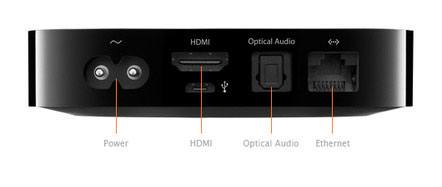
Like I said, it's SMALL and it runs much cooler than the previous model. One of my Apple TV's is located in a cabinet (this is the one that the new one replaces for me) and I often wonder if the heat build up will fry it? So I'm pleased to see the new one take up less space and run cooler. You also get the new shinny silver aluminum remote. I didn't even take mine out of the box because my Harmony One Remote works just fine with this new model too. On the back you'll find an HDMI port, Optical Audio, Ethernet (there is also built-in 802.11n WiFi) and a USB service port. There is one LED indicator on the front and the power supply is built-in so there is just a power cord and that's it. Nice!

Once you have it setup this is where you'll find the biggest differences from the old to the new. 


Out with the OLD Apple TV

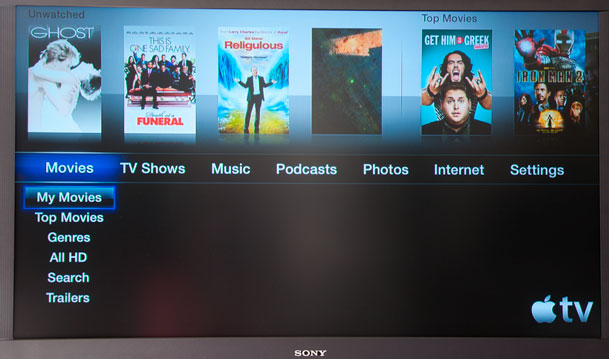
The original Apple TV with current interface above


The New Apple TV is all about Streaming!

There is no user accessible internal storage. Rumor has it that there is 8GB of flash memory, but I imagine that it's reserved for buffering streaming content. So unlike the previous models there is no way to store TV shows, movies, podcasts or music on the device itself. You'll either have to stream it live from the internet or a Mac/PC on your network (see AirPlay below).


In with the NEW Apple TV

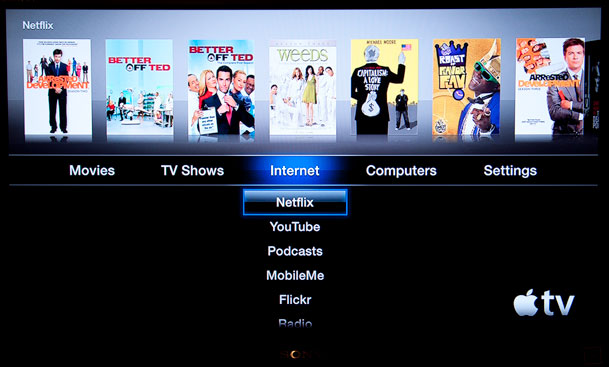
The NEW 2010 Apple TV above


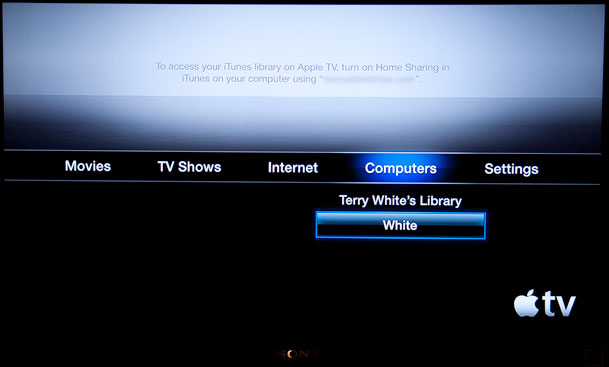
As a matter of fact Apple has made it clear that it's all about streaming in the new menu structure. YOUR content is now buried under "Computers" instead of being mixed in with the other media choices like TV shows, Movies, etc. Also since there is no storage, there is no requirement to "Sync" with a computer. Unlike the previous model, this new one relies on iTunes Home Sharing if you want to stream your content to the device from your computer. So as long as you are logged in with your Apple ID on your computer and your Apple TV, your content will appear under the Computers section. This is not the end of the world, it will just take some getting used to for previous Apple TV owners. New Apple TV users won't think twice about it.

It seems so un-Apple like to not see any imagery from your library on this screen above

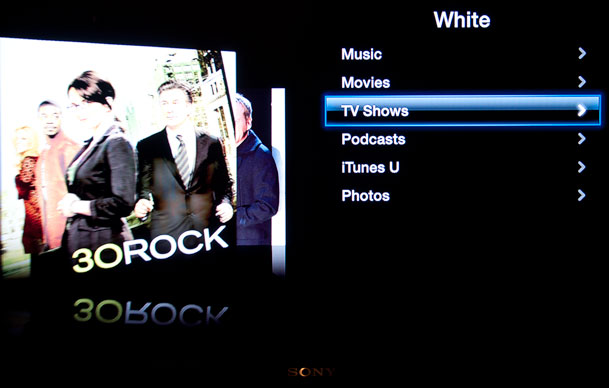
Once you drill down into your computer you will then see your content stream by as usual.


Rent vs. Buy

Renting makes sense and that's what the 2010 Apple TV is all about. There is NO option to "Buy" content directly from your Apple TV. This will be another thing that existing users would have to adjust to. You can rent movies and TV shows (currently only from ABC, ABC Family, Fox, Disney Channel and BBC America). TV shows are only $0.99 to rent the HD versions as opposed to buying them for $1.99 for the Standard Def version or $2.99 for the HD version. I really really like this model because the only reason I ever bought TV shows in the past was because there was no option to rent them. I usually only watch them one time after buying them and only buy them because I forgot to TiVo them. As far as movies go, I also rent 99% of the time and this has not really changed on Apple TV. The only thing you can't do is BUY a movie (or any other content) on Apple TV. You can still buy iTunes content on your computer and stream it, but not directly from the Apple TV itself. While many would argue that if it's (a movie) good enough to buy, you probably want the Blu-ray version anyway. Nonetheless, I'm still surprised that Apple doesn't at least allow a "Buy" option of any media they sell and have that content download on your computer instead. Clearly this is possible via Home Sharing since both devices are tied to the same account. So why have to get up go over to the computer to buy something and then go back to the Apple TV just to watch it or listen to it? This would be especially useful for things like music and music videos. By the way, there is no option to access the iTunes store from a Music perspective at all on the new Apple TV. You can only access the music sitting on your computer. 

Continue reading “The New Apple TV: New Users Might Love It, Old Users Might Hate It”

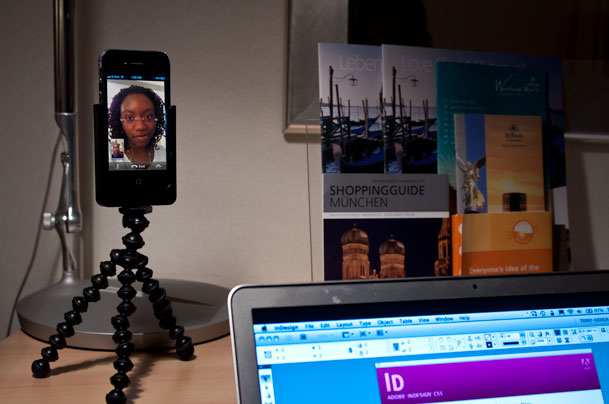
Do it yourself desktop stand for FaceTime calls

FaceTime Stand

I have really been enjoying using FaceTime to make FREE video calls back home while traveling abroad. Of course you need either an iPhone 4 or 4th generation iPod touch on either end and a Wi-Fi connection on both ends and you can talk and see as much as you want for FREE. It's been working extremely well! The one thing that I find to be a bit of a pain is actually holding the device. When just talking on the phone for long periods of time you can just lay it down and use speakerphone or a bluetooth headset as you roam around the room/multitask. However, with FaceTime you're going to not only want to hold the device, but you're also going to want to hold it up fairly high. Holding it down at a natural stomach level will probably yield some unflattering up the nose angles for your video. 

Then I got an idea

One evening while sitting and working at the desk in my hotel room I realized that not only was there a better way to do this, but I even had the necessary pieces with me to make it work. Ideally you want some sort of vertical stand for the iPhone 4 that lifts it up higher than the desk/table itself. I realized that I had both an iPhone 4 tripod holder AND a Gorillamobile in my computer bag. It took me all of 15 seconds to put the two together and I had an instant FaceTime stand that could be tilted and even attached to something higher if need be. It worked GREAT!


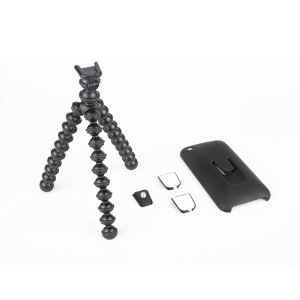
Here are the two pieces you need:

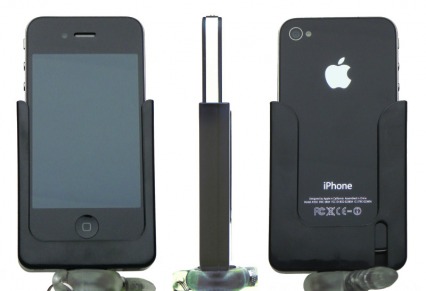
G-Design makes the iPhone 4 tripod holder. Unfortunately it's not designed for the iPod touch, but as long as you don't turn it upside down it should just hold it in place.

It fits the iPhone 4 very snuggly and you CAN turn it upside down or sideways if you need to.

The G-Design iPhone 4 Tripod holder is available here.


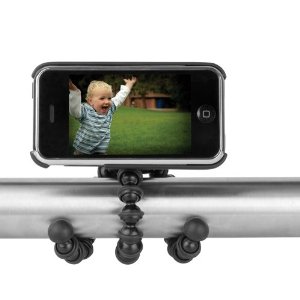
While the Tripod holder will go on just about any standard tripod, I find the Gorillamobile to be the smallest and most flexible in terms of standing it up or wrapping it around objects. It's so small in fact that I forgot that it was in my bag. So it's GREAT for travelers.

Get the Gorillamobile here.


Yes you can use FaceTime with a 4th Gen iPod touch too!

In case you missed it, you don't have to have an iPhone (and contract) to enjoy FaceTime. You can have this FREE video call goodness now with a 4th Generation iPod touch. It has the necessary front facing camera and can make the same FREE video calls over WiFi to other 4th gen iPod touch devices OR iPhone 4's. FaceTime on an iPod touch uses your registered email address to receive FaceTime calls as long as your on WiFi. You can make FaceTime calls to an iPhone 4 as long as you know their phone number or another 4th gen iPod touch as long as you have their "registered" email address.  Get the 32GB (don't waste your time with an 8GB model) iPod touch here.

Parallels 6 is Fast!

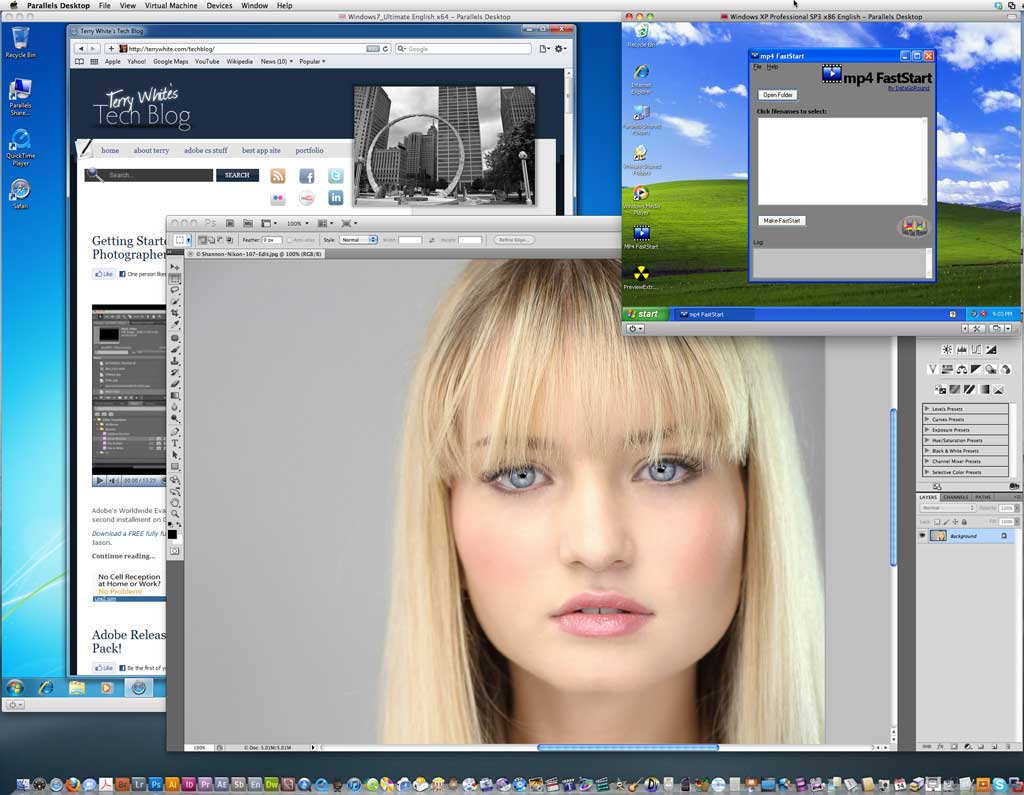
Parallels 6 above running Windows 7 64bit Ultimate Edition and Windows XP on a Mac Pro/Mac OS X 10.6.4  running Photoshop CS5 Extended – click the image to enlarge

Most of my day to day work is done in the Mac OS. However, there are times when I need to run Windows app/utility here and there. I can remember the days when I used to carry two laptops for work. I had a PowerBook for doing demos to Mac customers and an IBM (now Lenovo) Thinkpad for doing demos to Windows based customers. Once the the MacBook Pro hit the scene I was quick to jump on board because I could now use this one laptop to run both Mac and Windows Apps. Apple allows you to enable a feature called "Boot Camp" right in the Mac OS itself. With Boot Camp you setup a partition (size of your choosing) and natively install a copy of Windows (not included) on it. Then you can choose to boot up the computer in either OS and Windows running under Boot Camp is just as fast as running Windows on any other similarly spec'd PC. While you do get to run Windows as fast as your Mac hardware can, you have the disadvantage in that you can only run one OS at a time. In other words while you're booted in Windows in Boot Camp, you don't have access to your Mac apps. This is where virtualization Apps come in. The two top contenders are Parallels and VMWare's Fusion. I've had experience with both Apps in their latest versions and given the choice I'd go with Parallels.


When you have two apps that basically do the same thing, you have to look at "how" they do it?

Both Apps are great and both apps have very similar feature sets. Although I get to use VMWare's Fusion at NO COST TO ME because my company has a site license and offers it to any employee that needs it, I prefer to use Parallels (and buy it out of my own pocket). Both Parallels and Fusion allow you to use Windows on top of the Mac OS. This means that you are running both OSs at the same time and can launch apps in either. Both are going to run a bit slower than running natively in Boot Camp if for no other reason, they are sharing resources with the Mac OS running at the same time. However, being able to run the occasional Windows app without rebooting is worth the small performance hit. Both apps allow you to either run Windows from a "file' on any hard drive (including an external drive) or even use your Boot Camp Windows installation. So if they both seem to do the same thing, what makes one better? SPEED!!! Parallels with version 6 continues to have the advantage over the competition with SPEED! No other way to say it other than it just runs Windows FASTER. According to Parallels, version 6 is up to 80% faster than version 5. It's 64 bit and boots Windows more than two times faster than Fusion 3.1. Parallels 6 scores more than 2 times better on 3D graphics than Fusion 3.1.


It's running so fast as a matter of fact that I may never use Boot Camp again

Continue reading “Parallels 6 is Fast!”

iPhone’s One Button HDR: Another wakeup call to camera manufacturers

Yep, I'm back on my "point and shoot cameras are dying" rant again. You might remember this post where I talked about camera phones being the "new point and shoot cameras" and I gave my reasons as to why I felt this way then. As I stated in the earlier post, when it's important I shoot it with my DSLR. However, when it's just about capturing the moment and for fun I'm going to pull out my smartphone and take the shot. Before you argue with me, let me state the obvious: yes point and shoot cameras offer better optics and higher megapixels. They also offer a wider range of features for controlling the shot as well as the higher end models even offering RAW capabilities. Yep, I get it! They are technically better "cameras". No question. However, whenever there's an exciting moment unfolding at a public event I see 10 times more camera phones go up in the air than I do dedicated point and shoot cameras. The reasons for this are numerous. The most common ones are: people don't want to carry multiple devices and probably the biggest reason is that the camera phone shot is "good enough" for the average person. Beyond those reasons I think a bigger reason is that the camera phone and especially the smartphone offer instant sharing of those pics AND in device image editing!


iOS 4.1 Brings One Button HDR (high dynamic range) shooting to the iPhone 4

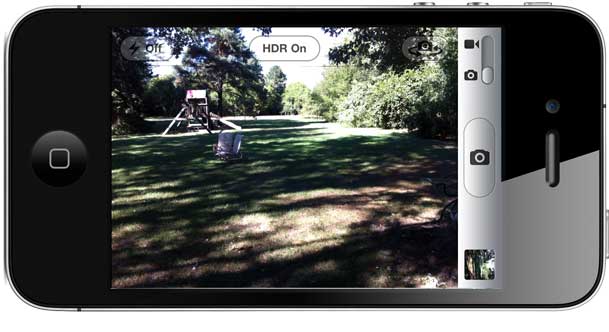
When I saw this feature come out in the latest update to the iPhone's operating system (iOS 4.1), I had an immediate "Duh" moment! Apple once again took something that is so obvious and added a "one button" interface to it. Professional Photographers have been shooting HDR images for years now. It has actually become a "creative" effect in photography. However, pros have to do this in a multiple step fashion that involves setting their camera up a certain way (bracketed exposures) and combining the multiple shots in post using software like Photoshop CS5 (Merge to HDR Pro). in its simplest form HDR is ability to combine multiple exposures into one high dynamic range image that achieves the best exposure for highlights, shadows and midtones. This is where the amateur photographer often fails. The shots that come from these low end cameras and camera phones often over expose one area or under expose another. Since there aren't very many if any manual controls on these devices you're usually stuck with what the device thinks you should have. So Apple took HDR and brought it to the masses in a seamless way. Just turn it on before you take the shot! With an iPhone 4 running iOS 4.1 you have the option to turn on HDR. Once it's on you aim at your subject and press the onscreen shutter button. The iPhone 4 then captures 3 images in rapid succession instantly with no lag, one under exposed, one over exposed and one in the middle and combines them together AUTOMATICALLY as an HDR shot. There is no user interaction required. Of course pros will want control. They'll want to tweak things an get the image just right and I applaud you for that. However, this feature isn't aimed at pros! This is aimed at everyone else so that right out the camera they can get better exposures.


For example…

The iOS 4.1 update gives you the option of keeping both shots. So here's the original shot BEFORE HDR.


Here's the HDR version (again, all automatic and with no adjustments on my part)

Is it perfect? No! I'd still like to see a little more light in the shadows of the barn. Is it better than what we were getting from these low end cameras? ABSOLUTELY!


Get HDR on the iPhone 3GS too

If your iPhone model doesn't support the iOS 4.1 HDR feature, you can still have HDR because there's an App for that. Before iPhone 4 and iOS 4.1 supported this feature natively, I was using the Pro  HDR App to do the same thing. Of course it takes more steps, but it get's the job done. You can get Pro HDR for the iPhone 3GS and iPhone 4 for $1.99 here from the Pro


Camera Manufacturers: Step Your Game Up!

There is absolutely NO REASON that this kind of feature shouldn't be on every point and shoot camera sold today. Yes, I applaud Canon for adding an HDR mode to the NEW G12 – way to go!

The lack of it (one button HDR), built-in wifi, built-in GPS/geotagging, etc. on the vast majority of P&S cameras continues to further my argument that point and shoot cameras are dead! Hell I'd like to see some of these features make it on to DSLRs too. Now I know I'm dreaming….

Great News For Developers: iOS iPhone

In April 2010 Adobe released Creative Suite 5. Among all of the amazing features of this release was one feature that allows Flash Developers to export their Flash developed Apps as native iOS (.IPA) Apps from Flash Professional CS5. However, due to a change in Apple's developer agreement the future of this technology was unclear as Apple basically changed their agreement in ways that would potentially block Apps that were not created with Apple's tools. Well yesterday Apple changed this policy and I couldn't be happier for the developer community! This is great news for developers and we’re hearing from our developer community that Packager apps are already being approved for the App Store. I should point out that Apple’s restriction on Flash content running in the browser on iOS devices remains in place.

Adobe will continue to work with key industry partners, including Google, RIM, Nokia, Motorola and Palm/HP to enable their device users to browse the full web through Flash Player 10.1 and run standalone applications on AIR. We are excited about the great progress our partners are making as they deliver the first smartphones to market with full Flash support.


The Video I Never Got To Show

You might remember my popular series "My Top 5 Favorite Features of CS5" that I ran on YouTube and my Creative Suite Video Podcast. I recorded those videos right before the official release of CS5. However, I chose to re-record my Flash/Dreamweaver video because I felt there was no need to talk about the iOS App Packager in Flash CS5 since Apps created with this technology could have been potentially blocked from the App Store. Well now I finally get to show you the video that I intended to show from the beginning. Here's my "original" Top 5 Favorite Features of Dreamweaver and Flash CS5. I think you'll like the last feature 🙂 :


httpv://www.youtube.com/watch?v=RgVmH8GMvnw


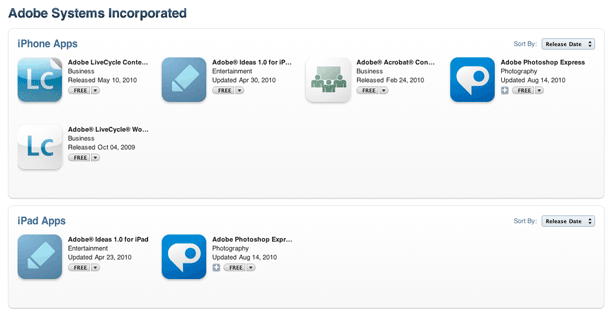
By the way, don't forget to check out Adobe's iOS Apps here.

Apple Announces the Mac Pro Update I’ve Been Waiting For

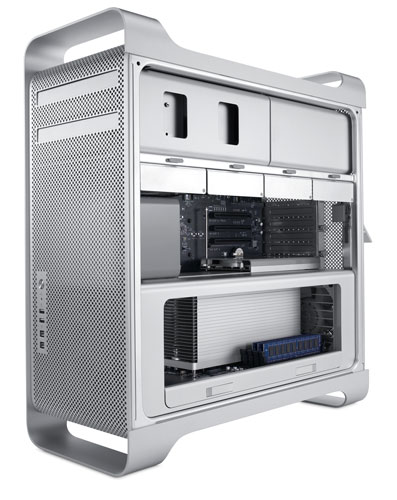
My current "work horse" Mac is my NEW MacBook Pro core i7. Don't get me wrong, I have a Mac Pro in my home office. However, my current Mac Pro is the original Mac Pro introduced back in 2006. That's ancient in computer years. Before that purchase I was usually upgrading my tower with every other release (about every 2-3 years). Over the years I wasn't seeing significant enough performance gains to spend the money. Then they introduced an update in March of 2009 that made me think it's time to upgrade, but I just kept putting it off. Now that my favorite Adobe Creative Suite Apps are 64bit enabled with the CS5 release I knew it was time for some new hardware. The problem is  I just didn't want last year's models. So once the new MacBook Pro core i7 came out, I ordered it (from work) day one! When I got it, I ran a speed test against my Mac Pro and was wowed by the fact that it BEAT IT! Granted that really shows just how fast the new MacBook Pros have become, but what it really showed me was just how slow my old Mac Pro was. So I waited and today Apple Announced the Mac Pro update I've been waiting for. Although there was no new case design, that doesn't bother me. It does seem odd though that Apple (a company focused on design) would continue use virtually the same design they introduced with the Power Mac G5 back in 2003!


There are 3 new configurations, Dual Core, Quad Core (8 cores) and Dual 6 Core (12 cores)

My only debate is do I spend the $5 grand on the 12 cores or settle for the 8 cores ($3,500). My gut tells me to go 12 core simply because I don't upgrade my tower as often as I used to and the faster the machine I get the longer it will last me. I have a little bit of time to think about it because Apple is not even taking orders yet. They're saying "August" for availability. I'll likely bite the bullet and go 12 cores to have the fastest Mac rendering speeds I can get. As far as video cards go I'll replace the stock ATi card for an Nvidia card to take advantage of Adobe Premiere Pro CS5's accelerated Mercury Playback Engine. <-this was a sneak peek video before CS5 was announced.

Continue reading “Apple Announces the Mac Pro Update I’ve Been Waiting For”