G Design updates their iPhone tripod holder for the iPhone 4


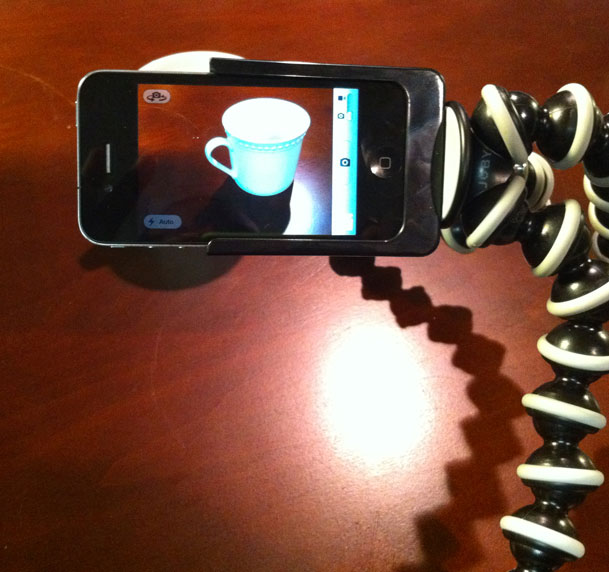
The good folks over at G Design have modified their popular iPhone Tripod Holder (original review here) to accommodate the slimmer iPhone 4 handset. Now that the iPhone 4 is sporting a 5MB camera and HD video, more and more budding photographers and videographers are taking it more seriously.


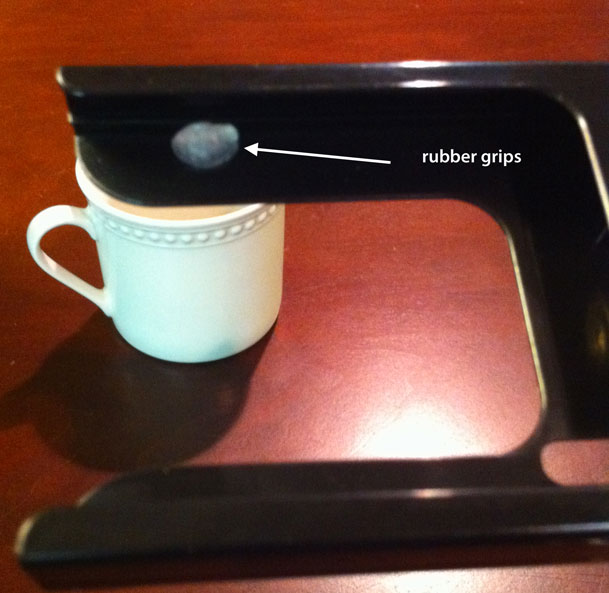
Addition of rubber grips

This is basically the same holder that they made for the iPhone 3G/3GS, they merely added rubber grips (bumpers) on both sides to fill the gap and hold the iPhone 4 in place.


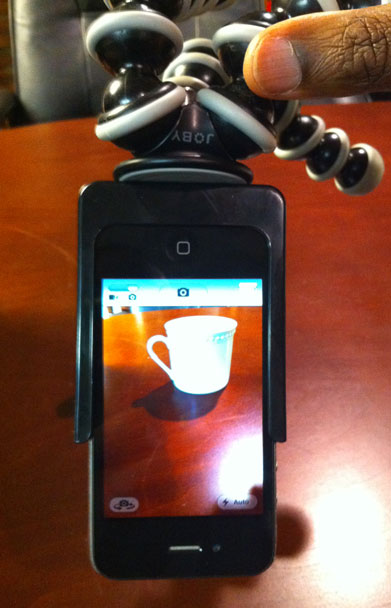
Yes, it holds it tight enough even upside down

Just like the previous model there is very little danger of the iPhone 4 sliding out and falling to the ground. As you can see here I've got it completely upside down. Although I can't think of too many times that I would need to mount it this way (sideways/landscape is fine), it's good to know that it holds it in place if I do.

Not only would this work well for your next photo/product shoot or video project, but it would also be handy for those extended FaceTime sessions. 


You can get the NEW iPhone 4 Tripod Holder here from their site. You can get the GorillaPod featured above here.

SIM to MicroSIM back to SIM

With the introduction of the iPad WiFi+3G and now the iPhone 4, one thing as a gadget guy that has become more challenging is moving my SIM cards around between devices. As I test various devices whether they be 3G MiFi devices, 3G USB data cards, iPhones or Androids, I want to be able to simply use the same wireless accounts and go back and forth as I please. After all that is the advantage of GSM devices over CDMA. However, the iPad and iPhone kinda screw that up because they use MicroSIMs and all my other devices use full size SIM cards. The good news is that technically there is no difference between the SIM and the MicroSIM other than the physical plastic around it. The pin layout and contacts are the same. 

Cut My SIM to the rescue

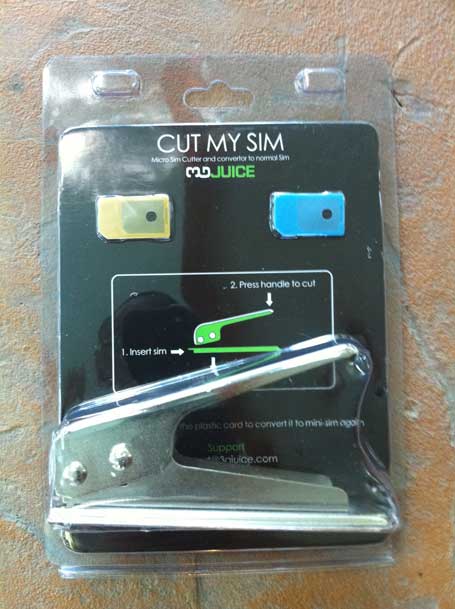
Since a MicroSIM is nothing more than a regular SIM card with the excess plastic cut away, I ordered a Cut My SIM MicroSIM cutter. The device resembles a hole punch and you just insert full size SIM in, press down and out pops a microSIM from the bottom. They even provide two SIM converters to use in case you ever wanted to put your MicroSIM back into a device that uses full size SIM cards. Since I didn't want to risk screwing up a working SIM card, I first tried it on that had been deactivated. I cut it, popped it back in the converter and put it back in the phone and although it wasn't an active number, the phone did recognize it as a SIM card again. Next I tried it with the SIM card from my iPhone 3GS and put the newly cut down MicroSIM in my iPhone 4. No problem! It works! Later this summer when I test the Android phones (and maybe the tablets) it will be great just using the same SIM/MicroSIM card to go back and forth between the two devices.

You can get Cut My SIM here from their site. ($25) Due to the heavy demand, there will likely be a delay before yours ships.

If you're starting out with a MicroSIM and just want to go to a regular SIM size using the converter trays, you can get those here.

Continue reading “SIM to MicroSIM back to SIM”

iPhone 4 Camera White Balance: The Other Issue

Wow! There certainly has been a lot going on in the press about the iPhone 4's phone reception issues. Any time you sell millions of anything you're going to have a percentage of users that have issues with it. Especially if the something you're selling is created under a veil of secrecy that may inhibit testing under a wide variety of conditions. For the record, I can't repeat the "cosmetic" signal strength indicator problem. I've covered the little black strip areas with my fingers and I've held the iPhone 4 as tightly as I can and at the most I saw a brief one bar drop in signal on the display that I couldn't even repeat. However, although I can't repeat what others are saying is happening doesn't mean that there isn't a reception issue! It also doesn't mean that just because I can't make it happen that others aren't having a real problem. I will say that out of all the iPhones I've ever owned (all models up until now), that prior to putting the "Bumper" on my iPhone 4 I dropped more calls on my iPhone 4 than all my other iPhones combined in the same locations that I always call from and calling the same people that I always call! I've also had random disconnects and reconnects using my Jawbone ICON bluetooth headset that I never had with my 3GS. So there is definitely something going on there and it's not just how the bars are displayed on screen. Again, you may not be having a reception issue at all and you may have the best signal strength and call quality that you've ever had, but that doesn't mean that it isn't happening to others. So please don't tell me about how just because it's not happening to you, the problem doesn't exist!

Speaking of problems that not every iPhone 4 is having:


Is there a White Balance Issue with the iPhone 4's Camera?

On my iPhone 4 there definitely is a problem and I'm not alone. If I use the camera outside, the pictures are great! No complaints. However, depending on the lighting situation inside my pictures will have an extreme yellow tint to them.  As a photographer and video enthusiast one of the main reasons I upgraded to the iPhone 4 was to get the better camera AND HD video recording. Since the problem is in the way the rear camera interprets the light it also affects any video shot too. Once again, this isn't happening to everyone. My buddy Jack Beckman has NOT been able to reproduce this with his iPhone 4. Even on mine it doesn't happen in all cases. For example, I took a shot in my dining room the night I got my iPhone 4 and it was pretty much unusable as everything and everyone was YELLOW. However, the next day when more sunlight was coming in the window, the pictures came out great. Using the camera flash doesn't seem to matter much. I took this shot in complete darkness and for the most part, except for the Sony label on the tripod the white balance is fine. 

Continue reading “iPhone 4 Camera White Balance: The Other Issue”

Why Do You Wait In A Line For Gadgets?

Anyone that knows me, knows how much I detest waiting in long lines. I absolutely refuse to wait for hours in lines for gadget purchases. That's not to say that I haven't stood in a line to purchase something, but I certainly avoid it at all costs. With all the iDevice craziness out there and the fact that in most cases you can pre-order the gadget and have it sent directly to your home, I really don't get why anyone would wait in a line (especially overnight)? Also in many cases, if you're willing to wait a few hours, few days or a couple of weeks you can just walk right in and up to the counter and buy one. This coupled with the lack of acceptance of cash for many of these iDevice purchases really leaves me scratching my head. 


This video really puts it in context: Happy Friday Everyone – have a great weekend!


You can grab this entire episode (Attack of the Killer App) here: Attack Hilarious!

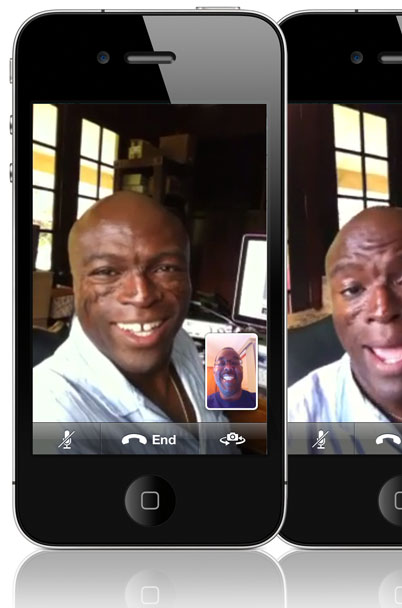
My FaceTime Chat with Seal


I finally got around to giving the iPhone 4's FaceTime video chatting feature a real world test yesterday with none other than music recording legend Seal. While I would have loved to have shared this call with you as a recorded video, I respect Seal's privacy wishes not to show his home here/on the internet. So I'll have to do one later with him when he's on the road. We were both quite impressed with the quality and ease of doing this type of hand held video chat. 

The picture quality was great and the audio was crystal clear. As a matter of fact FaceTime is currently working better than the Phone part of the iPhone 4. Sadly, I've dropped more calls on my iPhone 4 in the past two days than I have with all previous generation iPhones that I've owned combined! Granted the Bumper does help, but there are some real issues that Apple needs to work out here. All in all it was a fun chat that lasted just over an hour. 


FaceTime doesn't use your cellular minutes

One nice surprise is that while you can initiate a FaceTime chat with someone you're talking with on the phone (provided you are both using iPhone 4's and both on WiFi), the minute that FaceTime Chat is in session you are no longer using your cellular minutes. You can also initiate a FaceTime chat directly with a contact in your Contacts list. Again without using any cellular minutes. So this is going to be AWESOME for my international travels. FaceTime is a winner.

AT&T Finally Brings Tethering to the iPhone: What you should know…

One of my main AT&T/iPhone complaints has finally been addressed. Ever since the iPhone 3G (and for some, the original iPhone) came out two years ago, I wondered why AT&T was so adamant about NOT allowing you to tether (use your iPhone as a modem/WiFi hotspot) your iPhone to your laptop and share its 3G data connection. After all they allow this with every other smart phone they sell and they even sell 3G data cards. Also no one ever expected this to be FREE. So I never really got why this was such a big deal? Granted AT&T couldn't do it alone and it would require built-in support by Apple in the iPhone OS (iOS). However, that support came in iPhone OS 3 LAST YEAR. So what took AT&T a YEAR to allow it on the iPhone for us in the US? They claim that they still needed to tweak their network to allow the influx of additional data traffic. While this may be true, the thing is since it's not FREE, not everyone is going to do it. Also it's not something you're going to be using all the time or would you?


Data Plan caps may have been the real issue

I don't doubt that AT&T needed to (and still needs to) work on "the world's fastest 3G network" to get it ready for even the slightest increase in traffic, but I suspect that an even larger issue was not wanting you to be able to pay a flat fee and have unlimited use. Even when you go with a $60/month 3G data card from AT&T there is a 5GB/month cap on it. Up until now all iPhone plans have been "UNLIMITED" data. So while the amount of 3G data that iPhone users currently consume must be HUGE, I'm sure giving users unlimited tethering would have brought this fragile network to its knees.


Do you want unlimited iPhone 3G data or do you want tethering?

Continue reading “AT&T Finally Brings Tethering to the iPhone: What you should know…”

5 Nice Surprises in iOS 4

Like many of you, I upgraded my iPhone 3GS to iOS 4 yesterday. I'm traveling in France and the upgrade went great. No glitches or problems reactivating. I was also very happy that it didn't wipe the phone and make me restore all my content (especially since I sync media from an iMac at home). I'm very happy (almost giddy) with the folder management for Apps and the unified inbox for Mail (one of my pet peeves since day one!). Although I've been trying to keep up on the new features as best I could while traveling, there were a few pleasant surprises that I hadn't seen listed anywhere.


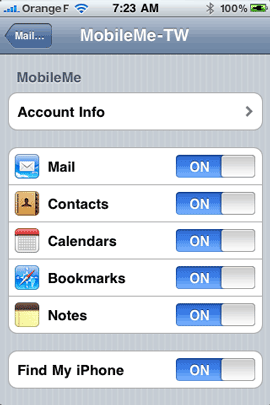
1 Notes Syncing Over the Air

It's about freaking time! I never understood why you could sync Contacts, Calendars, etc. via MobileMe, but not Notes to the iPhone (3.x) over the air. Well it's here now and you can do it with MobileMe or ANY IMAP based email service! Woohoo! Finally!


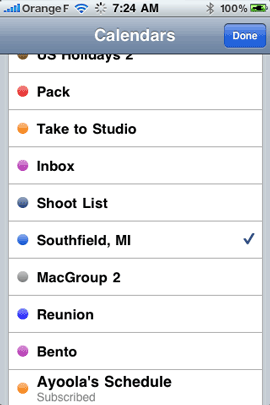
2 Calendars On/Off

One of the things that surprised me about the iPad's calendar made it's way into iOS 4 for the iPhone and that's the ability to turn calendar displays on/off individually. I cheered! In previous iPhone OS 3.x you could either look at an individual calendar or ALL calendars. I have lots of calendars on my iPhone, but don't need to see them ALL all the time. It's great having a unified calendar view of just the calendars I want to see. However, performance definitely took a hit here. It's sloooooooooooooooooooooow scrolling my calendar in List view for some reason (even though I've now turned most calendars off).


3 iTunes Playlist Creation

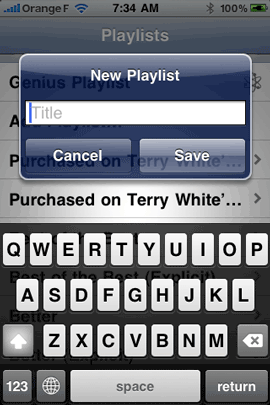
A nice touch that I didn't see coming. You can now create a Real Playlist complete with a name on the fly and add any of your songs to it right on the iPhone itself. It will sync back to iTunes on your next sync.

Continue reading “5 Nice Surprises in iOS 4”

iTunes 9.2: Why can’t we sync playlists yet?

It was Wednesday afternoon last week and I was packing to head out on a business trip. This usually involves syncing my iDevices so I have the latest tunes, Apps, movies, etc. that I want to take with me on the road. All of this syncing works great between devices, except when those devices happen to be computers! My main music library is on a shared family iMac in a central part of the house. It has music on it from each family member according to their tastes in music. As you might imagine I really don't want to bring a bunch of music with me that I have no interest in listening too. This isn't a problem on an iPod, because you simply sync only the playlists you want to take with you and only those songs will go onto the device. 

So why does Apple exclude computers from all this syncing "magic"?

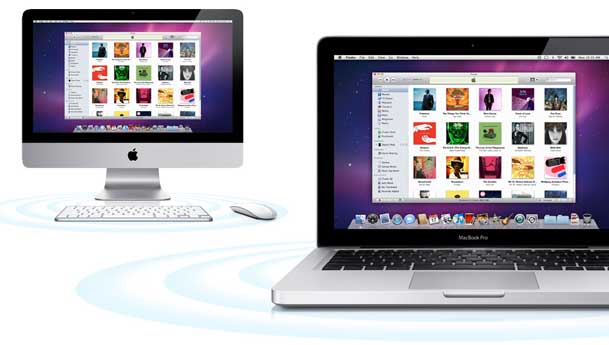
I have iTunes 9.2 on my MacBook Pro. I have iTunes 9.2 on my iMac. Both Macs are authorized on the same iTunes account and therefore can legally play the same songs. However, when it comes time for me to get songs from the iMac onto the MacBook Pro it's a very MANUAL process. iTunes 9 introduced Home Sharing. However, Home Sharing is essentially just a network copy feature and nothing more. Although Home Sharing DOES automatically add purchased songs to the other computer, there's no syncing and no duplicate management for playlists or anything else. Grab 10 songs and drag them over and 5 minutes later you can grab the same songs and drag them over again. iTunes will not warn you about any duplicates and it will just copy them AGAIN. This problem got a little worse back when Apple moved to iTunes Plus because although you could "upgrade" your songs and iTunes would replace them with the new DRM free versions at a higher bit rate (keeping your ratings, metadata, play counts, etc.), your other computers would be out of luck for this automatic replacement. You would have to do it all manually.  I guess from time to time you could wipe your library on one computer and copy over again, but the question becomes why is there no automatic way of keeping two iTunes libraries in sync?


Is there a 3rd party solution out there?

I've looked and so far I haven't found the perfect app yet (or even one that's close). Sure there are some Apps out there that will attempt to keep your iTunes libraries in sync. However, from what I've seen so far either the user interfaces are HORRIBLE and overly complicated or they simply don't do enough. For example, I haven't found one yet that syncs "Smart Playlists". Let's say I have a Smart Playlist of my "Best of the Best" songs. They are the ones I've rated 5 stars. So technically it's not a "real playlist", it's a dynamic one that updates automatically based on the song ratings. None of the Apps I've tried to date will handle this. Yet Apple has been able to sync Smart Playlists to the iPod since day one.

Ideally what I want is pretty simple – I want to be able to choose a few playlists on my iMac (including Smart Playlists) and have those SAME playlists sync to my MacBook Pro. If I change the rating of a song on the iMac, then that song's rating should get changed on the MacBook Pro too and therefore it would appear in the proper playlists automatically. If I have manual playlists that I move songs in and out of, this should happen on the MacBook Pro too. 

Yes, I'm very willing to pay for such a solution. Have you guys seen anything out there that really works? It's sad that Apple hasn't built this in directly to iTunes for computers like they have for iDevices.