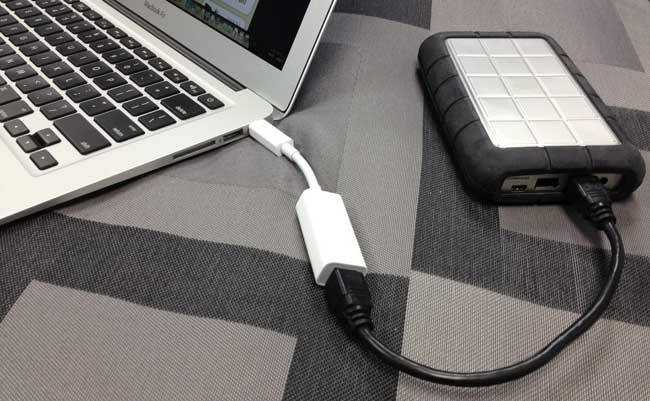
The MacBook Pro Retina Display is the 1st “Pro” Mac to ship without Firewire. However, Apple also announced that they would ship a Thunderbolt to Firewire Adapter in July. Although the adapter did ship a few days late, it’s here and no surprises – it works!
I was shopping for USB 3 drives, but I kinda just stopped looking. I figured that I could get by with connecting my existing drives via USB 2 until the adapter shipped. I’m glad I waited, because out of the box I just plugged in my existing Firewire 800 drives and up they came onto the desktop. This makes my MacBook Pro Retina Display complete.
Bonus
One of the downsides with going with the MacBook Air in the past was that you’d be giving up high speed connectivity to external drives. The original MacBook Air only came with USB 2. The last two models included Thunderbolt, but Thunderbolt drive availability was far and few between. This adapter also brings Firewire connectivity to the MacBook Air for the 1st time! I plugged in my LaCie Rugged 1TB drive into my MacBook Air via the Adapter and it just worked.
Although I haven’t done any speed tests, the speed should be the same as Thunderbolt is faster than Firewire. It should therefore be able to keep up with Firewire drives.
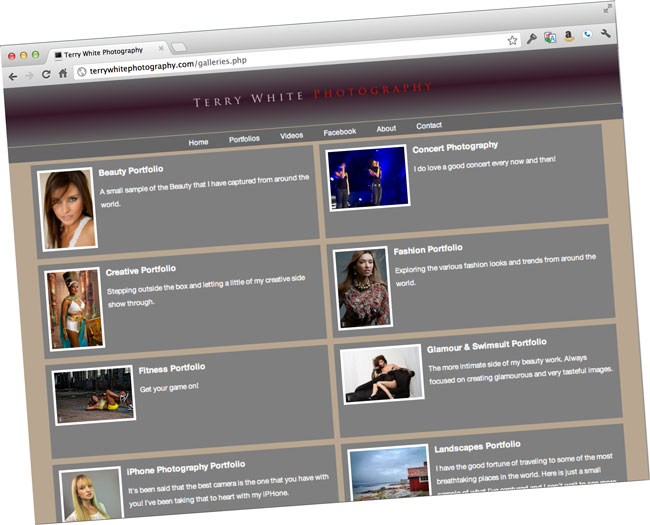
When it comes to photography my primary focus is Beauty/Fashion, in other words people. However, because I travel for a living I also get to do a fair amount of landscape and travel photography too. While I did have a Landscapes Portfolio on my site, my travel shots were starting to blend in even if they weren’t technically landscapes. A couple of nights ago I decided to break them out and create a dedicated Travel Portfolio.
While I was at it I also was curious to see how many shots I had taken with my iPhone. I was toying with the idea of perhaps having an “iPhone Photography” Portfolio just for fun but I could only think about 3-4 worthy shots off the top of my head that I remember shooting with my iPhone.
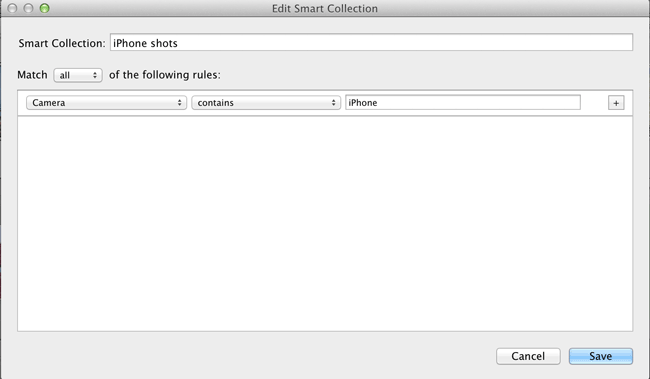
I figured that I shouldn’t trust my memory and I decided to let Lightroom show me my iPhone shots by creating a Smart Collection. I was right to take that approach because there were many more shots than I remembered taking with my iPhone and as a result I was easily able to put together an iPhone Photography Portfolio just for kicks.
While I don’t see any smartphone camera replacing my DSLR any time soon, I pretty much do use the iPhone 4s 99% of the time as my point and shoot camera. I’m usually amazed by some of the shots I get considering the small sensor on that thing.
I updated my site using the Turning Gate Plug-ins and Adobe Lightroom 4.1. Also since I’m a Geotagging Freak! Most of the shots in the new galleries will show you the location where they were taken.
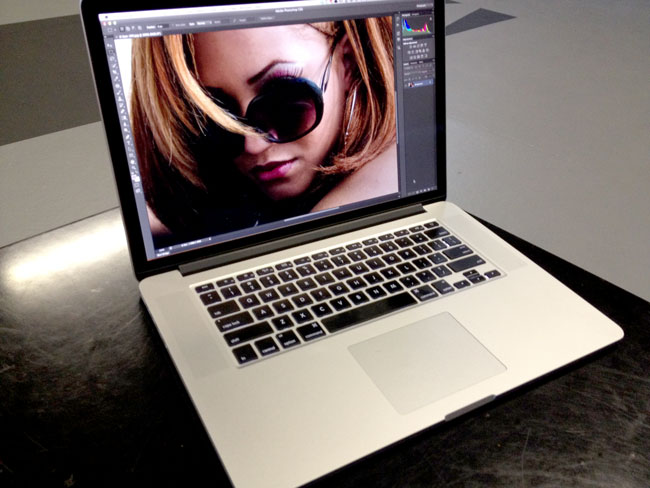
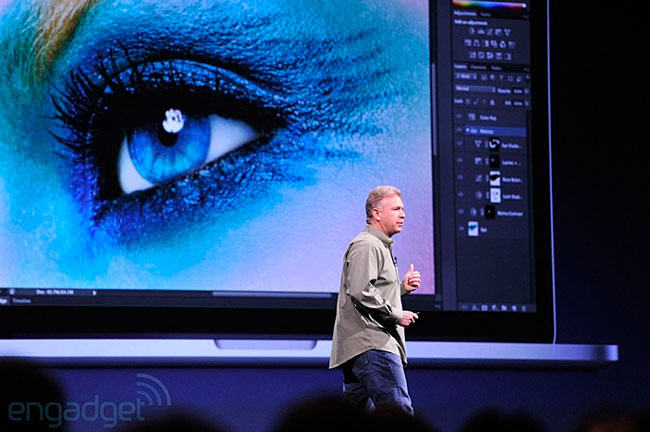
Many of you have been asking me about my impressions of the new MacBook Pro Retina Display from a “Photographer’s Perspective” and I’m not quite ready with that review yet. However, I have done my 1st review and given my overall impressions of it, which you can read here. The reason that I’m not really ready to talk about it from a photographer’s or even a designer’s perspective yet is that to be fair we really have to wait for Apps to be updated to take advantage of this (Hi-DPI) display. While Apple did showcase a “future” version of Photoshop CS6 on stage, that version is not quite ready for distribution yet.
photo credit – Engadget.com
We’re also waiting on Lightroom, InDesign and Illustrator. What I can say now is that while the current CS6 versions haven’t been updated yet, they do work just fine and I have no problem using them in my daily routine.
As a matter of fact I’ve completely switched over to the New MacBook Pro Retina Display and used it on stage during my Detroit InDesign Users Group meeting last week without any issues. I did my entire demo including Photoshop CS6, Bridge CS6, Illustrator CS6, InDesign CS6, Acrobat Pro X, and Adobe Muse. I figured that there was no better way to really test its capabilities than to do a full blown demo on stage in front of 200+ people 🙂 Crazy=Brave. I didn’t even bring the old one as a backup. It all worked perfectly!
How do non-Hi-DPI apps look?
That’s the question you’re probably wondering about and I have to say that while not as crisp as a native Hi-DPI app would look, these apps don’t don’t look bad at all. At least not as bad as I feared. Sure they are a little “soft” and if you zoom in in Photoshop you’ll see more jaggies around the edges, but even with these annoyances, I have no problem doing my day to day work including photo retouching. I actually feared that it would be unusable and I’d have to keep using my other MacBook Pro until the updates came out. I’m glad that that turned out to not be the case (Y.M.M.V. – I can’t tell you how YOUR eyes will perceive ANY display. You really have to see YOUR work on a display that you are considering and be YOUR own judge! I can only tell you works or doesn’t work for me.)
When these apps are updated for Hi-DPI life will be even better! So stay tuned for an updated review or second look once we have an update to Photoshop and perhaps some of the other apps. As a photographer you’re definitely going to want this USB 3 CF/SD Card Reader by Lexar.
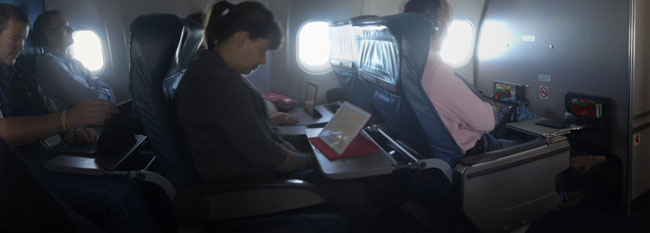
The more I travel, the more I see people using iPads (and to a much smaller degree Android tablets) in lieu of laptops. This is especially true on planes.
On my recent flights I’m seeing iPads out number laptops by about 5 to 1
In some cases I myself have gone on short trips and used just my iPad instead of my laptop. With more and more useful iPad Apps coming to market each day, I find that I don’t require a laptop nearly as much as I used to for day to day communications and social media activities. The iPad may never replace my need for a “work” laptop, but it certainly goes a long way towards reducing that need for things like email, web, expense reports, blogging, etc. That being the case I can see times where carrying just my iPad in my laptop bag is overkill.
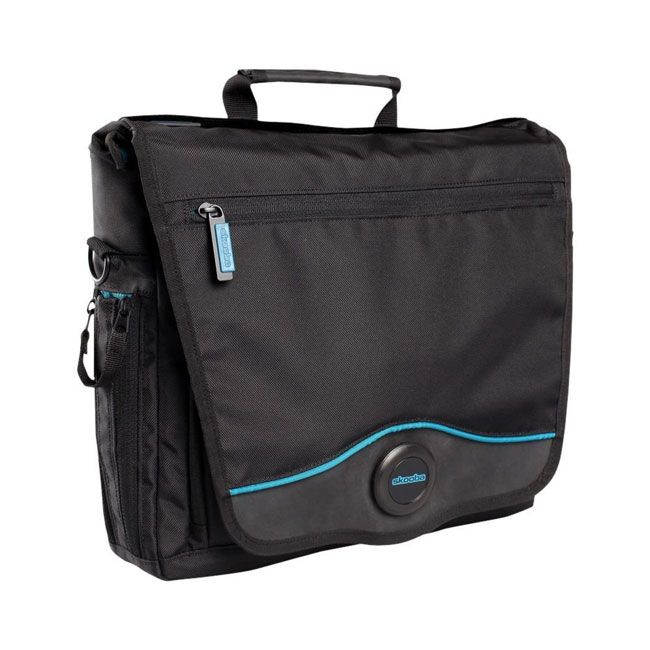
Skooba Design has the answer with their New Skooba Tablet Messenger v.3
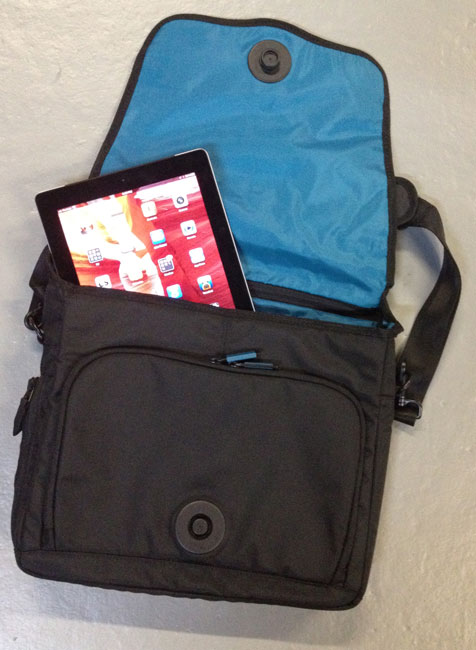
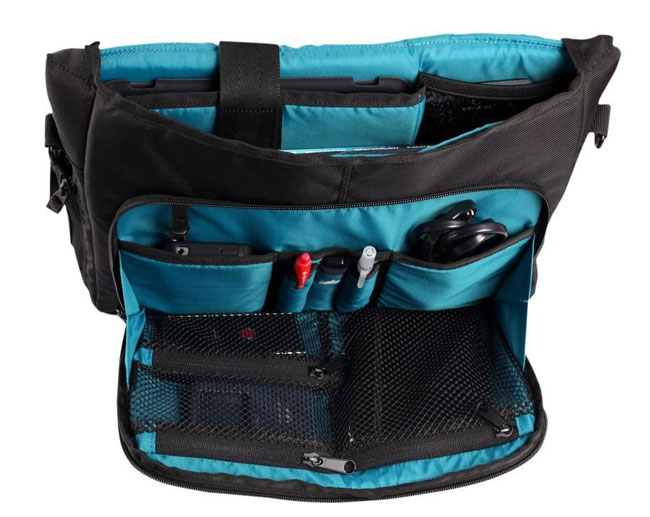
This new bag is designed from the ground up to be a tablet bag, not a laptop bag. It has a special pocket inside for a 10″ tablet.
It has plenty of room for the tablet and accessories such as a charger, sync cables, headphones, keyboard, Jambox speaker, etc. I was also pleased to see that it was large enough to also accomodate a 13″ MacBook Air. This makes it a great bag for me because I can really go light with just the iPad or if I think I may need a computer, I can still bring my MacBook Air without totally weighing it down. Since most TSA checkpoints don’t require that you remove your tablet from your bag, you can just send the whole bag through the x-ray machine.
I would say the only disadvantage that this bag has over my Skooba TSA Friendly Backpack is that it’s not large enough to carry my DSLR, but that’s OK because it’s so small that I can still carry a small camera bag and fit both under the seat in front of me.
Can you get by with just an iPad on a trip?
This question comes up all the time and my buddy Calvin Carson had a great suggestion: Before going on your trip, try using just your iPad for a day or two while you’re still at home. Do the same things that you would do on your trip. Then you’ll have a pretty good idea of whether or not you can get by without your laptop.
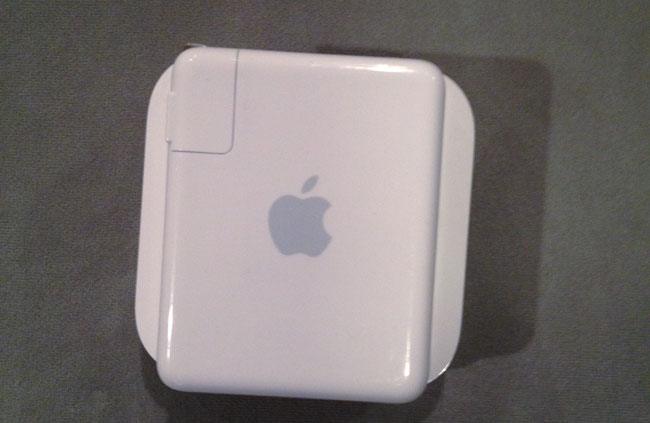
One of my favorite road warrior gadgets is the AirPort Express. I have several of them for AirPlay streaming around the house and studio as well as at least one with me at all times when I travel (it lives in my bag). See “What’s In My Laptop Bag.” I never had an issue with the design of it. I actually appreciated the simplicity of it being a compact self-contained router with flip out prongs to plug it into a wall outlet for power. It was fast, easy to setup and it just worked. Now that I not only have to demo cloud services for living, but also mobile Apps, I really appreciate being able to setup my own WiFi network on stage as well as my hotel rooms. The previous generation AirPort Express had 802.11n support as well as AirPlay and supported up to 10 devices simultaneously connected. It even supports connecting a USB printer for easy wireless printing. Yep, it was just about perfect what it was.
Apple changed it!
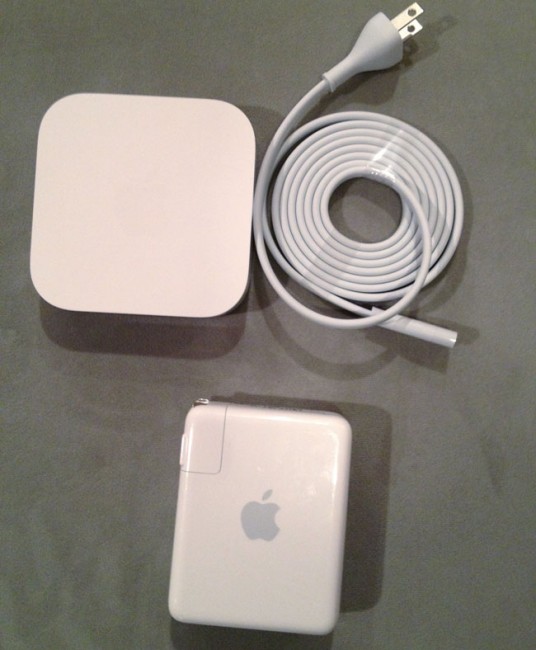
The new AirPort Express on top now comes with a freakin’ cord! Noooooooooo!
Apple quietly introduced a brand new AirPort Express model on Monday at the WWDC (along with new MacBooks and iOS 6 – yeah there was a speed bump to the Mac Pro too – sad that it’s virtually the same chassis as the Power Mac G5 and got no Thunderbolt or USB 3 love…). Although I was most excited about the new MacBook line up, I was quick to take a look at the New AirPort Express too. While the specs looked great, I cringed when I saw the back of it. Apple has gone away from the all-in-one design to one that is almost identical of the Apple TV. By that I mean that it now requires a power cord. This may not seem like a big deal and maybe it isn’t (I’ll be on the road with it next week), but I certainly will miss just flipping out the prongs and plugging it in!
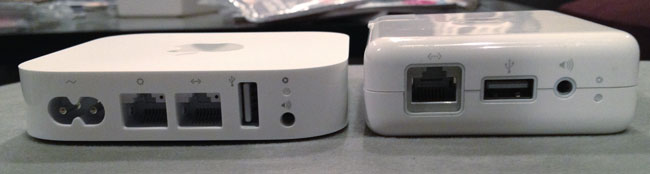
The new one is slightly wider, but also slightly thinner.
On the plus side Apple added a second Ethernet jack so that you can connect not only the ethernet cable to your internet connection, but also plug in a device via ethernet for speed. Sadly though these still aren’t gigabit ethernet ports. Not sure how much I’ll need that second port on the road, but it’s nice to have. The new AirPort Express is also dual band (like the AirPort Extreme) simultaneously supporting 5Ghz and 2.4Ghz WiFi connected devices. It still has AirPlay and a USB port for printers as well as support now for up to 50 devices. It’s that last one that pushed me over the edge. While I personally don’t need more than 10 connections on the road, there are times when I’m using the AirPort Express on stage and sharing it with other presenters and perhaps a colleague or two in the audience. With laptops, tablets and phones connecting to it, it’s much easier to go past 10 devices than it was back in the day.
Setup
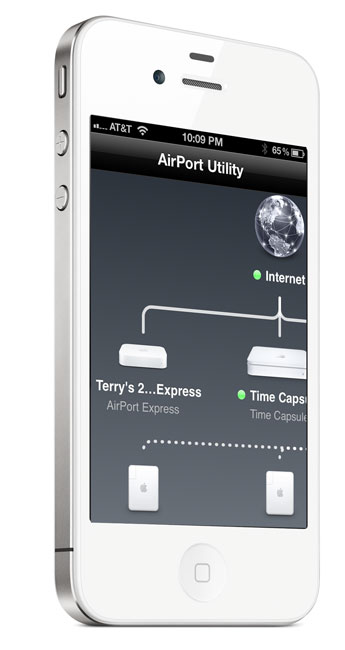
The setup is a piece of cake as usual with the AirPort Utility. You can even do the setup from your iPhone, iPad or iPod touch with the iOS version of the AirPort Utility. Now you can even setup a guest network like you can on the AirPort Extreme granting those users just internet access instead of access to your entire network.
The Bottom Line
New AirPort Express on the Left, Old AirPort Express on the right.
The 2012 AirPort Express is overall a nice upgrade at the same price as the old one. It’s about the same size as the old one being a little thinner, but a little bigger overall. I wished they had kept an all-in-one design as I don’t want to have to have one more cord to carry, but I’m sure I’ll be able to adjust. If you have a recent 802.11n model then there probably isn’t much of a reason to upgrade. However, if you’re on an older 802.11b/g model or you use one at home as your primary router, then you’ll want the new stuff in this one.
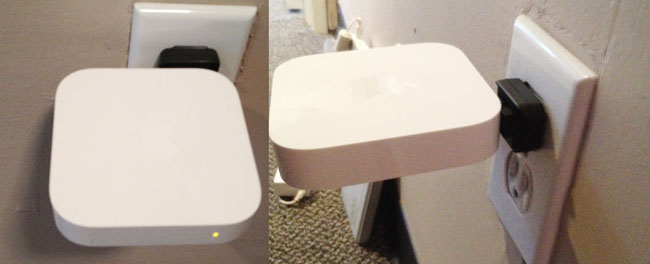
Leave it to my buddy Scott Diussa from Nikon to give me an option. Apparently the plug adapter for the Nikon D7000 battery charger will fit the New AirPort Express and work in a pinch. It’s not elegant. It’s not pretty, but it does work. Now if it were only white. 🙂
Update #2 While the Nikon plug does fit (so does the original Apple one), it slightly blocks the WAN port making it a non-starter. 🙁
If your camera uses SD memory cards then you have probably had no issues importing images into your iPad using the Apple Camera Connection Kit. However, if your camera shoots Compact Flash then it gets a little more challenging. Apple doesn’t make a kit or adapter to allow you to import your images from your Compact Flash cards directly. However, M.I.C. does!
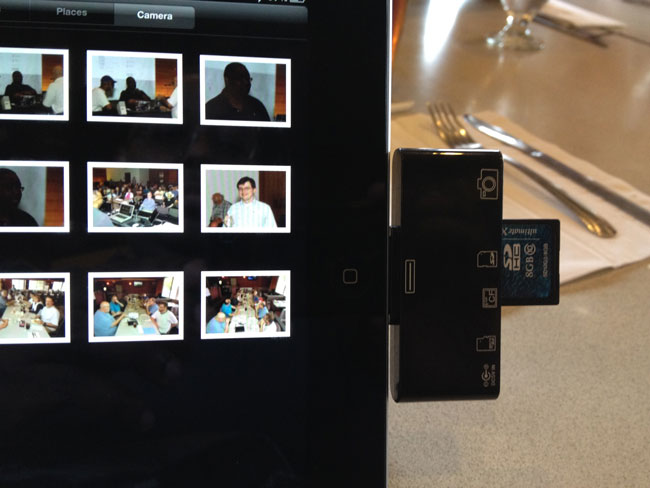
Camera Connection Kit 4-in-1 for iPad, iPad 2 and The NEW iPad
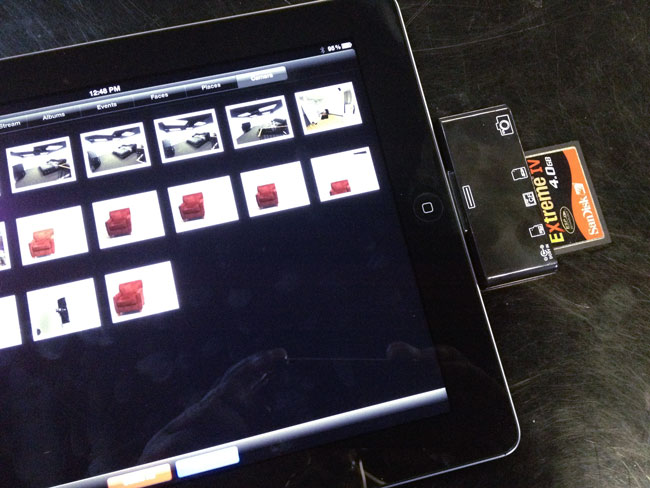
I’ve been using the original M.I.C. reader for over a year. Recently I either lost one of the two I own or I misplaced it. This lead me to go to their site and order a new one. That’s when I discovered that they had replaced the one I had with a newer, better one. This NEW Camera Connection Kit not only handles Compact Flash (CF) cards, but it also handles SD, MicroSD and a direct USB connection to your camera. This effectively eliminates the need to carry both the M.I.C and the Apple one as it will import images from both my SD and CF cards.
One of the hurdles in supporting CF cards is that the higher speed ones use more power. A while back Apple purposely dialed down the amount of power available via the iPad dock connector as they didn’t want people connecting all the peripherals they were starting to connect to it (I can only guess they did this to eliminate all the support calls for what people might connect to an iPad). M.I.C originally said that they wouldn’t support cards over 400x in speed, but this new Connection Kit also comes with a USB power cable to the adapter. If you have a card that draws more power than the iPad will handle you can plug in this cord to the adapter and your USB wall charger and get more juice.
How well does it work?
Over the weekend I was at a meeting where a photographer was taking pictures. He handed me his SD card and I imported his Canon RAW shots right into my iPad. No problem. Yesterday, I decided to try it with the CF cards from my Nikon D4. This is where I discovered that although M.I.C. includes a power solution, you can still have cards that won’t work. For example, my SanDisk Extreme IV cards worked fine, but my newer Transcend 32GB 400x CF cards wouldn’t work at all. Even when I plugged in the power cord, the card wouldn’t mount on the iPad.
The Bottom Line
There are lots of knock off 3-in-1 and 4-in-1 readers for the iPad that are cheaper than the M.I.C. solution. However, most of them don’t work on the New iPad at all! Although the M.I.C. 4-in-1 Connection Kit worked fine on my New iPad, there was still at least one particular CF card that it couldn’t read. Therefore I would recommend that you test your cards before heading out on your trip with your camera and iPad only. Lastly, the New Photosmith 2.0 App makes the sorting, flagging and metadata process on the iPad much nicer especially if you’re a Lightroom user. When you get back with your iPad you can simply sync all your RAWs, JPGs, and Collections to Lightroom wirelessly!
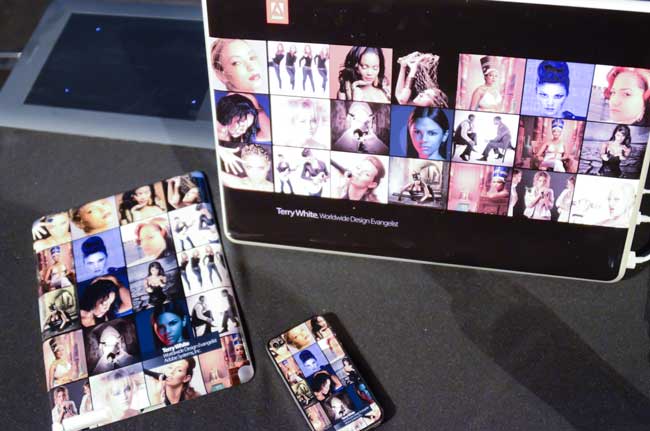
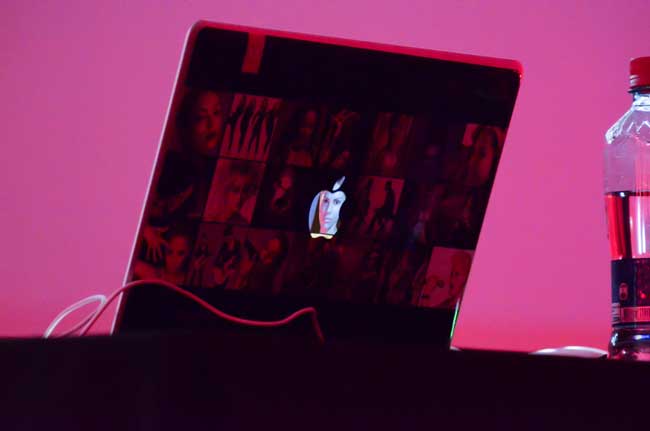
I’ve been using Gelaskins for a couple of years now to customize my various devices. As a photographer I’m always looking for ways to display my work. Put the two together and now my “Creative Portfolio” is on my MacBook Pro, iPad and iPhone.
P.S. I love it when the TSA agents are so busy looking at my photos that they forget to make me take off my belt! 😉
Check out Gelaskins here. You can buy existing designs or upload your own!
Sometimes I get comments here, jokingly about how much money I just cost you because I reviewed something cool that now you must have. Well you’ll take pleasure in knowing that it just happened to me too. My colleague and gadget buddy Dave Helmly just showed me his latest gadget and in about 3 seconds I knew I’d have to have one.
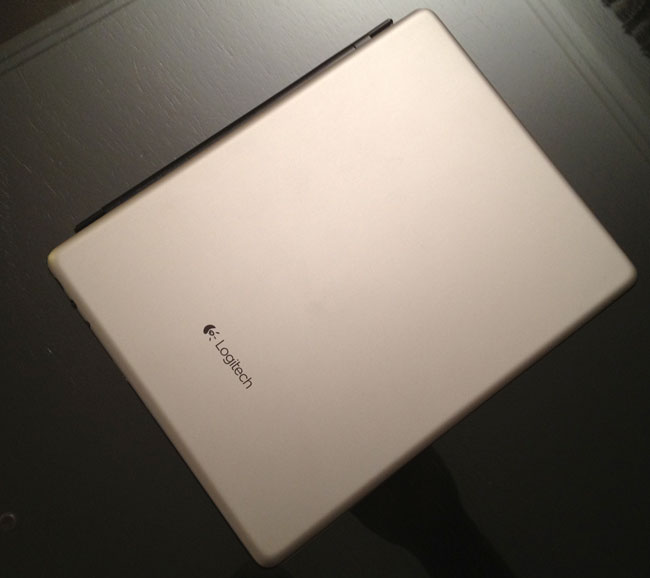
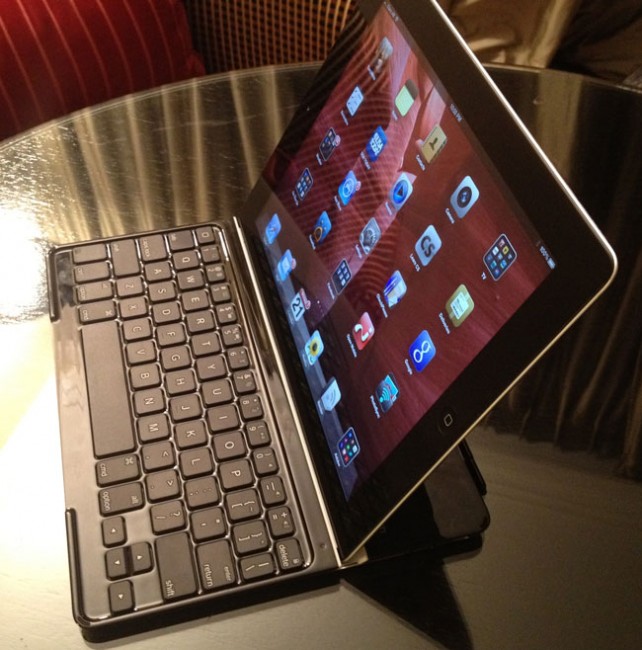
The Logitech Ultrathin Keyboard Cover for iPad 2 and the New iPad
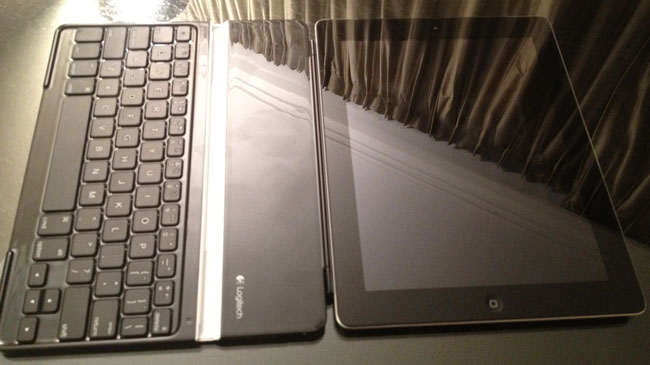
I’ve tried other iPad keyboards and while they work, I usually just ended up carrying my Apple Bluetooth Keyboard. The problem I had with the ones that are designed to be a case for the iPad is that they typically added more weight and bulk to the iPad than what I was willing to carry. At that point I figured I might as well carry my MacBook Air. That all changed when I saw the Logitech Ultrathin Keyboard Cover! First of all the “ultrathin” part is key. I use Apple Smart Covers now and I don’t want any cover that’s much thicker than those. Logitech brilliantly designed their Keyboard Cover as a “Smart Cover”. That’s right, it magnetically snaps on to the iPad 2 and the New iPad just like Apple’s Smart covers do. Just snap it on and close it. It maintains a very low profile and is very thin when attached. The next smart thing they did was they made a magnetic slot to dock the iPad in to prop it up either vertically or horizontally while you use the keyboard.
The keyboard is bluetooth as you would expect and rechargeable via a standard USB micro cable. Speaking of the keyboard itself, the first key I looked for was the import Shift Key on the left side! The other keyboard I tried (Brookstone) didn’t have a Shift Key on both sides and that really bothered me. Typing on this keyboard seems very natural. I can’t speak to battery life yet as I’ve only spent a few hours playing with Dave’s, but I’ve already ordered one for myself. Damn you Dave you just cost me money (again)! 🙂
You can get the Logitech Ultrathink Keyboard Cover for iPad 2 and the New iPad here for about $99.
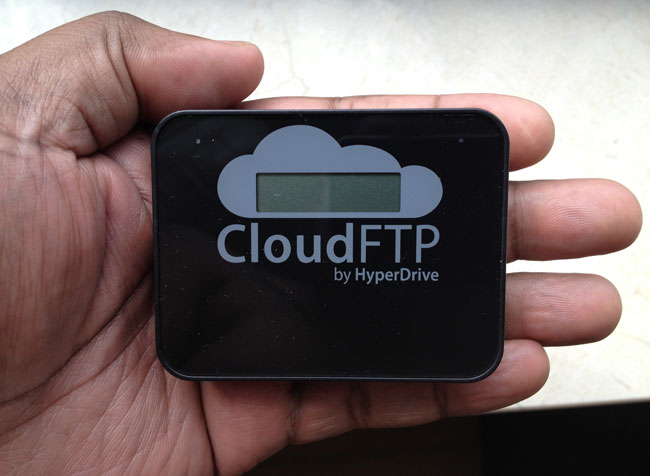
I ordered this little gadget before heading out on my current tour and got a chance to try it out in the hotel lounge with one of my colleagues. CloudFTP for all intents and purposes is a little adhoc access point with a USB port on it. Technically you should be able to hook up just about any storage device to it and share the content on that device wirelessly with your devices (computers and iOS/Android devices).
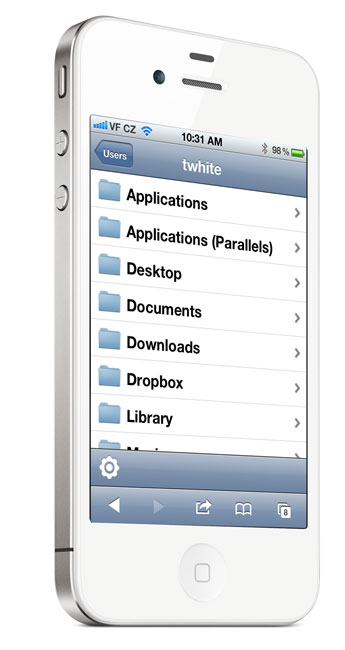
I figured I’d give it a real world test and time for a CloudFTP review. I took it out of the box, read the little manual that comes with it (so I could figure out how to access it), plugged in my LaCie Rugged Firewire 800/USB 2 backup drive into and fired it up. After a few moments it was up and ready to go. I then went to the web browser on my iPhone, keyed in the URL and there it was!
My hard drives directory structure. I could access any file and if the file was iOS compatible such as a PDF or movie I could see it right then and there. Speaking of movies, I get asked all the time about plugging in hard drives or other external drives into an iPad or iPhone to carry movies around and up until now I never really had a good answer. This would do the trick nicely. The first movie I tried wasn’t in a format that iOS liked (it was an AVI file) and therefore it copied the movie to the iPhone and then I was able to open it in the VLC App and it played just fine.
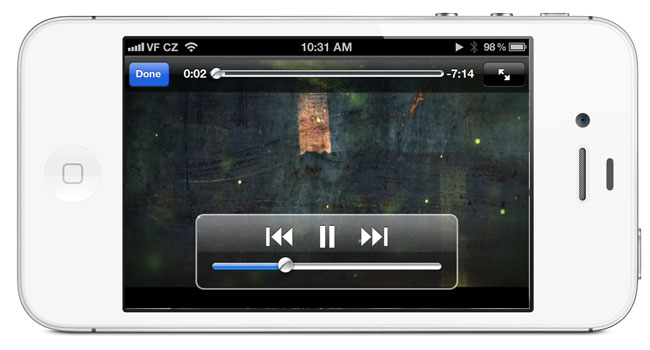
The movie playing above is streaming wirelessly from my LaCie hard drive to my iPhone 4s via the CloudFTP
I tested another movie that was in the proper .MP4 format and it streamed. However, I will note that about halfway through the movie the video froze and the sound kept going. Not sure if that will be an ongoing issue or not. I was also impress that the built-in USB port had enough power to run the drive without the drive or the CloudFTP being plugged into a power source. The second thing that impressed me even more was that it didn’t seem to matter what format the drive was in. My hard drive was Mac formatted and it still showed up as the “C” drive with all the directories (folders) showing.
Battery life is up to five hours and you can share documents, music or photos with up to 8 users at a time or movies with up to three users. It creates a WiFi network for your devices to join but keep in mind it’s not a WiFi Internet Router and therefore there is not internet connectivity while you’re connected to it. However, you can configure it to join your existing network if you like.
The Bottom Line
I don’t know how much use I will get out of this. I primarily got it as a method to quickly share files between computers and multiple users. I don’t run into those situations often, but when I do this device should come in real handy. The small size is also a plus as I can just keep it in the ThinkTank Cable Management 30 accessory bag that I carry in my laptop bag. The only thing I don’t really like about it is that while it does charge via USB, it comes with it’s own proprietary charging cable and that means having to keep up with more more cable as opposed to using a standard USB micro cable to charge. Other than that it works as advertised.
Along with reviewing technology and gadgets, I also review mobile apps. When the App Store came out a few years ago I started doing an “App of the Week” here on my blog. However, I realized that one iOS App per week just wouldn’t cut it seeing how there there hundreds if not thousands of Apps being released every week. So I decided to setup a dedicated site Best App Site so that App reviews could happen more regularly and also not tie up space here for reviews that some may have no interest in. One of Best App Site’s co-authors and web designer Erik Bernskiold just overhauled the site with a new look and feel. Aside from making the site more appealing to the eye, Erik also did quite a bit a work on the backend to make it easier for us to post reviews and to make it easier for visitors to find the reviews they want. The New Best App Site also is even more mobile friendly with a fluid design that quickly adapts to tablets and smartphones.
A big thanks to Erik and I hope that all of you enjoy the new site as much as I do! Head over to bestappsite.com and check it out.