Schedule TiVo recordings from your mobile phone

As an iPhone user, one of things I have had on my wishlist since the iPhone 2.0 software update was a “native” TiVo scheduler. While there still isn’t a native iPhone app for scheduling recordings remotely, TiVo has created a mobile friendly version of their website (finally).

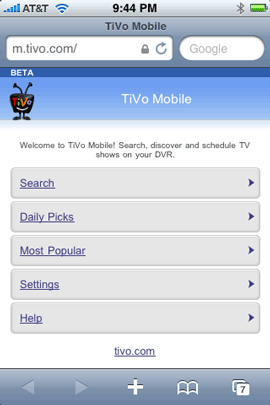
That’s right, you can go to http://m.tivo.com from any mobile browser (or any browser period) and get a very streamlined mobile friendly version of their site. This mobile version is geared specifically for scheduling recordings on your TiVo Series 2 or TiVo Series 3/HD. 


Good start, but needs a little work

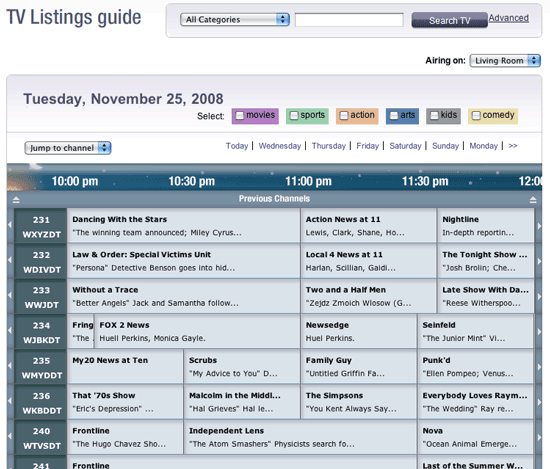
Let’s start with the fact that I think the main TiVo site needs some work. So I’m not surprised that the mobile version is less than perfect. On the main TiVo site you have the ability to log in and actually see a full blown “Guide” of all the channels you receive and what’s coming on several days in advance. From the guide you can either schedule one-time recordings or setup a Season Pass to always record your favorite shows.

Of course if you know the name of the show you want to record, you can just do a search for it. The Guide is a good thing to have, but it’s very cumbersome to navigate, and even worse on a mobile device. The biggest problem that I have with it is that you don’t get to narrow the selection down to just your favorite channels (although this is allowed on the actual TiVo hardware). So I end up have to scroll hundreds of channels that I will never watch/use. 

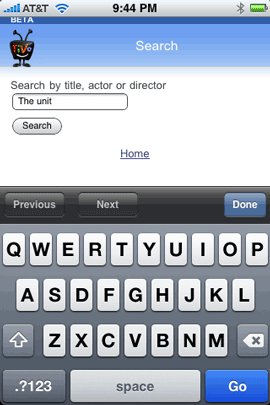
The mobile version doesn’t have a Guide at all. So the only way to schedule a recording is to do a search, pick from the Daily Picks or the Most Popular. This works well, but it brings up another issue (actually the same issue). Let’s say I do a search for “The Unit”.

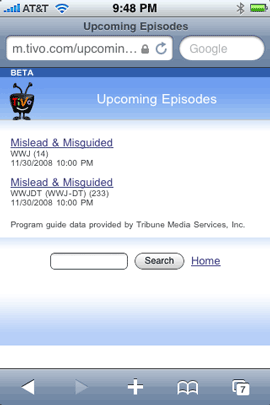
It comes right up (very fast performance so far), however, since I can’t limit my search/account to just my favorite stations, it comes up with “The Unit” on channel 14. Channel 14 in my area is the old analog/basic standard def cable channel for CBS.

The channel I would rather record this show on would be channel 233, which is CBS HD in my area. I can choose to “view upcoming episodes” and it will then list the one I want on 233. This isn’t bad as an extra step.

However, I ran into a problem trying to do a Season Pass this way. I did my search and then chose to create a Season Pass. I saw that it was using the standard def station, so I then chose to View Upcoming Episodes, selected the same show on the HD channel and then completed my Season Pass. However, when I checked my TiVo HD, it had in fact created the Season Pass using the standard def channel. So for now I will not be using the mobile version of this site to do Season Passes. I also expect this problem to go away one way or the other by February 2009 when all stations are required to broadcast in digital. I expect those old basic cable channels to go away and this this won’t be an issue. The ultimate though would be for TiVo.com to just allow me to limit searches to my favorite channels. 

On a good note, I’m very happy that this mobile version seems to do a good job of keeping logged in. It’s a pain having always key in a user name and password. The desktop version of the site can’t even keep me logged in, so I’m pleasantly surprised that the mobile version can. I’m also happy that the mobile version allows me to choose which one of my TiVo HD’s to record to.


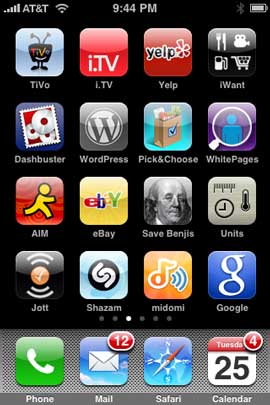
m.tivo.com added to the Home Screen


The Bottom Line

In all fairness, this mobile version of TiVo.com is listed as a “Beta”, so perhaps they will take my feedback and make improvements. If you have a TiVo Series 2 or Series 3/HD and a mobile phone (doesn’t require an iPhone), then you can’t go wrong with giving it a try. Although I can pull up the full version of the tivo.com site on my iPhone, this mobile version is sooooooooo much easier and faster. As good as the Safari browser is on the iPhone, I wish that ALL companies would offer mobile friendly versions of their websites. It’s just makes it easier and faster to get to the info we need. Less is more.

iPhone Software Update 2.2

On Thursday night last week, Apple released the iPhone 2.2 update. I’ve had it installed and have been playing with it over the weekend and thus far no issues. The official list of new features is as follows:


Enhancements to Maps


  • Google Street View
  • public transit and walking directions
  • display street address of dropped pins
  • share location via email


Enhancements to Mail


  • resolved isolated issues with scheduled fetching of mail
  • improved formatting of wide HTML email
  • Improved stability and performance of Safari


Podcasts are now available for download in iTunes

Decrease call-setups and call drops

Improved sound quality of visual voicemail

Pressing the Home button from any Home screen takes you to the first Home screen

Preference to turn off auto-correction in the Keyboard settings.

I’m really impressed and happy with the additions to the Maps app. Apple did a great job in implementing Google Maps Street View. Here’s how it works:

You can access Google Maps Street View (in areas where it’s available) by either using the Drop Pin feature or search for an existing Address/Contact. If Street View is available, the little orange guy/icon on the left of the address will be highlighted so that you can tap it. Once you tap it, the iPhone will go into a 360° Interactive Street View. You can use your finger to navigate around and see the area. It’s really pretty cool!


You can also get directions now using public transit and walking directions! This is really handy in places like New York City. I’ll never forget years ago following a set of directions that had me walk all the way around the block avoiding one way streets, arggghhh!


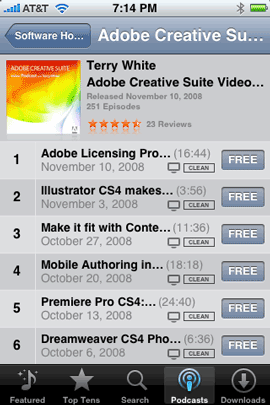
It’s also cool to be able to download podcasts now directly to your iPhone via the iTunes Wi-Fi store. One less reason to have to connect your iPhone to your computer to do a sync. So go ahead and check out an episode or two from my Adobe Creative Suite Video Podcast 🙂


Although these are cool features, the one that I’ll probably use the most is one of the smallest ones. Now when you’ve scrolled to a second, third, forth, etc. Home screen, you can tap the Home button to get back to the first Home screen without having to go back, back, back. I have 6 home screens so this will come in extremely handy. The iPhone Software Update 2.2 is now available through iTunes. Just plug your iPhone in and it should prompt you to do the download/install.

iPhone App of the Week – iChoose

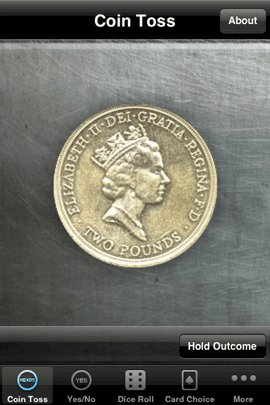
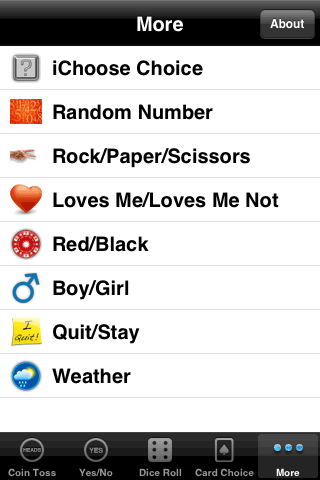
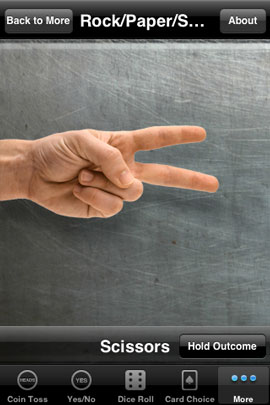
Having a problem making a decision? Thinking of flipping a coin and going with chance? If that’s how you roll, then iChoose is your app. This isn’t just your basic coin flipping app. iChoose has got it all: Coin Toss, Yes/No, Dice Roll, Card Choice, Boy/Girl, Weather, Quit/Stay (in these economic times STAY!), Loves Me/Loves Me Not, and even Rock, Paper, Scissors. The latest version even comes with a random number generator, which you can set the range for in the preferences. 

Does this app solve the problems of the world? No, but it does make being on the fence regarding a decision a lot more fun. Check it out in the App Store. It’s FREE and works on the iPhone and the iPod touch. Download it here.


Reading SDHC cards via the ExpressCard slot

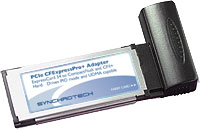
I’ve been using ExpressCard media readers for about as long as I’ve been using a MacBook Pro (years). I’ve used ones from SanDisk, Griffin Technologies, Synchrotech and now Belkin. Hands down my favorite Compact Flash reader/writer is the Synchrotech CF Express Card Reader. This is one of the only ones that takes true advantage of the ExpressCard slot’s speed when reading high-speed UDMA enabled Compact Flash cards. Read my earlier reviews of this card here and here.


What about reading SD cards?

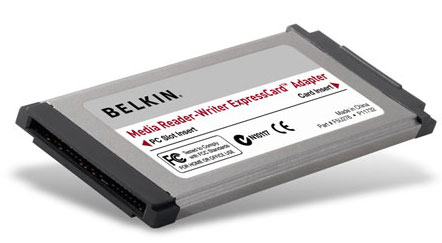
My point and shoot still camera and consumer HD camcorder both use SD cards. So what about those? Although I love my San Disk 12-in-1 memory card reader, it’s really overkill since I’m only dealing CF and SD cards these days. Also since I don’t want to read CF cards at USB speeds, then I would only be using that reader for SD cards. So my answer is a very small ExpressCard Media Reader. I actually have a couple of these. However, I recently realized that the ones I have are older models that don’t read the high capacity SD (SDHC) cards. I ran into this problem just last weekend while doing an Adobe Premiere Pro CS4 demo. I needed the read the 8GB SDHC card from my Canon HF10 HD camcorder. My old Belkin ExpressCard reader wouldn’t mount the card. Luckily there was someone in the audience with a newer model and he let me use his.

Knowing that I was going to need to use one from here on out (SD cards continue to grow in capacity), I stopped by the Apple Store while I was in San Francisco for Adobe MAX. I was looking for the same brand that he had let me borrow (SanDisk). Unfortunately, I could only find ONE model and it was the Belkin. As a matter of fact it was the last one left and it looked just like the one I was using already. However, on the side of the packaging it did specifically show the SDHC logo, so I took a chance and bought it. When I got back to my hotel room, I compared the two and there was a difference in part number. So apparently Belkin had upgraded it. It worked like a charm!

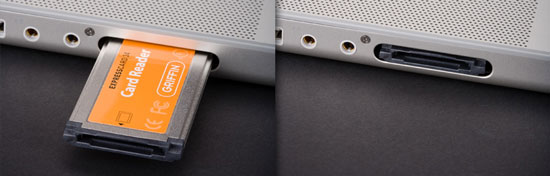
Although these ExpressCard readers from Belkin and others (not counting the Syncrotech CF reader), go in the ExpressCard slot, they operate at USB speeds. So you really don’t gain anything speed wise (until someone develops a native ExpressCard slot one for SD), however, you do gain on compactness. When this Belkin reader is in the ExpressCard slot it’s flush with the side of my MacBook Pro. So nothing sticks out. You could even leave it in all the time if you don’t use your ExpressCard slot for other cards.

These readers read/write: SD/SDHC, MMC, MMCplus, MemoryStick, MemoryStick Pro, and xD-Picture Card without the need for an adapter. There really is no functional difference between the Belkin, SanDisk and Griffin Technology (although the Griffin reader doesn’t specially call out SDHC. It may not be updated yet!) readers. However, since they they all do the same thing and both the Belkin and SanDisk readers specifically list SDHC, you’re probably better off going with the SanDisk. Why? Because it lists for only $17.29, while the Belkin reader lists for $29.99. Had the Apple Store had the SanDisk model for that price, I would have gotten it.

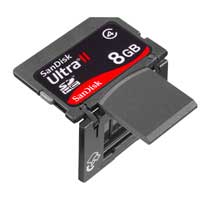
If your Mac or PC notebook has an ExpressCard slot, then having one of these adapters is a must. They will fit in just about any pocket in your laptop bag. If you need Compact Flash support and you have an ExpressCard slot, then go with the Syncrotech. It will be way faster than your USB reader. If all you’re going to use is SD/SDHC cards, then you might be better off going with SanDisk’s very clever Ultra II SD/SDHC Plus Cards. These cards fold in half to expose a USB plug that goes right into your computer. No card reader necessary. They are my FAVORITE SD cards hands down!

2008 MacBook Pro Review

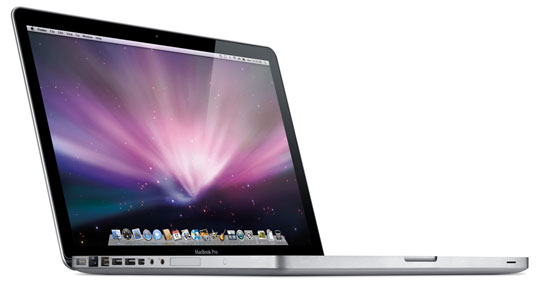
Fortunately my MacBook Pro is supplied to me by my employer. It’s my work computer. Therefore, I have to wait an adequate amount of time (usually around 18 months) before requesting a new one. This time around I waited a lot longer. The last two updates to the MacBook Pro were good, just not earth shattering. I didn’t feel like going through the hassle of transferring to a new MacBook Pro (including Boot Camp) the last two times. So I waited and kept using my MacBook Pro 2.33GHz model. Now I’m glad I did!


The New MacBook Pro

Apple has completely redesigned the MacBook Pro! As with anything, there will be some pluses and minuses and I certainly have my list. So let’s get to it:


The Pros:

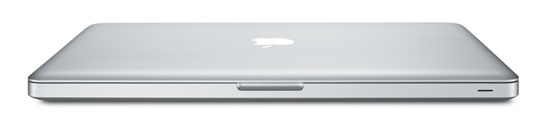
The New MacBook Pro is crafted out of a single piece (brick) of aluminum through a new manufacturing process at Apple that looks pretty amazing. I can definitely see the benefits of this process because my New MacBook Pro is very sturdy. I can remember the days of the PowerBook G4 Titanium and how “flexible” those cases were. If you squeezed too hard while the CD drive was going, you would hear a grinding noise. Or if you flexed the casing too much the battery would fall out. Those days are gone, this thing is built very well. I also appreciate going to black keys on the keyboard. My keyboard over the years was really getting kind of grimy and this new keyboard should hide the dirt better. All the ports are back to being on one side. I kinda like this, although in some cases they are a little too close together. It can get pretty tight trying to plug in two USB cables, ethernet and Firewire 800. The speakers are much nicer and louder than any previous model. The new graphics card kicks butt! Graphics performance is night and day faster over my last model. Since CS4 takes advantage of the GPU, I’m seeing some really nice speed increases across the board. One of my long time pet peeves has finally been addressed. The two components that I have usually upgraded in the past on my MacBook Pro were the RAM and the hard drive. While I usually max out the RAM right off the bat, I may not upgrade the size of the hard drive until months later when larger capacities are available. Replacing a hard drive in PowerBooks and MacBook Pros has always been a real pain. Now Apple has made the hard drive very accessible via the same door that hides the battery. I took the cover off to take a peek and it was right there. I was speechless. The built-in iSight camera has improved drastically in image quality. Lastly I also really appreciate the speed. It is noticeably faster in many areas over my older model. If you want to continue to be in a happy place, stop reading now and go place your order. Have a nice day.


The Cons:

We have to take the bad with the good and there is some bad with this new model. While there are some Apple zealots out there that may not like to ever hear anything bad about Apple, the fact is Apple does make mistakes like any other company. The products are not perfect. Very cool, exciting yes, but not perfect. Everyone’s entitled to their opinion and here’s mine: The two areas I was most concerned about was the glossy screen and the new trackpad. The new LED glossy display is VERY BRIGHT! Almost too bright. I find myself sometimes turning it down a notch. I’ve used it now in all the places I normally use it in around the house and no real issues. Photos look fantastic on it and color looks awesome.  Apple decided to cover the display with glass! I was thinking that this was going to be a nightmare. As you might imagine, glass is highly reflective. So far this hasn’t been an issue, but I do notice the glare when looking at it from the sides. Another interesting thing was actually seeing the reflection of the backlit keyboard in the display under certain lighting conditions. As I tell people with any display/monitor, you need to see it with your own eyes, before passing judgement. No reviewer can tell you if it’s going to be right for you or not. It will also depend upon the lighting conditions you’re going to use it under. While I like the new black keys on the keyboard, the keyboard itself is missing a couple of things. I really miss the separate Enter key on the bottom right of the keyboard. I also miss the ability of having a numeric keypad using the Numlock key. I can’t figure out why Apple would remove this functionality? In the Pros section above, I mentioned that I liked having all the ports on one side. I do! However, I do miss having a USB port on the right side too. On occasion I use an AT&T USB Connect 881U USB 3G modem for internet access when I travel. Due to the width of this modem, it blocks the other USB port. This wasn’t an issue before, because I had another USB port on the other side of the computer. As I write this I have a Firewire 800 drive and an Ethernet cable plugged in and it’s really tight with no space between them. Speaking of ports, I really miss the other Firewire port. My older MacBook Pro had both a Firewire 800 and Firewire 400 port. While Firewire is daisy chainable, I have to remember to always have either the right cables with me or an adapter since I have a mix of Firewire 800 and 400 devices. If you get the new MacBook Pro, you will definitely want to get this Firewire 400 to 800 adapter. Apple also completely changed the battery. While that’s not uncommon they did a couple things to make it a little harder on travelers. I normally travel with at least one extra battery for my MacBook Pro for those cross country flights. The new MacBook Pro’s battery is longer/bigger than the previous model, which is going to be a consideration for packing my computer bag. Also Apple removed the battery charge indicator from the battery itself and put it on the side of the MacBook Pro. While this makes it more convenient to check the charge of the battery while it’s installed, it makes it impossible to know if a spare battery is charged or not without first putting it in the computer. Speaking of which is not as easy to do either. Now the battery is behind a removable door, which you must take off first!


My biggest complaint!

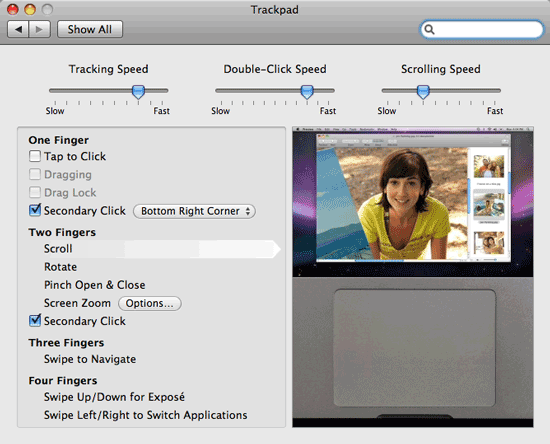
Yes, this con is so big that it needs it’s own section. Like I said earlier, I use my MacBook Pro about 90% of the time. So that means that I’m going to be using the trackpad a lot too. Yes, I know I know – you say get a mouse or a tablet! I have both a mouse and a tablet and I use them. I use my Bluetooth mighty mouse when I’m doing demos and I use my Wacom tablet when I’m doing photo retouching and demos as well. However, there are plenty of times where I’m just doing email, surfing the web, writing this blog post, etc. and I don’t always have a surface to put a mouse on. I could be sitting in an airport, on a plane, sitting in bed or laying back in a recliner. I’m not going to grab a mouse in these situations. Never had to before, I shouldn’t have to now! The new MacBook Pro’s trackpad is completely redesigned. The separate “click” button is GONE! The whole trackpad (actually most of the lower section) is a button. This has it’s pluses and minuses too. Unfortunately it has more minuses than pluses. It’s just sometimes awkward to click and drag objects. Speaking of clicking, this trackpad is the loudest I’ve ever heard. When you click it, everyone around you will know! This includes your sleeping mate that is lying next to you while you work late. I could deal with this if the darn thing just worked consistently. It seems that depending upon where you click (for example the center vs. the sides, you may get a click you may not. Now in all fairness, Apple is rumored to be working on a software fix to address at least this one issue. Let’s hope they can address other issues too. The New MacBook Pro has additional gestures that you can perform on the trackpad such as pinching to zoom in and out of photos. Photoshop CS4, InDesign CS4, iPhoto, etc. take advantage of these gestures. However, as it stands right now in their current implementation, it’s just too sensitive to be useful. I’m also stunned that there is no way to turn them off! This makes working in Photoshop or iPhoto very challenging from the trackpad. Sure, you can just use a mouse! Yeah, I get that. However, that’s a workaround! The trackpad is built-in and should be usable! I had none of these issues with the old one and used the old trackpad the majority of the time. Let’s hope that much of this is addressed in the upcoming software update. I want to believe that I’ll get used to the trackpad. These few days were kinda rough. It puts me in the mind of the first week I started typing on the iPhone. I thought that was going to take a long time to get used to too. However, it’s second nature now. We’ll see how this goes over time.


The bottom line

Despite the issues I’m having with the trackpad, I’m very pleased with the New MacBook Pro. The Glossy display is no where near as annoying as I thought it would be. The new MacBook Pro is solid, gorgeous and fast! Migrating over from my previous MacBook Pro was a piece of cake (I still have Boot Camp left to do). It was worth the wait and I would gladly do it again. My configuration is the Core 2 Duo 2.8GHz, 320GB 7200 RPM hard drive with 4GB of RAM. Should you upgrade to the MacBook Pro. If you want a faster better built MacBook? YES! However, you need to see the display for yourself! What is acceptable for me, may not be for you.


iPhone App of the Week – MyWeather Mobile

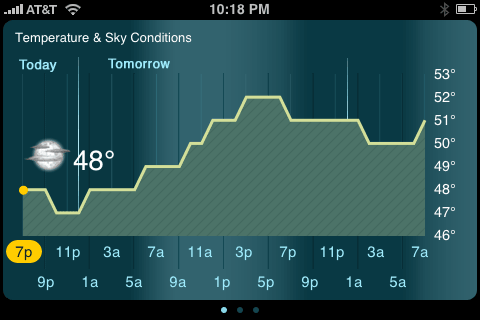
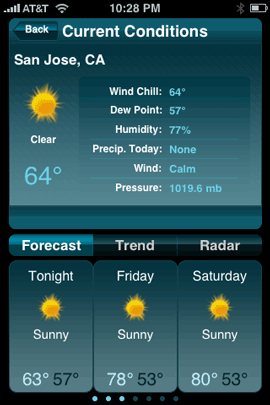
The iPhone has a built-in weather app. So why would anyone pay $9.99 for another one? I was very hesitant at first to try MyWeather Mobile. After all $9.99 is on the high end of iPhone app prices. Although the built-in weather app does a good job of letting you know the current conditions and the highs and lows, it does nothing for showing you forecasts, trends or precipitation. 
 

Is it going to rain/snow today?

If you live somewhere that has mild climates or weather that doesn’t change much, then you can probably be quite content with the built-in app. However, if you live in the North or Midwest, then you know weather can change at the drop of a hat. Here in Michigan it could be 70° and sunny, raining and cloudy, snowing with sleet and hail all in the same day. As a frequent traveler, I want to know what I’m heading into. Will there be a chance that my flights could be delayed or cancelled due to weather?


MyWeather Mobile

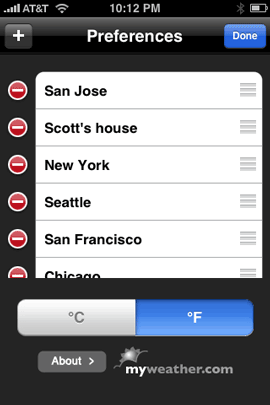
This is where MyWeather Mobile comes in. This app goes way beyond the features of the built-in weather app. The big feature for me is forecasts! Not just what it’s doing outside now. Like the built-in app, you can add multiple cities. However, in addition to enter the city, you can actually use your contacts list.

So for example, rather than putting in Scott’s city, I can just use his Contact info as a location and it will show me the weather where he lives. Also instead of having to put your current city in all the time, it’s location based and will always show you the weather of where you currently are located.

The graphics are great in this app. Very detailed and well done. It also supports a widescreen view of the trends screen. Just rotate your iPhone or iPod touch.

The bottom line

If the built-in weather app leaves you wanting more, then MyWeather mobile is worth a look. Do I think it should cost less, absolutely. However, if you need/want these features, then $9.99 is worth it. Otherwise, keep looking. After having it now for a few weeks, I don’t regret spending $9.99 on it. Works with the iPhone and iPod touch. You can check it out here on the App Store.

iPhone App of the Week – Sportacular

Admittedly I’m not a huge sports fan. In other words unless it’s something special, I don’t plan to watch sports on TV. That doesn’t mean that I don’t have favorite teams and like to engage in conversations with friends about who’s winning and who’s losing. Speaking of losing, no cracks about the Detroit Lions. Enough said.

Sportacular gets it right

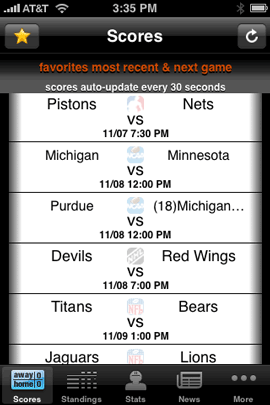
Sportacular is a FREE app for the iPhone and iPod touch that allows you to keep track of your favorite teams. The interface is brilliant. You simply select your favorite teams across national and college leagues and Sportactular will give you up to the minute scores, schedules of upcoming games, and stats.

Just last weekend I was in a workshop and someone mentioned that the Lions were playing. So I pulled out my iPhone and tapped Sportacular and in a few seconds I had the score (they were winning by the way at the point). Scores are updated every 30 seconds as long as the app is running. Every year my buddy who graduated from Ohio State likes to come over and watch the Ohio vs. Michigan game. I have no vested interest in either team, but it’s fun watching him get all worked up. With Sportacular I can keep track of Michigan’s college games too including the schedule of upcoming games.

Sportacular is another example of a well thought out app that just works! That’s why it’s my pick for the iPhone App of the Week. It’s free and has minimal ads. Download it from the App Store.


Congratulations to the winners of the iPhone Photo Contest

I want to take a moment to congratulate and thank the Winners of the iPhone Photo Contest. Lot’s of great entries and it was certainly hard to pick winners. Luckily the public helped out in a big way by voting!

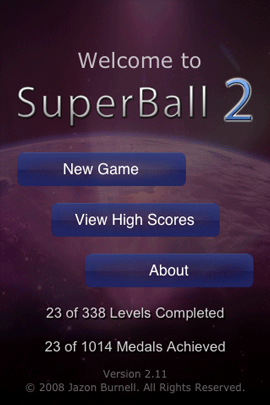
iPhone App of the Week – SuperBall 2

Time to have some fun! 

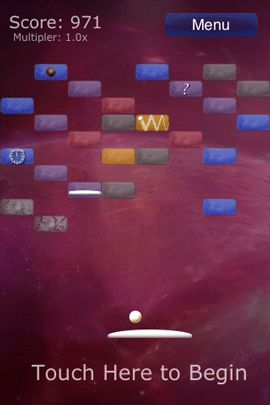
While I certainly love picking from the hundreds if not thousands of iPhone apps (there are now over 5,000 apps on the App Store) that increase my productivity, I do like to have fun every now and then. That leads me to my new addiction: SuperBall 2! This game is like crack. Once you start playing it, you just won’t be able to stop. This game is like a mix between the old pong games and Breakout. You control it using the built-in iPhone (or iPod touch) accelerometer. So you move the paddle side-to-side by tilting the device.

I started with the FREE version: SuperBall 2 Lite. This free version has 10 levels. Not bad at all for a free game. I must say that I absolutely SUCKED at this game at first. It took me a long time to even get pass the first level. Then I finally got the hang of it. After I got the hang of it, I wanted MORE! So I didn’t hesitate to head over to the App Store and buy the full version which sports 300 LEVELS plus a dozen two player levels! I was also pleased to see it on sale for only $1.99. Game play is good and the variety of activities/levels is also good. The sound effects are well done. Also no crashes. 

With an iPhone, you never have any reason to be bored. Now I won’t mind waiting in long lines on November 4th to cast my vote in the general election. I’ll have something make the time fly. I better start reviewing some of those external batteries 🙂

You can download the FREE version of SuperBall 2 Lite or the full version of SuperBall 2 for $1.99. These work on the iPhone or the iPod touch.

Last day to vote!

No, I’m not talking about the election for those two guys (although you should be getting ready to vote for one of them too!), I’m talking about the finalists in the iPhone Photo Contest.

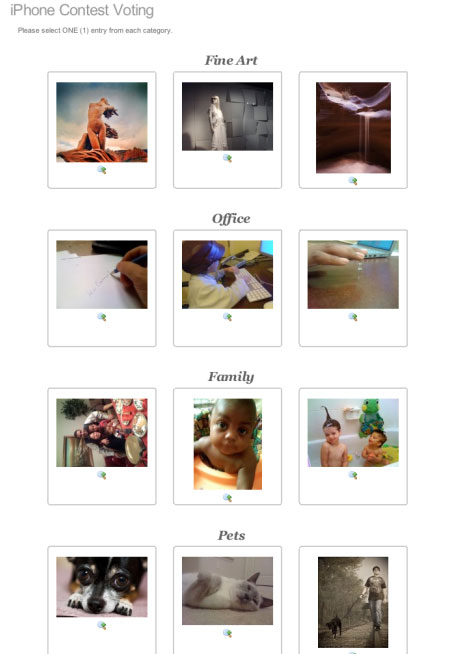
We received an overwhelming number of entries and Scott and I have made our picks for the finalists. It’s now up to you to cast your vote for the winner in each category and from those winners Scott and I will pick the grand prize winner! Today is the last day to vote, so head over to the iPhone Photo Contest page and cast your vote right now! We will announce the grand prize winner on November 3rd! Also if you haven’t gotten your copy of The iPhone Book 2nd Edition you can order that today as well.


AT&T Now offers FREE Wi-Fi to iPhone Users

In other iPhone news, AT&T now offers FREE Wi-Fi internet access in thousands of locations such as Starbucks, Airports, Hotels, Convention Centers, Bookstores, etc. See details here.

iPhone App of the Week – PhotoBuddy

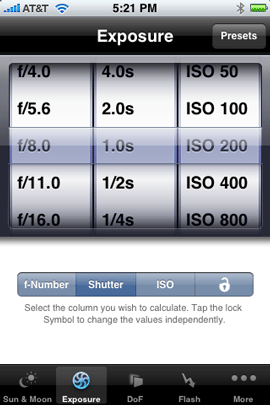
While I didn’t make it the PhotoPlus East tradeshow in NYC this week, I have been spending some time with one of my new iPhone apps. PhotoBuddy aims to be your Photographer Assistant. The main purpose of this app is to help you calculate things like Exposure changes, Flash timing, DOF (Depth of Field) and can even measure the distance of objects (this feature only works on the 1st gen iPhones).

However, it has other useful features too. For example, when I captured the shot below in Spain, the one thing I didn’t know at the time was what time sunrise occurs for the area I was in. The hotel staff looked it for me on the internet.

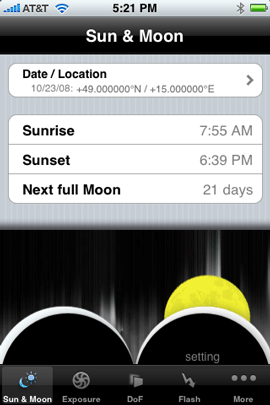
However, had I had PhotoBuddy back then, I would have simply been able to use the built-in Sunrise calculator. The Sunrise calculator is location based and tells you the sunrise, sunset and next full moon. I used to use a separate “Sunrise” app for this. It even displays your current longitude and latitude which is handy for noting and geotagging your photos later in post production. You can also advance to a date in the future to see what time the Sunrise/Sunset will be on a specific day.

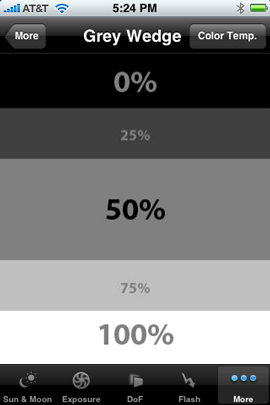
One of the other features I was happy to see is the “grey wedge” to help white balance your shots. Now you have to keep in mind that this feature is not totally accurate because your iPhone’s screen is not color calibrated. So the displayed tones are not neutral. However, they are off by a constant value, so you can use it to color calibrate images.

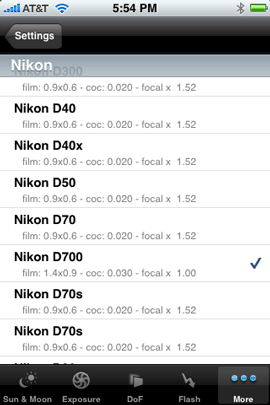
There are a ton of settings. One of the things that helps you quite a bit is that you start off by telling PhotoBuddy which camera model you have. This gives PhotoBuddy the important information that it needs about your sensor. If your camera is not listed, you can choose an “undefined setting” or choose the film equivalent. 


The Bottom Line

There are a few apps with similar features on the App Store. I’ve tried a couple of them so far and I like PhotoBuddy best (a close second would be PhotoCalc, which has a better Sunrise/Sunset calculator). Most of these apps do the same things. However, PhotoBuddy offers a couple of nice little extras and fit and finish. Also PhotoBuddy is only $1.99 so it’s hard to go wrong. You can download PhotoBuddy here for your iPhone or iPod touch.