My Top 10 Favorite iPhone Apps of 2008

While it’s certainly no secret that I’m a fan of the iPhone, I’m starting to become even more of a fan of the amazing 3rd party apps out there for the iPhone (and in most cases for the iPod touch). I currently have 69 3rd party apps installed. I’ve actually downloaded/purchased more than that. However, the 69 ones that I have currently installed are the ones that are my favorites and that I use on a regular basis. Each week I get exposed to more and more new apps and my favorites are always changing. So out of those 69, which are my absolute favorites? Which ones can’t I live without? If the iPhone was suddenly limited to only 10 3rd party apps, which would I keep? Here are my Top 10 Favorite iPhone Apps of 2008:


#1 i.TV

FREE

itv

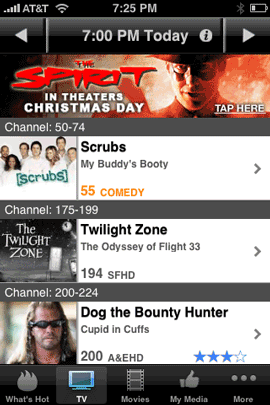
Although this was already a great app when I first reviewed it, it just keeps getting better. The latest update practically eliminated two other apps I was using and added a feature that I’ve been waiting for since day one and that’s the ability to remotely schedule my TiVo HD to record shows from anywhere I happen to be. i.TV is a TV listing, Movie listing, Netflix queue manager (search for a movie and you can either see the show times for it or add it to your Netflix queue), and now TiVo scheduler all it one! It’s an amazing app and it’s FREE (yes, it does display ads). 

Download


#2 Remote

FREE

remote

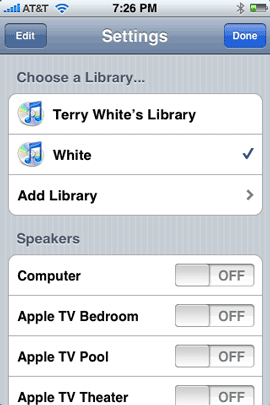
Remote is one of Apple’s apps. This App turns your iPhone/iPod touch into a Wi-Fi remote for iTunes running on your Mac or PC and your Apple TV. Change songs, switch playlists, control which Airtunes speakers the music will play from and even use the iPhone’s keyboard when you need to type things on the Apple TV like passwords, searches, etc. Very well done and definitely one of my favorites.

Download


#3 Say Who-Dialer

FREE

saywhodialer

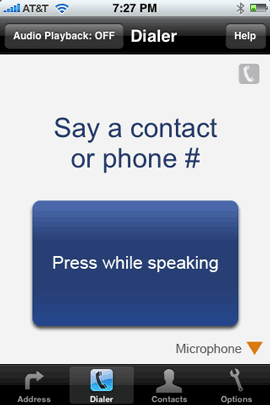
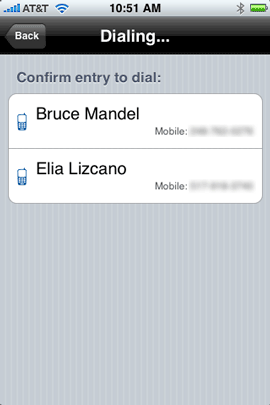
I’ve tried to use various voice recognition technology through the years and most of it has been a disaster when it comes to recognizing MY voice. However, Say Who-Dialer does an amazing job in letting me say the name of the person I want to dial AND the particular number for that contact I want. ie. “Bruce Mandel Mobile”. It’s gets it right 99% of the time for me.

Download


#4 AroundMe

FREE

aroundme

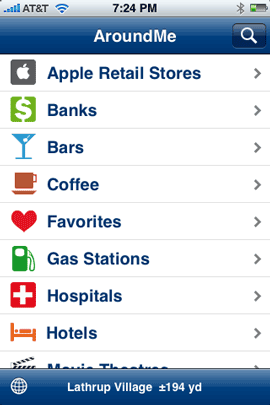
I’m not sure how I missed this one earlier. AroundMe is one of those location based apps that tells you (by category) what’s near your current location. Need the closest coffee shop, bank, gas station, etc. While that’s not really too amazing, this one does one thing that I haven’t seen in the rest. It actually has a feature that I’m shocked Apple hasn’t done yet as a separate app. It will tell you where your closest Apple Store is. This is a GREAT app for travelers!

Download


#5 Accuweather

FREE

accuweather

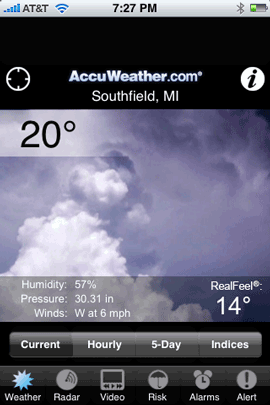
If you’ve been following my “iPhone App of the Week” posts each Friday, then you know that this was last week’s pick. It is by far the best weather App I’ve used to date! I’ve even moved it to the main Home screen in place of Apple’s Weather App.

Download


#6  Mobile Banking

FREE

mobilebanking

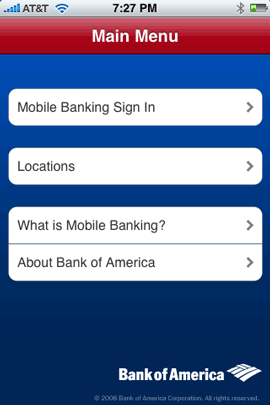
If you’re a Bank of America customer, then this app is a MUST HAVE. Not only does it let me check my balances of all my BOA accounts, but it lets me transfer funds and even find the closest BOA ATM or branch. I hate paying ATM fees!

Download


#7 ToDo

$9.99

todo

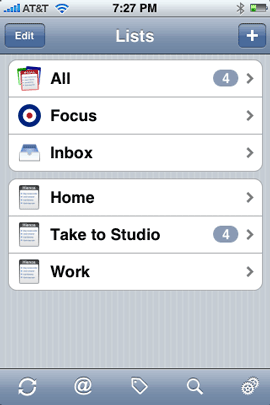
I’ve tried the free ones and others that cost too and my favorite task manager is “ToDo”. I like it because the UI is simple, yet powerful. It has all the features I want in a task manager without being overly complex. It works the way I do. I rely on this app all the time.

Download


#8 SuperBall 2

$1.99

superball2

I have a few games on my iPhone and it was really a toss up between this one and my Blackjack game. However, SuperBall 2 for me has been the most addictive and once I finished the free version, I had to have more! With this game, I’m never bored when I have to stand in a line or have some time to kill.

Download


#9 Facebook

FREE

facebook

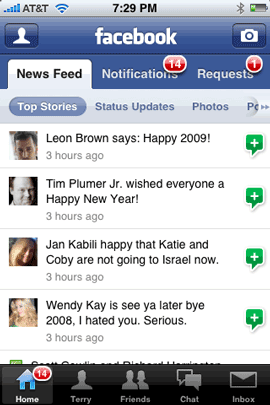
I’ve been dabbling in social networking this year and have settled on Facebook to keep tabs on friends and family. So having a native Facebook app on my iPhone is very nice. This app now in its second major release has been great. There is one major thing missing though. While it’s easy to see photos, upload photos, see/write on your friend’s wall(s), etc., the one thing that seems to be missing is the ability to send a friend request right from the iPhone. I find this to be odd. I can accept friend requests, but can’t initiate them. On more than one occasion I have been standing with friends only to discover that they are on Facebook and have to wait to I get back to my computer to add them. Otherwise, it’s a great app and if you use Facebook, it’s a must!

Download


#10 BigTipper

$1.99

bigtipper

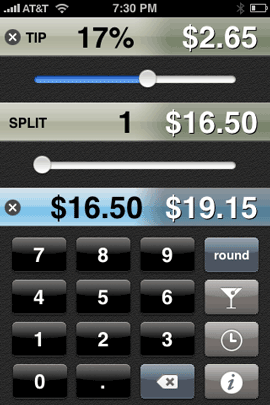
A tip calculator? Is this really necessary and wow, it cost money? Necessary? probably not. However, I just love the way that this one is designed. I’m a sucker for a well thought out UI and on those occasions when I’m not going to tip 20%, it’s great to have. I use this all the time. It’s the best one I’ve seen to date.

Download


Missing in Action!

We saw a lot of progress in less than 6 months time! Although I have a lot of favorite iPhone apps, there was one that I was hoping for that we didn’t see in 2008 and that was a native Slingbox App for the iPhone. Nor did we see a native Sirius/XM radio app. Of course I’d like to see the iPhone itself updated with Cut/Copy/Paste, Flash, MMS messaging, video recording and more. Hopefully we’ll see these things and more in 2009! Happy New Year!


Also be sure to check out Time Magazine’s Top 10 iPhone apps of 2008. We clearly have different tastes 🙂

iPhone App of the Week – AccuWeather

accuweathericon

Another weather app? What’s my obsession with weather apps?

With all the bad weather we’ve been having this week I’m using my NEW favorite weather app more than ever. Yes it wasn’t long ago that I named MyWeather Mobile as the iPhone App of the Week. After that I got hooked on The Weather Channel app. Now I’m absolutely in love with Accuweather.

aw-current

Why AccuWeather?

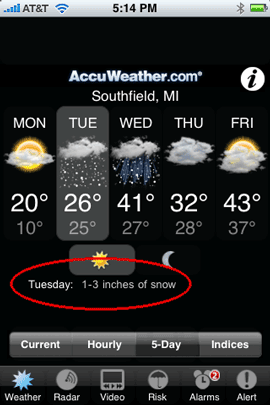
Why not just use the built-in Weather App that’s already included with the iPhone and iPod touch. Anyone that lives or travels near/to snow will identify with what I’m about to say. The built-in Weather App is simply inadequate. Sure it will give the the expected high and low tempurature for the day and even tell me that it’s going to snow or rain, etc. However, what it doesn’t tell me is WHEN? and HOW MUCH? Simply seeing a little icon for Saturday that shows snow is meaningless. I need to know if it’s going to be 1 inch or 12 inches. I travel often, so up to the minute winter weather issue is critical! Now, if you live in, let’s say Florida or Hawaii where the weather is pretty constant, then you probably don’t need this level of information.

aw-5day

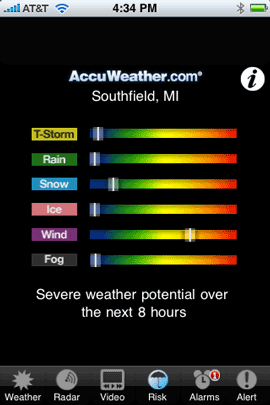
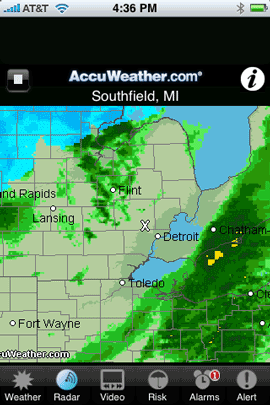
AccuWeather is a full featured weather app. In my opinion it’s got the best UI (user interface) of all the ones I’ve tried to date including the one that I paid for (MyWeather Mobile). AccuWeather not only can give me a much more detailed forecast including hourly forecasts, but it can even show me a video of the most recent weather report for my area. Very slick! Very very slick indeed! Of course it’s location based like the others and you can save your favorite locations. You can also see an animated radar weather map. The Risk screen shows you exactly what’s likely to happen whether it be Thunder Storms, Rain, Snow, Ice, Wind, or Fog. 

aw-video

aw-risk

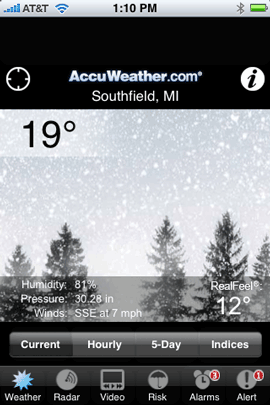
AccuWeather starts off with a very well designed display of the current conditions. This also includes a nice background photo representing what it’s doing outside right now. Cloudy, Clear, Raining, etc. I not only get to see the current temperature, but also the wind chill factor (feels like). 

aw-radar


The Bottom Line

There are several weather apps out there. Some are free, some cost $, however, AccuWeather is by far the best designed one and most stable one I’ve seen and used to date. Best of all it’s FREE! You can download AccuWeather for the iPhone and iPod touch here from the App Store.

aw-detailed

Be sure to check back next Friday for my “Top 10 iPhone Apps of 2008”. Of course I think you already know what one of them will be. 🙂 Some come back and see the other 9.

iPhone App of the Week – iWant

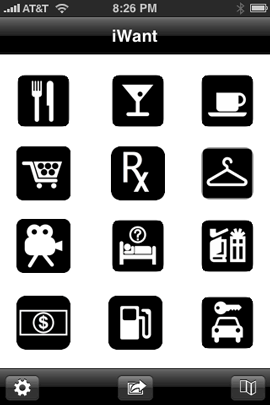
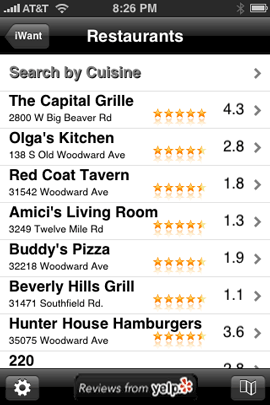
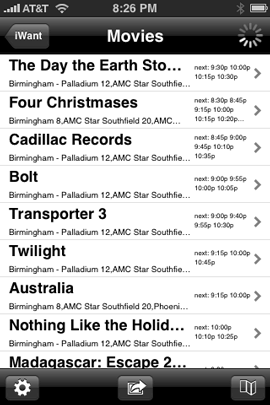
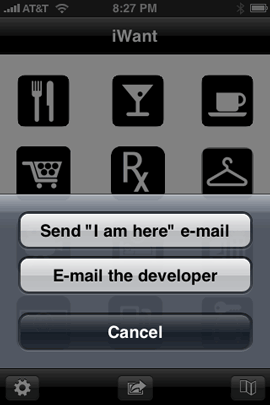
There are quite a few iPhone apps that try to be your one stop shop for all the businesses around you that you may want to go to. While I have tried many of them, for some reason I keep coming back to iWant. iWant is a location based app that allows you to quickly find the closest restaurants, bars, cafes, grocery stores, drug stores, clothing stores, movie theaters/show times, hotels, department stores, banks, gas stations and car rental places.


How well does it work?

The interface is quite simple. Nice big icons that cover each of the above categories. Once you tap a category it will start to display all of the businesses around your current location based on the category you tapped on. It seems to do a pretty good job of finding just about every business I could think of around me in each given category except for the banks. There are three Bank of America banks nearby and it didn’t list any of them. There is a Comerica bank about a block away and it didn’t find that one either. Not sure if there is some brand preference going on or not, but it doesn’t find every business in every category. Even with this shortfall I still like it as I’ve found the same limitation in the other apps I’ve tried as well.


A couple of added benefits

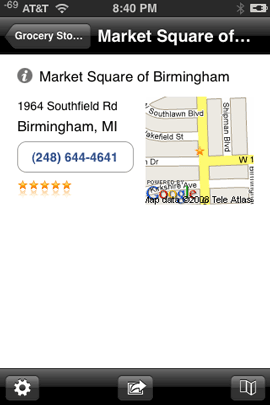
Once you tap on a business, you get to see the address and of course the phone number which you can tap to dial. You also get to see it on the built-in Google Map app for easy directions to if from where you are. The Action menu at the bottom of the screen allows you to email your current location to anyone you like and it will automatically generate a link with your coordinates. This is cool when you are unfamiliar with the area and you’re trying to explain where you are. You also have a built-in option to email the developer. I wish more apps included this ability. You can also easily control the search radius with a slider.


The Bottom Line

It’s hard to go wrong with this app. It’s easy to use, it’s fast and best of all it’s FREE! Download it from the App Store now.

Macworld Expo just died!

According to this press release, this will be Apple’s last Macworld Expo and Steve Jobs will NOT be doing the keynote address. I’m sure this is a huge blow to the show organizers! Without an Apple presence, this show will likely die. Why? Although there are hundreds of Mac based exhibitors, the big draw was Apple, Inc. Without Apple, the show could go on, but most likely will not. You might remember there used to be two Macworld Expos. One on the east coast and one on the west coast. When the show organizers (IDG) decided to move the show to back to Boston (it’s original roots), from NYC, Apple said NO! Once Apple stopped exhibiting, the show died. I predict the same thing for the San Francisco show. So will there be a Macworld Expo in 2010? Maybe, but I’d bet money that there won’t be one in 2011!


Do we really need trade shows  anymore?

Yes and no! Before the web, we relied on trade shows to get the bulk of our info and the ability to see new products. Now the minute a company releases a new product you can do everything except touch it right on the company’s website. If it’s a software product, you can usually download a free trial. With Apple’s growing network of Apple stores, that pretty much satisfies the “touch it” appeal. So it’s not hard to see why they would want to stop spending millions of dollars on trade shows. Apple really doesn’t “need” Macworld Expo.

On the other hand trade shows are great networking opportunities and a great way to see multiple vendors all in one spot. I enjoy going to shows like Macworld Expo and Photoshop World each each year. However, I must say, without an Apple presence, this will likely be my last Macworld Expo as well.

This is unfortunate for the smaller Mac vendors that relied on Macworld Expo each year to showcase their products. Times are a changin’

Netflix comes to TiVo

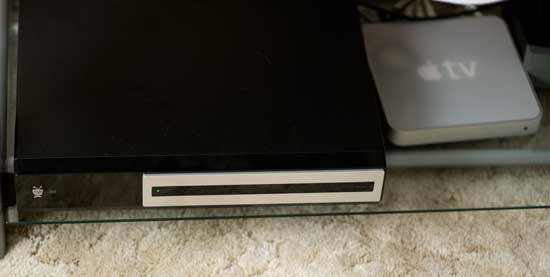
It’s here! A day I’ve been waiting for. You might remember my review of the LG Blu-ray player that offered Netflix Streaming. I actually only had the player for a few days before seeing the announcement that Netflix was bringing this technology to the boxes that I already had and love. TiVo HD! I boxed up the LG player and returned it to Bestbuy and patiently waited for Netflix/TiVo to roll out this new service. It actually got rolled out last week while I was traveling on business, so I didn’t get a chance to test it until this past weekend. I’m very impressed with the TiVo implementation.


Setup was a breeze

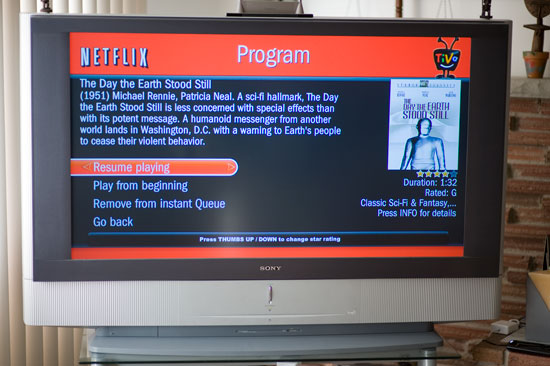
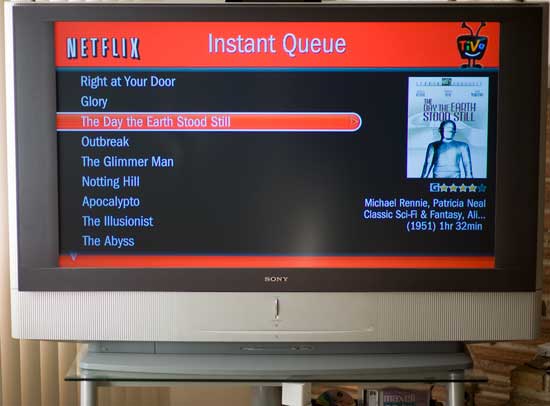
Since I had already gone through it once on the LG player, I kinda knew what to look for on TiVo. Basically you have to activate your TiVo box on your Netflix account. You do this by starting the process on the TiVo, which will display a code. You log into your Netflix account on your computer and enter that code. My activations took less than a minute and my Instant Play Movie queue was on my TiVo’s menu. You are allowed up to 4 Netflix streaming devices per account. Although I had properly deactivated the LG box before returning it, that slot was still taken up as Netflix doesn’t clear it right away. It could take several weeks. I assume that this is by design. This way it stops you from illegally sharing your Netflix account with all of your friends. “Hey Bob, can I watch a movie tonight? Sure, just give me your code and I’ll key it in. Once the movie is over, I’ll delete it.” Luckily for me I only needed the three remaining slots for my 3 TiVo HD’s. Movies are placed in your queue from your computer. Currently there is no way to manage your queue from the TiVo itself (except for removing a movie that you’ve just watched).


Over 12,000 movies is a good start, but…

Netflix offers over 12,000 movies on demand at no additional cost to your Netflix unlimited account, nor are there any added TiVo service charges. While 12,000 movies sounds like a lot, most of these titles are older movies. I haven’t seen very many (if any) new releases available for streaming. Since it doesn’t cost anything more, I’m not really complaining. However, I would love to see a lot more and newer titles in their catalog.


Playback quality

I only watched one movie so far, the original version of “The Day the Earth Stood Still” and it’s a black and white movie. However, the TiVo did fill my widescreen TV and the quality was better than I expected. I didn’t have any of the issues I had with the LG player which randomly played some widescreen movies in 4:3 format. Streaming started almost right away and played continuously with no hiccups. I haven’t seen anything around HD content yet. However, since Netflix offers HD streaming to XBox 360, there is no reason not to have it on TiVo HD.


How does this compare to Apple TV?

Apple always win for a slick interface and good user experience. However, TiVo and Netflix hit a homerun on this one. Other than wanting newer titles and HD streaming, I have no complaints. Apple TV is still great for that pay-as-you-watch experience when it comes to movies. You only pay when you want to watch something that you don’t already own. With that being said, I think there is room for BOTH models. Netflix’s subscription model is very attractive to me. It’s a monthly charge and I don’t have to think about or worry about how much content I consume. Apple TV would be more popular if Apple offered a choice of a subscription model AND a pay-as-you-watch model. As Netflix continues to bring on the heat, I’m sure Apple is having to re-think their strategies.


The Bottom Line

If you have a TiVo HD and a Netflix account, this is a no brainer. Just do it! If you’re in the market for a better DVR experience than the one that came from your cable company, there is no better choice than TiVo HD. Until Apple offers a subscription model, Netflix will continue to be my primary source for movie rentals. The race is on for streaming full HD. Let’s see who offers the most compelling solution in the coming months! Get a TiVo HD today. Amazon has them for $264.67 (or less). So many choices in home entertainment and so little time to enjoy them 🙂

iPhone App of the Week – Arcade Hoops

After a long week of meetings I can use a little down time. I don’t want to have to think, I don’t want productivity, I just want some good ole fashioned arcade fun! That’s where Arcade Hoops comes in. This iPhone/iPod touch game tries to replicate the arcade/pizza place experience of making as many baskets as you can in the allotted time. It’s a heck of a lot easier than the real thing. Probably a little more fun too and it certainly costs less to play.

It’s all in your finger. You use your finger to flick the balls to the basket. There are two modes: Classic Game and Progressive Game. I like the Progressive game because it keeps getting harder by doing things like moving the basket further away. Very well done.

This is a great casual game when you just want to have fun! So far no crashes or issues. Arcade Hoops goes for $1.99 and is available from the App Store here:
Skyworks

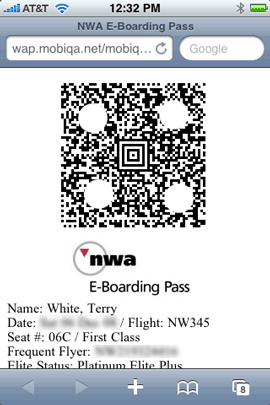
NWA’s NEW E-Boarding Pass

My boarding pass, slightly altered to protect the innocent


My boarding pass, slightly altered to protect the innocent


On a recent business trip I decided to give Northwest Airlines’ NEW E-Boarding Pass a shot. The way this works is that if you fly out of one of the currently supported airports (like DTW), you can check in for your flight using your “approved” smartphone/cellphone and actually use your smartphone/cellphone to go through security and board the plane. No paper boarding pass required. 

I had originally planned to get to the airport in plenty of time in case this didn’t work out. However, due to weather and traffic, I got to the airport 10 minutes later than I originally would have. So it had to work! I had no time for error. 


Here’s how it works…

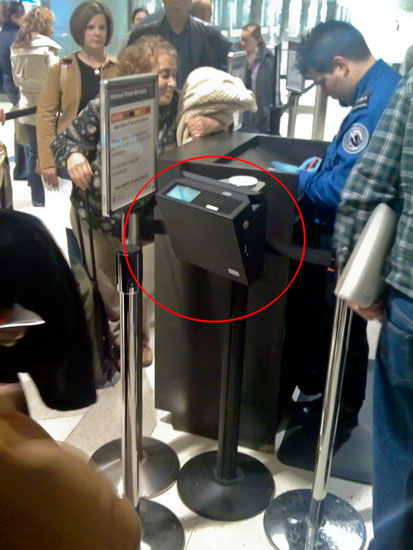
You can check in for your flight up to 24 hours before departure. If you use your cellphone, you can not only check in, but you can request that your boarding pass actually be sent directly to your phone. The E-Boarding Pass is sent to either an e-mail address or mobile phone number in the form of an e-mail, WAP push/link or MMS message. When you arrive to the airport, you show the screen with the 2D barcode on it and they actually have a barcode scanner right there at the TSA station.


One step forward, one step backwards

Now the interesting thing was, I was wondering how they would handle the requirement for showing your boarding pass to the agent standing on the other side of the X-Ray machine. In the Detroit Metropolitan Airport, they require that you show your boarding pass twice before going to your gate. You show it before going through the X-Ray machine to the TSA agent (who typically puts a physical pen mark/initials on your paper boarding pass) and again once you’re on the other side to another agent. The problem is you can’t walk through the X-Ray machine with your phone in hand! When I asked the first agent about this, he said he would, get this, walk over to the other guy and let him know that I was coming through and that I had shown him my phone. I thought, “oooooookkkkkkkkkk.”

After I got through the X-Ray machine (luckily no bag check this time), I told the guy that I didn’t have my boarding pass because it was electronic and on my phone. He said, “I still need to see it!” I said, well we’ll have to wait until my stuff comes through the X-Ray. So he holds up the other people in line until my stuff came through on the belt! I was stunned and thought, this is soooo inefficient. Clearly they haven’t thought this through yet. At a minimum the second guy (if we really need this guy in the first place), should either be double-checking boarding passes before you go through the X-Ray OR at the very end of the conveyor belt. 


I boarded the plane

When I got to my gate, the plane was already boarding. I walked right up and showed my iPhone to the agent. She told me where to hold it so that it could be scanned and I went right onboard. Cool!


The Bottom Line

I love seeing advances in technology like this, but clearly this one needs a little more work. There are also some potential issues. What if your battery dies? Since the iPhone doesn’t yet do MMS, you get a link via SMS to view your boarding pass in Safari. What if your web connection doesn’t work at that given moment as in some cases the iPhone’s Safari needs to be able to connect to the internet to be able to refresh a page. Do we really need boarding passes at all? Couldn’t your ID/Passport be your boarding pass (children/minors would still need them). I’m excited about the possibilities, but right now there are some things that need to be worked out. NWA’s E-Boarding Pass is currently offered on non-stop flights from Indianapolis, IN and Detroit, MI during check-in on nwa.com. If you are departing from IND or DTW you must be checking in as a single passenger on a Northwest operated non-stop flight within the United States.

iPhone App of the Week – Say Who-Dialer

Last week’s iPhone App of the Week was Google Mobile App. The one thing I was intrigued by was the new Voice Search feature. Like I said last week, voice recognition technology usually doesn’t work well for me. I try to speak as clearly as I possibly can and most times I end up repeating the phrase so many times that it would just be faster to type it. So how could I possibly pick another Voice Recognition app so quickly? 


Say Who-Dialer Works!!!

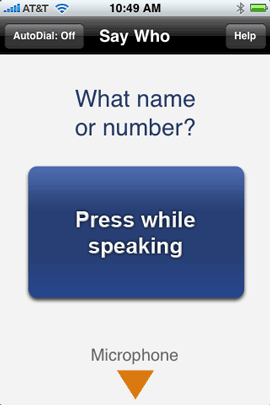
I was floored by how well this app works. I haven’t been this excited about an iPhone app since, well, never! Say Who-Dialer brings a much needed voice dialer to the iPhone. The app is simple. You launch it and after a few seconds, it’s ready to find your contacts simply by speaking their names. There is a big button on the screen that you hold down while you say the name of the contact you wish to dial. You can say the first name, first name and last name, nickname even, and you can add the number you wish to dial such as “Frank Jones Mobile.” When I first tried it, I thought “ok, how bad is this going to screw up what I’m trying to say?” I tried my buddy “Scott Kelby” and it came right up. I thought, OK that was a lucky one. Let’s try something a little harder like “Kwesi Aquil.” It WORKED! It actually worked for every name I through at it. If you don’t know the name, but you know the number you can just speak the digits (ie. 5 5 5 – 7 7 7 1).


Here I said "Bruce Mandel"


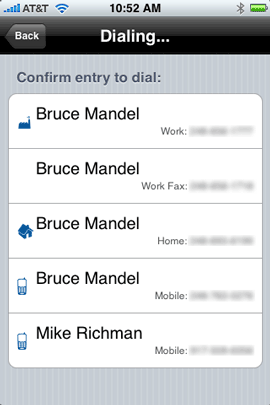
Here I said "Bruce Mandel mobile"


I was so amazed at how well it worked, I just kept throwing names at it all night. It never missed a beat. Now of course speech recognition is only as good as your surroundings. In a noisy environment, it will likely be less accurate. There is the option of having it auto dial as soon as you speak the name. I have this turned off, because I wanted to verify the results first. Like most search apps, it displays a list of results. Names it thinks you’re trying to say are listed in the order of most likely what you wanted at the top and then less likely names on down the list. I turned the Auto Dial feature back on to see what happens. With Auto Dial on, it displays result for a couple of seconds before dialing it. This would be fine as long as you’re not only speaking the name, but also which number you wanted dialed too (such as mobile, home, work, etc.) Every time I tried this app, the name I was trying to say was at the top of the list. It’s AMAZING! I have over 1,000 Contacts, so this app is VERY HANDY!


Room for improvement

I know, what could I possibly have to complain about? It works! Yes the app works well. No complaints on the voice recognition. They nailed it. However, I would like to see a couple of things added to the interface. The Google Mobile App takes advantage of the motion sensors in the iPhone so that when you hold it up to your face, it beeps and is ready for your voice input. I know that Google admitted that they broke the ruleso of the SDK with certain aspects of their app, however, I would love to see that feature in the Say Who-Dialer. I would also like to see it be completely voice driven. For example: I press the button and say “Dave Helmly Mobile”, then it replies “Dave Helmly Mobile” verbally to acknowledge that it’s about to dial the right name. I say “yes” and it dials it. This way I would never have to look at the screen which would be a plus while driving.

Although it works PERFECTLY for me for people’s names, I have not had good luck with business names. It only brought up 1 out of the 5 business names that I threw at it. However, It was smart on the one business that did work. I said “Rose Cleaners” and it did in fact bring up “Rose Dry Cleaning”.


The Bottom Line

This app freakin’ rocks! Hands down it’s the most excited I’ve ever been about a 3rd party iPhone app. Rarely is an app so good that it gets a spot on my main Home Screen. This one is so good that I’m even considering putting it in the dock so that it is always one tap away. It works way faster than bring up the Contacts and scrolling or searching. Here’s the other thing I can’t believe, it’s FREE! That’s right, this app is a FREE download from the App Store. So there is simply no reason not to try it out. I haven’t updated my Top 10 iPhone Apps in a while, but this will definitely be on it! Don’t walk, run to the App Store and download it now.


Over 10,000 Apps Now Available for the iPhone/iPod touch!

Wow how time flies when you’re having fun! iPhone app development has taken off like wildfire. Although I’m doing my favorite iPhone App of the Week, there are thousands of apps that I will probably never touch. With that in mind, here’s a site that is dedicated to keeping up with ALL the iPhone apps. It’s called 148Apps.com (named after the fact that you can have 148 apps installed on your iPhone or iPod touch). While I do this iPhone app thing once a week, they’re dedicated to doing it all the time. The App Store has only been up since July 11, 2008. It launched with 1,000 apps. In less than 6 months time it has 10 times that many apps. Imagine what it will be like by July 11, 2009? I will certainly enjoy the ride!

Migrate Windows Boot Camp Partition to a New Mac

Although I love getting the latest and greatest Mac notebook, one of the things I always dread is having to setup my Windows Boot Camp partition all over again from scratch. Apple makes it really easy to migrate your Mac to a New Mac. You just run the Migration Assistant and it will handle transferring all of you data, apps, settings to the new Mac. That’s it, you’re done! However, Apple does NOTHING to help you move your Windows Boot Camp installation over. As much as I have tried in the past, I’ve never been able to simply backup/ghost the Windows partition over to a new drive or new Mac. Yes, I’ve heard stories of people using Disk Utility to do it, but I’ve yet to meet anyone that has done it 🙂 – urban legend… LOL

I have had my New MacBook Pro for a couple of weeks now and decided this past weekend that it was time to tackle getting my Windows XP volume setup. This time I didn’t have to start from scratch!


Winclone to the rescue

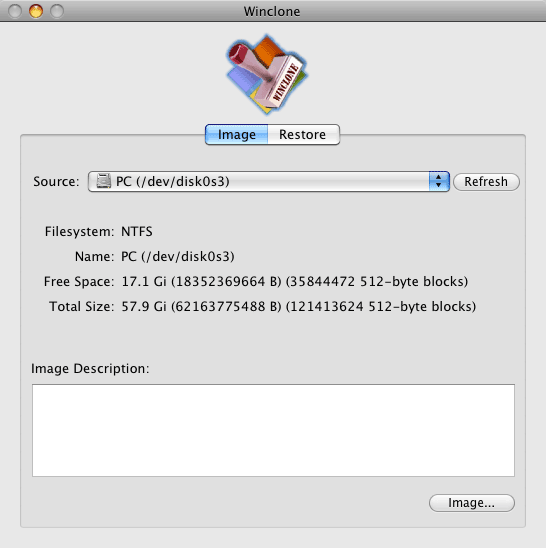
I had heard about Winclone months ago. It’s a Donationware/FREE Mac app that allows you to clone/backup AND restore your Windows Boot Camp Partition. I kept this utility in the back of my mind knowing that I would eventually be getting a new MacBook Pro and it would be worth a shot to try to use it to move over my existing Windows XP setup. I figured the worst that would happen is that it wouldn’t work or the restored Windows environment would be buggy/unstable and I’d just start from scratch anyway. So I had nothing to lose and everything to gain by giving it a shot.

When I knew that my New MacBook Pro was on the way, I fired up Winclone on my old Mac and cloned my Windows XP Boot Camp partition to an external Firewire drive. I used the Compressed option, which took my 60GB partition down to about 23GB (keeping in mind that there was only about 30-35GB’s used on the Windows partition). It creates a single Image file of your Windows drive. You can even mount the image as long as you don’t use the Compressed option.

According to the Winclone webpage one of the bullet items said: “Create a Bootcamp partition from within Winclone.” So I took that to mean that all I would have to do is fire up Winclone on my new Mac and it would not only do the restore, but also create the new Boot Camp partition. Sadly this was not the case. I looked everywhere in the app for the option to create a Boot Camp partition and it’s just not there. Since I was in no hurry to do this, I decided to send the guy an email asking about this and his response (very timely I might add) was that it was easiest to just use the Boot Camp Assistant (that comes with the Mac) to create the Windows partition and then quit the Boot Camp Assistant app and run the Winclone restore. It seemed simple enough and it worked perfectly. I fired up the Boot Camp Assistant and followed the prompts to create a new Boot Camp Partition. After about 5-10 minutes it was done and I just quit the app. So now I had an empty Windows partition ready to go.

Next I plugged in my external Firewire drive containing my Winclone backup image and then I fired up Winclone on my new Mac. I ran the restore of the Windows XP image and figured it would take a while so I went out and ran an errand. When I returned the restore was complete (I was gone for less than an hour, but I didn’t time the restore from start to finish). Fingers crossed, I rebooted my MacBook Pro, holding down the Option Key and there it was. I got the option to boot into Windows. Windows had to do some drive checking/repairing and I just let it do its thing. Once that was done, I saw my familiar Windows XP desktop. I was also being prompted to reactivate Windows (more on that in a minute). The next thing I knew I had to do was to update/install the drivers for all the things on the MacBook Pro such as the trackpad, iSight camera, graphics card drivers, Airport wireless, etc. Now instead of making you burn a CD, Apple includes these drivers on your Mac Installation DVD. This DVD is a dual format DVD, so when I inserted it, it did an Autorun and fired up the main menu allowing me to “Remote install Mac OS X on a MacBook Air”, “Install the CD/DVD Sharing app” for a MacBook Air, or install the Boot Camp Drivers. I picked the third option and it installed everything necessary to allow Windows to take advantage of the hardware built-in to the MacBook Pro.


What worked, what didn’t? Any gotchas?

For the most part everything worked PERFECTLY! During the first boot above I had to go grab an external keyboard. I have Windows XP set to require a login/password. In order to enter this password you have to press Control-Alt-Del. Unfortunately “Delete” on the MacBook Pro keyboard is NOT “Del” on the Windows keyboard. Apple takes care of this with their keyboard driver by mapping “Del” to the Delete key when you press the Function button. However, since I hadn’t gotten the drivers installed yet, the only way I was going to be able to login to Windows was to use an external keyboard that actually had a “Del” key.

I was stunned by how little I had to do afterwards. But there was one casualty. Although my Trackpad works, it doesn’t have all of the functionality. For example, I should be able to put two fingers on the trackpad and click for a right click. For some reason that’s not working now. I tried uninstalling and reinstalling the drivers and it’s just not working. However, two finger scrolling works, go figure. I went into the Boot Camp control panel and verified the settings were correct, it’s just not working. This is no biggie and may have something to do with the OLD Boot Camp drivers that were already present. This is one of the potential gotchas of NOT starting from scratch. It’s one I can live with for now. Usually when I’m in Windows via Boot Camp I’m doing a demo and I’d be using a mouse or tablet anyway. I also have a free little utility for Windows called Apple Mouse that lets you do a right click by holding down the Control button and tapping the trackpad button. So I’m good for now.

The other thing I had to do (which I fully expected), was to reactivate Windows XP. Windows looks for hardware changes like a different Ethernet card address and different processors, hard drives, etc. I was able to reactive Windows via the web with no problem. Everything else I’ve tried (so far) works fine. I can get online. My apps are working. No weird errors, no crashes. Winclone saved me HOURS of having to install everything from scratch.


Ongoing use of Winclone

Once I get my Windows environment updated the way I want (for example, uninstalling Adobe CS3 and installing Adobe CS4), I will use Winclone on a regular bases to create a backup of my Boot Camp Partition. This way if my Windows installation gets hosed, I can just restore it.


What about Parallels or VMware?

It’s true, with virtualization apps like Parallels, you don’t need to partition your drive. You would just have a Windows “image” that’s a file on your drive. It could even be on an external drive. With Parallels or VMware there’s also no need to reboot! Windows (or whatever OS you’re running) just runs in a Window right along side your Mac OS. So why Boot Camp? Parallels actually offers several modes of running Windows right along side your Mac OS including the ability to have it seamlessly integrate right into your Mac environment so that when you run Windows apps they show up in your Mac dock. It’s like running Windows apps in the Mac OS without seeing the Windows “window”. Although I love the sheer convenience of Parallels, I love the horse power of Boot Camp. When you run Windows under Parallels or VMware, you’re sharing resources with the Mac OS that’s ALWAYS running in the background. So you won’t have as much RAM available to either environment and you may not be able to take full advantage of your graphics card/3D graphics acceleration, Open GL, etc. Parallels is GREAT for the casual user or the user that isn’t running demanding apps. I actually use Parallels too. I use it for those times when I need to pop into Windows to do a task and don’t feel like rebooting my Mac. Both Parallels and VMware can use your Boot Camp Windows installation as their source for Windows, so you get the best of both worlds! If I need full power in Windows, I reboot and use Boot Camp. If I just need to do something quick or less demanding in Windows, then I run Windows in Parallels. The best part is that no matter which way I run Windows, it’s the SAME Windows installation with the same apps, files and settings. 


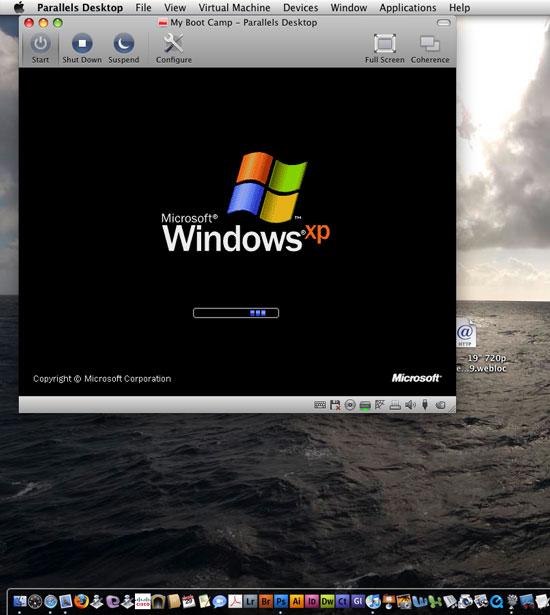
Windows XP starting up in Parallels 4 while the Mac OS runs in the background


Parallels 4.0

I also took this opportunity to upgrade from Parallels 3 to Parallels 4. While this isn’t a full review, it works great too. Because of the way Parallels installs stuff in your Windows environment, it changes just enough that Windows will probably need to be reactivated again. Had I known this up front I would have waited until Parallels 4 was installed before reactivating Windows. Since I had just recently reactivated it after the Boot Camp install, having to reactivate it again in such a short time probably appeared to Microsoft that I was trying to install it on two different computers. I was not allowed to reactivate it over the internet. I had to call in this time. It was still done automatically via a computer, but I had to answer the “how many computers are you installing this copy of Windows on?” question twice. It gave the necessary key code and I was all set. Parallels 4 is definitely faster than version 3. Also my Trackpad works perfectly under Parallels with the right-click functionally and scrolling.

I’ll have to review version 4.0 when time permits. However, booting up into Parallels now is dramatically faster. However, keep in mind that no matter how much they speed up Parallels, it will never be as fast as running in Boot Camp because you’ll always be sharing resources.

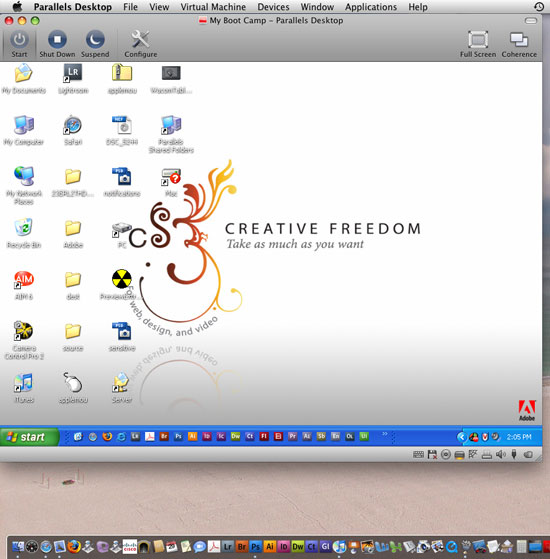
My Windows XP Boot Camp installation running in Parallels 4 as a Window on top of Mac OS X


The Bottom Line

The Mac is more popular than ever because of these capabilities. If you use Windows XP/Vista under Boot Camp on your intel Mac and you need to backup (duh, you need to backup), then Winclone is an indispensable Mac utility. If you need to migrate your Boot Camp Windows installation to another Mac, other than starting from scratch, there is no better way than using Winclone. You can download Winclone from here (yes it works with Vista too). Although there is no charge for this app, he is asking for donations. I had no problem donating because this is an app that I would have gladly paid for anyway. Apple should either buy this and include it with the OS or build-in this functionality into their existing Migration Assistant. People will be more willing to go to a new Mac if there is less hassle in doing so.

iPhone App of the Week – Google Mobile App

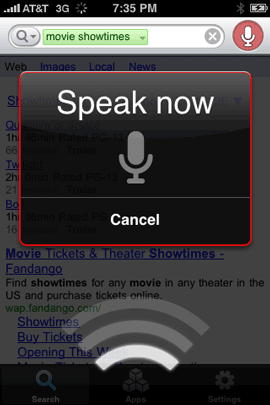
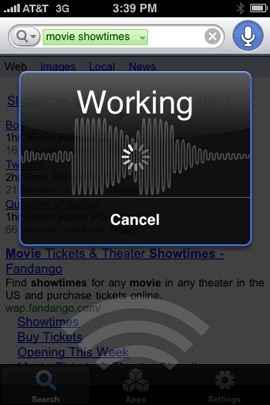
You might be wondering, “why do I need a Google app on my iPhone? Isn’t Google built-in?” I wondered the same thing. The first time I downloaded the Google Mobile App a couple of months back, it was because the built-in Contacts app was soooooo slow at searching Contacts that I used the Google Mobile App instead. Once Apple brought acceptable speed back to the Contacts app via software updates, I deleted the Google Mobile App. Recently I put the app back on. I was intrigued by the New Voice Search. Although I love voice recognition technology, it usually doesn’t work very well for me. It usually takes 3-6 tries to get the device/app to recognize what I’m trying to say. I have voice recognition in my car and almost never use it for this reason. So I decided to give this App a try just for fun. Although it’s not perfect with my voice, it does work more times than not. Of course you don’t have to use the voice feature at all. You can just key in your search words as you would expect.


Why do I need the Google Mobile App? Isn’t Google built-in to the iPhone?

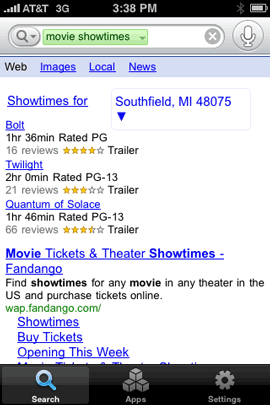
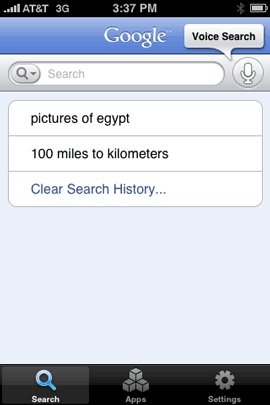
Beyond the new voice recognition capabilities, you’re probably still wondering why you need the Google Mobile App? It’s simple. The built-in Google search in Safari and Google maps are good! I use them all the time. However, they only search the internet. The Google Mobile App searches your iPhone data (Contacts) and the internet at the same time. Beyond that it offers suggestions and word completion for what it thinks you’re searching for. Although Apple did speed up Contact searching, the Google Mobile App is still faster. The Google Mobile App also keeps a history of your searches to make it easy to do the same searches again. Another thing that sets the Google Mobile App apart from the built-in Google search in Safari is that it’s Location Aware. This means that you can do searches for things around you. Yes the Google Maps can do this for businesses, etc., but it’s not as comprehensive as all that would be available to you searching the full Google Search Engine.

Searching for Showtimes in the Google Maps App that’s built-in to the iPhone just brought up a nearby theater.

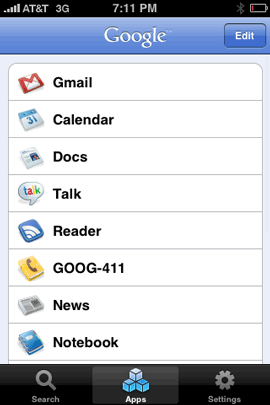
If you’re a user of other Google services such as GMAIL, Notebook, Calendar, etc. You’ll have quick access to those services too.

Don’t get too excited. These apps are Google’s web based apps and open in Safari. They are not native iPhone apps.


How does the voice feature work?

Google recorded this cool demonstration. See it for yourself:


The Bottom Line

I like this app a lot. I really like the voice feature although it’s not perfect at recognizing my voice. It’s really cool just to speak your search and have it done. I like that it searches my Contacts at the same time it searches the web, but I wish it also searched my calendars too. It would be MUCH faster than having to scroll through looking for an appointment. As a matter of fact the Calendar app should have its own search feature like the Contacts app. It would be great if the Google Mobile App could search both at the same time. That being said, this app is FREE so it’s hard for me to complain about it. It does what it was built to do and does it well.

The Google Mobile App is FREE and available for both the iPhone and iPod touch. Download it from the App Store here: Google Mobile App