iPhone Photo Contest – DEADLINE is TODAY!

Today is the last day to submit your iPhone photos for the iPhone Photo contest!

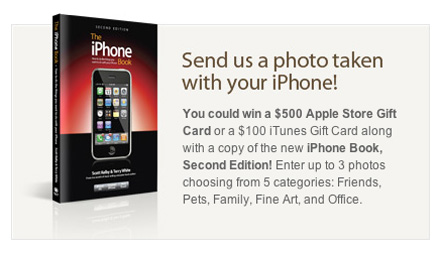
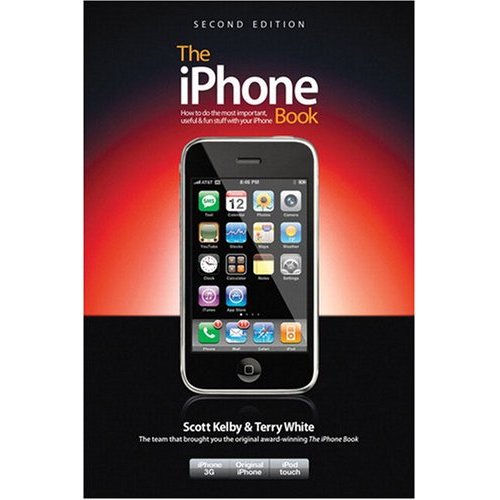
In celebration of my new book,  The iPhone Book 2nd Edition we’re kicking off an iPhone Photo Contest! That’s right, you could win valuable prizes by submitting your best photos taken with your iPhone’s built-in camera.

  1. You can enter up to three photos (total) taken with your iPhone (doesn’t matter if it’s the original model, or the new 3G).
  2. There are five different categories; Friends, Pets, Family, Fine Art, and Office. The winner in each category gets a $100 iTunes Gift card and a copy of “The iPhone Book” 2nd edition.
  3. The Grand prize winner gets a $500 Apple Store Gift Card, and a copy of “The iPhone Book” 2nd edition.
  4. From the photos submitted by the deadline of Oct. 24, 2008, Scott and I will choose three finalists in each category, and then the public gets to vote for the winner in each category (the one getting the most votes wins). Then, from those Winners Scott and I will choose a Grand Prize Winner on November 3, 2008.
  5. This may seem obvious, but of course, the photo has to be taken with your iPhone’s built-in camera.
  6. You can edit your photos using any iPhone application available from the iTunes Apps Store, or any other image editing application, but no other non-iPhone photos may be included in your entry (so you can’t take your iPhone photo and composite it with a photo taken with your DSLR, point-and-shoot, or a stock photo).
  7. You may not give your iPhone to Jay Maisel, Joe McNally, or Moose Peterson. Not even to make a phone call.
  8. There is no entry fee, and the contest is open to everyone; You do not have to buy “The iPhone Book” to enter, but it certainly wouldn’t hurt. 😉
  9. Whining of any kind, about anything, is strictly prohibited.
  10. You can submit your photos, and learn more about the contest at the official contest site (here’s the link).

I can’t wait to see all of your cool shots. Good luck and happy shooting!

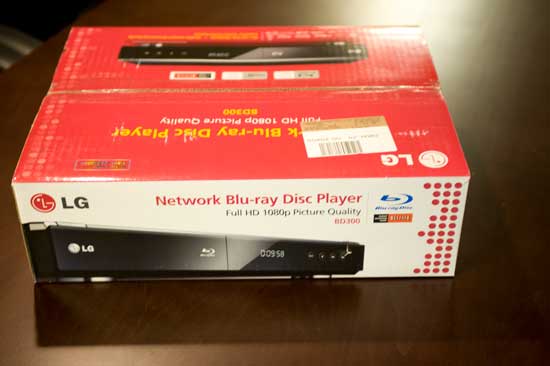
LG BD300 Blu-ray Player with Netflix Streaming


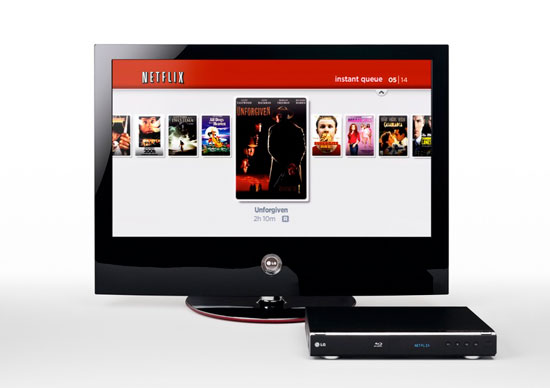
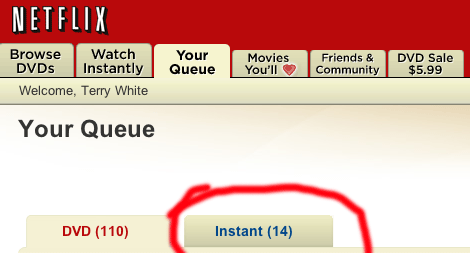
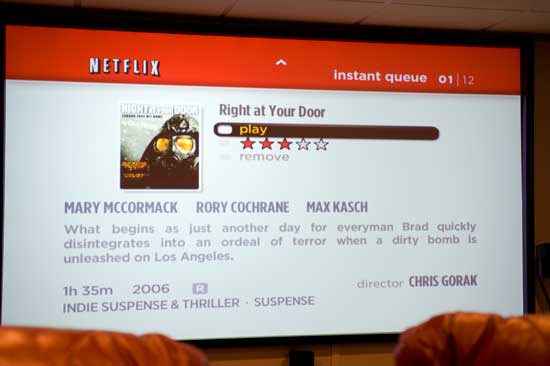
It wasn’t long ago that I reviewed the new Sony BD-S350 Blu-ray player and I’m still quite happy with it. However, I was intrigued by the NEW LG offering. The New LG BD300 Blu-ray Player can also stream Netflix movies. As a Netlfix subscriber, the only thing that I don’t like about the service is having to wait for the discs in the mail. Otherwise, I’m in love with Netflix. So when Netflix started offering movie streaming at no additional cost, it got my attention. When the service first rolled out, it only worked on Windows PC’s. While I can certainly boot into Windows on my Mac, I just wasn’t inclined to. It actually had nothing to do with running Windows. It was more about the selection of available streaming titles. While Netflix has over 100,000 titles on DVD (many on Blu-ray), there were only a handful at the start, available for streaming. As a matter of fact I normally have anywhere from 70-90 DVD titles in my queue at any given time. I was shocked to only see 4 out of the 90 titles in my queue available for streaming! Those 4 were older titles that I want to see at some point, but not anything new or urgent. 

Today, things are a little better. First off, there are more titles. Netflix is boasting over 12,000 Movies and TV shows for streaming.


Still only a small percentage of my queue is available for streaming

Still only a small percentage of my queue is available for streaming


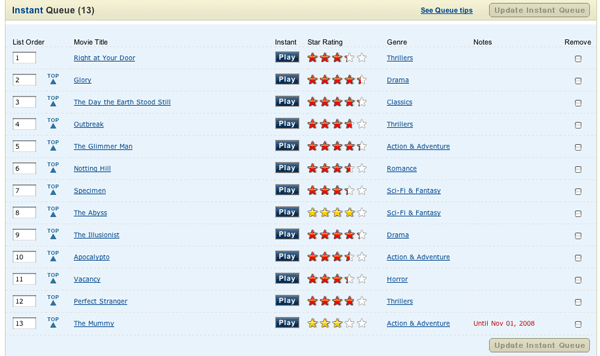
Out of my 100+ DVDs/Blu-rays, these are available for streaming

Out of my 100+ DVDs/Blu-rays, these are the only ones available for streaming


Secondly Netflix has authorized hardware manufacturers to build the Netflix streaming technology in. The first box that I saw was the Roku. This $100 box has one purpose. It connects to your TV and your internet connection and streams movies from the Netflix service. That’s it! Again, I thought this was cool, but I wasn’t ready to spend $100 to only watch a handful of titles. So I waited. I then saw the New LG Blu-ray player. This “Network”  Blu-ray player sports all the latest and greatest advancements in Blu-ray technology including BD-Live support. However, it offers one more thing and that is Netflix streaming.

Since I was in the market for one more Blu-ray player at some point for my living room, I decided to move the Sony BD S350 to the living room and put the new LG in my theater. 


Netflix streaming

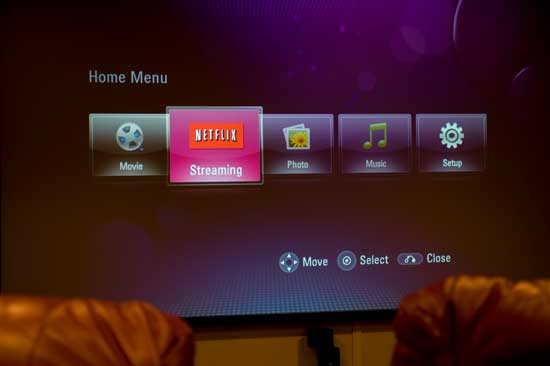
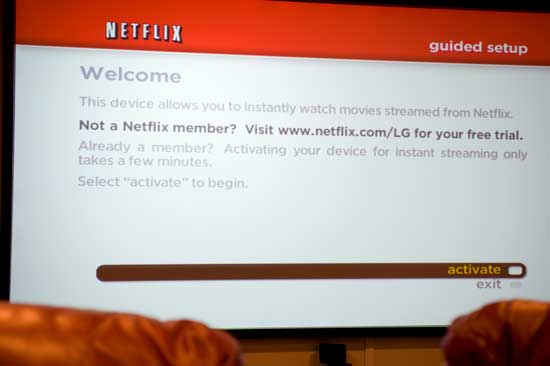
The New LG player is very easy to setup for Netflix streaming. Once you have it connected to your network, you choose the Netflix menu option, you’re given a 5 digit activation code.

You go to your computer and log in to your Netflix account and key it in. By the time I made it back to the theater room (not sure why I didn’t just take my laptop in there with me), there was a message waiting that my account was ready to go.


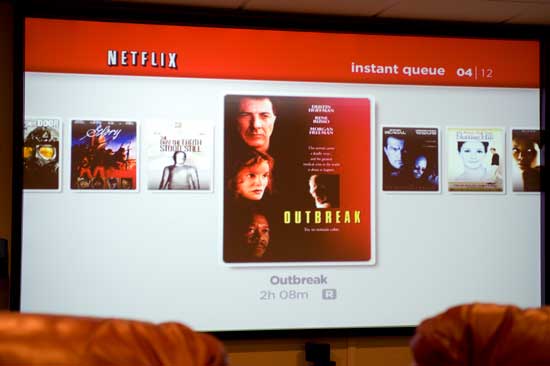
Streaming a movie was as simple as selecting it and hitting the OK/Play button. The movie starts playing in about 15-30 seconds (this will depend on the speed of your internet connection. I’m on a fast cable connection).

You can pause, fast forward or rewind any movie that’s playing. You can stop it and it will remember where you left off the next time you go to play it.


Streaming Picture quality and sound

Although the sound was really good, it was only stereo and not surround sound. As for the picture quality, it’s on par with standard def DVDs. I’ve now streaming movies from iTunes, Amazon Unbox and Netflix and I would say of the three iTunes is best, Netflix is a close second and Amazon is last in terms of image quality. Also no glitches in streaming. The movie streamed back smoothly.


16:9, Widescreen, HD

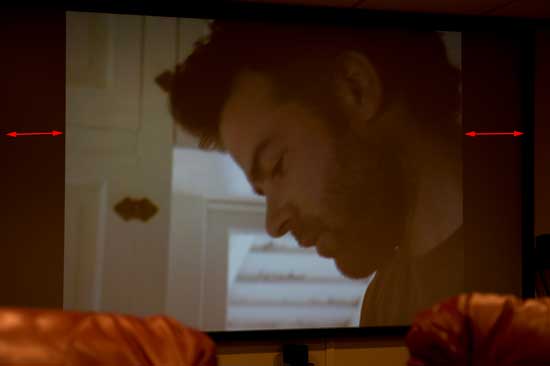
The Netflix movies that you stream are NOT in high def. Although I knew this going in, I expected them to all be at least widescreen (with the exception of titles that were never widescreen). I was shocked that the first couple of titles I tried were NOT playing in widescreen. As a matter of fact they even looked a little squished. It was like they were widescreen titles that were being forced into a 4:3 format.


"Right at your Door" playing back at 4:3 aspect ratio

“Right at your Door” playing back at 4:3 aspect ratio


I was really disappointed thinking that they they just didn’t stream in widescreen. A quick Google search lead me to see that they do in fact stream in widescreen. So I called Netflix tech support. The tech did confirm that “some” titles stream in widescreen. So I asked him to give me the name of a title that he knows to stream in widescreen. He told me to try “The Mummy.” I went back to my computer and added that movie to my queue (there is no search on the player itself). It was there waiting to be played by the time I walked back to the theater room. I played it and it was not playing widescreen either. The tech put me on hold and while he was checking on this, I tried a couple more titles. The next one I tried was “Glory” and low and behold it did fill the screen in widescreen format.


"Glory" streaming in widescreen

“Glory” streaming in widescreen


When the tech came back to the line, I informed him that it was working with certain titles. We still couldn’t figure out whey The Mummy was working for him, but not for me. Again, I’m not ecstatic that only some titles play 16:9 and some don’t. Even some of the newest titles were playing back in 4:3 format! I can live with it for now, but I want this to improve! The Netlfix tech informed me that they have no control over it. They only get one format from the movie houses and that’s the format they stream. I’m hoping that this situation will improve as they bring more titles online. In my quick tests only a couple of the ones in my queue played back widescreen.


It’s a Blu-ray player and more

Remember that the main purpose of this box is to play Blu-ray discs. It does a fine job at that with no complaints. I popped in Iron Man and the disc loaded very quickly.


"Iron Man" playing back from Blu-ray
"Iron Man" playing back from Blu-ray on the LG BD300


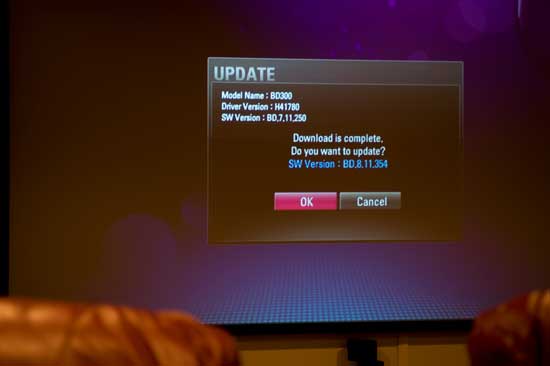
It also upconverts standard def DVDs to HD. The minute I connected the player up, there was a firmware update waiting.

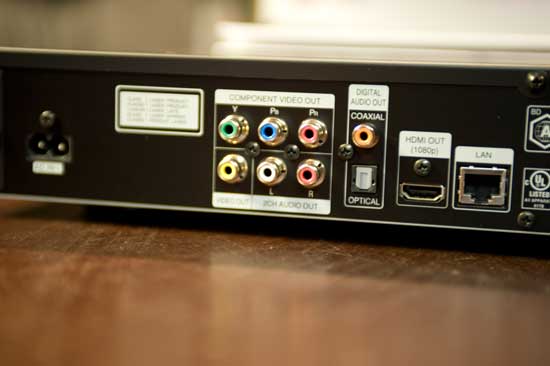
This player connects to your network via Ethernet. So you will need either an ethernet drop near your TV or an Ethernet to Wi-Fi bridge (which I have not tested). It would be great if these Blu-ray players either came with Wi-Fi built-in or at least offered a low cost external option like the one available for TiVo HD.

There is also a USB 2 port on the back of the player. This allows you to hook up USB hard drives or thumb drives to handle content such as pictures or music. Since I use an Apple TV for pictures and music, I don’t really have a need for this on the LG, but it’s there if you need it.


The Bottom Line

If you need a Blu-ray player AND you have a Netflix account, this is your player! It’s about $100 more than the Sony BD S350 (it’s much cheaper now at $266), which you could argue is the same price as the Roku box. However, having the Netflix streaming combined with a Blu-ray player means only having to worry about connecting and controlling one device. Also since there are never enough HDMI or Optical Audio ports to go around, less is more! Another thing to ponder is that since there is no additional charge to use the Netflix streaming service if you already have a Netflix account, it’s like Netflix is maintaing a growing on-demand video library that is accessible to you whenever you want without you physically having to store the media.

No one service has it all (yet). Each one has the pluses & minuses. Overall, the combination of iTunes and Apple TV seems to be leading the pack (HD Movie Rentals and TV shows, iPod, iPhone, computer and TV compatibility, Streaming and Downloading options, no subscription fees). If Netflix could wrangle more titles loose from Hollywood in a streaming format, add HD and 5.1 surround options, they would be best. Amazon’s Unbox with TiVo HD is a nice option too. Nothing beats the quality of a Blu-ray disc though. So media will be around a little while longer, which is what keeps me going back to Netflix. Nope, none of these services is strong enough to stand on its own yet and that’s why I have Netflix, iTunes/Apple TV, TiVo HD and HBO HD via Comcast. As soon as one gets it right, I’d be glad to give up all the rest.

Best Buy has the LG BD300 for $349. Netflix plans start at $4.99/month (note that the $4.99/month plan only allows for 2 hours of streaming. All other plans allow unlimited streaming).

iPhone App of the Week – AirMe

I’m a big fan of geotagging my photos. I love the fact that now the iPhone can automatically put in the longitude and latitude of where you are when you take the shot. Even if you’re not outside or you have the older model iPhone that didn’t include the GPS, you can still get pretty close using the cell towers and wi-fi hotspots. When I upload my shots to Flickr using the iPhone app Flickup, the GPS/location information is honored and the image is automatically added to My Map. (note that you have to turn this preference on in the Flickr Privacy settings: http://www.flickr.com/account/geo/privacy for your account). While this is cool, I also upload photos to Facebook and unfortunately Facebook doesn’t honor this info, nor does it have a built-in map feature. 


AirMe to the rescue

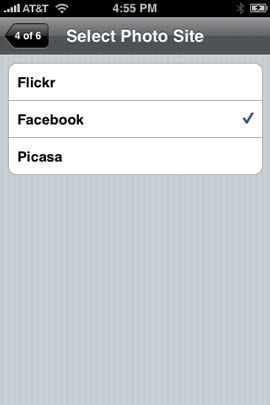
Luckily there is a FREE iPhone app called AirMe. AirMe can upload your photos to Flickr, Facebook, Picasa or send to Twitter. So far, no big deal right? Here’s what makes AirMe special: It not only has the ability to upload the shot with the GPS data, but it’s Location Aware and translates your location information into tags that appear in the photo description when someone clicks on the photo on the site you’ve uploaded it to. It not only tags the photo with the location, but also other things like the weather (optional). 


Tagged photo in Facebook, uploaded by AirMe

Tagged photo in Facebook, uploaded by AirMe. As you can see, AirMe added the tags 17°C (it will use Fahrenheit in the US), Sunny, Spadina, Canada, Ontario, Toronto. I added the optional tag of travel.


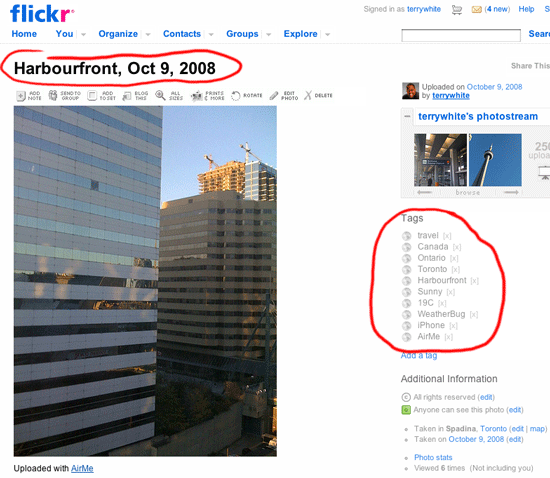
When I uploaded a photo to Flickr, the tags appeared as well as the name that AirMe used on the photo:


Shot taken in Toronto uploaded to Flickr using AirMe

Shot taken in Toronto uploaded to Flickr using AirMe


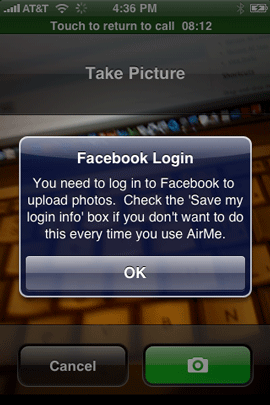
Although I really like AirMe, there is room for improvement. I have two issues with this app. The first issue is that after you authorize your Facebook account to use it, you are still required to login each time (at least once a day). I wrote to the developer about this and he said that there used to be a checkbox on the Facebook page to keep you logged in or remember your login. Now that it’s gone, they will try to accommodate a work around in their next update.

The other issue is that switching from one site to another, for example, going from Facebook to Flicker, requires you to authorize the app again (even though it will tell you on the site that the app is already authorized). Again the developer promises to fix this in the next update. However, this is such a pain that for right now I’ll just use it for Facebook uploads and continue to use Flickup for Flickr Uploads.


AirMe needs to remember my login info

AirMe needs to remember my login info


The Bottom Line

AirMe has been a blast use and I do really like it. Once the app has the ability to remember me on the various sites I use it on, I’ll like it even more. It automatically provides the location information for my shots in an intelligent way (using tags) that saves me the work of having to do it all manually. This free app is definitely a keeper. You can download it for your iPhone here for FREE!

The iPhone Book 2nd Edition is Now In Stock!

I’m very pleased to announce that my NEW BOOK, The iPhone Book 2nd Edition is now in stock at Amazon.com. I’m really excited about this new edition co-authored with my buddy Scott Kelby. We really sought out to improve this book from cover to cover. We’ve added a brand new "Killer Tips" chapter that is PACKED with tips and techniques for all users, whether you’re new to the iPhone or been using one since day one you’ll get some great tips on how to really take advantage of your iPhone (or iPod touch).


Reminder, submit your entries for the iPhone Photo Contest

In celebration of our new book we’ve launched an iPhone Photo Contest. There are only seven days left to submit your photos before the October 24th deadline. You could win a $500 Apple Store Gift Card among other cool prizes. See the details here.


So don’t wait, run out and buy a copy of the iPhone Book! Buy two. It’s only $13.59.

New MacBooks Look Great!

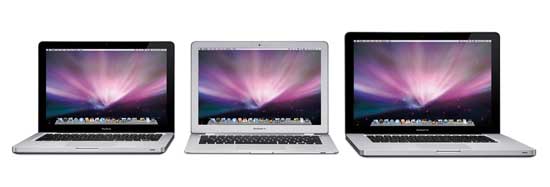
I’ve been holding off getting a new laptop at work because I knew Apple was due to come out with some major changes to the MacBook line. So I’ve been plugging away with my now 4 generation old 2.33 GHz MacBook Pro. It’s still a fine performer, but it’s starting to show signs of its age. Well yesterday Apple revamped the MacBook lineup and after what I’ve seen, I’m glad I waited!


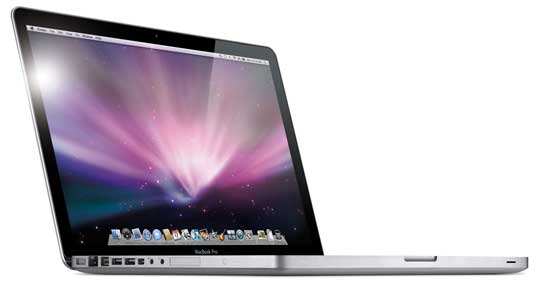
The New MacBook Pro

Apple has come up with a new process that involves making the case for the MacBook Pro out of a single piece of aluminum. This of course makes the case more sturdy and offers some potential weight benefits. too. All of the ports have been moved to one side and the slot loading Superdrive is now on the side. Apple has done away with the Firewire 400 port in favor of a single Firewire 800 port. Since Firewire 800 is backwards compatible (with the proper cable) to Firewire 400, this really isn’t a big deal although I will miss having two ports.

Apple also made access to the internal hard drive easier by locating it right below the battery. The front of the display is designed more like an iMac. The big news however is in the new trackpad. I’m going to reserve judgment until I actually get to play with one, but I’m not sure that I’m going to like not having a physical trackpad button. That’s right! It’s gone! You now tap the trackpad itself for everything. The new glass trackpad is like an iPhone’s touch screen. It supports multi-gestures things like a “right-click” via software. The older MacBook Pros allow you to turn on “Clicking” and “Dragging” and while some of my friends swear by this feature, I actually hate it!. So again, I’ll have to see what it’s like not having a physical button.

Apple also made a significant leap forward by going with Nvidia’s latest and greatest graphics chip. They are claiming 5-6 times performance gains, which will be great for the new Photoshop CS4 which takes advantage of your GPU.

One last thing, Apple made a new 128GB SSD (solid state disk) hard drive available across the line. So far I’ve not been impressed by this technology because for the price, you don’t really see a huge bump in speed or savings in battery. The MacBook Pro starts at $1,999. The 17″ MacBook Pro seems to have been left out of this round of updates. While Apple still offers it for sale on the store, it’s no where to be seen on the MacBook Pro page of Apple’s site.


Check out this clip of the New MacBook Pro Trackpad in action. Both Photoshop CS4 and InDesign CS4 take advantage of these new gestures. 


The MacBook gets a price drop and a new pro like model

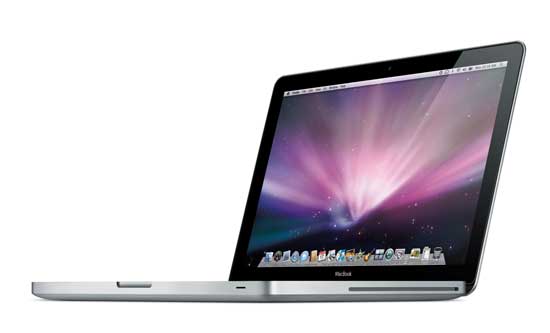
The MacBook has always been like the baby brother of the MacBook Pro. It’s not as powerful, but also not as expensive. Apple lowered the price of the base model to $999, but also came out with a higher end ($1,299) model with many of the same features of the $1,999 MacBook Pro including the same aluminum case design. If you don’t need Firewire, an ExpressCard slot, a larger screen (13″ vs. 15″) or a faster processor (2.0GHz vs. 2.4GHz), then you could save yourself $700 and go with the new higher end MacBook.


MacBook Air gets a couple of bumps too

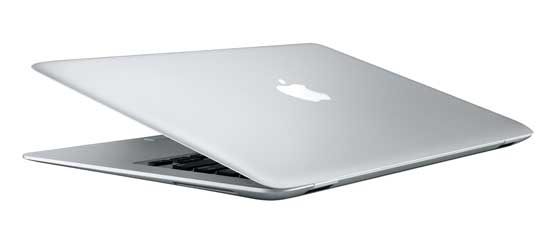
I resisted temptation when the original MacBook Air came out because I just couldn’t live with a paltry 80GB internal drive. Although 120GB is still not enough for my day-to-day use, it is enough for my wife. So her MacBook goes to my daughter and my wife gets the new MacBook Air! The MacBook Air also gets a much needed bump to the Nividia 9400M graphics card! The MacBook Air is still priced at $1,799 and up.


One more thing…

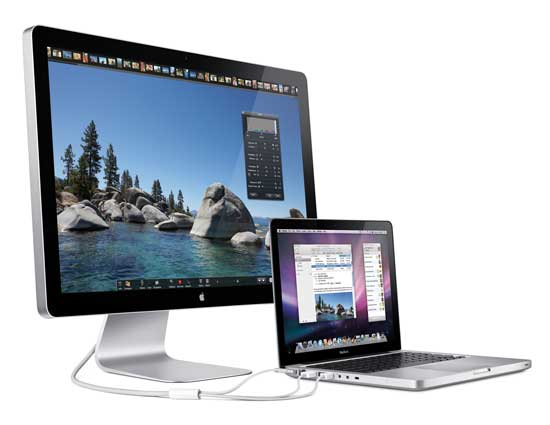
Apple also (finally) announced a New 24 inch Cinema Display that is LED based. I can’t believe that it has taken Apple all these years to begin to refresh their display line. Apple seems to have geared this display for portable Mac users. For one thing it has a MagSafe power adapter to power your MacBook directly from the display. Besides being LED based, it also has a built-in iSight camera, which is good and bad. It’s good because Apple stopped selling stand alone iSights years ago, but it’s bad for the locations that don’t allow cameras of any kind on the premises. I’m also stunned by the price. This puppy is $899 and that seems like a lot for a 24″ display. Yeah, I get that it’s LED based (which costs more) and that it has a built-in iSight and that Apple usually makes really good displays, but that still seems like a lot for a display.


The Bottom Line

Aside from the new Cinema Display, I’m psyched about these new products. I can’t wait to get my new work MacBook Pro. I’m a little hesitant about the new trackpad design, but I’m open minded enough to give it a shot. I am a little disappointed in the lack of Blu-ray support. Apple seems to be dragging their feet on this one in hopes that Blu-ray is just a fad and everyone will move to downloadable HD content from the iTunes store. While that may happen some day, I’d love to see Blu-ray movie playback on the MacBook Pro. If you’re in the market for a new laptop, you have a range of options here that should satisfy just about any user.

See yesterday’s Steve Jobs keynote address video here.

iPhone App of the Week – i.TV

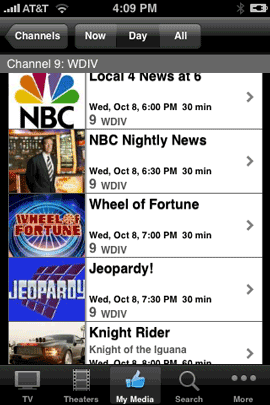
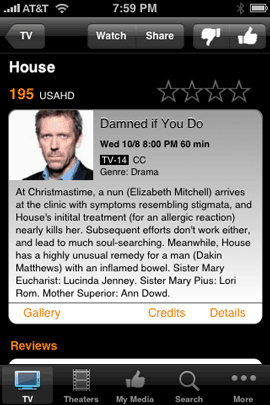
I never thought I would get excited about a TV guide app on my iPhone. However, if it’s well done and FAST, then I’m all in and that’s exactly what you get with i.TV. i.TV answers the question: "what’s coming on tonight?" The app is pretty straight forward. You start off by telling it where you are. Although the App supports location services, I still ended up putting in my Zip Code. Once I did, I got the choices for the providers in my area including Comcast Cable which is what I use most. As soon as a I made that my choice, that app started downloading the guide. I was on Wi-Fi at the time so the guide only took a few seconds to download. Once It was there, I could not only see the channels, but also little thumbnails for the shows that were currently on.

Great customization options

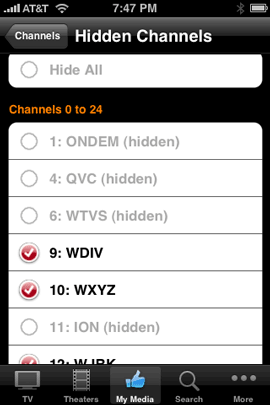
The one thing that is a must have in an app like this is the ability to narrow the list of channels down to just the ones YOU care about. I could care less about what’s on HGTV or the QVC channel. One quick trip to the "My Media" screen and I was able to edit down the list of channels to just the ones I watch.


But wait, there’s more

Not only do you get the listings for the shows, you also get a synopsis of the upcoming episode as well as a listing of upcoming episodes. If you register for an account on their site (free and optional), then you also get the ability to write reviews and give ratings.

Although there currently is no way to watch the show live on your iPhone, you can watch previews as well as see available photos from the show. There’s also a great search feature and the ability to see your listings by genre.


There are a couple of bugs

The first thing I noticed is that a few of my channels were missing! For example ABC HD in my area is on channel 231. NBC HD is 232, etc. Channels 231-234 and channel 300 (HBO) were simply not there. This wasn’t a big deal since the non HD equivalents were there (except for HBO). It was just weird that it choose not to show these channels. Perhaps on the next data update, they will appear.

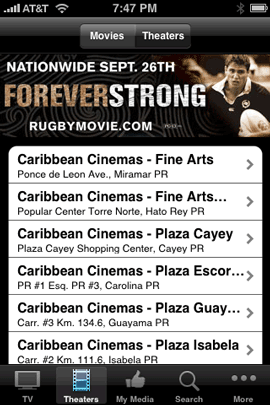
This app also has a Movies/Theater option. Although my Zip Code and Country have been entered correctly, i.TV insists on showing me movies and theaters in Puerto Rico. I already have a great movies app (One Tap Movies), so I really don’t care about this feature not working, but it would be nice if this app could do both TV and Movie listings for me.  These aren’t show stopper bugs, but let’s hope the developer gets this stuff worked out soon.


My wishes for the next version

Other than fixing the bugs I noticed, I would pay money if this app could also schedule recordings on my TiVo HD. I know that the developer has no control over this, but I wish that either TiVo would release their own app or partner with these guys to add this functionality since their app already does everything else I would need.


The Bottom Line

i.TV is FREE. It’s got a couple of minor glitches (at least I ran into a couple, your mileage may vary), but they are definitely off to a GREAT start! It’s also faster than going to web based TV listing especially for jumping to a specific time or day, so it’s definitely worth a try. i.TV works on both the iPhone and iPod touch. You can download it here.

Apple TV finally gets Video Playlists!

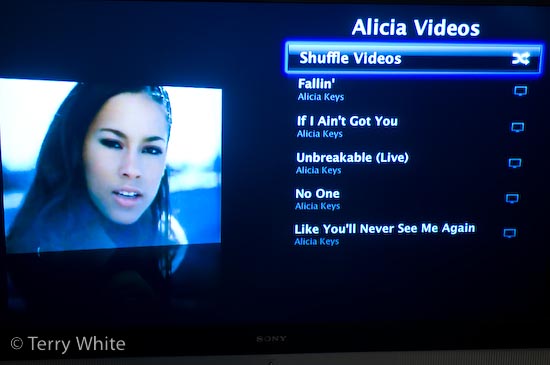
Although I’m a fan of Apple TV, one of my biggest pet peeves is that there was no way to play music videos back to back. This made no sense to me at all. I think it’s cool that if you’re throwing a party or just having a few friends over that you could not only have music playing in the background, but also the music videos themselves. Some music videos also make for good entertainment and conversation pieces.

Well Apple finally fixed this in the most recent Apple TV software update. Not only did they add Genius Playlist support (new in iTunes 8), but they also quietly added the ability to not only play videos back to back, but also shuffle them as well.

You can build music video playlists in iTunes just like you do music playlists. As a matter of fact you can even mix the two. This way you could create a mix of your favorite songs and throw in the music videos you have without worrying about be limited to just music videos.

While we’re on this subject of fixing things, the next thing on my list is support for the iTunes visualizer. I’m still stunned that Apple doesn’t include this in the Apple TV. I guess as a work around you could record it with a screen recorder app (such as iShowU) and then add it to your library as a video and play it that way, but it’s just not the same. This feature should be built-in to the Apple TV, iPhone and iPods.


Movie Rentals Appearing Sooner

I also noticed that Apple is getting some movie rentals quicker than others. I remember being very disappointed when Steve Jobs touted the iTunes movie rental feature and then said that they would get titles to rent 30 DAYS after they made their debut on DVD. That pretty much killed it for me. I was thinking "long live Netflix!" However, I see that they are getting some titles at the same time that they come out on DVD/Blu-ray for rent.

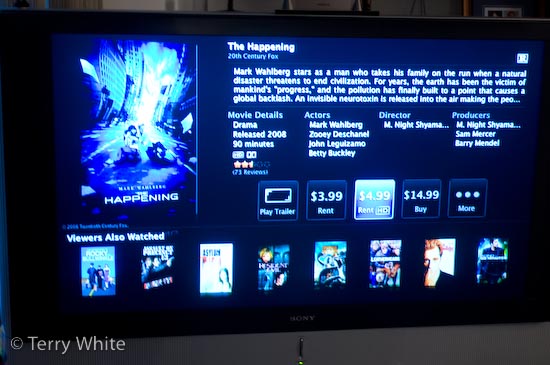
For example, "The Happening" just came out yesterday and it’s now available on the iTunes store for rent as well.

If this trend continues, it could sway me away from Netflix. We’ll just have to wait and see.


The Bottom Line

The Apple TV continues to get better with each update. It has become an essential component in my home theater setup. Apple TV starts at $224 (40GB version) at Amazon.com.

iPhone App of the Week – EmailContact AND vCard Mailer

It never fails for me. I’ll ask one of my friends something like, "do you know a good carpenter?" Of course the answer usually is something like "yeah, I got a guy." Well I get asked for recommendations all the time. If you have someone that’s good enough to recommend, chances are that person or business is in your Contacts list. My problem with the iPhone since day one is that there was never a way to easily share a Contact with someone. So needless to say, I was pretty happy to see some apps on the App Store that actually allow you to email a contact to someone. That leads me to this week’s iPhone App of the Week:


EmailContact

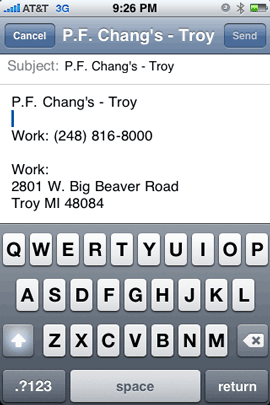
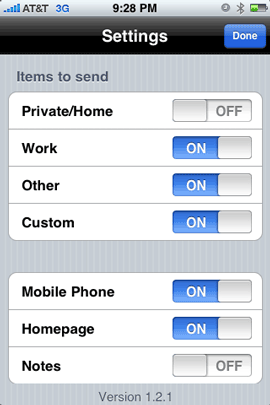
This app allows you to select one of your contacts and email it to someone. That’s pretty much it! It converts the Contact’s info into text and puts it into the body of the message. What’s nice is that you also have the option of turning on/off various fields that you want sent or don’t want sent. For example, I sometimes put notes on my Contact records that are personal to me. So I wouldn’t want the Note field to be sent. No problem, just turn off the Note field. Or maybe you want to send the work phone number, but not the home phone. That’s not a problem either.

Like I said and show above with the first screen capture, EmailContact sends the Contact information for the Contact that you select, as text. So the recipient is going to receive the information as text in the body of the email. It would be nice if this app offered the option to also send the Contact info as a vCard.


Sadly it doesn’t, but I do have an app that does. So this week you get two iPhone app recommendations for one. I also use an app called vCard Mailer. vCard Mailer works very similarly to EmailContact, except that it sends a vCard attachment instead of text. So it really depends on what you want to send (text or vCard)? For me it depends on why I’m sending the info and who I’m sending it to. Just the other day one of my friends needed the phone number for someone that we both knew. Since the iPhone doesn’t yet have Cut/Copy/Paste, I wasn’t able to just copy the phone number to an email. So I used EmailContact to send the info that he needed. Next my wife asked me for the address of a friend of ours and I knew that she would want to put all of this particular friend’s info in her Address Book, so I sent her a vCard using vCard Mailer. This way she could just double click on the attached vCard and automatically import it into her Address Book.


The Bottom Line

Both of these apps are necessary because neither app does what the other one does. Could you get by with one or the other? Sure. However, if you want the option to send text OR vCards then you’re gonna need both. The good news is that they are both economically priced. EmailContact goes for 99¢ and vCard Mailer goes for $1.99. Both apps work on either the iPhone or iPod touch.


Bonus App of the Week – Obama ’08

OK, so now I’m going to recommend a 3rd app to take a look at. Let me start by saying that I recognize that you may or may not support Obama for president. So please don’t respond with comments on how much you love or hate him (I’ll just delete them anyway). I’m not interested in your political views just like you’re probably not interested in mine.

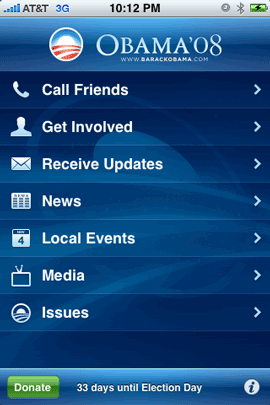
My point for talking about this app is that I’m impressed with the use of the technology! This app allows you to get news about the Obama campaign, see videos and even find your local Obama headquarters based on your current location (it uses Location services). There’s even a feature (Call Friends) that displays YOUR contacts in order by the battleground states (that they are in) that Obama needs to win the most so that you can call your friends and persuade them to vote. Pretty innovative, although I’m not sure that I would feel comfortable calling all my friends and trying to tell them "how" they should vote (just like I don’t want them trying to tell me how I should vote), but it’s a cool feature nonetheless. Republican or Democrat, this app is cool and very well done. Whether you support Obama or not, you should check it out from a technology stand point. I think this app could be the model for a lot of other apps that could provide similar info/features for celebrities and organizations. Get the Free Obama ’08 app here. Works with both the iPhone and iPod touch.

Although I don’t care which way you vote, I do encourage EVERYONE to get out and VOTE! This is one of the most important elections of our time!

iPhone Photo Contest!

I’m happy to announce that my NEW iPhone Book (co-authored with my buddy Scott Kelby) is on press and days away from hitting store shelves. The original iPhone Book was chosen by Amazon as their #1 Editor’s Pick for Books on Computers and Internet for 2007! Needless to say, I was floored and humbled by such an honor. So that made me work even harder on the The iPhone Book 2nd Edition. I’m very pleased with the way this new book came out! We took it to a “whole ‘nother level.”

To celebrate the new edition we’re kicking off an iPhone Photo Contest! That’s right, you could win valuable prizes by submitting your best photos taken with your iPhone’s built-in camera.


  1. You can enter up to three photos (total) taken with your iPhone (doesn’t matter if it’s the original model, or the new 3G).
  2. There are five different categories; Friends, Pets, Family, Fine Art, and Office. The winner in each category gets a $100 iTunes Gift card and a copy of “The iPhone Book” 2nd edition.
  3. The Grand prize winner gets a $500 Apple Store Gift Card, and a copy of “The iPhone Book” 2nd edition.
  4. From the photos submitted by the deadline of Oct. 24, 2008, Scott and I will choose three finalists in each category, and then the public gets to vote for the winner in each category (the one getting the most votes wins). Then, from those Winners Scott and I will choose a Grand Prize Winner on November 3, 2008.
  5. This may seem obvious, but of course, the photo has to be taken with your iPhone’s built-in camera.
  6. You can edit your photos using any iPhone application available from the iTunes Apps Store, or any other image editing application, but no other non-iPhone photos may be included in your entry (so you can’t take your iPhone photo and composite it with a photo taken with your DSLR, point-and-shoot, or a stock photo).
  7. You may not give your iPhone to Jay Maisel, Joe McNally, or Moose Peterson. Not even to make a phone call.
  8. There is no entry fee, and the contest is open to everyone; You do not have to buy “The iPhone Book” to enter, but it certainly wouldn’t hurt. 😉
  9. Whining of any kind, about anything, is strictly prohibited.
  10. You can submit your photos, and learn more about the contest at the official contest site (here’s the link).


I can’t wait to see all of your cool shots. Good luck and happy shooting!

iPhone App of the Week – ToDo

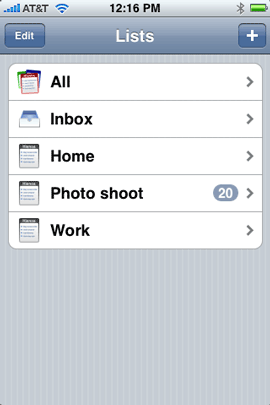
todo listsOne of the things that I’ve wanted since day one, last year for my iPhone was a To Do feature. I always thought that it was odd that Apple included To Do’s in both iCal and Mail on the desktop in Mac OS X, but not in the iPhone. I still think it’s strange. However, now that the iPhone is open to 3rd party apps, I no longer have to wait.


There are several choices out there

What I thought would be a rather simple app to buy/download, turned out to be more challenging. What I mean is that there are at least a half dozen To Do apps for the iPhone (probably more), and they range in price from FREE to $9.95. What I found is that not everyone thinks of To Do’s the same way that I do. What I wanted was an app that would let me create multiple lists, QUICKLY add items to those lists, and then check them off as they were done. I look at To Do lists in a couple of ways. I might create a To Do list for the things that I need to get done on a given day: ie. go to the cleaners, call my sister, get a car wash, record a podcast episode, etc. Then I might want a list of things not to forget before I leave for a trip. Such as a packing list for a photo shoot. I might also want to put a task on a certain day when it’s actually due and give those items a priority. Pretty basic stuff! No rocket science here. What I found was that most of the apps out there were either “too basic”, which means they didn’t offer the features I wanted or they were WAY OVER COMPLICATED! Amazingly over complicated in some cases. It shouldn’t take 50 taps to enter a To Do item.
I finally found the right one

After trying two different To Do apps, the 3rd one was a charm. It’s called….wait for it…….”ToDo”! Genius! This app shouldn’t be confused with the other one out there called “To Do”. ToDo does EXACTLY what I want it to do (wow, that was bad). It’s by a company called Appigo. Not only does it do what I want, it’s also got a great UI (user interface) too. Very clean and graphically neat.
Two ways to enter your To Do’s

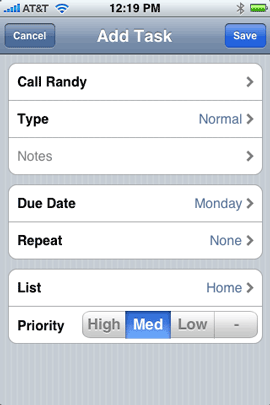
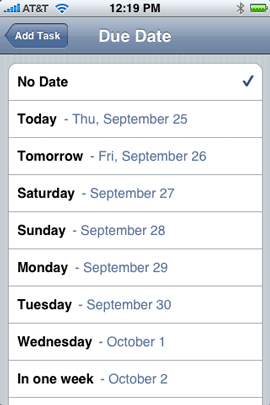
Like I said, it shouldn’t take 50 steps to enter a To Do item. Luckily, ToDo has a “Quick Add” task entry feature. This allows you to quickly add a task and just the task itself. If  you want to get really specific about due dates, priorities, repeating, etc., then you can use the regular task entry method (pictured above) and even that one is well thought out and doesn’t take too long to complete.

Once your list is entered, there is also a very neat selection of “done/strike out” graphics. So when you check things off, you get a nice graphical display (of your choice) to distinguish between the completed items and the ones still left to do.
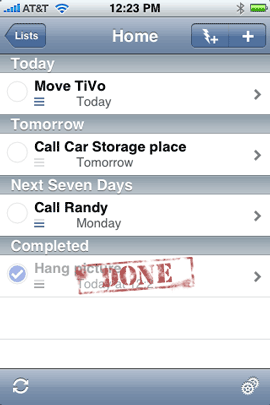
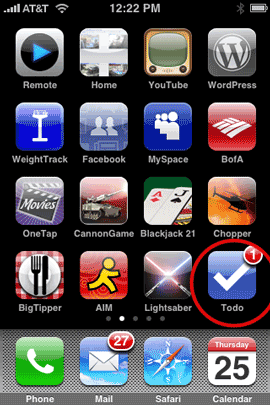
If you have one or more tasks due “today” then you will see a numeric banner on the app’s icon indicating that something is due today. However, until Apple turns on background processing for 3rd party apps (rumored to be in the upcoming iPhone/iPod touch 2.2 update), this feature will only work, if you actually go into the app at least once on the day that something is due or while the apps is running.
 

The Bottom Line

There is a feature in ToDo to allow you to sync your ToDo’s to the web or to your desktop. I have not tried this feature as I simply don’t need it. I need my lists on my iPhone while I’m running around. Having them on my computer would be nice, but not necessary. Sure, there are free ones and cheaper ones out there. However, this one does things EXACTLY the way that I want to work and therefore it was worth the $9.95 to me. Although ToDo satisfies my immediate needs, there is room for improvement. For example, if I create a task “Call Steve”, then it would be nice to actually be able to dial Steve’s number right from the ToDo app.

Update: Blog reader Jan pointed out to me that you can in fact setup a task to do a call directly from the app by using the longer entry method and changing the Type from Normal to “Call” and then you’re prompted to choose a Contact from your Contacts. When you actually tap the task when you want to make the call, you’re then presented with a popup of all the numbers you have for that contact to dial. Very slick! Thanks Jan! The other types are “Email a contact” and “Visit a website”. Email a Contact brings up your contacts to choose and Visit a website allows you to enter a URL. I’ll be using that one a lot as I always see ads for websites that I want to visit later and of course forget the URLs by the time I’m able to visit the sites.

Also, I’d like to see a permanent list feature. I’m not sure (I need to do more testing), but it seems that once you complete the items on a list, that list eventually clears itself of all tasks. I’m not 100% sure of this, but one of my completed lists was blank when I went back to it days later. I would like to keep the items on some lists so that I can use the list (say a packing list) over and over again. As a work around you could always keep one item on the list that is not done. Again, I need to do more testing to see how this actually works. I may have lost the items on that particular list due to an update of the app.
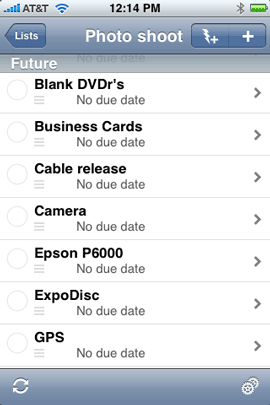
An example of one of my packing lists


You can get ToDo from the App Store by going here. ToDo works on the iPhone or the iPod touch.