I have had both friends and family members lose data over the years due to crashed hard drives. In almost all those cases they didn't have a current backup or a backup of any kind. In the case of my sister we were able to at least get her music back using a 3rd party App that allowed me to recover it from her iPod. Although Apple has allowed us to freely re-download our iOS Apps as many times as needed, iTunes music content was always a one-time download. Of course in some cases pleading your case to Apple directly would get you a special one-time re-download of all your purchased content curtesy of a caring human being at AppleCare. If this has ever happened to you, you'll be happy to know that you can now get it all back!
iTunes in iCloud
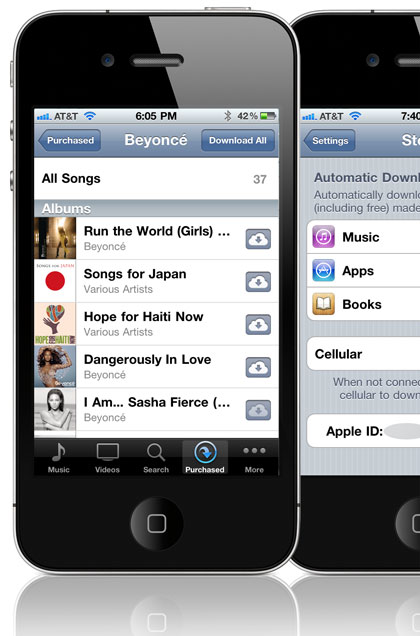
Yesterday Apple turned on a few of the iCloud (beta) features that allow you to grab any of your purchased Apps, Music and iBooks on any of your iOS devices. If you grab the iTunes 10.3 beta you'll be able to do the same on your Mac or PC too. Since Apple keeps a history of all your purchased music, it should all be there and available for download.
I've been an iPhone (iOS) user since 2007. Yep, that's when the 1st iPhone hit the scene. While the iPhone back then was revolutionary I still had a running list of improvements that I wanted to see. I even went back to dig up my original "50 Ways To Make The iPhone Better" post to have a look to see what was still missing today in iOS 4?The good news is that the vast majority of my original list has either been addressed via iOS updates or 3rd party Apps. Four years later I'm asking myself what do I still want? Having looked at the current iOS 4, 3rd party Apps and the Android platform, there are still a few things I'd like to see:
Over the Air Updates – It's time to cut the cord and receive iOS updates over the air. The only time I should have to plug in a sync cable is when I'm doing a full restore or if I want to have things go faster. Android already has this.
WiFi Media Syncing – I would be putting it mildly when I say that it totally sucks having to plug in a cable anytime I want to sync a new playlist, movie, podcast, etc from my iTunes library to my iOS Device. Apple let's you download gigabytes of data from the iTunes store directly to your device via WiFi, why not allow syncing of your OWN media via your OWN WiFi network? Long overdue!
Multiple Mail Signatures – We've had multiple email accounts since day one, but only one email signature since day one. Yes there are 3rd party Apps to work around this, but this should be built-in like it is in Mail on the Mac OS X desktop.
Set a 3rd Party Browser as your Default – Mobile Safari is cool, but iCab blows it away! I could easily make a list of 10 or more things I'd like to see in Safari. However, I've found all the missing features I wanted, in iCab. While Apple does allow you to download and use 3rd party browsers, you can't set them as the default browser. This means that any tap of a link inside another App always launches Safari instead of your preferred browser.
Spam Filtering – Need I say more?
Widgets – One thing on Android OS that I really like and wish were in iOS is the concept of Widgets. These on screen "widgets" show you information (current weather, latest tweets, email subjects, etc.) without having to launch an App. iOS really needs this!
Sound Profiles – This one goes way back to my Treo days. Mute is not enough! I'd love to setup profiles that will allow vibration, emergency calls to ring through, silence (no vibrating), etc. etc. If this were a "smart phone", it would be possible.
Notification Schedules – Currently, Notifications are either on or off. I'd like to setup a schedule in which my device doesn't make a sound or pop up a notification during night hours or meetings. Sure I can just turn them off, but then I'd have to remember to turn them back on.
Email a Group of Contacts – If I email the same 3, 5 or 10 people all the time, why do I have to manually enter their names in each new email? Group support in Mail please!
Ability to Assign Ringtones to Groups of Contacts – one of my oldest requests! Although we got custom ringtones years ago, there is still no ability to assign the same ringtone to multiple contacts (groups) at the same time. It's still a painstaking one-by-one task.
Why not just switch to Android completely?
I actually have an Android based tablet (Motorola Xoom) and phone (Motorola Atrix 4G). Like comparing ANY two things, there are going to be things I like in one that aren't in the other. So it's no surprise that there are things I like in the Android OS that aren't in iOS and vice versa. I have the luxury of being able to use any device I want whenever I want. Overall though (at least for now), I find iOS to have MORE things I like about it than Android. Sure, Android OS answers the majority of my list above, but I could easily come up with a list of 10, 20 or 30 things that are missing from Android OS that are currently in iOS. Not to mention a huge existing investment that I have in iOS Apps that I'd be leaving behind. Even if I were willing to leave my Apps behind, Android Market doesn't have all the same Apps or equivalents for all the Apps I use. There is NO PERFECT! Just like there are things I like even in Windows 7 over Mac OS X. I use Mac OS X most of the time because it has more things I like over Windows, but Windows 7 is only a reboot away when needed.
WWDC Kicks off Today
Apple's Worldwide Developer Conference kicks off today with news around iOS 5 as well as iCloud and maybe even some hardware announcements. It will be interesting to see how much of my remaining wish list is addressed.
In this episode of the Adobe Creative Suite Video Podcast I'll show you how to use the NEW Digital Publishing Suite Tools to take your interactive InDesign publication from start to finish fron InDesign CS 5.5 to your iPad (or Android tablet) wirelessly. This is my first look at the NEW .FOLIO builder tools that are now integrated directly inside InDesign. You'll need to grab the latest tools for your copy of InDesign CS5 or CS 5.5 here (Mac | Win).
Note: in the video I show how you can rearrange your articles online via digitalpublishing.acrobat.com. If your Acrobat.com account is NOT provisioned by Adobe to access the Digital Publishing Suite you can simply skip that part of the process and go straight to the iPad.
See more of my Adobe Creative Suite Videos on my Adobe Creative Suite Podcast and get the App here. It features EXCLUSIVE CONTENT that no one else gets to see. This episode has a BONUS CLIP that is available only in the App:
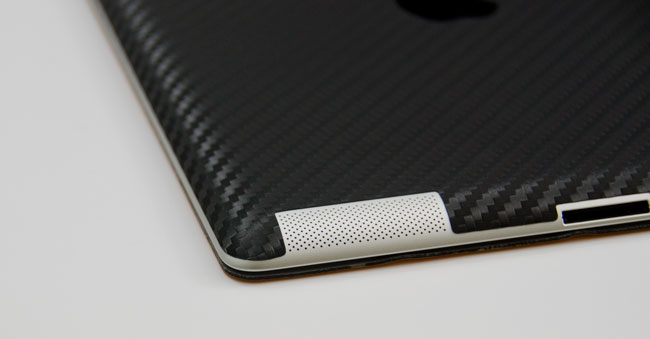
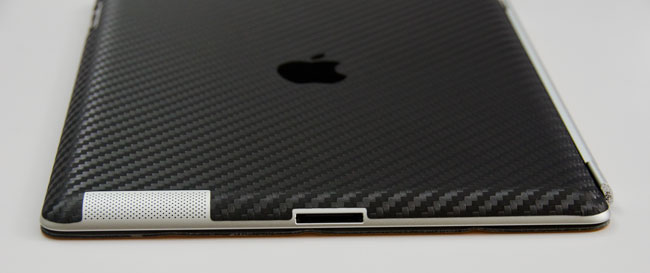
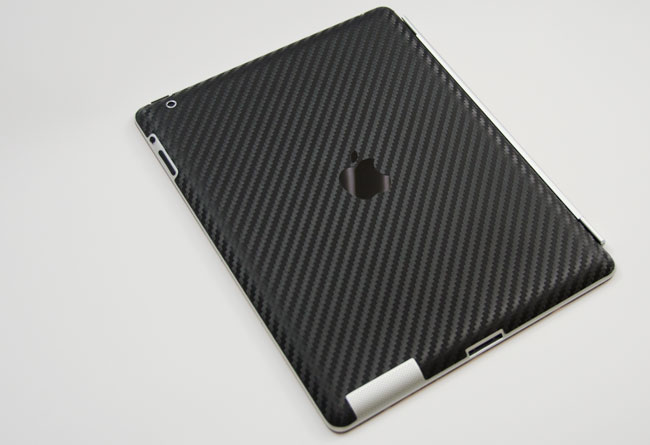
When I bought my iPad 2 recently I looked around at the dozens of case offerings and skin options. I bought an Apple Smart Cover as part of my original device purchase, but I wanted to protect the back surface as well. Even though there were dozens of case options, back cover protection that was also compatible with my Smart Cover, limited my choices quite a bit. The iPad 2 was already so darn slim, and the Smart Cover added so little to the bulk of the unit, that it seemed a shame to weigh the thing down in a bulky, book-like binder cover. I wanted slim, so I started looking at skins.
Top of my list was the Zagg Invisible Shield because I love the crystal clear, durable protection. The problem is that the application is a wet process and the iPad is so much bigger than the little devices I've covered with it in the past, I was envisioning getting moisture all over the place in my precious new iPad and fighting a war with bubbles under the film. The local mall has a Zagg kiosk with a professional installer and that comes with a lifetime guarantee, but with the installation fee and taxes, it was going to be over fifty bucks! And after the $50 installation I'd have a beautiful, crystal-clear cover that still had tiny seams at the corners so the film would fit the shape of the iPad's curved back. Most skin options don't even have corners covered at all. That's one of the reasons I opted for iCarbons. The big reason though, was that they had a great installation video and their application is a dry process. It doesn't hurt that it was half the cost of the Zagg (just $26 shipped).
iCarbons offers a light and a dark woodgrain option as well as a black or white simulated carbon fiber skin. I opted for the black and it was just as easy to install as their video shows. It was easy because it's a dry process and there were zero bubbles. What you can't see until you have the skin in hand, is that the weight of the material is thicker than you might expect, and the embossed texture of the carbon fiber weave is relatively deep. It looks great on the iPad and it smoothly covers the corners as advertised. The only thing I don't love is the white carbon fiber Apple logo they supply to cover the logo cutout in the middle. I just left mine off so the black Apple logo is what you see.
While some people like keeping the carbon fiber skin theme going all the way around to the front, I wasn't interested in the front frame protector. That just seems a little over-the-top to me, because the Smart Cover does the job on the front. And speaking of the Smart Cover, the magnetic strength seems just as strong through the iCarbons skin as it did on the bare metal of the iPad. No need to cut a notch out of the skin for the smart cover spine like I was considering. If I could change anything, I'd make the skin just a tiny, tiny bit bigger to cover more closely to the edge. Of course, I'm not an engineer, so that extra little bit of coverage might cause the corners to not cover smoothly or it might cause the edges of the skin to peel over time. Maybe this is the best possible coverage after all. It’s also worth noting that this skin is not especially grippy. It’s better than the naked aluminum, but not much. I think GelaSkins and Zagg wins in the grippy category.
In my opinion, considering price, quality, ease of installation, Smart Cover compatibility, looks, and scratch protection, iCarbons is the best skin option for me.
If you missed Photoshop World Orlando, you missed the Adobe Keynote where Photoshop Product Manager Brian O'neil Hughes showed some sneak peeks of some up and coming Photoshop Technologies being worked on in the labs at Adobe. Check out the video above to see what you missed! Was there really a Photoshop for iPad shown? 😉
Last week when I was on The Grid, I got asked to describe how the iPad would fit into a photographer’s workflow and I promised to do a post on it…
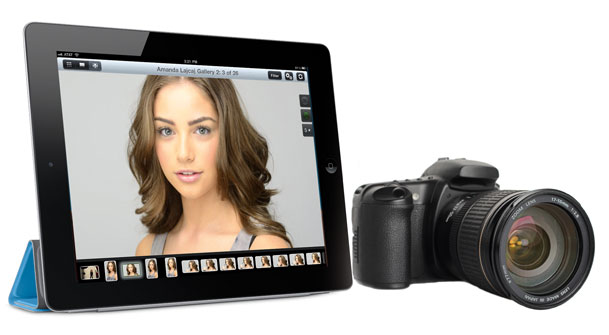
The iPad is definitely a revolutionary product that has disrupted the status quo. While I absolutely enjoy using an iPad, I don’t find it to be the end all be all replacement for a desktop/laptop computer. At least not full-time. The iPad didn’t replace my phone, nor did it replace my laptop. It’s another device that I use when it’s more convenient to use than either of the other two devices. With that said the question has been asked “How does the iPad fit in a photography workflow?” Last week my buddy Scott Kelby wrote a post about what he’d like to see in a “real Photoshop for iPad.” Adobe demonstrated some Photoshop technologies for iPad at Photoshop World in Orlando. There are several image editing and image viewing Apps for the iPad. So the question becomes does the iPad fit in a Photographer’s workflow and if so how?
The short answer is YES!
Here are the ways that I use my iPad in my day-to-day photography workflow:
Getting ready for the shoot
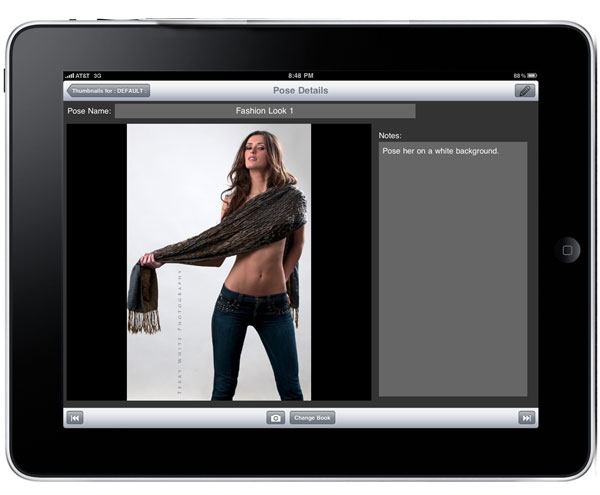
If i’m doing a model shoot, then I use the PosePad App to plan out my shoot with photos and notes to pull up right there on the spot and walk them over to the model. This is my digital shot list. This has worked extremely well even on location shoots outside the studio.
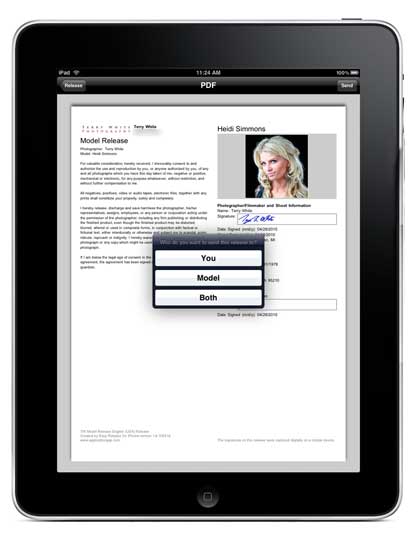
I stopped carrying paper releases over a year ago. There are two fantastic Apps for doing CUSTOM (yes, YOUR text) release forms for both Model and Property releases. I prefer the look and feel of the release forms in Easy Release, but I absolutely love the exhaustive number of available custom fields in the Contract Maker Pro. My recommendation: For a basic release only requiring a few fields and your custom text that looks great, go with Easy Release. If your release forms are more complicated or multiple pages go with Contract Maker Pro. Both Apps are GREAT!
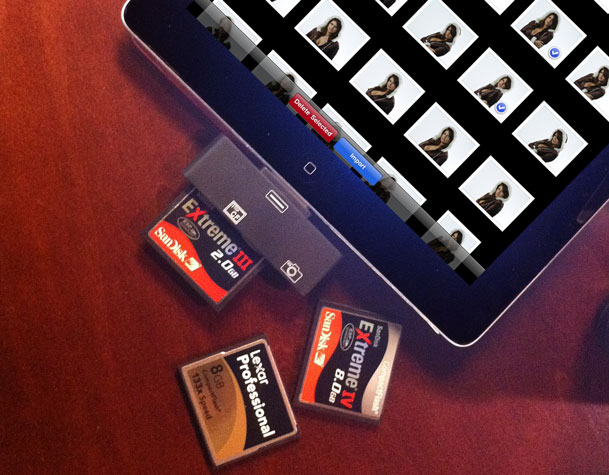
When you’re out and on the go chances are you’re going to be shooting and you’ll want to do two things. You’ll want to backup your images and review them. Let’s start with getting them in. There are 3 popular choices. The first is Apple’s own Camera Connection Kit. It works great with SD cards or via a USB cable to your camera. It will bring in your pics (JPG or RAW or both) as well as your videos. However, it will not work with Compact Flash cards. Apple turned down the power of the port via a software update and therefore card readers don’t work anymore connected to the Camera Connection Kit. That brings me to a NEW option: M.i.C. has shippeda CF reader for the iPad. Lastly and probably my favorite method is to shoot wirelessly into the iPad via the Eye-Fi card.
I reviewed Apple's Camera Connection Kit when it first came out. The Apple kit is two adapters. One is an SD reader and the other is a USB port designed to connect your camera directly to your iPad for image import. The one glaring omission is the lack of a way to bring in images directly from a Compact Flash (CF) card. During my review, I showed how you could attach a standard (San Disk) reader to the Camera Connection Kit and bring images in directly from your CF Cards. However, shortly after I did the review Apple released an iPad software update that basically reduced the amount of power that the dock connector outputs making it virtually impossible to power a card reader. I guess they didn't like people plugging in all the things (keyboard, drives, etc.) they were plugging in to the Camera Connection Kit on their magical devices. That left us with the only option being to use a USB cable and connect the camera directly to the iPad. While this works, it's slow and will drain the cameras battery during long transfers.
Problem Solved by M.I.C
This Hong Kong based company has developed a CF Reader that attaches directly to your iPad and allows you to import your CF cards (up to 400x speed cards) right into your iPad. Of course I ordered a couple of these immediately and mine just arrived this past Friday. I was hopeful and doubtful at the same time. I just couldn't figure out how they would get around the power problem. Well, they did! I plugged in my standard SanDisk 8GB Extreme IV card and it showed up just like the Apple Camera Connection Kit does. I imported my RAW (.NEF) files with no problems.
Hallelujah!
You can order the M.I.C CF Reader here. They are back logged (as you might expect), so give it a couple of weeks.
Show me!
I would normally do a video of such a gadget in action. However, they already had a video that shows it in action and I concur with the results shown. So here it is:
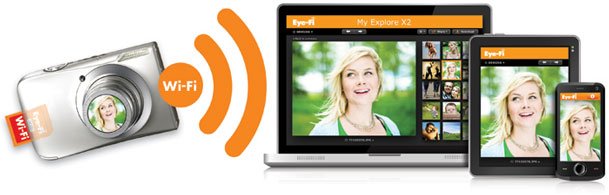
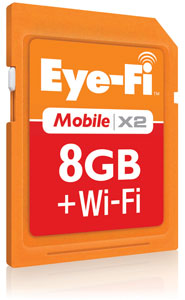
I’m liking Eye-Fi on a whole new level these days. This company and their products have come a long way since I tested/reviewed the first card back in 2007. They’ve delivered on their promise to enable Direct Mode transfers from their X2 cards and they’ve released Mobile Apps for both iOS and Android platforms. This is great news for photographers as it gives you a way to shoot wirelessly from your camera to your tablet device or even your smartphone. Although I was quite content with the testing I had done thus far with the Pro X2 card going through my MiFi mobile hotspot, I’m even happier that I wont need it (the MiFi) anymore to shoot to my iPad 2.
Upgrade your Firmware
The first thing you’ll need to do is download the new Eye-Fi Center Application from their site and upgrade the Firmware of your Eye-Fi X2 card. I and others had problems doing the upgrade as it would immediately fail no matter what. The work around seems to be delete your existing Eye-Fi account (back up your photos first of course) and then create a new account and you should then be able to successfully upgrade your card.
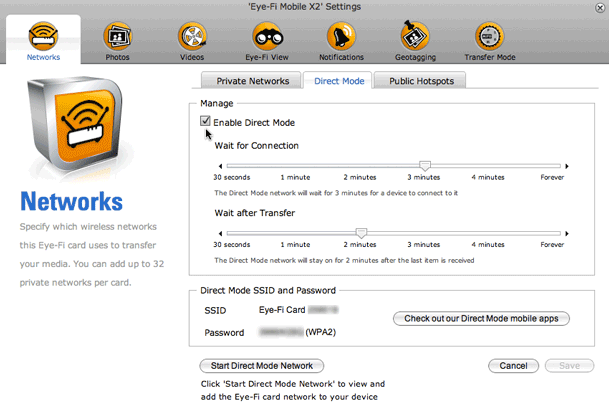
Enable Direct Mode on your Card
Once your firmware is up to date you should then be able to Enable Direct Mode on your X2 card. You will see the SSID (network name) of the card as well as the password for the card’s network. To save time you can turn on Direct Mode while the card is in your computer and then connect your devices to its network. This is what I did with my iPad 2 to enable me to easily see the password while I was keying it in on the iPad.
Download their App
If you have an iOS or Android device you can download their FREE App for your device and log into your Eye-Fi Account. Once you log in you can then enable your card to transfer to the App directly.
A Tip
By default your images will just import and show in the grid. I want to see my images full screen and have them auto advance as i shoot. This is not really called out in the preferences. However if you go to Application Preferences and turn on “Full Screen”, your images will not only go to full screen as they come in, but they will also auto advance! YAY!
See more about the Eye-Fi App
I did a more complete review of the Eye-Fi App here.
How fast is it?
In my testing I used my Nikon D7000 (a 16.2 MP Camera) and I used the first card slot to shoot RAW to my regular 16GB SD card and I put the Eye-Fi Mobile X2 card in the second slot. I set the camera to shoot BASIC JPG to the second slot. This means that it’s transferring a 16.2 MP Basic JPG image to the iPad.
See the speed for yourself here:
The Bottom Line
Before you can say it, yes I wish there was a Compact Flash option (adapters aren’t supported with the X2 cards). However, if you’ve got a camera that shoots to an SD card, this solution totally rocks! If you got a camera with two card slots, then it gets even better as you’ll be able to shoot RAW to one card and your smallest JPG to the Eye-Fi card. I’m loving my D7000 even more now!
You can get the NEW 8GB Eye-Fi Mobile X2 Card here for $79
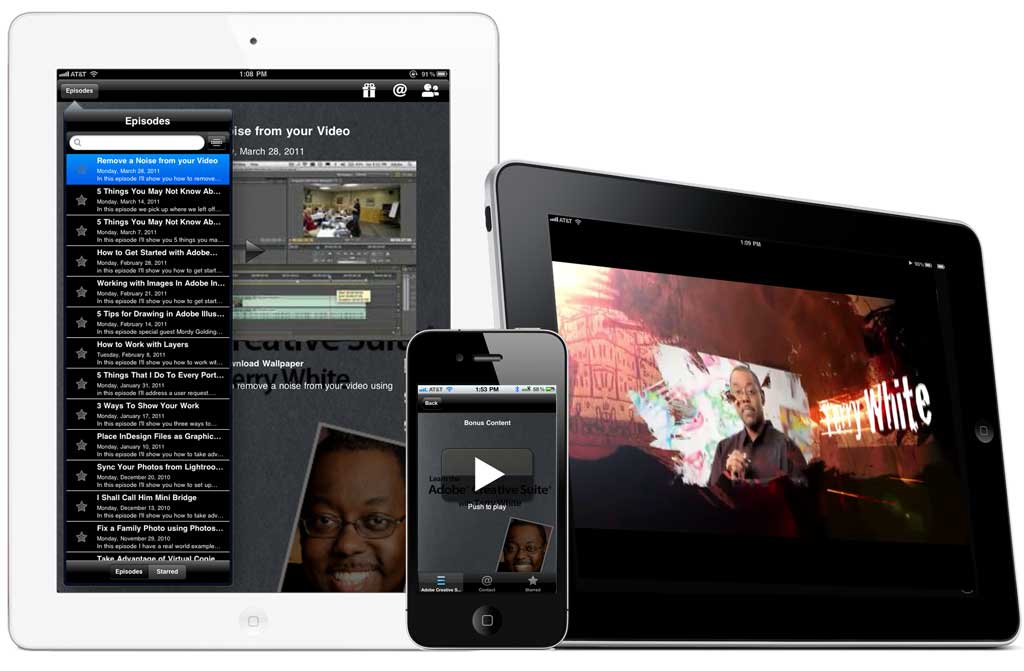
Oh happy day! I'm pleased to announce that my "Learn The Adobe Creative Suite with Terry White" App has just been updated to be a Universal iOS App, which means that you now get to see the videos in all the iPad 10" glory without having to screen double them. The App is now available on the App Store and is of course a FREE update to anyone who already had it.
If you're new to the App, the advantage here my regular podcast is that many of the episodes have Exclusive Bonus Clips. These clips can only be seen in the App and aren't published anywhere else. Often the Bonus Content includes additional tips and techniques or expands in an area where the regular episode left off. On the iPad these Bonus Clips are highlighted right below the regular episode so you'll more easily be able to identify the episodes that have Bonus Content.
There are literally hundreds of videos available on the various Creative Suite Apps all the way back to CS2. Thankfully the App has a built-in Search feature as well as the ability to Star your favorite episodes and download the ones you want to be able to watch offline.
I want to personally thank you for your support in my podcast as well as my App!