Digital Video: Moving to Tapeless Workflows

Last year I wrote a post out of frustration called “Just say no to HDD and MiniDVD camcorders.” The industry seemed hell bent on moving away from the the MiniDV standard that we had all come to know and love and instead turn the world of video into the wild wild west. Every manufacturer started doing their own thing and moving away from standards that were tried and true. The rush was on to try to become the leader in High Def digital video. It was extremely frustrating at the time because unknowing consumers were becoming the “beta test bed” for these manufacturers who were throwing everything they could out there to see what would stick. The biggest frustration was getting a camera that recorded in a format that wasn’t easily edited.

I did nibble at the HD bait and I purchased a Sony HDV camera. This camera could record in both DV and HDV. It was still taped based and still had Firewire (i-Link). However, after my first experience of the long rendering time to get HDV down to DV for burning to a DVD, I said “what’s the point?” I might as well be shooting in DV.” So I sold my Sony on eBay and continued to shoot in DV on my older gear. Don’t get me wrong, I’m a fan of technology and nothing would please me more than to move off of tape. However, the problem was that there were no real tapeless standards back then. So my answer was to continue to shoot in DV and use an external hard drive attached right to my camera to have the best of both worlds (standard DV for editing and tapeless for convenience). I absolutely LOVE the Focus Enhancements Firestore FS-4 DTE Drives. These drives let you record your DV or HDV footage right to a external hard drive attached to your camera’s Firewire port and then you can attach the drive right to your computer and copy the file(s) over. It’s MUCH FASTER than the time it would take to download form tape in real-time.
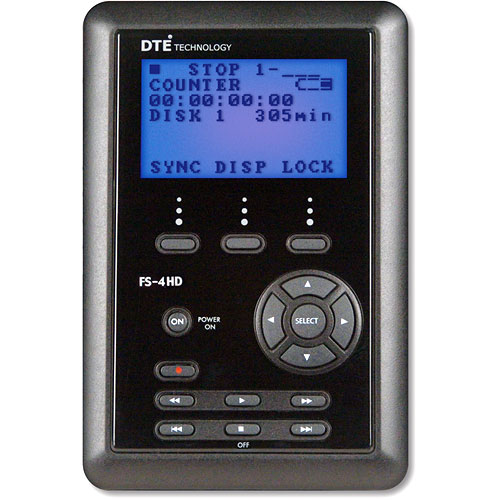
These drives rock! However, they’re add weight and a certain amount of bulkiness to your camera setup, especially if you’re using a little handheld camera. I’ve never understood why Sony or Canon didn’t just build a “removable” drive into their camcorders. Life would have been so much simpler.

So let’s fast forward to today

The dust has settled a little. The industry seems to have settled on AVCHD as the format of choice in the consumer space (at least for now). My new camera is the Canon VIXIA HF10. This camcorder can record HD (1920×1080) video to either its built-in 16GB of flash memory or to an SD/SDHC card.
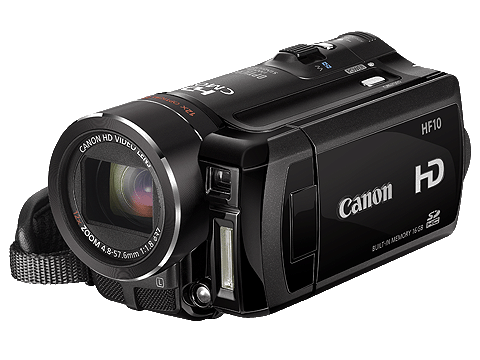
I tried it out for the first time during Photoshop World Vegas. This was the camcorder I used to shoot the Keynote video. I wasn’t concerned about shooting in HD. I was really interested in seeing how this camera would perform in post production. I was actually shocked at how well it “just worked.” I got back to my hotel room that day and just connected the HF10 to my MacBook Pro via the supplied USB cable. I transferred the footage over and just started editing it. Speaking of editing…

The editing software has caught up

Another frustration I had last year was that none of my editing apps would edit the footage from these tapeless cameras. Now all of my apps have caught up. My editing app of choice is Adobe Premiere Pro. The New Premiere Pro CS4 now edits natively in AVCHD.
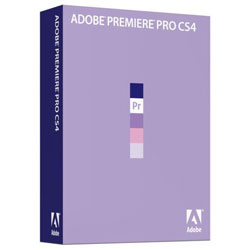
The CS3 version was leading the pack in the pro arena with native support for XDCAM EX, Panasonic’s P2 cameras and the hot new RED One. Now that Premiere Pro CS4 supports editing files from the latest tapeless formats, including RED, AVCHD, P2, XDCAM EX and HD, natively, without transcoding or rewrapping plus all of the legacy formats (DV, HDV, etc.), there is no better choice for tapeless workflows IMHO.

Everyone is up in arms about the New MacBook – missing Firewire – KIA!

There have been many many heated posts over Apple’s decision to remove Firewire from the New MacBook. We’re talking about the consumer version, not the MacBook Pro which still includes a single FW 800 port. While I’m a fan of Firewire and would NOT want to lose it on any of my Macs, I can actually see why Apple removed it from the MacBook. If you look at where the industry is going in the consumer space, it’s moving AWAY from Firewire, not towards it. All of the new tapeless camcorders use USB, not Firewire. Firewire had been used in the consumer space mostly for working with video. So if the new consumer cameras don’t do Firewire, then why should the new consumer MacBook? Before you start with the hate-mail/comments, I get it (I’m on your side, I know, I know)! I know that Firewire has other IMPORTANT uses such as Target Disk Mode, fast Migration Assistant transfers, fast portable drives, working with audio gear, etc. and again these are the reasons why I would NOT want to lose my Firewire port on my MacBook Pro. However, if you’re NEW to the Mac (which according to Apple, 50% of the people buying Macs in Apple stores are), then you’re not going to miss these things, because you wouldn’t have known they were there in the first place. So I can see it from their perspective, which doesn’t mean I like it, it just means I understand it. Breathe! It will be OK. I remember when the first MacBook Pro didn’t come with Firewire 800! Pros screamed LOUDLY and the next thing you know, Firewire 800 made a come back on the next rev. So if enough people scream and more importantly don’t buy the new MacBook, then Apple may reconsider. It will be interesting to watch.

The Bottom Line – Is the water safe?

While the Canon HF10 worked as advertised (it is my camcorder of choice for travel) and I now have a great editing app to support it, I’m still not quite ready to make an investment in swapping out my pro-sumer gear. I’m still happy with the results I’m getting from my DV based Sony VX2000. The VX2000 coupled with the Firestore drive gives me everything I need. If I were to move up to HD for my event video work, the problem would be that I would still be delivering the final video on DVD, since most people have not moved up to Blu-ray yet. If that’s the case, then I might as well stick to widescreen standard def. Once Blu-ray becomes more mainstream (players down to the $100 or less range). I’ll take another look and see what the market is like then.

Should you buy a tapeless camera? Well that depends on your needs. If you already have a video solution that’s working, I would caution you to pause and take a look at what you hope to gain? In the consumer space these new AVCHD cameras are pretty sweet. Manufacturers are bypassing hard drives altogether and using flash memory instead. No moving parts and because they don’t use tapes (or hard drives), they are getting to be quite small. That’s a big plus for travelers. Also now that the newer ones support removable cards like SD cards, they are much more feasible to take on a trip because you won’t be totally relying on the built-in memory, which could fill up before you got back home. I still say STAY AWAY FROM CAMERAS THAT RECORD DIRECTLY TO A DVD or BLU-RAY DISC! These cameras SUCK when it comes to needing to edit your footage. They were designed for the person who wants to shoot and playback the footage. If that’s all you want to do, then go for it. However, if you want the ability to edit in your computer, then avoid these models like the plague.Â

If you’re a video pro, then you’ll have more choices to make! Should you go RED, should you go P2 or should you go XDCAM? Will you be locked into some proprietary workflow? If you’re not using Premiere Pro (and you should be 🙂 ), will your software edit this footage natively? So my bottom line advice is the water is safer, but proceed with caution. You can also decide to just sit this one out. It will only continue to get better.

Check out this video from my DV guru, Dave Helmly on editing AVCHD footage in the New Premiere Pro CS4. He takes it from beginning to the end and even spits out a Blu-ray and other formats!

[flv:http://media.libsyn.com/media/cspodcast/podcast-PR-AVCHD.mp4 628 353]

You can see more CS4 how-to videos on my Creative Suite Video Podcast or on Adobe TV.
iPhone App of the Week – AirMe

I’m a big fan of geotagging my photos. I love the fact that now the iPhone can automatically put in the longitude and latitude of where you are when you take the shot. Even if you’re not outside or you have the older model iPhone that didn’t include the GPS, you can still get pretty close using the cell towers and wi-fi hotspots. When I upload my shots to Flickr using the iPhone app Flickup, the GPS/location information is honored and the image is automatically added to My Map. (note that you have to turn this preference on in the Flickr Privacy settings: http://www.flickr.com/account/geo/privacy for your account). While this is cool, I also upload photos to Facebook and unfortunately Facebook doesn’t honor this info, nor does it have a built-in map feature. 


AirMe to the rescue

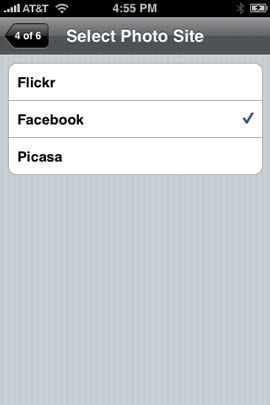
Luckily there is a FREE iPhone app called AirMe. AirMe can upload your photos to Flickr, Facebook, Picasa or send to Twitter. So far, no big deal right? Here’s what makes AirMe special: It not only has the ability to upload the shot with the GPS data, but it’s Location Aware and translates your location information into tags that appear in the photo description when someone clicks on the photo on the site you’ve uploaded it to. It not only tags the photo with the location, but also other things like the weather (optional). 


Tagged photo in Facebook, uploaded by AirMe

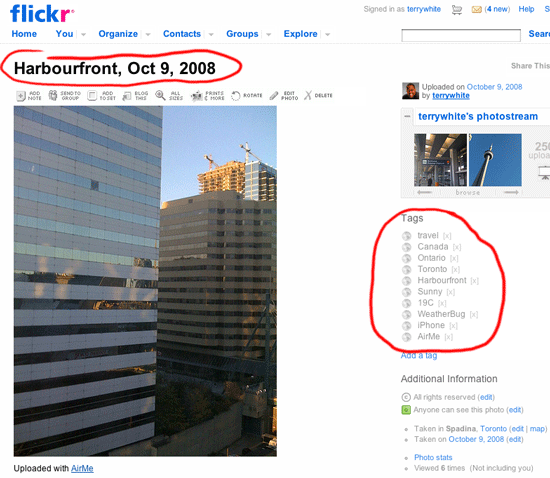
Tagged photo in Facebook, uploaded by AirMe. As you can see, AirMe added the tags 17°C (it will use Fahrenheit in the US), Sunny, Spadina, Canada, Ontario, Toronto. I added the optional tag of travel.


When I uploaded a photo to Flickr, the tags appeared as well as the name that AirMe used on the photo:


Shot taken in Toronto uploaded to Flickr using AirMe

Shot taken in Toronto uploaded to Flickr using AirMe


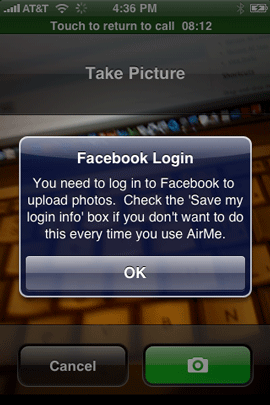
Although I really like AirMe, there is room for improvement. I have two issues with this app. The first issue is that after you authorize your Facebook account to use it, you are still required to login each time (at least once a day). I wrote to the developer about this and he said that there used to be a checkbox on the Facebook page to keep you logged in or remember your login. Now that it’s gone, they will try to accommodate a work around in their next update.

The other issue is that switching from one site to another, for example, going from Facebook to Flicker, requires you to authorize the app again (even though it will tell you on the site that the app is already authorized). Again the developer promises to fix this in the next update. However, this is such a pain that for right now I’ll just use it for Facebook uploads and continue to use Flickup for Flickr Uploads.


AirMe needs to remember my login info

AirMe needs to remember my login info


The Bottom Line

AirMe has been a blast use and I do really like it. Once the app has the ability to remember me on the various sites I use it on, I’ll like it even more. It automatically provides the location information for my shots in an intelligent way (using tags) that saves me the work of having to do it all manually. This free app is definitely a keeper. You can download it for your iPhone here for FREE!

Use SD cards in your Compact Flash gear

Chances are that if you’re using an DSLR camera that uses Compact Flash cards, you’re pretty happy with the cards you’re using. However, there are times that it would be nice to be able use the SD card format in my Compact Flash (CF) gear. Don’t get me wrong, I can’t think of too many times (like never) that I would want to stick an SD card into my Nikon D300 or D700. However, there are times that someone will hand me an SD card with pictures on it and I only have either my Firewire 800 CF reader or my ExpressCard slot CF Reader with me. As a matter of fact that very thing just happened to me this past Sunday. I was at my users group meeting and there was a member there taking pictures and at the end of the meeting he handed me his SDHC SD card. I didn’t have my multi-format card reader with me. All I had was my FW800 CF Reader. Luckily I had a USB cable and we just connected his camera to my computer directly to transfer the pics.


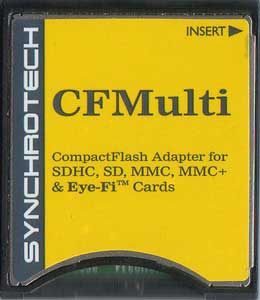
The CFMulti

Actually the CFMulti by Synchrotech is designed and promoted to allow the use of EyeFi SD Wi-Fi cards in CF based cameras (like many of the popular DSLRs out there today). There’s no software to install. You simply insert your SD card in the bottom of this adapter and then put the adapter (SD card and all) in your Compact Flash based device. As I’ve written in the past, I’m not a fan of the EyeFi card. I think it’s cool technology, but just not very usable (at least for me.) So if all this thing did was support the EyeFi card in CF based cameras, then I could really care less.

The picture I painted above is really the situation that I use the CFMulti in. With the CFMulti I can now just carry my favorite, fastest card reader(s) and not have to worry about not being able to read the occasional SD cards.

The CFMulti is going for $28 on the Synchrotech website.

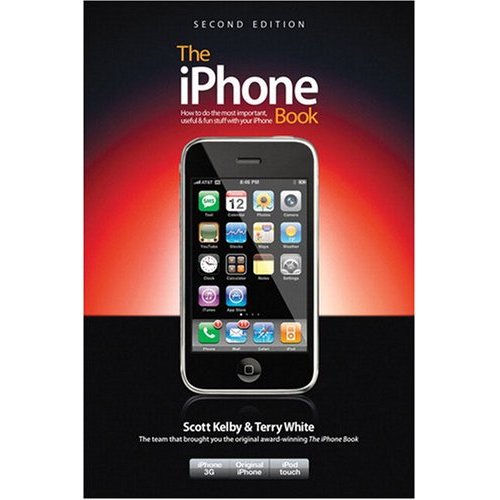
The iPhone Book 2nd Edition is Now In Stock!

I’m very pleased to announce that my NEW BOOK, The iPhone Book 2nd Edition is now in stock at Amazon.com. I’m really excited about this new edition co-authored with my buddy Scott Kelby. We really sought out to improve this book from cover to cover. We’ve added a brand new "Killer Tips" chapter that is PACKED with tips and techniques for all users, whether you’re new to the iPhone or been using one since day one you’ll get some great tips on how to really take advantage of your iPhone (or iPod touch).


Reminder, submit your entries for the iPhone Photo Contest

In celebration of our new book we’ve launched an iPhone Photo Contest. There are only seven days left to submit your photos before the October 24th deadline. You could win a $500 Apple Store Gift Card among other cool prizes. See the details here.


So don’t wait, run out and buy a copy of the iPhone Book! Buy two. It’s only $13.59.

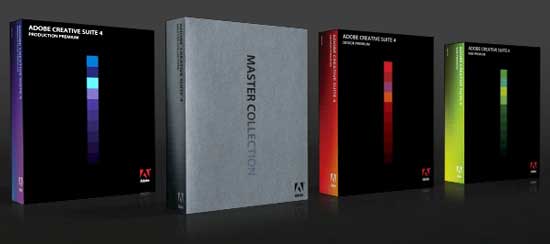
Adobe Creative Suite 4 Now Shipping!


I’ve been showing Adobe Creative Suite 4 to some enthusiastic crowds and the number one question I get is, "when is it shipping?" My response has always been "soon." Well soon means TODAY! That’s right Adobe is shipping all of the Creative Suite 4 products and suites and they are available for immediate download. Check out my Creative Suite Podcast for ongoing videos highlighting the features of the new CS4 apps.

New MacBooks Look Great!

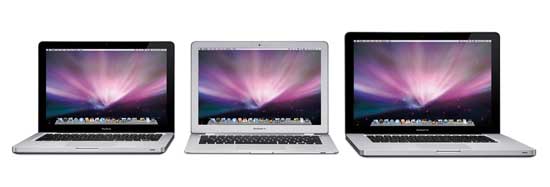
I’ve been holding off getting a new laptop at work because I knew Apple was due to come out with some major changes to the MacBook line. So I’ve been plugging away with my now 4 generation old 2.33 GHz MacBook Pro. It’s still a fine performer, but it’s starting to show signs of its age. Well yesterday Apple revamped the MacBook lineup and after what I’ve seen, I’m glad I waited!


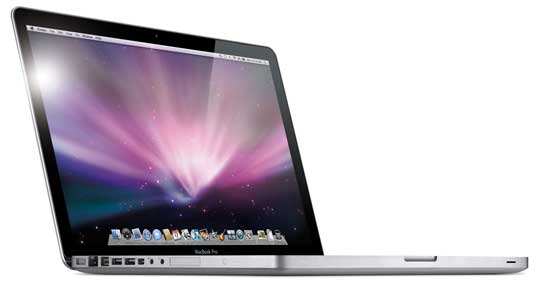
The New MacBook Pro

Apple has come up with a new process that involves making the case for the MacBook Pro out of a single piece of aluminum. This of course makes the case more sturdy and offers some potential weight benefits. too. All of the ports have been moved to one side and the slot loading Superdrive is now on the side. Apple has done away with the Firewire 400 port in favor of a single Firewire 800 port. Since Firewire 800 is backwards compatible (with the proper cable) to Firewire 400, this really isn’t a big deal although I will miss having two ports.

Apple also made access to the internal hard drive easier by locating it right below the battery. The front of the display is designed more like an iMac. The big news however is in the new trackpad. I’m going to reserve judgment until I actually get to play with one, but I’m not sure that I’m going to like not having a physical trackpad button. That’s right! It’s gone! You now tap the trackpad itself for everything. The new glass trackpad is like an iPhone’s touch screen. It supports multi-gestures things like a “right-click” via software. The older MacBook Pros allow you to turn on “Clicking” and “Dragging” and while some of my friends swear by this feature, I actually hate it!. So again, I’ll have to see what it’s like not having a physical button.

Apple also made a significant leap forward by going with Nvidia’s latest and greatest graphics chip. They are claiming 5-6 times performance gains, which will be great for the new Photoshop CS4 which takes advantage of your GPU.

One last thing, Apple made a new 128GB SSD (solid state disk) hard drive available across the line. So far I’ve not been impressed by this technology because for the price, you don’t really see a huge bump in speed or savings in battery. The MacBook Pro starts at $1,999. The 17″ MacBook Pro seems to have been left out of this round of updates. While Apple still offers it for sale on the store, it’s no where to be seen on the MacBook Pro page of Apple’s site.


Check out this clip of the New MacBook Pro Trackpad in action. Both Photoshop CS4 and InDesign CS4 take advantage of these new gestures. 


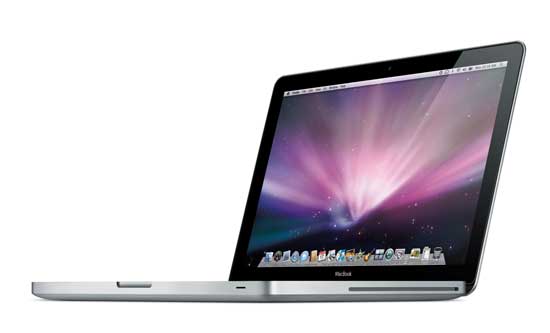
The MacBook gets a price drop and a new pro like model

The MacBook has always been like the baby brother of the MacBook Pro. It’s not as powerful, but also not as expensive. Apple lowered the price of the base model to $999, but also came out with a higher end ($1,299) model with many of the same features of the $1,999 MacBook Pro including the same aluminum case design. If you don’t need Firewire, an ExpressCard slot, a larger screen (13″ vs. 15″) or a faster processor (2.0GHz vs. 2.4GHz), then you could save yourself $700 and go with the new higher end MacBook.


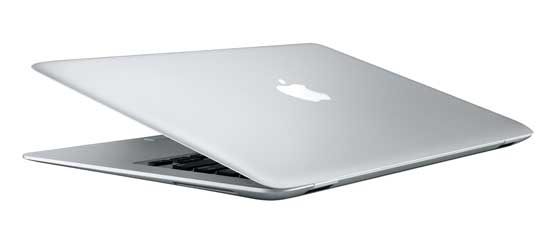
MacBook Air gets a couple of bumps too

I resisted temptation when the original MacBook Air came out because I just couldn’t live with a paltry 80GB internal drive. Although 120GB is still not enough for my day-to-day use, it is enough for my wife. So her MacBook goes to my daughter and my wife gets the new MacBook Air! The MacBook Air also gets a much needed bump to the Nividia 9400M graphics card! The MacBook Air is still priced at $1,799 and up.


One more thing…

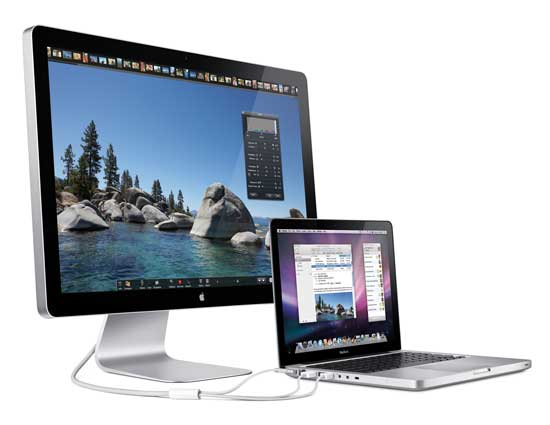
Apple also (finally) announced a New 24 inch Cinema Display that is LED based. I can’t believe that it has taken Apple all these years to begin to refresh their display line. Apple seems to have geared this display for portable Mac users. For one thing it has a MagSafe power adapter to power your MacBook directly from the display. Besides being LED based, it also has a built-in iSight camera, which is good and bad. It’s good because Apple stopped selling stand alone iSights years ago, but it’s bad for the locations that don’t allow cameras of any kind on the premises. I’m also stunned by the price. This puppy is $899 and that seems like a lot for a 24″ display. Yeah, I get that it’s LED based (which costs more) and that it has a built-in iSight and that Apple usually makes really good displays, but that still seems like a lot for a display.


The Bottom Line

Aside from the new Cinema Display, I’m psyched about these new products. I can’t wait to get my new work MacBook Pro. I’m a little hesitant about the new trackpad design, but I’m open minded enough to give it a shot. I am a little disappointed in the lack of Blu-ray support. Apple seems to be dragging their feet on this one in hopes that Blu-ray is just a fad and everyone will move to downloadable HD content from the iTunes store. While that may happen some day, I’d love to see Blu-ray movie playback on the MacBook Pro. If you’re in the market for a new laptop, you have a range of options here that should satisfy just about any user.

See yesterday’s Steve Jobs keynote address video here.

Drobo Firewire 800 Review


My buddies have been raving about Drobo for over a year. For some reason I was just not getting it. Maybe it was the name or the tagline of “data robot” that was throwing me. Anytime someone mentioned Drobo, I would have a vision of a robotic arm that would move drives from slot to slot.


What is Drobo?

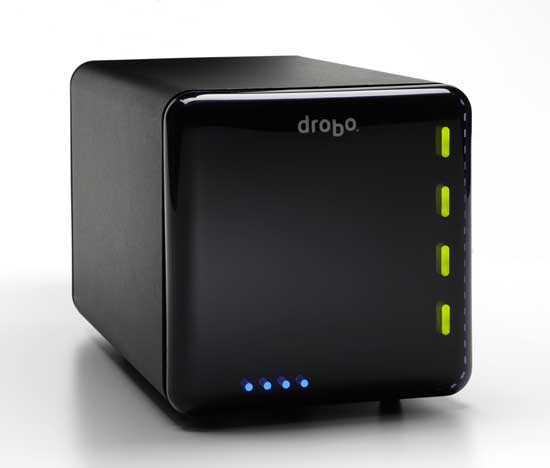
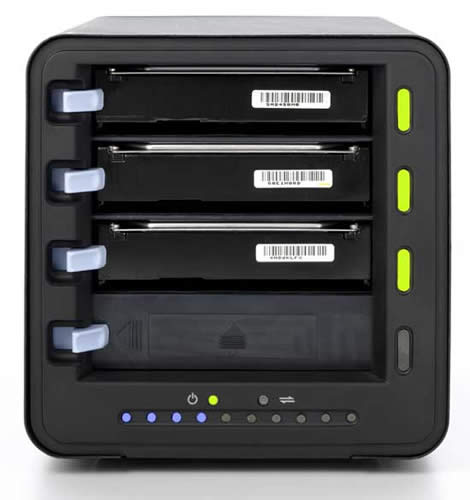
Well, I finally took a closer look. Drobo is not a robot! At least not in the mechanical sense. Drobo is a 4 bay hard drive array (RAID) that continuously monitors the health of the drives you install. Drobo automatically combines the drives you install into a single volume mounted on your desktop. The drives are also automatically mirrored/stripped for data protection. For example, if you put in two 750GB drives you will only have 696.8GB of available storage to you. This is because Drobo is using the other space (drive) to constantly protect/mirror/backup your data as it’s writing it. It’s also reserving a little bit of space so that you can hot swap out a drive if needed because you want to install a bigger one or if one is failing.


What sets Drobo apart?

I have used and written about other RAID systems. What sets Drobo apart from the rest is that it doesn’t require that the drives be the same size. You could for example start with a 750GB drive and 1TB drive. This won’t buy you any extra space if you’re only using two drives, but it will allow you to grow your available space by adding say a 3rd drive. The Drobo website has a fantastic “Drobolator” (space calculator) that will allow you to play out all your “what if” scenarios on how much space you will have depending on how many drives you install. The other thing that sets Drobo apart is the way it works with multiple drives. Drobo uses a technology called BeyondRAID. This allows it use both Mirroring and Striping. Drobo is also different in that it constantly monitors the health of your drives and doesn’t just tell you a drive has failed, but also tells you that a drive is going bad so that you can replace it BEFORE it dies. Even if you didn’t notice the warning (red light) and it died, you would still be protected as your data would be on the other drive(s) in the unit.


Great design

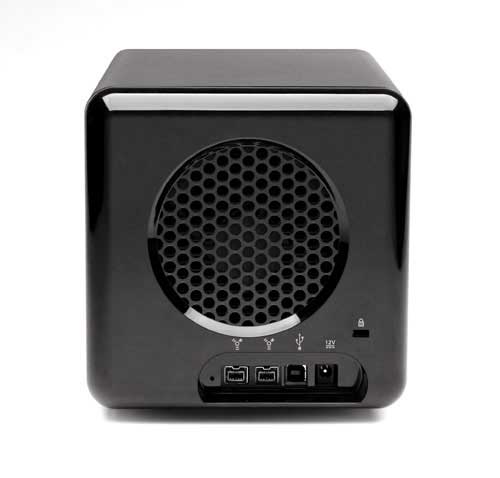
I love the way Drobo is designed. No screws or software to install (although the Drobo dashboard app makes it much easier to format your drive). You just pop off the magnetic cover and slide your hard drives in. The original Drobo was USB 2.0 ONLY. Many of the reviews I saw complained that this made it too slow for use as your main drive. The new Drobo is a Firewire 800 model (also has USB 2) and that makes it fast enough for regular use! The indicator lights on the front tell you all that you need to know including health of the drives and amount of space used.


What’s my configuration

I put four 1TB drives in it for a total usable capacity of 2.7TBs. Drobo is not bootable. I have it as a data drive on my Mac OS X Server. So far after a week, no major issues. It does take a few seconds longer to spin up, but that’s to be expected on any RAID system. 


Archiving, Backing up and Data Drive

The original Drobo, which was USB 2.0 only, wasn’t really fast enough to be used as a main drive. At least that’s what most people said about it. Therefore, most people looked at Drobo as an archival solution only and not for active use. Now that the Drobo has Firewire 800 support, it is fast enough to be used for your main drive or online storage. However, keep in mind that the Drobo is NOT bootable (even if you got it to work, it’s not recommended). This is why I have Drobo attached to my Mac OS X Server as a data drive, but not as the boot drive. I still boot from the internal drive which runs the Server OS and then I have the Drobo shared on my network via Mac OS X Server. Speaking of Archiving, the question becomes how much "stuff" do you need to keep? I’ve watched my server storage needs grow each year. I quickly went from a 250GB, to a 500GB, to a 750GB, then to a 1TB and now to 2.7TB’s of storage. What’s taking up so much space? You guessed it: Digital Photos, Music and Videos. I recently had a conversation about this very topic with Scott Kelby and he even wrote a blog post about this important topic with some tips. As a photographer, let’s say I do a shoot and let’s say I end up with 500 captures. I’ll do my best to narrow that down as best I can, eliminating the bad ones, the ones that are very similar or the ones that I just don’t like. Now let’s say that I’m down to 300 shots. I’ll then post a web gallery for the client, model, friend, etc. to pick the ones they want. So now let’s say they’ve picked their favorite 10 or so and I’ve picked my favorite 10 or so. Those are the ones that get retouched. Those are the ones that are delivered as the "Final" shots. So what do I do with the other 280? You guessed it, I keep them! Not once has anyone ever come back to me and said, "hey, you know those shots you took 6 months ago that I really didn’t like, well I’d like a couple of those shots now." So I literally have thousands of photos on my Drobo that will likely never see the light of day. Now keep in mind I know that family photos should be cherished and photos from wedding shoots should probably be kept, but where do you draw the line? Should those photos that no one wants (you or the client) be deleted? Should they be moved offline to some cheaper storage? Should they be deleted after so many months or years because they will likely not be needed? Everyone is going to have a different take on this. One thing I don’t trust is storing photos on a CDR or DVD as they will eventually fail. Putting them on a hard drive that you don’t use regularly could be risky too. Drives have lubricant in them that will eventually dry up or seize up if not used regularly. Online storage can be expensive too. I’m intrigued by the use of Flash drives for archival use. They are increasing in capacity and coming down in price. For example, Micro Center sells a 4GB drive for $12, a 8GB drive for $20 and a 16GB drive for $40. They are small and therefore easily stored. You could even bill it into the cost of the shoot. For example, if you were doing a portrait shoot and you expected to end up with 300 12MB RAW files, those would fit on a 4GB flash drive. So you could bill an extra $12 to store these photos. Slap a label on it, put it in an envelope and staple it to the contract/model release. However, the question of longevity still comes to mind. What’s the shelf life of these flash drives?


The bottom line

If your storage needs continue to grow, then Drobo is something that you should look at. As you need more space, you just add/replace with bigger drives. the drives are even hot swappable. You have to also remember that even though your data is much safer in a Drobo than a single drive, this doesn’t protect you in the case of a fire, flood or theft. So you should still have a strategy for offsite storage. I’m currently backing up my Drobo to an external Firewire drive (actually I rotate between two) that I put in the Safe Deposit Box at the bank. Drobo is cross platform and works on both Macs and Windows PCs. An empty Drobo (no drives) goes for $499.99. You can then buy whatever SATA drives in whatever capacities you want. You have to start with at least two. Use it for data, use it for archiving or use it for backup. If you want to share a Drobo and you don’t already have a fileserver set up, you can buy an additional piece of hardware called DroboShare ($197.48). Note: Although DroboShare has a Gigabit Ethernet connection, DroboShare connects to Drobo (up to two Drobos) via the USB 2 port and NOT the Firewire 800 port. So I wonder if that creates a bottleneck in performance? See how Drobo works from the Video demonstrations here.

iPhone App of the Week – i.TV

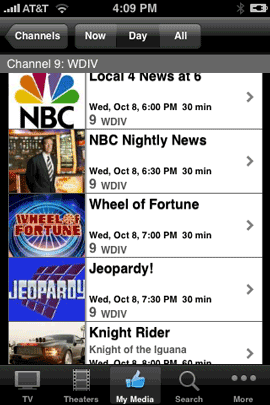
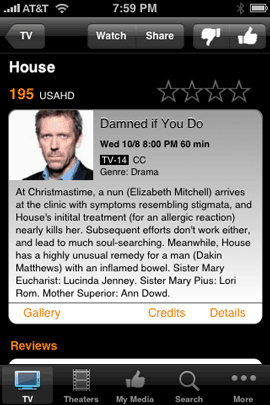
I never thought I would get excited about a TV guide app on my iPhone. However, if it’s well done and FAST, then I’m all in and that’s exactly what you get with i.TV. i.TV answers the question: "what’s coming on tonight?" The app is pretty straight forward. You start off by telling it where you are. Although the App supports location services, I still ended up putting in my Zip Code. Once I did, I got the choices for the providers in my area including Comcast Cable which is what I use most. As soon as a I made that my choice, that app started downloading the guide. I was on Wi-Fi at the time so the guide only took a few seconds to download. Once It was there, I could not only see the channels, but also little thumbnails for the shows that were currently on.

Great customization options

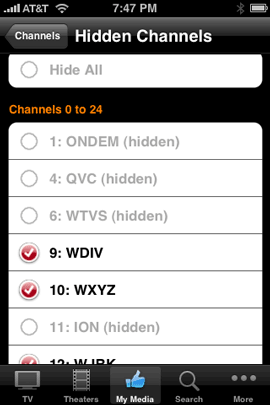
The one thing that is a must have in an app like this is the ability to narrow the list of channels down to just the ones YOU care about. I could care less about what’s on HGTV or the QVC channel. One quick trip to the "My Media" screen and I was able to edit down the list of channels to just the ones I watch.


But wait, there’s more

Not only do you get the listings for the shows, you also get a synopsis of the upcoming episode as well as a listing of upcoming episodes. If you register for an account on their site (free and optional), then you also get the ability to write reviews and give ratings.

Although there currently is no way to watch the show live on your iPhone, you can watch previews as well as see available photos from the show. There’s also a great search feature and the ability to see your listings by genre.


There are a couple of bugs

The first thing I noticed is that a few of my channels were missing! For example ABC HD in my area is on channel 231. NBC HD is 232, etc. Channels 231-234 and channel 300 (HBO) were simply not there. This wasn’t a big deal since the non HD equivalents were there (except for HBO). It was just weird that it choose not to show these channels. Perhaps on the next data update, they will appear.

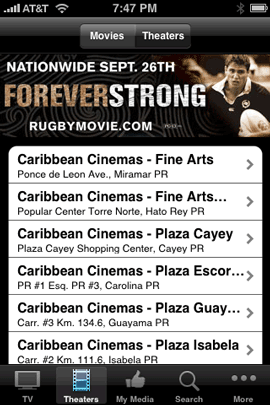
This app also has a Movies/Theater option. Although my Zip Code and Country have been entered correctly, i.TV insists on showing me movies and theaters in Puerto Rico. I already have a great movies app (One Tap Movies), so I really don’t care about this feature not working, but it would be nice if this app could do both TV and Movie listings for me.  These aren’t show stopper bugs, but let’s hope the developer gets this stuff worked out soon.


My wishes for the next version

Other than fixing the bugs I noticed, I would pay money if this app could also schedule recordings on my TiVo HD. I know that the developer has no control over this, but I wish that either TiVo would release their own app or partner with these guys to add this functionality since their app already does everything else I would need.


The Bottom Line

i.TV is FREE. It’s got a couple of minor glitches (at least I ran into a couple, your mileage may vary), but they are definitely off to a GREAT start! It’s also faster than going to web based TV listing especially for jumping to a specific time or day, so it’s definitely worth a try. i.TV works on both the iPhone and iPod touch. You can download it here.

Apple TV finally gets Video Playlists!

Although I’m a fan of Apple TV, one of my biggest pet peeves is that there was no way to play music videos back to back. This made no sense to me at all. I think it’s cool that if you’re throwing a party or just having a few friends over that you could not only have music playing in the background, but also the music videos themselves. Some music videos also make for good entertainment and conversation pieces.

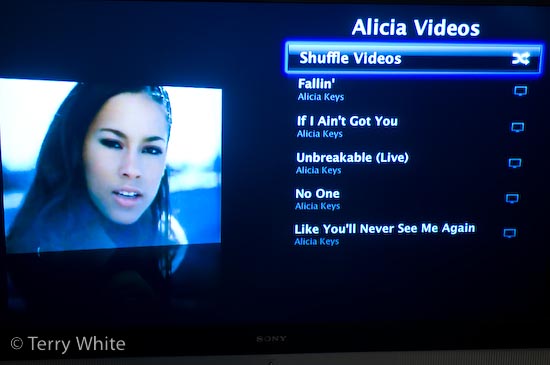
Well Apple finally fixed this in the most recent Apple TV software update. Not only did they add Genius Playlist support (new in iTunes 8), but they also quietly added the ability to not only play videos back to back, but also shuffle them as well.

You can build music video playlists in iTunes just like you do music playlists. As a matter of fact you can even mix the two. This way you could create a mix of your favorite songs and throw in the music videos you have without worrying about be limited to just music videos.

While we’re on this subject of fixing things, the next thing on my list is support for the iTunes visualizer. I’m still stunned that Apple doesn’t include this in the Apple TV. I guess as a work around you could record it with a screen recorder app (such as iShowU) and then add it to your library as a video and play it that way, but it’s just not the same. This feature should be built-in to the Apple TV, iPhone and iPods.
 

Movie Rentals Appearing Sooner

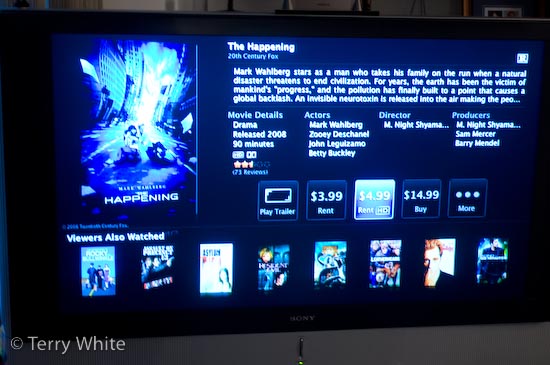
I also noticed that Apple is getting some movie rentals quicker than others. I remember being very disappointed when Steve Jobs touted the iTunes movie rental feature and then said that they would get titles to rent 30 DAYS after they made their debut on DVD. That pretty much killed it for me. I was thinking "long live Netflix!" However, I see that they are getting some titles at the same time that they come out on DVD/Blu-ray for rent.

For example, "The Happening" just came out yesterday and it’s now available on the iTunes store for rent as well.

If this trend continues, it could sway me away from Netflix. We’ll just have to wait and see.


The Bottom Line

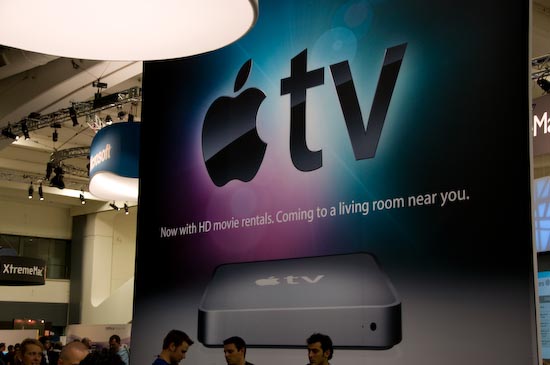
The Apple TV continues to get better with each update. It has become an essential component in my home theater setup. Apple TV starts at $224 (40GB version) at Amazon.com.