
Photographers: Don’t waste your money on a Mac Pro

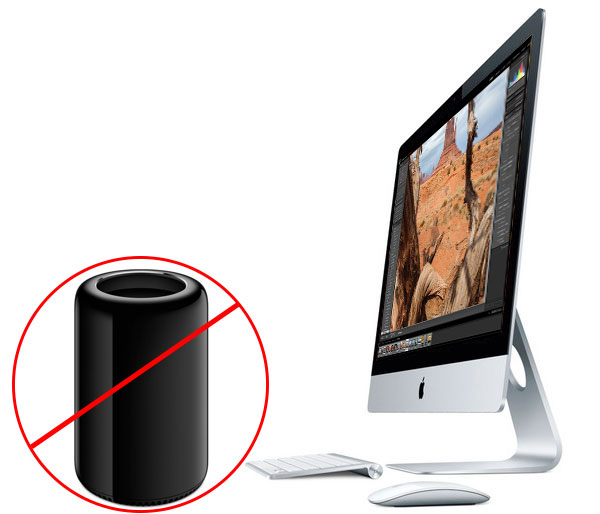
macpro-imac2

Earlier this year in May I did a post called “Photographers: iMac or Mac Pro?”  It was a post that was meant to really ask the question that as a photographer would you benefit from the faster and more expensive Mac Pro over say a nicely equipped iMac (or in my case MacBook Pro)? There was only one problem with that post. I didn’t actually have an iMac to compare. I ran all my tests using my high-end Mid 2012 MacBook Pro Retina Display. I noted that although my MacBook Pro fared quite well against the Mac Pro for common “photography workflow” tasks, that an iMac would probably do even better! Well now I have a NEW iMac Retina 5k Mac to test/review and I think you’ll be pleasantly surprised by the results. I was a little blown away!

The same game rules apply!

If you don’t like Macs/Apple or don’t want a Mac for whatever your reasons are, you can pretty much stop here and find something else to do with your time. I find it entertaining when people feel compelled to tell you/me how much they don’t want the thing you’re reviewing or writing about because they use something else. This is not a Mac vs. _______ post. If you’re happy with a Windows PC or Linux PC, or anything else, I’m happy for you. If you can build your own PC cheaper, that’s awesome!

If you’re reading the rest of this post then I’ll assume that you’re a Mac user or thinking of becoming one.

The next thing I’d like to get out of the way is that if you’re looking for a Mac Pro review that tells you this new Mac Pro is better than the previous Mac Pro with all the benchmarks to back it up, then you’d probably be better served by other reviewers who have targeted the performance of the new model vs. the older model. I’m doing this review/comparison simply to answer the question, “as a photographer would I be better off spending my money on the NEW iMac Retina 5K Display or a Mac Pro?” If you’re a videographer and you’re a Mac user then you probably already have the new Mac Pro because you demanded the fastest Mac you could get to render your videos on a daily basis.


Updated: Introduction

When I saw the rumors that Apple was going to release a radically different design for the Mac Pro, to be quite honest I was only mildly interested. As I stated above, I realized with my last Mac Pro that I wasn’t really a Mac Pro customer. Sure I appreciate the faster performance, but I found myself only using my Mac Pro when I knew a process was going to take a long time to complete. Otherwise I was quite happy just using my MacBook Pro simply because I could use it in any room at any time. I could take it with me on the road. However, I said to myself perhaps if the performance (for what I do) is significantly better and the price point for an entry model was $2,500 or less, I’d consider getting one. Well we know the latter didn’t happen, so now it was time to test the performance. I got the opportunity to test a Mac Pro standard configuration in my studio for a few weeks. I loaded the latest version of my Adobe Creative Cloud applications on it as well as a few utilities that I use such as ScreenFlow. Next, I began running side-by-side tests of the things that I do daily that take more than a few seconds. My assumption was that the Mac Pro would certainly be at least twice as fast at everything I threw at it than my 2012 MacBook Pro Retina Display Mac. Actually I was wrong! Now fast forward to November and I have brand new iMac Retina 5k here to review and test. At the time I did the tests back in May, I really wasn’t expecting to run these tests again. Therefore I didn’t really hold on to the test files that I used. Luckily I was able to reassemble most of them with a couple minor exceptions that I will outline below:
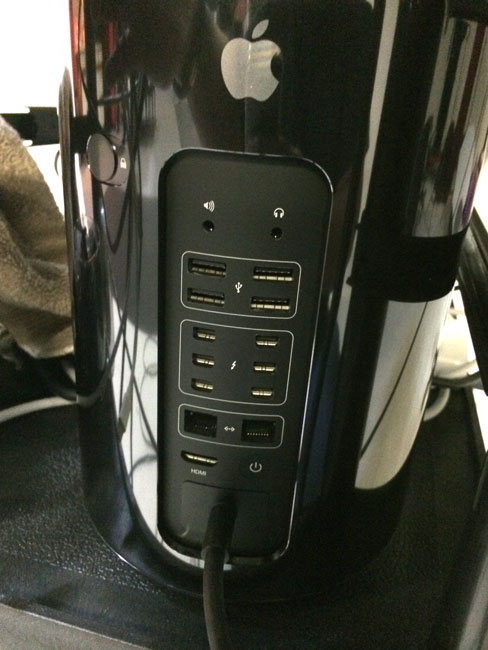
MacPro-back

When will a Mac Pro significantly outperform any other Mac?

As I said above, I was wrong in my assumption that the Mac Pro would be at least twice as fast at everything. Actually it is faster at (almost) everything! Just not by a margin of two. On every test I threw at it the Mac Pro outperformed my now two-year-old MacBook Pro, but in some cases it was only slightly faster. With the new iMac Retina 5k there was even less of a difference. This is when I realized that in order to see significant speed improvements the software you’re testing not only needs to be optimized for the faster processors, but also it would need to take advantage of the multiple cores. Even then, the iMac and MacBook Pro are no slouch. They’ve got multiple cores too. Where I saw the biggest differences was in (no surprise) video rendering and processes that take longer than a minute or so anyway. At this point I now have a new iMac Retina 5K Display to compare as well. The differences in speed were less dramatic as I expected. However, even doing video tasks the iMac held its own and really started bringing into question “when would I ever want a Mac Pro?” When I ran the tests in May the Mac Pro was significantly faster at video tasks than my two year old MacBook Pro. However, I not only now have a new Mid 2014 MacBook Pro Retina that is faster than my old one, but I also have a base model iMac Retina 5k to compare too.


UPDATED TEST RESULTS

What I do as a photographer

As a photographer I spend most of my time in Adobe Lightroom 5 and Adobe Photoshop CC. Photoshop CC definitely takes advantage of multiple cores and now has Open CL support. So filters will run faster on the new Mac Pro. All of these applications are 64bit native and that means that they’ll take advantage of additional RAM.

My first test was one of the things I do after every shoot. I convert my RAW files into .DNG (Digital Negative) format. This is one of the few times that I see a progress bar in Lightroom because it does take time to do it. I converted 435 16MP Nikon .NEF RAW files into DNG format.

First on the MacBook Pro it took 14 minutes 35 seconds

On the Mac Pro the same conversion took 12 minutes 12 seconds.

OK, ready for this? On the NEW iMac Retina 5K a 435 16MP conversion took 11 minutes 39 seconds. Huh! What? Wait a minute! It was actually slightly (less than a second) faster than the Mac Pro. This of course left me scratching my head, but I have a couple of caveats to bring up. First off this is 6 months later and we’re on a newer operating system, Mac OS X 10.10 Yosemite, which in theory could be faster than Mavericks. The only caveat as I mentioned in the introduction was that I didn’t have all the same exact files from the May test. Yes I converted 435 16.2 MP files from my Nikon D4, but they weren’t the same exact images. I can’t see where that would make too big of a difference though. They are from the same camera and a similar portrait shoot, just not the same exact images as before. We can argue this one more, but just for kicks I ran the same test on my NEW Mid 2014 MacBook Pro Retina with a Core i7 Haswell processor and SSD drive (the iMac has a Fusion drive) and it was even faster at 9 minutes 56 seconds. This we can probably say is faster on the MacBook Pro over the iMac because it’s a faster processor and faster drive, but it doesn’t really explain why it would be faster than the Mac Pro. Since they aren’t the same exact images, let’s move on to the other test where the files ARE THE SAME!

HDR Test

The next test was a simple HDR (High Dynamic Range) conversion in Photoshop CC using three RAW files. This is a two-part process. The first part is simply combining the three (or more) images together and aligning them. Then the second part of the process is applying whatever settings you want to control how your HDR looks.

The first part on the 2012 MacBook Pro took 12.70 seconds and on the Mac Pro it took 9.10 seconds

The second part on the 2012 MacBook Pro took 13.00 seconds and on the Mac Pro it took 11.13 seconds.

What about the iMac Retina 5K?

Since I had the exact same RAW files for this test I ran it on the iMac:

The first part on the iMac took 10.75 seconds and the second part took 10.75 seconds. This makes it only 1.5 seconds slower than the Mac Pro for this test.

londonpano

Pano Stitch

The next test was stitching a Panorama together using Photoshop CC and 10 RAW files

On the 2012 MacBook Pro this process took 1 minute 12 seconds

On the Mac Pro this process took 51 seconds.

On the iMac Retina 5K Display this process took 1 minute (9 seconds slower than the Mac Pro)

I could have gone on running other tests and other filters, but these are the things I do on a regular basis. If it was faster at something that I rarely do, then I really don’t care as much. As you can see from the results above, the Mac Pro wins on every test as you would expect it to, but the results (even if it was twice as fast in every case) may not justify the difference in cost. We’ll get to that at the end.

Next it was time to look at what I do as a Photographer when it comes to video

I use video in a couple of different ways. The first as a photographer is to tell my story. This means capturing video with my DLSR, GoPro, iPhone, etc. I use Adobe Premiere Pro CC to assemble those videos and then output them to share (usually on YouTube). The next way that I use video and probably the way that I use video the most often is to record my Creative Cloud TV video podcasts. These screen recordings are done with ScreenFlow and since the editing I do is pretty simple I can edit these right in ScreenFlow. Of course I need to export those videos out and this can take a while depending on the length of the video. I had no doubts that this is where the Mac Pro would really shine. After all these are the kind of processor and resource intensive tasks that the Mac Pro was built for. I was not disappointed.

The first test I ran was an export of an hour-long edited video out of ScreenFlow.

On the MacBook Pro this export took 60 minutes

On the Mac Pro this export took 33 minutes.

On the iMac Retina 5K this export took 35 minutes.

It gets better in Adobe Premiere Pro CC and the Adobe Media Encoder CC. I needed to convert this video into a different format using the Adobe Media Encoder CC.

MBP-34

On the MacBook Pro this conversion/export took 34 minutes 36 seconds

MP-12

On the Mac Pro this conversion/export took only 12 minutes 36 seconds

MediaExport-1926

On the iMac Retina 5K this conversion/export took 19 minutes 26 seconds


What about that beautiful 5K Retina Display?
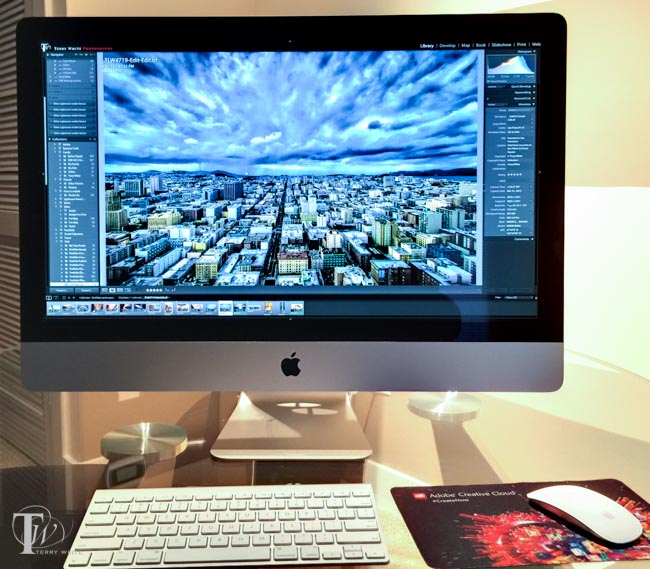
wpid14035-IMG_3926_sm.jpg
No photograph can do this display justice. You have to see it in person with your own eyes to appreciate it!


One the biggest reasons I would recommend an iMac over a Mac Pro to a photographer beside the money saved, is the fact that you’re getting a 27″ 5K Hi-DPI (Retina) display! Your images are going to look amazing on this display. I was blown away by the sharpness and the detail. Besides the obvious sharpness and detail, the other benefit is being able to work at high resolutions in programs like Photoshop. If you set the display resolution higher (I use SwitchResX for complete control of this) you can actually see more of your images as you work. No more having to zoom in to 100%. You can actually see them at 100% if you want. As it stands today, you won’t find a better display to see your images on. If you do, it will likely cost more!
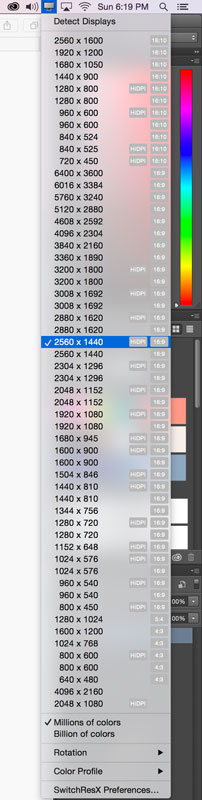
iMac_Retina_5K_resolutions


The Bottom Line

I’m sure if we just ran processor and benchmark test that The NEW Mac Pro is the fastest Mac that Apple has ever created. The question you have to ask yourself is, “Do I run benchmark tests or do I use applications on a day to day basis that I’m waiting for tasks to complete?” For me the answer is no. Sure if I spent my days rendering video all day every day, I’d already have the Mac Pro. There would be no question. However, as a photographer I can’t justify the difference in price. Now that the iMac has a Retina 5k display it’s even a more compelling choice for photographers.

The Mac Pro model and configuration that I tested above is here. (Now keep in mind that if I was going to buy one I’d start with this configuration and I’d go with a bigger internal drive and more RAM)

Believe it or not the iMac Retina 5k that I tested was this base model. The results above were achieved with only 8GB of RAM and a 1TB Fusion Drive. If I were to buy an iMac I would get this model and I would buy this 32GB RAM upgrade and put it in myself. This configuration would give me a faster processor, an internal 512GB SSD, 32GB of RAM a 5k Retina Display, Keyboard and Mouse for less than the price of the Mac Pro that I tested.

My current MacBook Pro Retina 15″ is this configuration.

My thoughts on iMac vs. a MacBook Pro

Why an iMac? Although I don’t use one (I’ll have to send this one back if I don’t want to buy it), an iMac makes sense because you’re getting a fast Mac with a nice big 27″ 5k display all in one. You can’t really get a better display for this price and it includes a computer 🙂
Wacom_cintiq-24hd

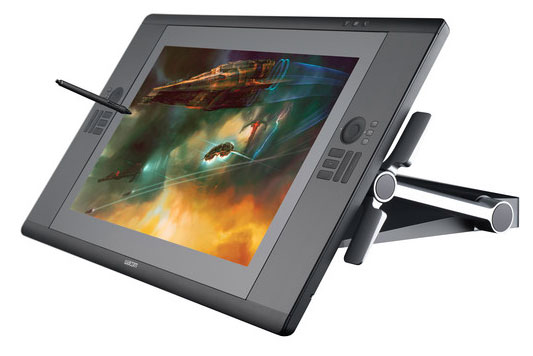
Why a MacBook Pro? For me the MacBook Pro makes the most sense because when I’m at my desk I have connected to a nice 24″ HD Wacom Cintiq display/tablet. When I get ready to go I disconnect it and go. I have a computer with a nice 15″ Retina display when I’m on the road. If I didn’t travel for a living then I would absolutely have an iMac. Since I travel a lot, a MacBook Pro makes more sense. With that said, if I had never used a Cintiq AND I had seen the iMac 5k with my work on it as I have with this test unit I would be hard pressed not to buy one and just use an Intuos Pro tablet instead.

If you want the fastest Mac and you don’t mind spending $3,000-$4,000 (or more) on it plus having to buy a display, keyboard and mouse, then definitely go with a Mac Pro. Almost everything you do will likely be faster than the Mac you’re currently using. At the end of the day I realize that computers have become “fast enough” and that I don’t spend a lot of time waiting these days. Even when a process such as a video render/export is going to take a few minutes I can toss it to the background and work on other things in the foreground. My last Mac Pro once configured set me back over $5,000 and while it was a beast, I found that I wasn’t really using it as much as I had hoped I would, so I sold it. The new Mac Pro is faster, but is it $4,000 + display, keyboard and mouse faster? For me it’s not. The NEW iMac Retina 5k and MacBook Pro Retina 15″ will definitely hold their own against a Mac Pro for the kinds of tasks that photographers do.



CVS vs. Walgreens – NFC and Apple Pay will Win!

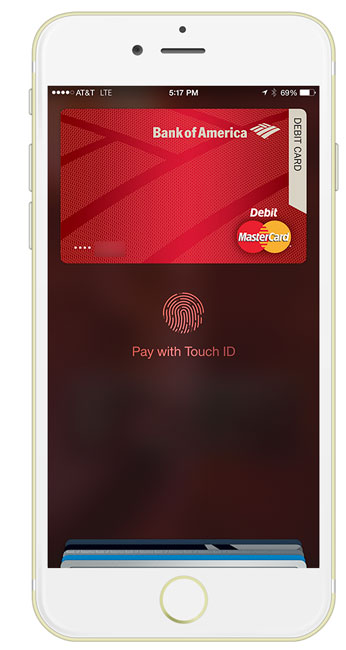
apple-pay-boa

It seems like there are very few situations where “we can all just get along”. When Apple introduced Apple Pay and support for the over 220,000 merchants already taking NFC wireless payments at the register, I thought “sweet!” Everyone loves a faster checkout experience and having one that’s more secure and private can only be a good thing right? Although CVS was never listed as one of the vendors to support Apple Pay, there were people reporting that it was working at their local CVS stores. This is because CVS has/had NFC wireless payments already in place for Google Wallet and other forms of wireless payments. Soon after these reports started coming in, we started to see reports that CVS purposely disabled not only Apple Pay, but NFC payments period! Yes, even Google Wallet on Android, which was already working and in place before Apple Pay.

Why would CVS, Rite Aid and others purposely block Apple Pay and NFC payments?

wireless_NFC_pay_icon

Well the answer seems to be they are throwing their weight behind a different mobile payment system called CurrentC. CurrentC isn’t live yet and isn’t slated to go live until early 2015. Hmm, ok. So your new payment system isn’t ready yet, then why disable one that is ready and already working at your registers? The answer to that seems to be an “exclusive” deal with CurrentC that states in writing that these merchants aren’t allowed to accept payments from competing systems. Hmmm, ok. Then why shut if off now. My guess is that they wanted to cut off support for Apple Pay before users got used to using it at their stores. In other words if something never worked you’d be less likely to complain (too loudly) than if something worked for months and then stopped working. Again, this is my personal guess, but it makes sense. It could also just be a coincidence in timing, but it seems to convenient to be a timing thing. The only other question I would have is why would you sign a deal that blocked your customers from using other payment methods especially if you already had the necessary hardware in place? As usual, it’s always about money. In other words, if CurrentC offered a better deal with less fees then the merchants just did the math and went with the better deal. What about the customer you ask? Well that’s the point of this post. At the end of the day customers always decide with their wallet what will succeed and what won’t

wpid14014-IMG_3663_sm.jpg
The NFC capable terminal at Whole Foods Market


Can’t we just use CurrentC AND Apple Pay/Google Wallet?

The first thing that a consumer might think is “why not use both?” There’s certainly nothing stopping you from using both Apple Pay/Google Wallet AND CurrentC. It’s not like your smartphone is only capable of one payment system. Since CurrentC will use a dedicated App for both iOS and Android it’s easy for consumers to use both. As a matter of fact more iPhone users will be able to use it than Apple Pay because it doesn’t require NFC hardware to be in your iPhone. However, everything I’ve read thus far promises that CurrentC will be a disaster for the consumer. Here’s why: first off it’s linked to your checking account, not your credit and debit cards. This is probably why merchants are attracted to this payment system because it will reduce the credit card fees that they pay. This probably isn’t the end of the world for many at places like RiteAid and CVS, but BestBuy is on the list to get this too and I don’t know of too many people that buy big ticket items using the money in their checking accounts. People typically pay for these items over time. Next, the signup requires not only your banking information, but also your Social Security Number and your Driver’s License Number. If that’s not enough to stop you in your tracks right there, it almost promises to be slower at checkout time due to the back and forth QR code scanning that not only you have to do, but the clerk has to do as well. The clerk rings up your purchase and you then scan the QR code that’s on the display with your phone using the CurrentC app. Nope you’re not done. You then show the clerk the QR code that the app produced on your phone so that he/she can scan it as well. What could go wrong?

The Bottom Line – I have a choice

walgreens-rewards-passbook
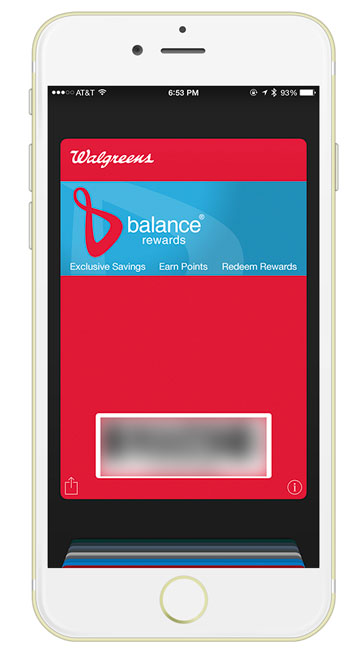
By the way CVS, see the nice location based Walgreens Rewards Card in Passbook? You’ve promising this feature for over a year. Just sayin’


The funny thing is that I actually preferred going to CVS simply because it was closer to where I lived than either Walgreens or RiteAid. Proximity to my home made CVS my default choice. Now that’s no longer the case. Where I live now, the nearest CVS is directly across the street from a Walgreens. When I pull up to the intersection I can make a left and go into the Walgreens parking lot or make a right and go into the CVS parking lot. Since Walgreens makes it easier, faster and more secure to do my checkout in their stores with Apple Pay, it looks like I’ll be buying more from Walgreens from here on out. This is what I mean by “customers decide what succeeds and what doesn’t with their wallets.” I very rarely try to predict the future, but when it comes to CVS vs Walgreens (CurrentC vs ApplePay/Google Wallet)? Walgreens just gained at least one new customer. CurrentC is a non-starter for me. Making it harder to take your customer’s money usually doesn’t workout to well for the merchant. Lastly this just in… “In 72 hours, Apple Pay is already the wireless payment leader in the US

See the Apple Pay Process in action at Walgreens


Best USB 3.0 Hub for Travel

Satechi-USB3.0-hub

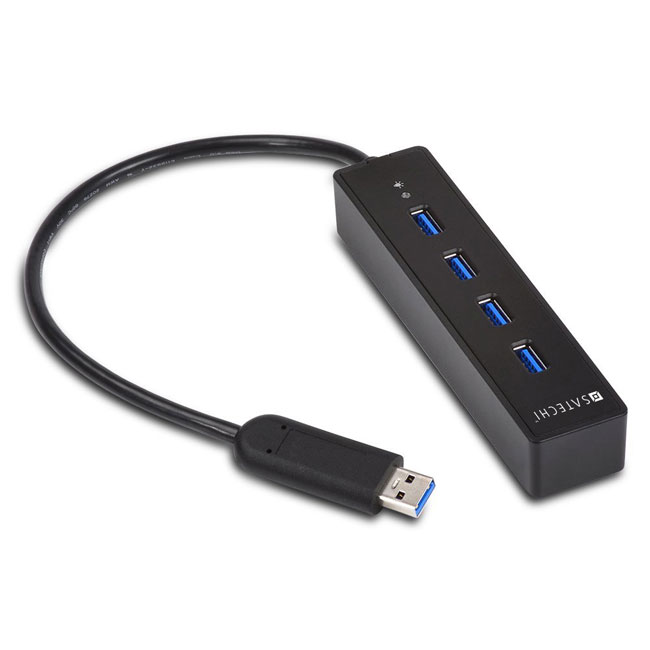
Back in 2012 I did a review of what I consider to this day to be The Best USB 3.0 Hub. I still have this hub on my desk to this date with zero problems with it. It just works! While this USB 3.0 hub is great, it’s a bit too large for my travel tastes. Yes they do make this 4 port version but it’s still larger than I wanted for travel. The big decision you have to make when going with a travel USB 3.0 Hub is whether or not you want/need a powered hub or not. Obviously a powered hub is the way to go when you have the ability to plug it in to a power supply and you don’t mind carrying yet one more power supply in your bag. However, USB 3.0 offers more juice than USB 2.0 does. Therefore you may be able to get by with a self powered hub especially for occasional use during travel. When I’m using my MacBook Pro or MacBook Air on the road, I’m usually in need of one extra port. I usually have my Wacom Intuos Pro tablet plugged in and an external USB 3.0 hard drive. At that point I may need to plug in a document camera/scanner or a Lightning cable to sync/copy something from my iPhone or iPad.  Or I could simply need to plug in a thumb/flash drive to copy a quick file. These are the kinds of things I need to do via USB 3.0 on the road from time to time. The hard drive can be plugged into Thunderbolt. That frees up the USB port if needed, but not all of my portable external drives are Thunderbolt equipped.

I went with this portable USB 3.0 Hub

satechi-USB_3.0_hub_with_harddrive

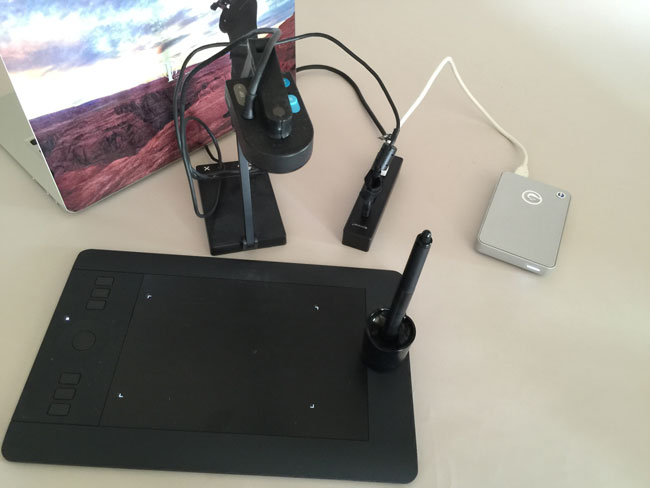
Although Anker makes this 4 port USB 3.0 Hub, I went with this Satechi 4 port USB 3.0 Hub. It seemed to have high ratings across the board on multiple sites. I havent’ been disappointed as the Satechi 4 Port USB 3.0 Hub has been GREAT!. It performs as advertised as long as you keep in mind that it’s NOT a powered hub. So let’s get the rules of using a bus powered hub out of the way. First off if you plug in too many devices that require USB power you will likely run into issues where the devices may not work or may not work at their top USB 3.0 speed. So when I want to use a bus powered USB 3.0 hard drive I plug the hub into my computer first and then I plug in the hard drive. Lastly I plug in any slower devices. If you stick to these rules (plug in the hub first, and the most power hungry devices next) then you’ll be more successful. I was able to easily plug in my USB 3.0 G-Tech hard drive, and my Wacom wireless module and lastly my Ziggy document camera with one port on the hub to spare. This is likely more than I will actually use on a regular basis, but I wanted to test my worst case scenario. Also keep in mind that I have one more available USB 3.0 powered port on my MacBook Pro/Air. With this Hub I could easily have two external bus powered hard drives  (one in the USB 3.0 hub and the other in the built-in port) and still have other ports available for less power hungry devices. Since I only travel with three external hard drives on a regular basis, this is exactly what I needed as I never need to plug in more than two at a time and If for some strange reason I need all three, I can plug at least one of them in via Thunderbolt.


The Bottom Line

If you need a powered USB 3.0 Hub for travel, then you should probably get this one. However, if you’re looking for a smaller one that can be used even if you don’t have an available AC power port nearby or you don’t want to carry one more power brick, then you could go with this Satechi 4 Port USB 3.0 Hub and get the extra ports you need.


Apple Pay First Impressions

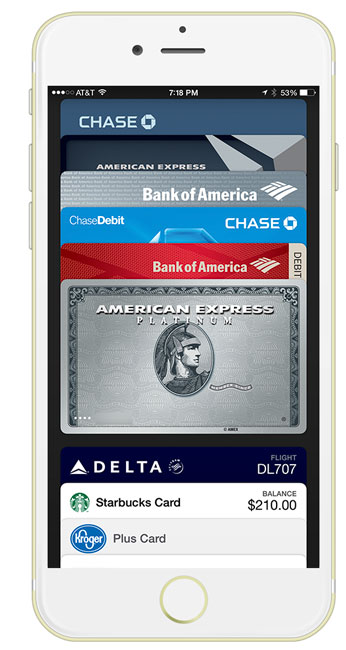
apple-pay-iPhone-6-plus

Sadly it seems pretty common place these days to hear of big companies being hacked and having thousands, if not millions of credit card numbers stolen and resold. When Apple announced Apple Pay, I was very interested to say the least. The idea of a payment system that breaks away from all the traditional pitfalls of credit/debit card payments is something that we can all appreciate. The concept behind Apple Pay is simple. If you have an iPhone 6 or iPhone 6 Plus then you have the necessary hardware (NFC – near field communications) to allow for wireless transmission of data from your phone to a payment terminal at the cash register. However, instead of sending your credit card number, name, phone number, email address and card ID, a token is sent instead. The token itself is USELESS to hackers. Therefore if the merchant is hacked they never had your credit card number or information about you to lose. Sign me up!

Setting up Apple Pay

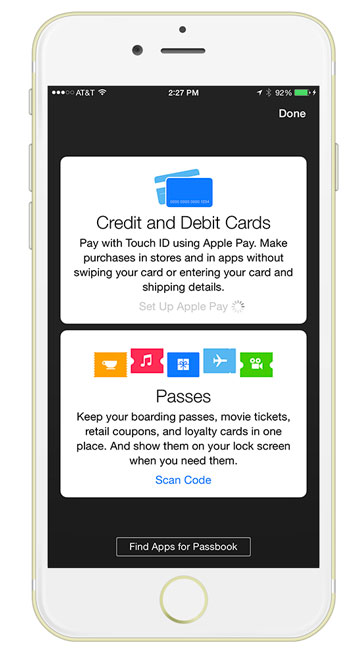
setup-apple-pay

This past Monday iOS 8.1 was released which allowed for Apple Pay to be setup on the iPhone 6 and iPhone 6 Plus. The setup process is very easy. Apple Pay is now a part of Passbook on your iPhone. First off if you have a credit/debit card on file with your Apple ID, you can immediately add it. All you’ll need is the card ID from the back for verification. You can then proceed to add additional cards by simply hitting the + sign and either using the built-in camera to OCR the card info or you can key it in manually. The camera worked for all but one of my cards. I was able to easily add four additional cards. The only one that gave me trouble was a Chase Slate credit card. While the card was easily added, I had to call them to actually activate it for Apple Pay. The number displayed during the setup process and I was able to tap and call it right from the Apple Pay area of Passbook. It took three calls as I was disconnected twice to get through the process. Actually I ended up deleting that card and re-adding it and it was then approved immediately.


Using Apple Pay with other Apps on your iPhone

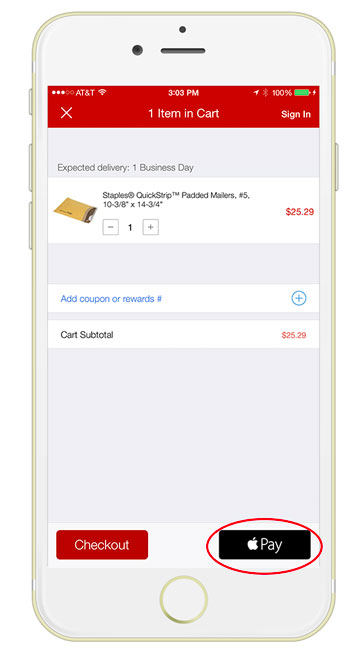
apple-pay-staples

Although I could have gotten in my car and headed out to one of the merchants that supports Apple Pay, I decided to test it first right from my office chair by placing an online order. Several apps got updated on Monday including Staples, Target, Uber, Apple Store, Hotel Tonight, Groupon, Open Table and others. Since there was an office supply item I needed I decided to order it with the Staples app and pay with Apple Pay. I fired up the Staples app and searched for the the item I wanted. I added it to my cart and tapped check out. Once I got to the checkout screen I had the option of either signing in to my Staples account, checking out as a guest or tapping the Apple Pay button. Once I tapped the Apple Pay button I was able to then choose which card I wanted to use, which address I wanted to ship my order to and which phone number and email address I wanted to use for shipping the order. I later found that in the Apple Pay settings in iOS 8.1 you can set all the defaults you want to use. I tapped pay and put my finger on the finger print scanner and that was it. My order was placed. I didn’t have to key anything in. It was awesome as online ordering on a phone can be a pain in the butt.


Using Apple Pay at a retail location.

apple-pay-boa

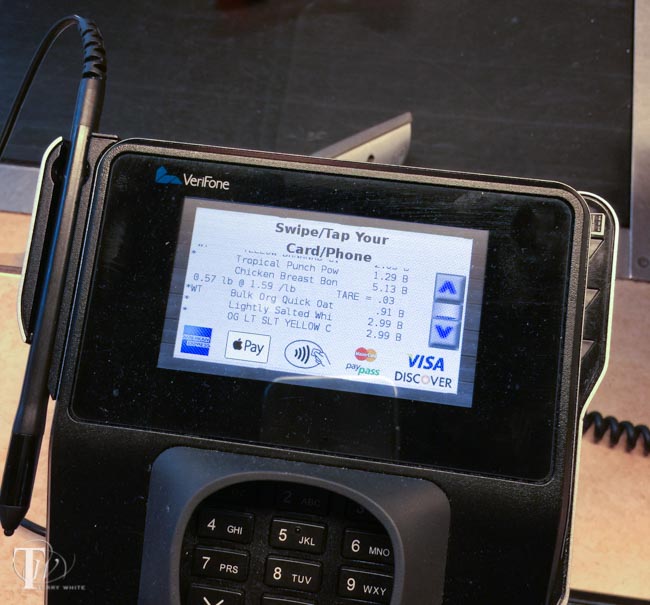
Yesterday I decided to give Apple Pay a try at my local Walgreens. It was the closest store to me that accepts Apple Pay besides McDonalds. While the  process was relatively quick, it wasn’t as “touchless” as I imagined. The first thing that I learned from the Staples experience above is that by not signing in, I didn’t get any Staples Rewards. Well the same thing applies at the register. You will still need to present your store loyalty card if you want points/discounts. Luckily my Walgreens card is also in Passbook. I handed the clerk my iPhone so that she could scan the barcode on my Walgreens card first. Then she rang up my two items. Once she was done I put my iPhone up to the sensor to start the Apple Pay process. My default debit card appeared on the screen and I used my finger to approve the transaction. AWESOME! Done right? Well not yet. Once I saw the “Approved” appear on my iPhone I put my iPhone away, but I still had to tap Credit vs. Debit AND approve the amount on the terminal. I assume that had I used a credit card vs. a debit card then I would have probably bypassed that first question. However, it was still odd that I had to tap that I approve the amount after the fact. Nonetheless, she handed me my receipt and I was out the door.

A short video of my first Apple Pay at a retail location:


The Bottom Line

Apple Pay will definitely move us one major step closer to replacing the traditional wallet. Instead of physically carrying 3, 4 or 5 cards now I may only carry one or two because the others are in Apple Pay if I want to use them. It was also a good feeling knowing that Walgreens didn’t just get my debit card number and If I wanted to be totally anonymous then I could have not given my rewards card. If you have an iPhone 6 or iPhone 6 Plus I can’t think of any reason not to use Apple Pay. It’s certainly much more secure than handing over your physical card. Apple Pay can’t be used by someone else even if they steal your phone because of the required finger “touch-ID”. You can also remotely wipe all your information including pay information from a lost or stolen iPhone via the Find My iPhone feature. Apple also has the clout to bring over most of all the major players, so they are likely to succeed where others have failed at this.

As of today you can use Apple Pay with the following Bank Cards (AMEX, Visa and Mastercard) from: American Express, Bank of America, Capital One, Chase, Citi and Wells Fargo with more banks coming this year like barclaycard, Navy Federal Credit Union, PNC, USAA and US Bank. Apple says that you can use Apple Pay at 220,000 stores and counting, including: Aeropostale, American Eagle Outfitters, Apple Stores, BabiesRus, BJs, Bloomingdales, Champs, Chevron, Disney Store, DuaneReade, ExtraMile, Foot Locker, FootAction, Macy’s, McDonalds, Meijer, Nike, Office Depot, Panera Bread, Petco, Radioshack, Six:02, Sports Authority, Subway, Texico, ToysRus, Unleashed, Walgreens, Whole Foods or anywhere else you see this icon:

wireless_NFC_pay_icon

Some are reporting Apple Pay working at stores others than the ones Apple lists, so give it a shot if you see the wireless pay icon above. See Apple’s list here.


.

How To Create Custom Brushes for Photoshop or Illustrator Right on Your iPhone

PS_CC_totem


In this episode of Adobe Creative Cloud TV, I’ll show you how to use the NEW App, Adobe Brush CC to create custom brushes for Photoshop CC, Illustrator CC and Adobe Photoshop Sketch right on your iPhone or iPad. You can download Adobe Brush CC for FREE here from the .


Are you missing out on my Bonus Content?

See more of my Adobe Creative Cloud Videos on my Adobe Creative Cloud TV and get the App below. It features EXCLUSIVE CONTENT that no one else gets to see. My iOS App is a Universal App for iPhone, iPad and iPod touch. I also have an Android version on the Amazon App Store:

.


The Best, Fastest Car Charger for your Phone and Tablet

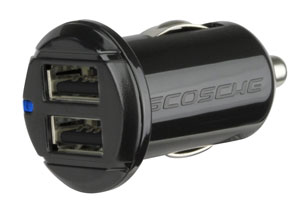
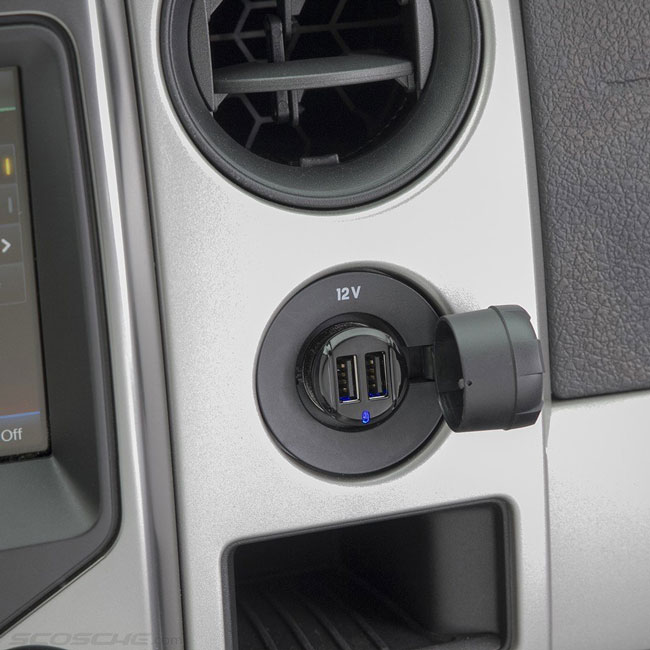
schosche_dual_12watt_car_charger

Every time I turn around there seems to be a new, better car charger than the one I’ve been using. I actually started with this Scosche Dual Charger over a year ago. It worked great, but the thing that I didn’t like about it was that only one of the ports charged at the faster 2.1A speed. Then I discovered this one by Lenmar. It gave me what I wanted, TWO ports both charging at 2.1 AMP/10 watts each. Perfect! Well it was perfect until I discovered that Schosche released a dual 12 watt charger! If you have a newer iPad 4th generation or iPad Air you might have noticed that Apple now includes a 12 watt wall charger instead of the 10 watt charger included with previous models. Now you can charge your iPad Air in car at full speed or speed charge a smartphone. Since we usually aren’t in our cars for hours at a time each day, speed matters. You might be able to get back up to a full charge faster on a shorter commute. I also figure why have just one port when you can have two? This way you can charge your phone and another device such as a tablet or a passenger’s phone.

schosche_dual_12watt_car_charger_in_car

I also like the low profile fit. The original Schosche I used back in the day stuck out of the socket quite a bit. This one almost fits flush with the 12V socket. Even if your car has a built-in USB port I’m going to go out on a limb and say that it doesn’t provide 12 watts of power. In most cases it’s probably a 5v 1A USB port.  As far as I can tell this is one of the fastest car chargers on the market.

You can get the Schosche 12 Watt USB Car Charger here.


iPhone 6 Plus Review

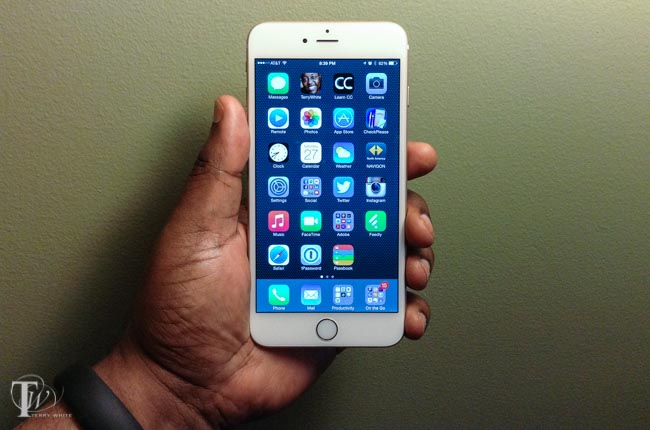
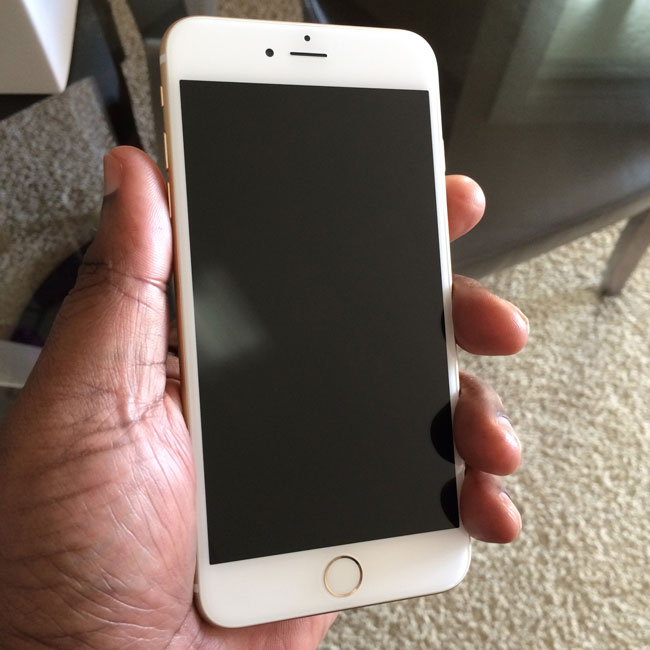
Holding iPhone 6 Plus in my hand

Overview

I’ve been doing iPhone reviews since the 1st one back in 2007 (if you want to see how far we’ve come, go back and have a glance at that one). So it’s become a tradition here on my blog and many of my friends and followers patiently wait for my take on the new mobile device. Normally I have these reviews done by the 1st Monday following the Friday release. However, my iPhone didn’t arrive until the following Wednesday (last week). I pre-ordered mine on day one, but apparently I didn’t make the 1st cut. Nonetheless, it did arrive a few days later and I wanted to have a few days with the new larger device anyway. The last couple of iPhones have been evolutionary with the things we’ve come to expect such as better cameras, faster processors, more memory and a design tweak here and there. Let’s face it, the original 2007 iPhone pretty much nailed it when it comes to form factor, size and functionality at that time. As a matter of fact the iPhone was blasted by several “industry experts” for it’s initial design by being a “touch screen” phone with no physical buttons. Seven years later all of the smartphones now look and act this way. However, this is not a comparison review of other devices. It never is! If you have a competing device and you’re happy with it, no need to read any further. Enjoy your _____ phone. Have a nice day. For everyone else, the question that we are always asking is “is this new iPhone worth upgrading or switching to?” That of course will always be up to YOU. I can only tell you what I’ve experienced with mine. So here goes…my iPhone 6 Plus review…

Which one did I get?

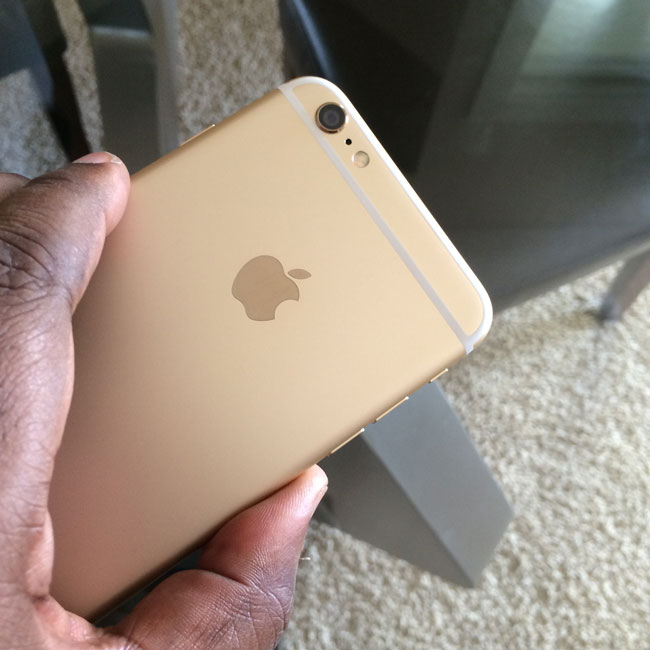
gold_iphone6plust

I went with the iPhone 6 Plus 64GB Gold Contract Free T-mobile version. This is the way to go even if you’re not a T-Mobile customer (I’m on AT&T) and you want an unlocked, contract free phone that will accept any GSM nano-sim from any carrier. I debated between the iPhone 6 vs. the iPhone 6 Plus and 64GB vs 128GB and I decided that it was time to try a larger iPhone. I could always go back down to a iPhone 6s (assuming that Apple sticks with the same naming convention for the next iPhone) next time if the iPhone 6 Plus was too big. Also I upgraded from 32GB to 64GB going from the iPhone 5 to the iPhone 5s and that was the right amount of storage for me. If I didn’t have an iPad, then I definitely would have gone with 128GB. However, the iPad Air serves as my entertainment device for movies and other large file tasks, so 64GB was plenty. Also all of my iPhones to date have been black/space gray. I wanted gold with the iPhone 5s, but they were sold out of that color when I got mine back then. This is my first white iPhone.


Yes it’s BIG!

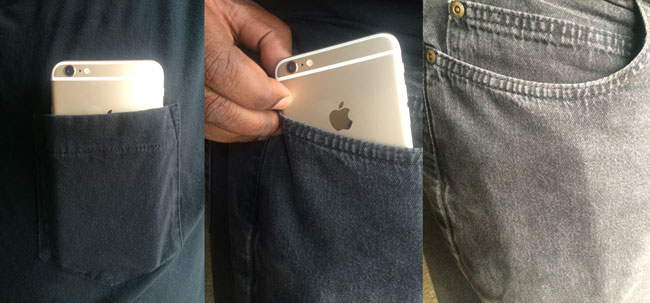
I gave my 1st Impressions last week. The first thing I thought when I took the box out of the shipping box was “wow, it’s big!” That was before I opened it.  Luckily for my hands and pockets it’s not too big. I had no problems with putting it in a front pocket of my jeans. I was also pleasantly surprised that it wasn’t too bad in a shirt pocket either. Now keep in mind that the weight (which is pretty light for a device this size) will probably make your shirt sag a bit, but still in a pinch it’s not too much.  Let’s see some comparisons

wpid13892-IMG_0033_sm.jpg
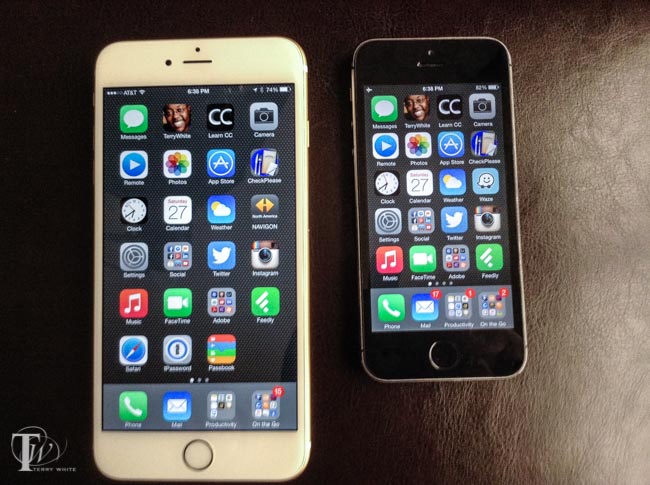
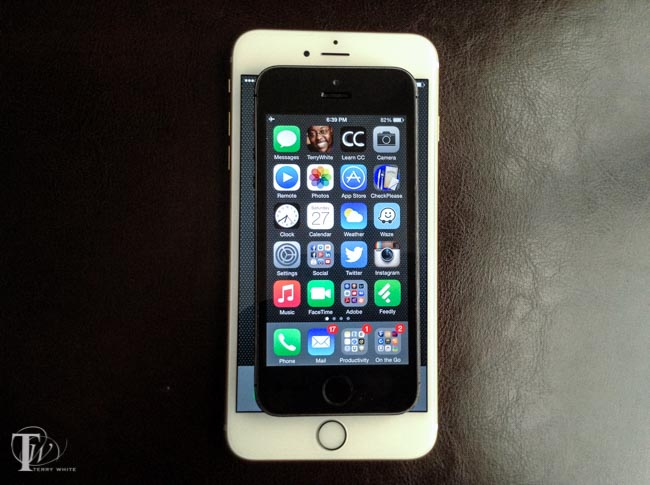
iPhone 6 Plus next to the iPhone 5s
wpid13894-IMG_0034_sm.jpg
iPhone 5s on top of the iPhone 6 Plus
wpid13900-IMG_0052_sm.jpg
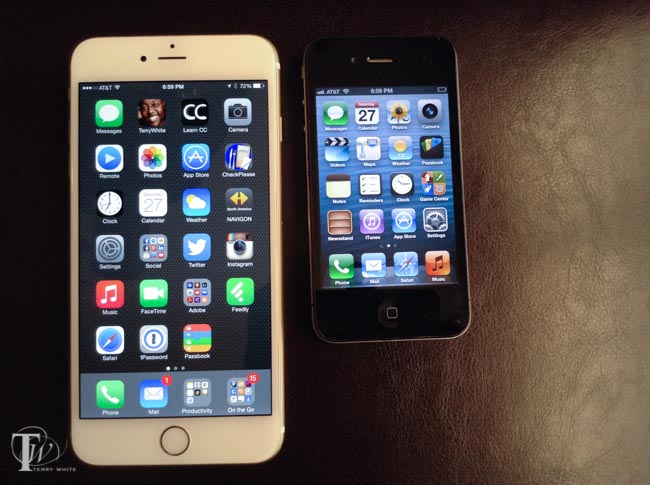
iPhone 6 Plus next to iPhone 4
wpid13902-IMG_0056_sm.jpg
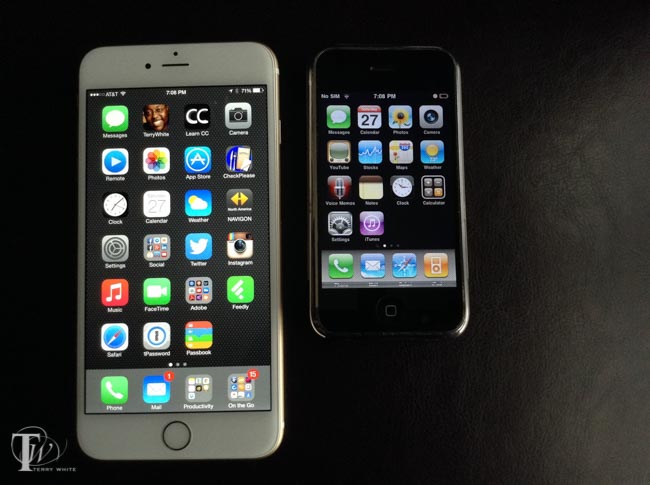
iPhone 6 Plus next to the Original iPhone (2007)
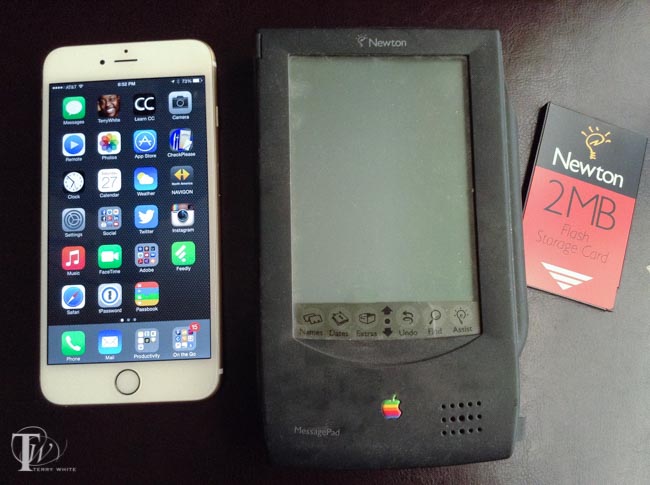
iPhone 6 Plus next to the original Apple Newton Message Pad. Yes Apple had a big screen mobile device before now
iPhone 6 Plus next to the original Apple Newton MessagePad. Yes Apple had a big screen mobile device before now, even with expandable memory. 😉


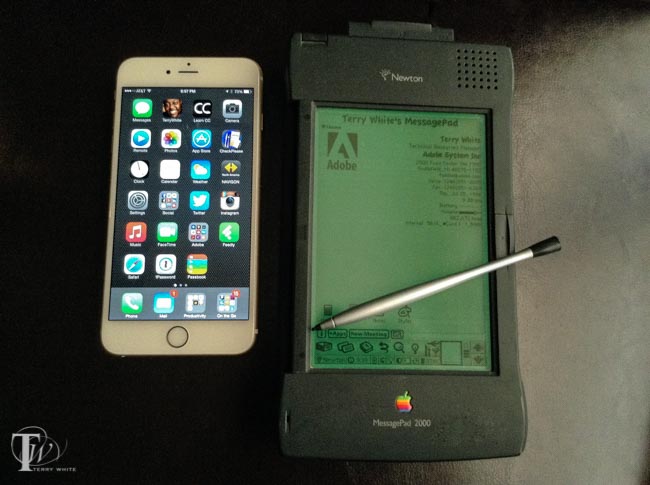
iPhone 6 Plus next to Newton Message Pad 2000. An even bigger mobile device from Apple and yes with a stylus ;-)
iPhone 6 Plus next to Newton MessagePad 2000. An even bigger mobile device from Apple and yes with a stylus 😉 Some users even tried to carry the Newton in their pockets.
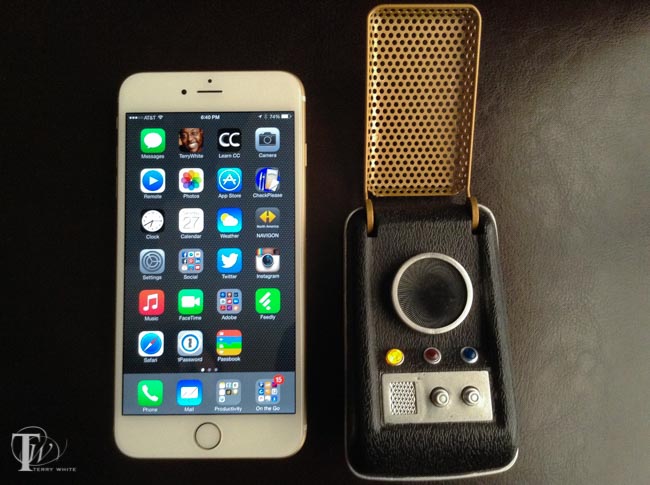
iPhone 6 Plus next to a Star Trek Communicator (T.O.S.)
wpid13898-IMG_0049_sm.jpg
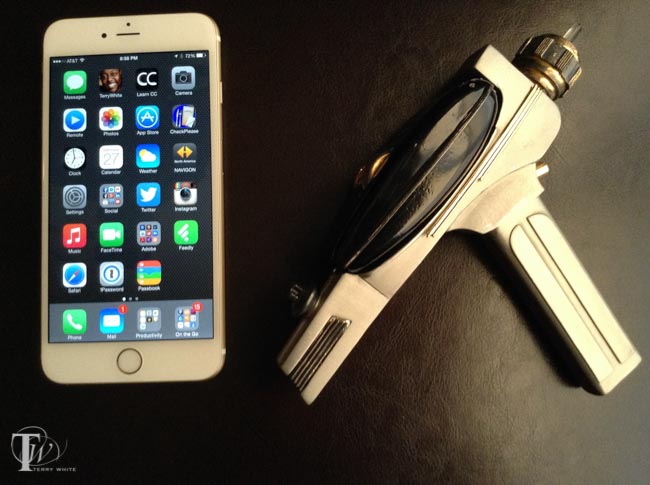
Sure, why not? An iPhone 6 Plus next to a Star Trek Phaser (T.O.S.) and yes it works 😉

Hopefully the photos above will answer your questions regarding the size compared to other devices 🙂

iPhone 6 Plus in my shirt pocket on the left and jeans pocket on the right
iPhone 6 Plus in my shirt pocket on the left and FRONT jeans pocket on the right


Ergonomics, fit and feel

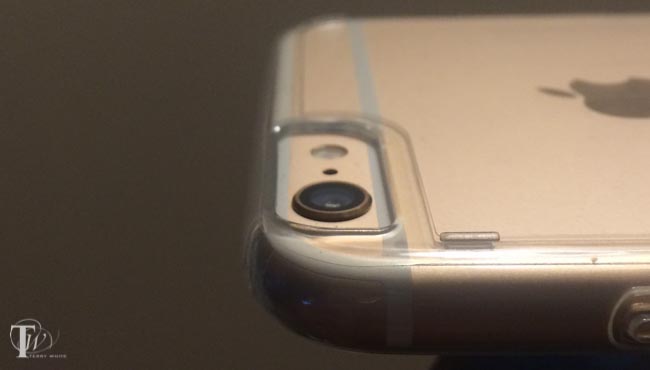
I’m happy to see Apple return to curved edges. It just feels better in my hand, especially for a larger device. It does take a little getting used to having the sleep/power button on the right side now instead of the top. For the first couple of days I was instinctively reaching for the top of the device to wake it or put it to sleep. When taking landscape screenshots I always hit the volume buttons by mistake. However, now I’m used to the new location and it isn’t a big deal. I would have expected the home button to be slightly larger, but it’s the same size as the one from the iPhone 5s. The touch-ID (fingerprint scanner) works flawlessly and now that iOS 8 opens it up to 3rd party apps, I’m using it all day long. For the first few days I used it without a case waiting for mine to arrive. This means that I was more careful than usual as I didn’t want any scratches. I did drop it once on a carpeted floor at home and it survived with no scratches or damage. As others have indicated, the camera lens does protrude from the back a little. This is the price we pay for a thinner iPhone.

wpid13941-IMG_3367_sm.jpg

However, had I not read about that first I’m not sure that I would have really noticed. Some are complaining that this prevents the iPhone from lying perfectly flat on a table. I agree, but once you put a case on it that problem goes away as your case is more than likely going to protrude out more than the camera does. My only problem to date with the new larger form factor is the width, not the height. Even with my large hands it’s difficult to thumb reach the opposite side of the screen if the icon or button I ‘m trying to reach is always up higher on the display.

iPhone-6-Plus-reachability
Reachability brings the top of the display down so you can reach the stuff at the top without having to use your other hand.

Apple includes a “reachability” mode that you can access by double tapping the home button (not pressing it, but double tapping the touch sensor). This makes the whole screen slide down so that you can reach icons that at the top. Even with reachability it can be a stretch reaching the other side of the screen.


The Bigger 5.5″ Retina Display

iPhone-6-Plus-landscapehomescreen
iPhone 6 Plus landscape home screen

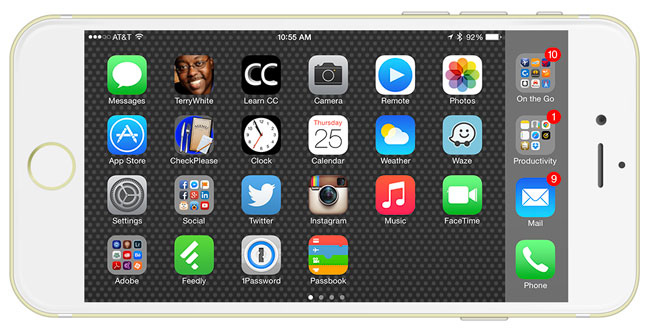
It’s gorgeous and probably the single biggest reason for going with an iPhone 6 Plus over an iPhone 6. Crisp, clean, high definition, 1920×1080 401 ppi of awesomeness. There are some exclusive features in the iPhone 6 Plus that aren’t on any other iPhone. The first one is a landscape home screen. While you’ve always been able to rotate your iPhone to see apps in landscape mode, the home screen was locked in portrait mode. Apple has finally freed up the home screen to have a landscape view on the iPhone 6. There is one choice you have to make. When you setup your iPhone 6 Plus for the 1st time you’ll be given a choice of Standard vs. Zoomed (yes you can switch it later). I chose Zoomed because it looked better to my eyes. However, with Zoomed enabled you don’t get the landscape home screen, extended landscape keyboard or the two column mail view. Also switching modes requires a reboot. I’m not happy about giving up Zoomed display for the other features I wanted. This is something that I wish Apple would address in the future. Perhaps a middle choice that gives a little more zooming AND the other landscape features.

Older apps on the bigger display – When Apple rolled out the iPhone 6 the promised that it had a very good “scaler” in it for apps that hadn’t been updated to the larger display sizes. Well I have to hand it to them. They did a MUCH better job than I expected. Keep in mind that iPhone apps zoomed up on the iPad kinda suck at the “2x zoom” and iPhone 4 sized Apps on an iPhone 5/5s just appear letter boxed in the middle of the display. However, older apps on the iPhone 6 Plus look, well, really good, especially by comparison. Sure Apps like CNN that have been updated look BETTER, but I don’t hate seeing the older Apps on the newer display at all.


Battery Life

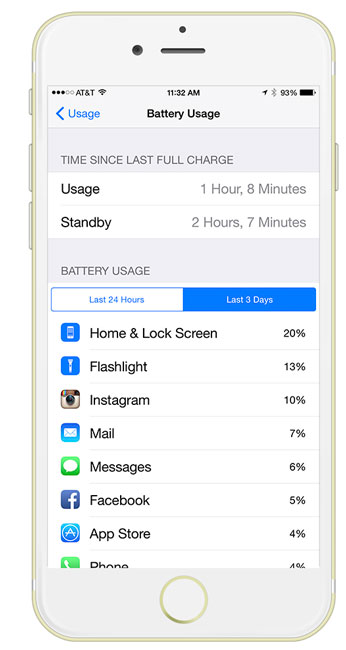
There is a mobile device user on the planet that wouldn’t welcome longer battery life. So when it was rumored that the iPhone 6 Plus had longer battery life than previous models, I said bring it on! After the 6+ was released and people started doing tear-downs of them it was shown that the iPhone 6 Plus battery is almost as large as the iPhone 5s itself, it was definitely a good sign that battery life would be good. I’m happy to report that I’m easily seeing 25%-40% better battery life over that of my iPhone 5s. While not a totally scientific test, I base this on the percentage of battery life that I have left at the end of the day. On Saturday I unplugged my iPhone from the charger at around 10 AM. I used my phone as I normally would throughout the day (social media, texting, phone calls and apps). At 4PM I noticed I was still at 82%. At 7PM I noticed I was at 72% (even after leaving the screen on for a while while taking the size comparison shots above). Finally at 10PM (12 hours later) the iPhone 6 Plus was at 57% battery life. My iPhone 5s probably would have been at around 20%-30% after 12 hours of use.

iPhone-6-Plus-batteryusage

Keep in mind that there are many factors that affect battery life and I’m not saying that tomorrow that it won’t drain faster or last longer, it just depends not only on what you’re doing on the iPhone but also where you are. For example, if you’re in a 4G LTE area then it will probably drain faster. If you were in a 4G area but left it set on 4G LTE then it would drain even faster while searching for a 4G LTE signal. Screen brightness is another big factor. I keep mine down to around 30% on average. Making the display faster will definitely drain the battery faster. So your results can certainly vary. Y.M.M.V.


Performance

Yep is faster! We expect that each iPhone will faster than its predecessor. The iPhone 6 Plus is no different. It sports a new multiple-core A8 chip that’s faster than the A7 before it. Upgrading from the iPhone 5s to an iPhone 6 or iPhone 6 Plus will be a noticeable speed bump. However, upgrading from an earlier model will be even more noticeable. Apps launch faster and perform better. The biggest and most noticeable speed difference for me though is actually the WiFi performance. Since the iPhone 6 Plus supports 802.11ac and I have an AirPort Extreme Base Station that supports 802.11ac I can really really really see a big difference in internet speed and file transfer speeds.

I have 500 Applications on my iPhone 6 Plus and some of them haven’t had updates in years, yet the work fine. Some glitches in a few, but that’s no different than any other OS or phone upgrade that has ever happened.

Phone calls and Bluetooth Audio? Oh yeah, it is a phone too. Yep I’ve made and received them with no problems. I would say the only thing that took a little getting used to was center the speaker on my ear. At first I couldn’t hear the caller as loud as I was thinking it should be. Then I moved the iPhone 6 Plus over a little and bam, the sound was perfect. I paired it with my Jawbone bluetooth headset and the bluetooth built-in to my car and no problems with phone calls. The only App that doesn’t seem to work with bluetooth audio in my car is the Waze Social GPS navigation App. Both Apple Maps and Navigon give turn-by-turn directions over the bluetooth just fine. However, when Waze goes to broadcast a direction the music mutes and nothing else can be heard then the music comes back on. Hopefully Waze will address this as it seems to be the only one of my GPS apps not working. I deleted the pairing and set it up again and still Waze was a no go.


The Camera

sunset-shot-with-iPhone6Plus
Unretouched – ISO 64 ƒ/2.2 1/15

While I don’t expect the iPhone (or any smartphone) to replace my DSLRs and professional lenses anytime soon, iPhone photography is here to stay. The best camera is the one you have with you and I always have my iPhone with me.

wpid13936-IMG_3365_sm.jpg
Unretouched – ISO 125 ƒ/2.2 1/4

Therefore it’s probably my most used camera. If I want to capture a scene or movie, I pulling out iPhone and take the shot. Especially if I want to then turn around and share that photo on social media or via text.

wpid13930-IMG_3354_sm.jpg
Unretouched – ISO 400 ƒ/2.2 1/4

Therefore, ANY camera improvements are always welcomed. The iPhone 6 Plus sports an 8MP,  f/2.2 aperture camera. It shoots 1080p video at 60fps and 240fps slo-mo as well as a new time-lapse feature.

wpid13933-IMG_3361_sm.jpg
Unretouched – ISO 32 ƒ/2.2 1/30

It also has Optical Image Stabilization. The big new thing here is faster autofocus for stills and continuous autofocus when shooting video. You should also get better selfies and Facetime with the new sensor allowing 81% more light.

Also now that iOS 8 opens the door for manual control over the camera it’s even more useful. There’s even a new App called “Manual” that let’s you have complete manual control over ISO, shutter speed and manual focus.


What could be better?

Apple doesn’t get everything right. Remember Apple Maps? The super buggy iOS 8.0.1 debacle was a recent reminder of this fact (iOS 8.0.2 came out afterwards and this review is based on that version). Most of my complaints are minor, but no device is perfect and the iPhone 6 Plus isn’t perfect either.  The things I wish were better to fixed have more to do with long standing issues I’ve had with iOS vs the iPhone 6 or iPhone 6 Plus itself. For example, it’s 2014 and there are still several inconsistencies in iOS that continue to bug me. For example, I can setup groups of contacts in the Contacts app on my Mac. Those groups sync over fine to the iPhone and are even recognized throughout the OS like in the Do Not Disturb feature. Yet there still isn’t a way to create a group in iOS or manage the ones you already have. While I’m on my annual Group rant, there is still no way to assign a ringtone to a group of contacts. If we are truly in a PC Free era, then Apple needs to make have feature parity in iOS 8 for these kinds of features. Another one that bugs me is the lack of a “Select All” in many areas throughout the OS. For example, now in the Messages App you can tap on the “Details” for any conversation. You can see all the attachments that are still in that conversation. GREAT! Now lets say I want to keep the conversation text, but delete ALL of the images/videos. I have to tap them one-by-one to select them and then press delete. Why not let me select all? There is no warning when I tap delete. They’re gone. So if safety is the reason, then give the standard “are you sure?” a few times If I select all. Hell, even make me enter my passcode to confirm the deletion of lots of media at once. Speaking of deleting, now in iOS 8 when you delete pictures from the Recent Activity (formerly the Camera Roll), they aren’t deleted YET. They go into another album called “Recently Deleted”. From there (yes you guessed it) there is a “Delete All” button. I definitely want to turn this idiot proof feature OFF. If I delete a picture or video, I’m sure! Photo management is a mess. Photo albums that come from your computer can be viewed in iOS but not edited. Really? Why not allow me to rearrange/delete/add photos to these albums and have them sync back to my computer? If I do create Albums on my iPhone and add photos to them I must also keep those photos in the Recently Added album too. Delete them from Recently Added and they are deleted from the custom albums too. Another inconsistency has to do with the “Open In” command. If I receive a photo via text message I can tap the Share button on that photo and open it in any other compatible App on my iPhone. However, if I save that picture to the “Recently Added” album and then access it from the Photos App, sorry no way to access it from Apps that haven’t been updated to be added to the new Share sheets. Thankfully I can use Lightroom Mobile for my photo management needs and I don’t have to rely as much on the built-in Photos app.

It would also be nice to hide (if not delete) built-in Apps that we don’t use like Game Center. Yes I know it can be buried in a folder, but why not allow it be turned off completely?

As far as the iPhone 6 Plus hardware goes, I really don’t have anything to complain about. Everything from the fit and finish, to the curved case, to the buttons, to the Lightning port, to the speaker, to the cameras are really good to awesome! It’s not too heavy or too big for my day to day use. While no device is perfect, nothing comes to mind to complain about hardware wise.


What’s missing?

When Apple introduced the iPhone 6 and iPhone 6 Plus they also introduced Health Kit, Apple Pay and Hand Off. Because of a bug, Healthkit didn’t get turned on for 3rd party App support until iOS 8.0.2. I have one of my Apps to date that has been updated with Healthkit support. I’m waiting on Nike+ Fuelband, Withings Health Mate and Lose It to take advantage of it with updates hopefully soon. Apple Pay is slated for an October debut. While Apple may turn it on in October, it will still take a while for all the merchants out there to offer it at the register. Lastly iOS 8 offers the ability to hand off things that you start on one device to the other. For example, now when my iPhone 6 Plus rings it will also start ringing on my iPad. I can answer my phone with either device. However, the feature I was looking forward to the most is SMS messages (those green bubble friends) showing up in the Messages app on other devices. That feature has been held back until October as well. Most of the joy of working between your iOS devices with iOS 8 and your Mac is on hold until Apple releases Mac OS X 10.10 Yosemite. This includes the new iCloud Drive. Again Apple has really missed the mark on this one. Unfortunately software is ready when it’s ready and trying to coordinate TWO major OS updates is no small feat. This is the case with Mac OS X 10.10. Apple hasn’t said when it will be released. However, until it is the hand off features between the two OS’s won’t really be realized.


The Bottom Line

The iPhone 6 Plus is definitely a great upgrade from the iPhone 5s with a faster processor, bigger, sharper display, faster WiFi, thinner, and much better camera. With over 10 million sold (iPhone 6 and iPhone 6 Plus) in the 1st weekend breaking sales records across the board, Apple has another hit on their hands. As I was writing this close I asked myself  “ok, now that you’ve had the iPhone 6 plus for a few days, if you could do it again would you still go with the iPhone 6 Plus or would you go with an iPhone 6?” The answer is YES, I’d get the iPhone 6 Plus again. Is the iPhone 6 Plus worth upgrading to if you’re still under contract with an iPhone 5s? Probably not. I check the status of my sister’s contract and if she were to upgrade now it would be an extra $250. However, if she waits until 10/8/2014 then she can upgrade at the regular prices. She has an iPhone 5 and I can imagine that the iPhone 5s would be a similar situation. If you’re on an iPhone 5 or below and you’re eligible for regular upgrade pricing then this iPhone is a no brainer. It should be better in just about every way over your iPhone 5, iPhone 4s or iPhone 4. To decide whether or not to go iPhone 6 Plus vs. iPhone 6, you really need to hold them in YOUR hands and see which one feels best for you. The larger iPhone 6 Plus is not for everyone. I’m sure Apple will sell more iPhone 6’s than iPhone 6 Pluses.

One more thing…  Before someone asks “will it bend?”, perhaps you should check this out first. Hopefully that puts an end to NON-ISSUE of #bendgate.


Some of my favorite iPhone accessories

I went with this case

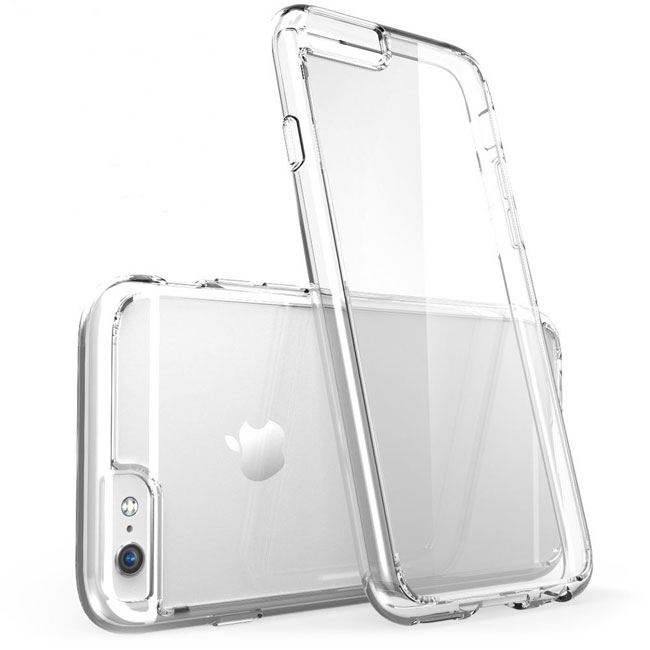
Biason_iPhone_6_plus_case

I like clear cases that offer scratch protection and basic protection from occasional drops, but still show the beauty and color of the device. I know that many of you need more protection, screen protectors, water protection, etc., however to date I’ve been pretty careful with my iPhones and have never broken a screen or severely damaged one. However, they can get scratched and that is something I look to prevent. This case does that for me.


I like these two car mounts (both will work even with a case on your iPhone 6 or iPhone 6 Plus)

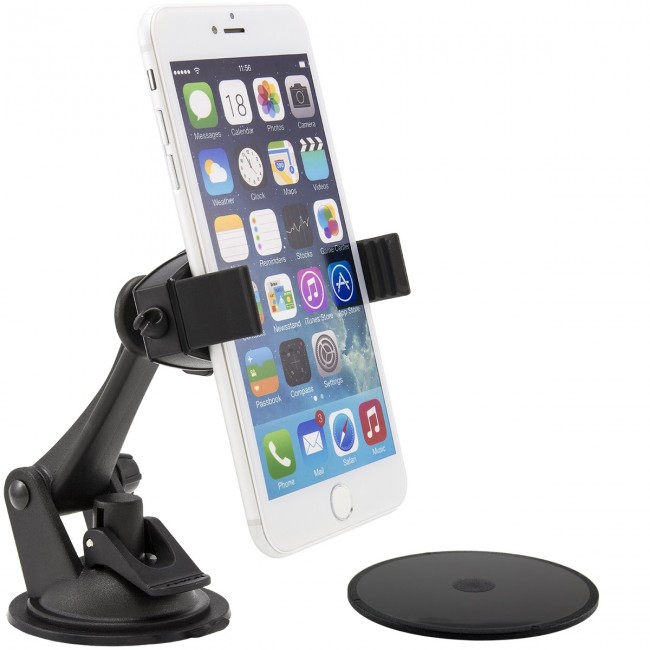
IMG_3226.JPG

If you’re looking for a dash or windshield mount, the good folks over at Akron have you covered with this one. Unscrew the cable guide on the side and you get a standard tripod mount for photography/videography!


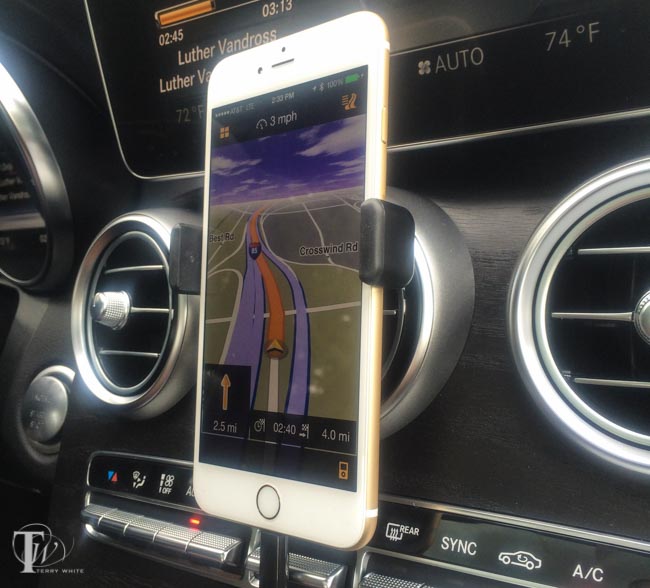
wpid13885-IMG_2035_sm.jpg

If you’re looking for a vent mount, then the only way to go is the NEW Kenu AirFrame+ (yes I said +). This is definitely my favorite mount for travel and regular use when a dashboard or windshield mount doesn’t do it for you.


My Favorite 3rd party Lightning cables at different lengths

newertech_lightning_cable

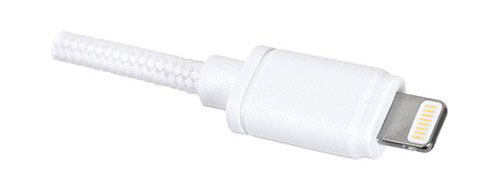
While this really has nothing to do with the iPhone 6 Plus itself, I think I finally found a DURABLE 3rd party Lightning Cable. I have been frustrated by the quality of 3rd party Lightning cables to date. They either don’t work out of the box, stop working after a while or worse they start to fall apart where the connector connects to the cable. NewerTech makes this cable and I ordered a couple of the 3 meter version. I’m impressed with the way they are constructed. Definitely the best I’ve found so far.

0.5 Meter Length

1 Meter Length

2 Meter Length

3 Meter Length


My favorite charging accessories

power_strip_USB_ports

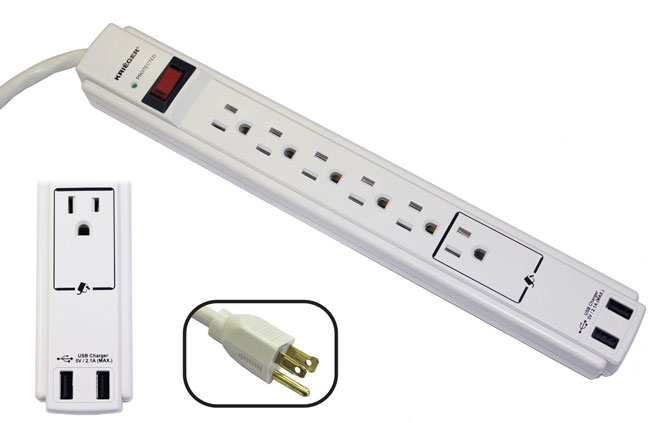
I just bought 3 of these for use around the home and home office. So far they’re working out GREAT! Unlike most power strips/surge protectors this one has a longer than average 6 foot cord. It has a lighted power switch as well as 2 USB ports that can provide up to 2.1A of power, which is enough to charge an iPad. Also the fact that it’s a surge protector as well doesn’t hurt. The only downside is that the 2.1A is shared between the two ports. This means that you can charge two devices or one device at the full 2.1A speed. Yes, you can charge an iPad (or other tablet) and iPhone (or other smartphone) at the same time, just not two devices that both require 2.1A each.

Here’s the best part: This power strip is on sale for only $14.99, which is less than the cost of a name brand single port USB charger. Get this one and you can use the charger that came with your phone as a travel charger.

lenmar_USB_car_charger

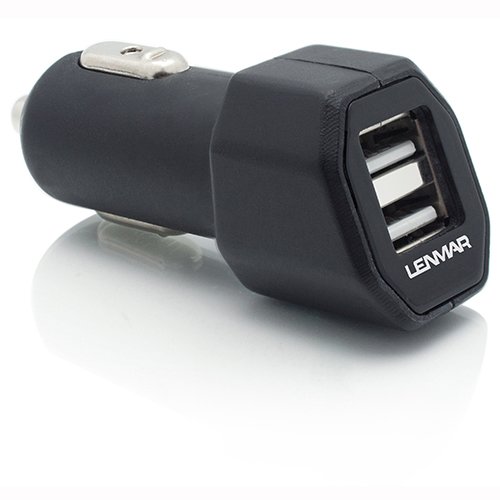
For the car, I like this one.

anker_40w_USB

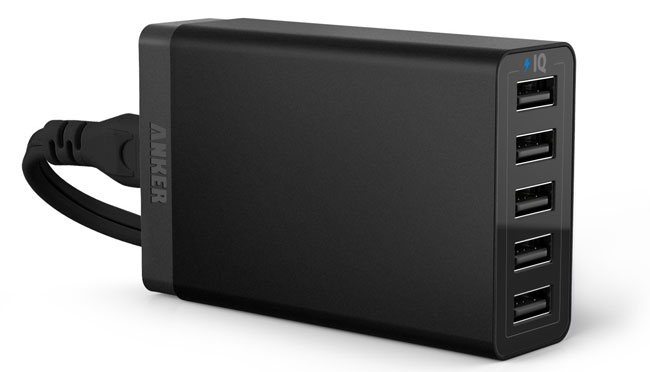
For charging several USB devices at once I like this one.

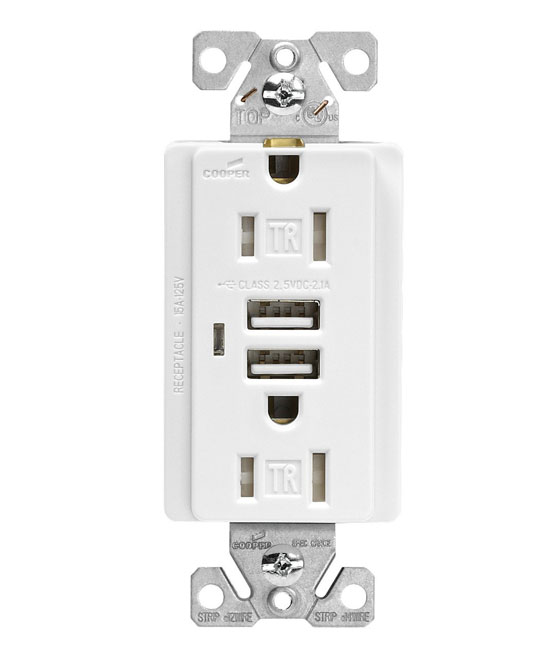
USB_wall_outlet

For a permanent installation I like this one.

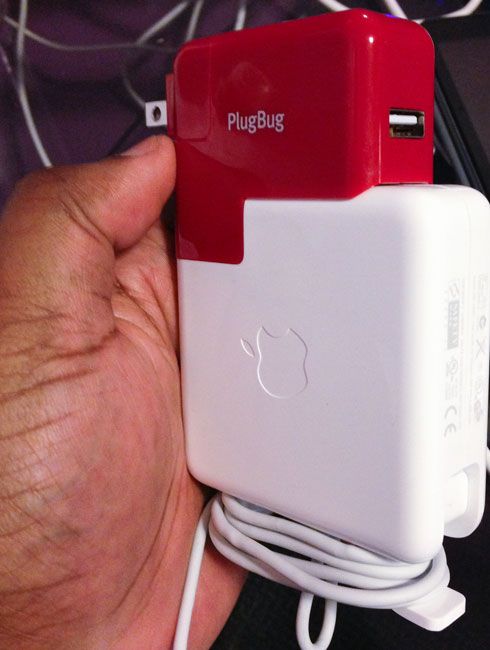
plugbug_1

For charging while traveling to hotel rooms with limited outlets, I like this one.

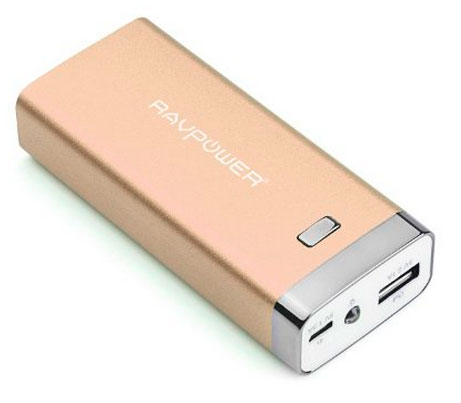
RAVPowerLuster

While the iPhone 6 Plus battery life is greatly improved, I will still carry this backup battery.


iOS 8 Tips and Tricks


iPhone 6 Plus: 1st Impressions

iPhone6plus_in_my_hand

My iPhone 6 Plus (64GB Gold Unlocked GSM) arrived late yesterday afternoon and everyone has been asking me “how is it?” So I thought I’d give a quick 1st impressions post now. I’ll have a full review on Monday after I have had a chance to really use the iPhone 6 Plus over the weekend.


Size

gold_iphone6plust

Yep, it’s BIG! However, it’s not too big. To my surprise using it with one hand and reaching things with my thumb from top to bottom isn’t the problem. Apple includes a new “Reachability” feature that with a double tap on the touch ID sensor (as opposed to a double press of the button, which invokes multitasking), the top of the display scrolls down so that you can reach stuff at the top. For me it’s more a “stretch” reach the opposite side of the display with my thumb. For example, when I’m holding it in my left hand I can barely reach the apps on the far right side of the display.Other than that I love the size.

The Pocket Fit

iphone6plus_in_my_pocket
the shirt pocket and pants pocket test

Yes, I’ve seen all the #bendgate stuff and I just smile. First off ANY aluminum and glass gear is subject to damage in a pocket without a case. I only recently started carrying my iPhone 5s in my pocket over the past couple of months. Prior to that I was always a holster guy. I’ll carry the iPhone 6 Plus in my front pocket and remove it prior to sitting down if I think that there will be added pressure to it. By the way, if you apply enough pressure to ANYTHING, it will bend!

The Camera

iPhone6Plus-shot

The Camera seems awesome and as good as advertised. I’ll spend more time with it over the weekend capturing images. So far I love it.

Speed, Apps, etc.

The speed is noticeable, especially the 802.11ac WiFi. Downloads are MUCH FASTER! I haven’t found any of my 491 installed apps to have any problems so far. No freezes or weirdness. I haven’t had it on battery long enough to judge battery life so you’ll have to wait till Monday for that one.


One disappointment so far

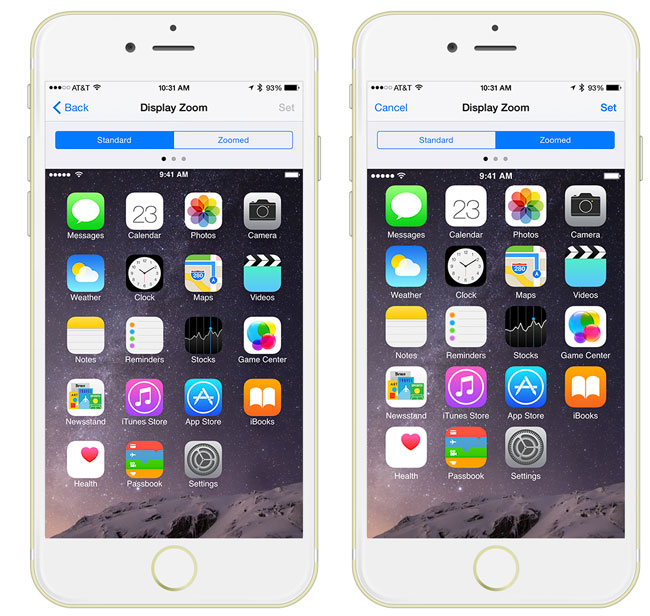
iPhone-6-Plus-standard_vs_zoomed

When setting up the iPhone 6 Plus you have a choice between Standard and Zoomed. Apple even lets you preview them to decide. With Zoomed the icons look bigger and better to my eyes, so I went with zoomed. Great! Happy! However, I didn’t realize until a little later in the evening that you give up 3 things with Zoomed. You give up the new landscape display of home screens.

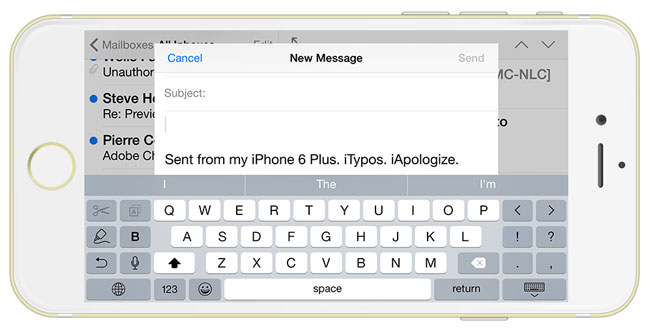
iPhone-6-Plus-expandedkeyboard

You give up the two column display in Mail and you give up the extended landscape keyboard. I switched back to Standard (which requires a reboot) to get these features back and I already miss the larger zoomed icons and display overall. I wish there was a middle ground.

iPhone-6-Plus-landscapehomescreen


The Bottome Line – So far, so good

Overall I’m happy that I went with the iPhone 6 Plus over the iPhone 6. My eyes definitely like the larger display. Check back Monday for a more detailed look.


On a side note – Finally a durable 3rd Party Lightning Cable

newertech_lightning_cable

While this really has nothing to do with the iPhone 6 Plus itself, I think I finally found a DURABLE 3rd party Lightning Cable. I have been frustrated by the quality of 3rd party Lightning cables to date. They either don’t work out of the box, stop working after a while or worse they start to fall apart where the connector connects to the cable. NewerTech makes this cable and I ordered a couple of the 3 meter version. I’m impressed with the way they are constructed. Definitely the best I’ve found so far.

0.5 Meter Length

1 Meter Length

2 Meter Length

3 Meter Length


iOS 8 Tips and Tricks

Don’t buy another USB wall charger for your phone!

no-charger

Your smartphone probably came with a USB wall charger. Chances are you probably need or at least would find it convenient to have more than one. Perhaps one at your desk, one by the bed and maybe one in your travel bag. A quick check shows that the retail price of an Apple USB wall charger is $19. Of course you could get ANY 3rd party wall charger for half that price or less. However, even at $9 for a good quality generic charger you might want to consider a different option. If you’re buying a charger that’s going to have a permanent home under your desk, behind a nightstand, etc. then why not just get a power strip that also has USB ports on it? This way you could plug in your lamp, computer, speaker, etc. and charge your smartphone and/or tablet as well.

power_strip_USB_ports

I just bought 3 of these for use around the home and home office. So far they’re working out GREAT! Unlike most power strips/surge protectors this one has a longer than average 6 foot cord. It has a lighted power switch as well as 2 USB ports that can provide up to 2.1A of power, which is enough to charge an iPad. Also the fact that it’s a surge protector as well doesn’t hurt. The only downside is that the 2.1A is shared between the two ports. This means that you can charge two devices or one device at the full 2.1A speed. Yes, you can charge an iPad (or other tablet) and iPhone (or other smartphone) at the same time, just not two devices that both require 2.1A each.

Here’s the best part: This power strip is on sale for only $14.99, which is less than the cost of a name brand single port USB charger. Get this one and you can use the charger that came with your phone as a travel charger.

My other favorite USB chargers

lenmar_USB_car_charger

For the car, I like this one.

anker_40w_USB

For charging several USB devices at once I like this one.

USB_wall_outlet

For a permanent installation I like this one.

plugbug_1

For charging while traveling to hotel rooms with limited outlets, I like this one.


8 Tips and Tricks for iOS 8

ios8logo

Today is iPhone 6 and iPhone 6 plus day as well as many of you upgrading to iOS 8. I though I’d share 8 of my favorite iOS 8 Tips and Tricks that may not be obvious to many.