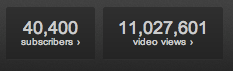
I think it was this past Friday that I noticed my YouTube channel surpassed the 40 thousand subscriber mark and over 11 million views. Woohoo!
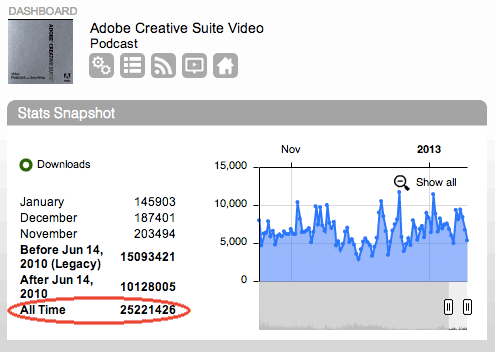
However, that’s when I decided to take a look at my Adobe Creative Suite Video Podcast stats and I was both thrilled and blown away to see that it has surpassed the 25 million download mark! I’m happy to know that so many of you find my content of value and continue to watch/download my videos. Thanks for your continued support!
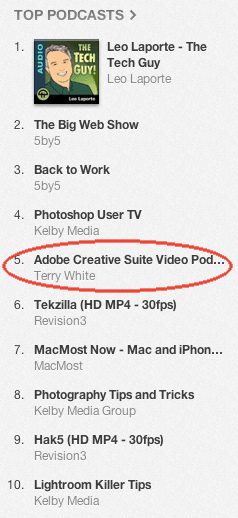
Still in the top 10 of the Software How-To podcasts on iTunes.
Are you missing out on my Bonus Content?
See more of my Adobe Creative Suite Videos on my Adobe Creative Suite Podcast and get the App here. It features EXCLUSIVE CONTENT that no one else gets to see. Most episodes have a BONUS CLIP that is available only in the App! My iOS App is a Universal App for iPhone, iPad and iPod touch. I also have an Android version on the Amazon App Store:
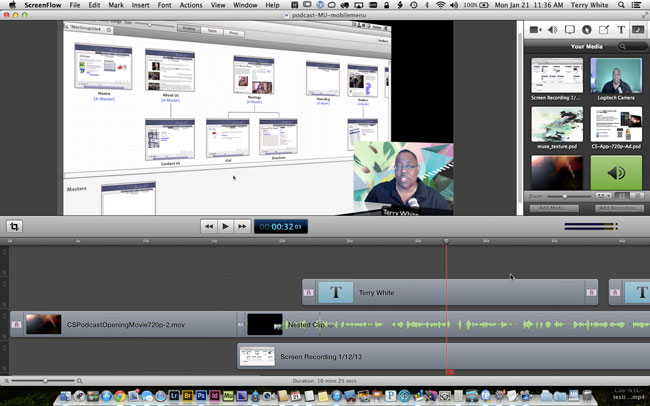
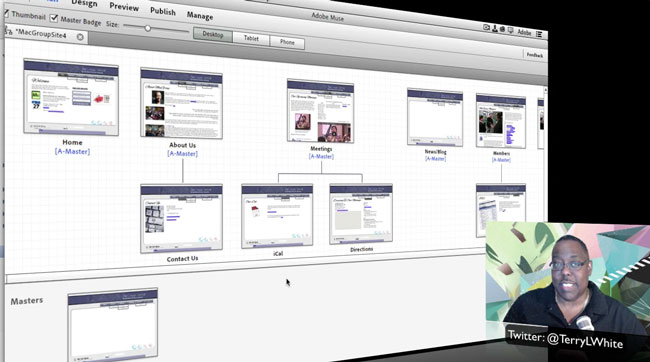
I get this question at least 2-3 times a week: “Hey Terry, I really like your video/tutorials what software do you use to record them?” The answer is Screenflow by Telestream. I’ve been using this software to record my Adobe Creative Cloud TV Podcast for a couple of years now and from time to time I even use it to record product demos. After the intro, which was created with Adobe After Effects the first thing that usually catches people’s eye is the image of me in the corner while the computer display is large and angled off to the side. This is a native feature of Screenflow and was one of the reasons I settled on it a couple of years ago. Over the years Telestream has continued to bolster the feature set making it pretty much a total solution for not only recording, but editing and distributing screen recordings. While Adobe Premiere Pro CC is my video editor of choice, I find that I can do the simple edits I need to do for my episodes right in Screenflow.
I record my screen in 720p HD (Update: I’m now doing 1080p) and the resulting export from Screenflow looks really good. From there I use the Adobe Media Encoder to go out to the other formats and sizes I need. However, I typically upload the Screenflow exported movie right to YouTube for my YouTube Channel so that my viewers there can enjoy the content in HD.
Screenflow 4 adds even more…
The image of me in the corner shot on green screen with the Muse artwork applied to the background in post.
The latest version of Screenflow even adds 64bit support as well as Chromakey effects so that I can shoot myself on green screen and then superimpose whatever imagery I want behind me. I’m stilling working out the lighting aspects of this in my office that I record from, but the results have been good all things considered. They also including nested clips, closed captioning and several other editing features to make it even easier to edit your final product right in Screenflow.
How do you show your iPad or iPhone or both on your computer screen?
I use a great software product called Reflector. It uses AirPlay and as long as the devices are on the same WiFi network they will show up to Reflector running on your Mac or PC.
Also in Mac OS X 10.10 Mavericks you can show your iPad or iPhone on your Mac screen natively. Here’s how:
What equipment do I use?
Update: Note that Screenflow now allows you to connect your iPad or iPhone directly to your USB port using your Lightning sync/charge cable and it will record directly from the device as a separate video track.
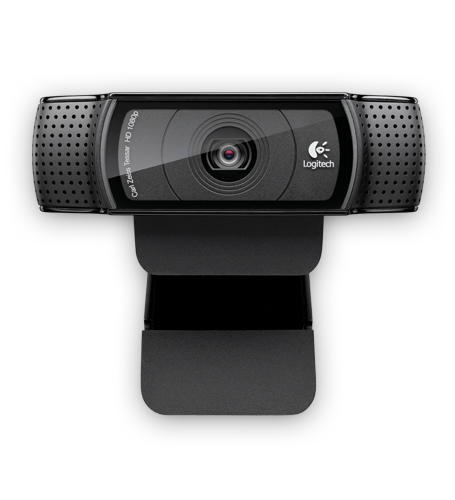
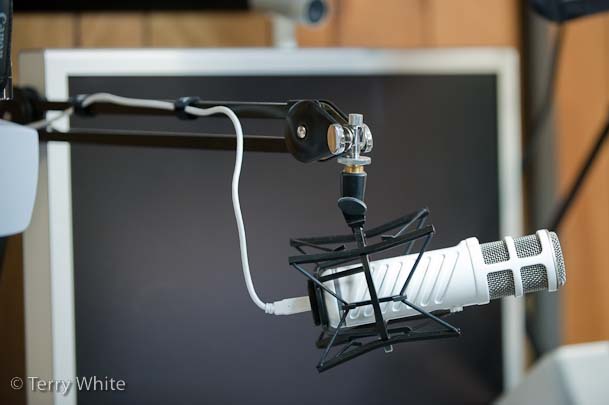
Since I’m typically doing these recordings alone I need everything to just work! I’m using a Logitech C920 HD webcam on a tripod to record the image of me and
Currently Screenflow is a Mac only product. If you’re looking for a solution on the Windows side (or another choice for Mac), then I’d also suggest you take a look at the new Adobe Captivate.
In this episode of the Adobe Creative Suite Podcast Terry White shows you how to create a dynamic sliding menu for your mobile website in Adobe Muse.
Are you missing out on my Bonus Content?
See more of my Adobe Creative Suite Videos on my Adobe Creative Suite Podcast and get the App here. It features EXCLUSIVE CONTENT that no one else gets to see. This episode has a BONUS CLIP that is available only in the App! My iOS App is a Universal App for iPhone, iPad and iPod touch. I also have an Android version on the Amazon App Store:
In this episode of the Adobe Creative Suite Podcast Terry White shows you How and Why you should set Photoshop’s Preference to open JPEGs in Adobe Camera RAW
Are you missing out on my Bonus Content?
See more of my Adobe Creative Suite Videos on my Adobe Creative Suite Podcast and get the App here. It features EXCLUSIVE CONTENT that no one else gets to see. This episode has a BONUS CLIP that is available only in the App! My iOS App is a Universal App for iPhone, iPad and iPod touch. I also have an Android version on the Amazon App Store:
In this episode of the Adobe Creative Suite Podcast Terry White How To Get Started With Lightroom 4 – 10 Things Beginners Want To Know How To Do.
Are you missing out on my Bonus Content?
See more of my Adobe Creative Suite Videos on my Adobe Creative Suite Podcast and get the App here. It features EXCLUSIVE CONTENT that no one else gets to see. This episode has a BONUS CLIP that is available only in the App! My iOS App is a Universal App for iPhone, iPad and iPod touch. I also have an Android version on the Amazon App Store:
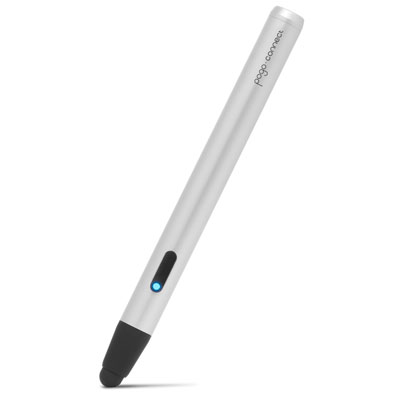
What could make Photoshop Touch on an iPad even better? Pressure Sensitivity! I wouldn’t dare retouch a photo on my computer without a Wacom tablet or Cintiq. Needless to say that means that up until now I haven’t done a lot of work in Photoshop Touch on my iPad. However, that may all change with the new Pressure Sensitive Stylus support now in Photoshop Touch and the Pogo Connect by Ten1Design.
Lightroom 4.3 is now available as a final release on Adobe.com and through the update mechanism in Lightroom 4. The goal of this release is to provide additional camera raw support, lens profile support and address bugs that were introduced in previous releases of Lightroom. Also HiDPI (Retina Display) support within the Library and Develop Modules. HiDPI provides support for Retina-enabled Macs.
Bugs Corrected in Lightroom 4.3:
The following bugs that were part the Lightroom 4 releases have been corrected. The team appreciates the very detailed feedback the community has provided on Lightroom 4 and we’re excited to correct a number of issues experienced by our customers. These issues have been FIXED:
In this episode of the Adobe Creative Suite Podcast Terry White shows off What’s New in Photoshop CS6 for Adobe Creative Cloud Members in this December 2012 update. He also shows off the Retina Display (HiDPI) Support for Mac users and for all Photoshop CS6 users.
Are you missing out on my Bonus Content?
See more of my Adobe Creative Suite Videos on my Adobe Creative Suite Podcast and get the App here. It features EXCLUSIVE CONTENT that no one else gets to see. This episode has a BONUS CLIP that is available only in the App! My iOS App is a Universal App for iPhone, iPad and iPod touch. I also have an Android version on the Amazon App Store:
Join us today for the Adobe Create Now event to see what’s next in Adobe’s Creative Cloud. You can watch it below starting at 10 am PT Tues, Dec 11, 2012:
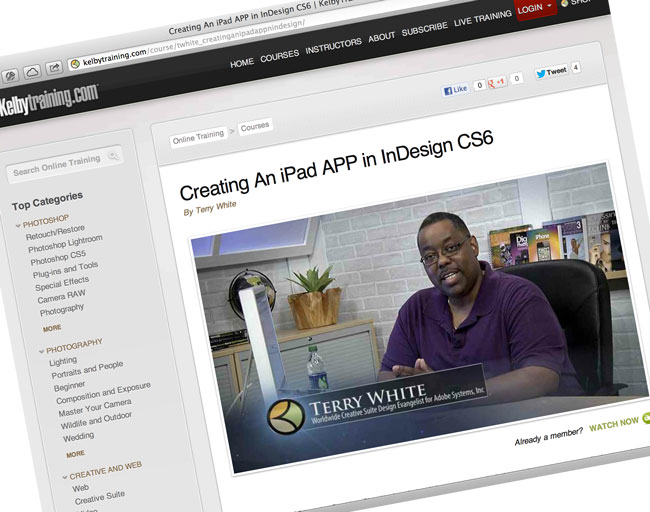
It’s been a long time coming, but they are finally here. I finally got a chance to get into the studio and record two new classes for Kelby Training and they are now LIVE. The long awaited “Creating iPad Apps with Adobe InDesign CS6”