USB ports too close together?

usbports

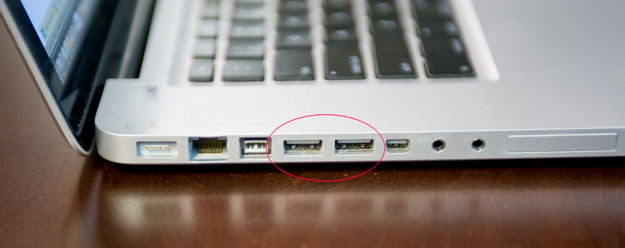
Two USB ports on the MacBook Pro

usbadapter_0008

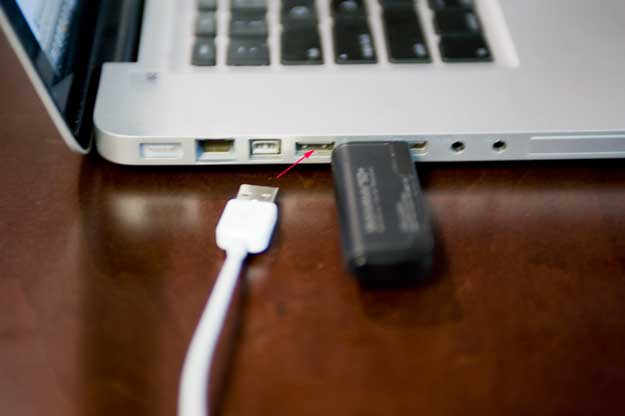
Here’s my SanDisk SDHC USB card reader and as you can see it’s just wide enough to block the second port a bit.

One of the things I’ve had to adjust to on the New MacBook Pro is the fact that the two USB ports on the 15″ model are right next to each ohter. They are not only right next to each other, they are insanely close together. So close in fact that it makes it impossible to plug in some devices and still acess the second port. On the previous MacBook Pro the two ports were located one on each side of the computer. So even if you had a device that was wider than it should be, you still had access to the second port because it was all the way on the other side of the computer.

usbadapter_0013

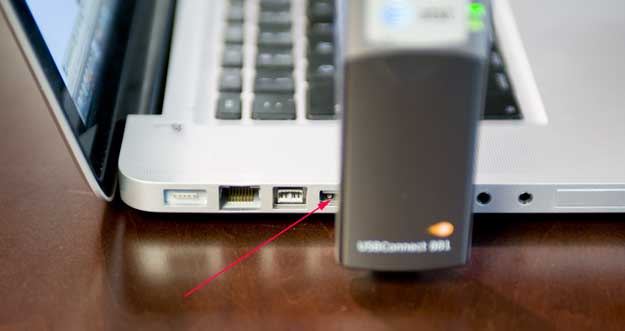
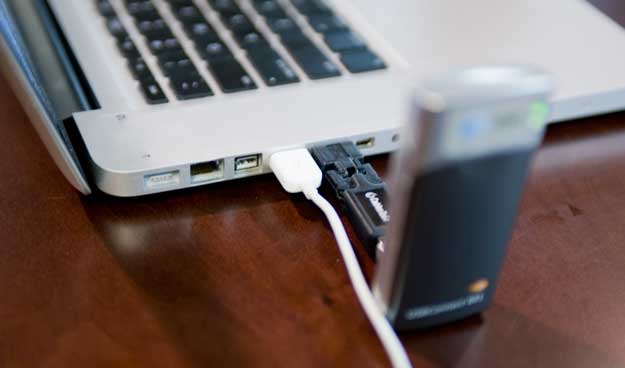
As you can see, with the USBconnect in place the second USB port is blocked.

I use my AT&T 3G USBconnect card when I travel. I have one of the older models that has a USB plug that flips down. It’s designed so that when its inserted into your laptop the antenna/card sticks up. This is fine provided that you don’t need to use the port next to it because it almost completely blocks. While I have on occasion wedged another USB cable into the second port, this is not advised and causes the USB cables not to sit properly.

usbadapter_0030

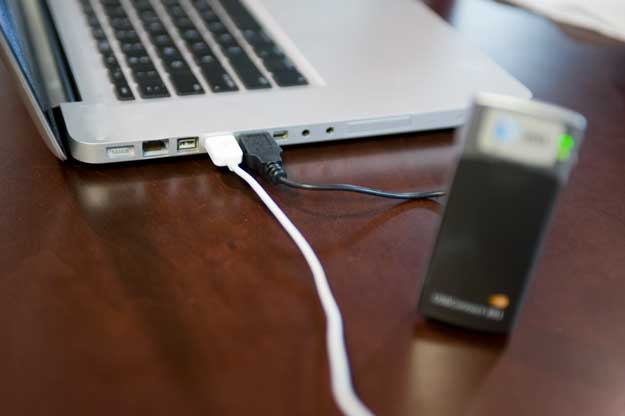
Although the Synchrotech cable certainly solves the problem with my USBconnect 3G modem it’s a little long for this.

I decided that enough was enough and started looking for USB extenion cables that would solve this issue. I wanted the shortest cable I could get. The first one I tried (thanks to the guys at Sychrotech) was the AirQueue, which was initially designed for the MacBook Air. The MacBook Air’s USB port can also be cramped if you are plugging in a large accessory. The AirQueue is a simple Male on one end Female on the other end 19cm cable. It’s a short extension cable. Simple as that. While the AirQueue certainly solves the problem for most connections, I was looking for something even shorter and more rigid.

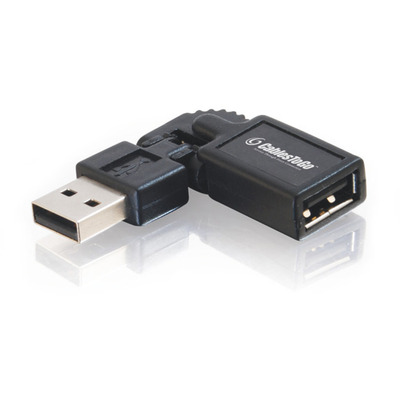
That leads me to the Cables-to-Go FlexUSB adapter

flexusb

The Cables-To-Go (great company for all kinds of cable/hub solutions) FlexUSB adapter is much shorter than the Synchrotech model and although not as riged as I would like, it’s good enough for what I want to do. This adapter is great because you can angle it and turn it in the direction you need depending on the accessory you’re plugging in. Again, there’s not much to say here. It’s a USB extension that helps overcome (what I consider to be) a design flaw in the new MacBook Pros.

usbadapter_0015

The Bottom Line

usbadapter_0021

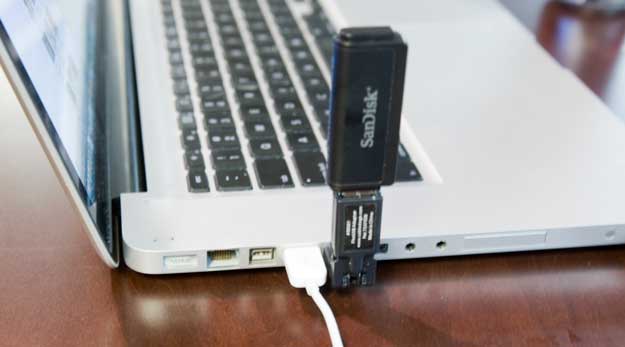
Here’s the FlexUSB connector angled up holding a SanDisk SDHC card reader

If your USB ports are too close together, you certainly can’t go wrong with either one of these extension adapters. Either one does the trick. However, if you going to want the device (like a 3G card ) to stand up on its own when plugged in or if you want the device to be a little closer to your laptop then I would go with the Cables-T0-Go FlexUSB adapter.

Synchrotech AirQueue $6.00

Cables-To-Go FlexUSB $4.64. (look on the right side of the page for this price)

iPhone App of the Week – Mobile Fotos

mobilefotos

If you use Flickr.com and you have an iPhone/iPod touch, then you’re going to want this app! It is by far the best app I’ve seen to date to browse and upload to Flickr.

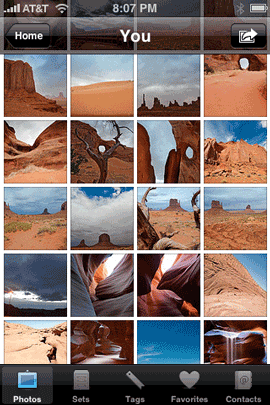
mf1

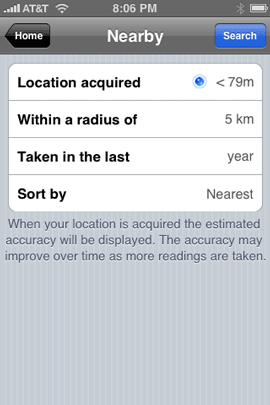
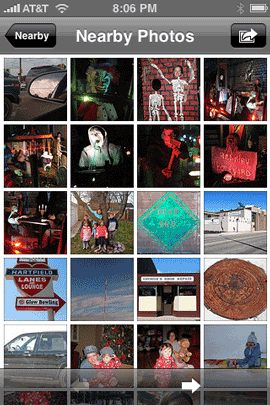
Not only does it let you bowse your own photos, it can use your current location to show you photos that were taken nearby by others.

mf7 mf2

I’ve used other apps that let me upload to various services. However, this one is great in that it lets you properly tag the photo and pick the photo set you want it uploaded to before you actually upload it. You can also use Mobile Fotos to view videos on Flickr. I haven’t played with this as I don’t have any videos on Flickr yet, nor do any of my friends. Currently videos are limited to 90 seconds and 500MB on Flickr. So for now I’ll stick with YouTube.

Uploading

mf3 mf4

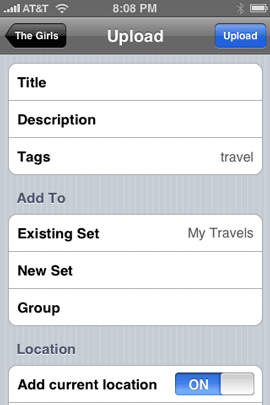
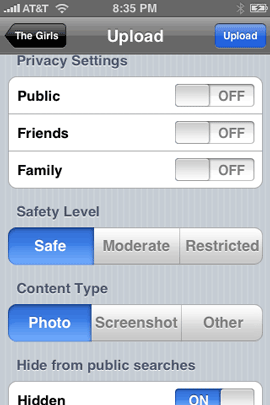
One of the main reasons I use Mobile Fotos is to upload snapshots I’ve taken with my iPhone. The upload feature is the most full featured uploader I’ve ever seen in any iPhone app. It let’s you use every option available for Flickr just as if you were uploading from your computer. You can choose a Title Description, Tags, Set (including creating a new Set on the fly), Group, Location, Privacy settings, Safety Level, Content Type, whether or not the photos hould be Hidden and Resolution. Yep, it’s full featured and this should be the model for all apps that let you upload to a photo service. Even Apple’s built-in upload to MobileMe could learn a few tricks here and seems anemic by comparison.

It Geotags too

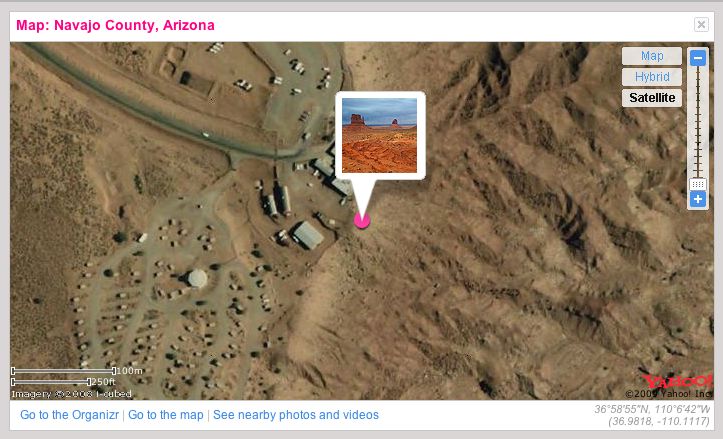
Monument Valley shot

One of my favorite features of Flickr is that it automatically adds your photos to the Yahoo map if they contain location information (longitude & latitude). Of course when you take a picture with your iPhone’s camera you have the option of including location information. Mobile Fotos uses that location information and includes it in the upload.

Not always about you

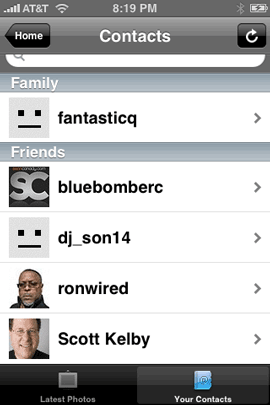
mf5 mf6

You can also tap the Contacts icon to see the latest and greatest shots of your Flickr Friends. This really allows you to not only share your photos quickly and easily as they happen, but also to see what’s going on with your friends and family that also use Flickr. You also browse your Flickr groups!

The Bottom Line

There’s not much else I can say! This app totally rocks and does exactly what it’s supposed to do. It’s easy to use, full featured and works great. If you use Flickr, this is your app! Mobile Fotos is $2.99 and available at the App Store here.

AT&T FamilyMap lets you get all big brotherish with family members

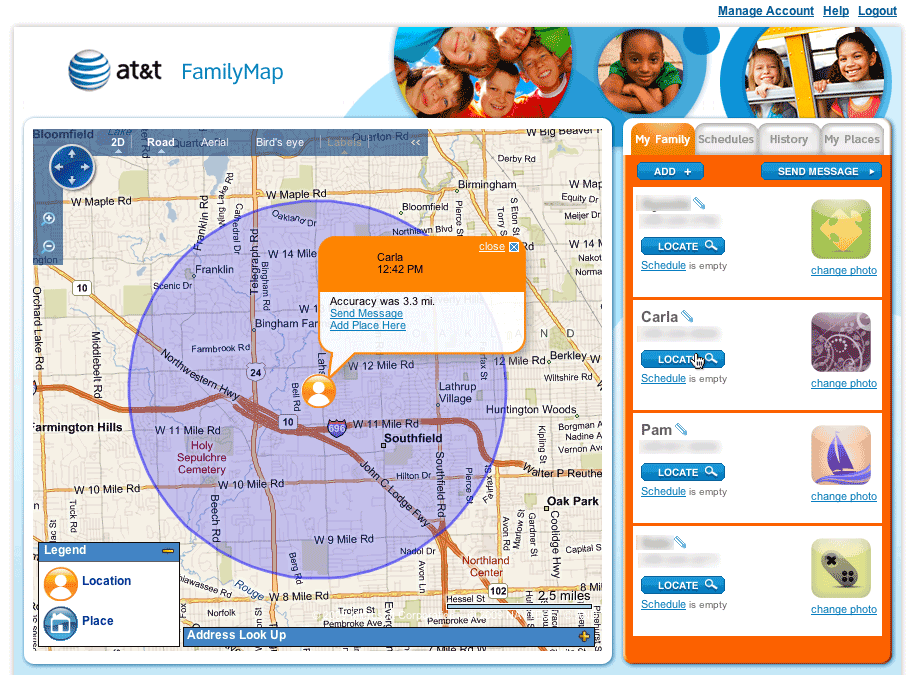
attfamilymap21 Click map for a larger view

Sure there have been those times when I’ve walked in the house and wondered, “where is everybody?” Well now I could just go to my computer and find out. AT&T recently launched a new service called “FamilyMap”. If you have an AT&T Wireless Family Plan, then you can sign up for the service and track any of the phones on that plan.

The way it works

Just like we see on modern day TV shows and Movies, your cell phone is constantly broadcasting your whereabouts via the cell towers (that must be why I see perfectly good cellphones lying by the side of the road). There have been apps like Loopt that allowed you to find friends (for free). Seems like AT&T wants to monetize this by offering it as a paid service (big surprise right?). Right now I’m doing the free 30 day trial. Not sure if I’ll continue it or not. We’ll see. Back to the way it works. You log onto the familymap.wireless.att.com site and once you’ve set up your account you can simply click the Locate button and within 2 minutes that person (actually their cellphone) will be pinpointed on the map.

You can name and save the locations so that they will show up with more meaningful names like “school”, “work”, “the gym”, etc. The accuracy of the location will also be displayed. I imagine phones with GPS’s in them might be a little more accurate, but not necessary if AT&T is only relying on the cell towers. The service works as advertised and it’s been fun to play with. I have a couple of teenagers and well, you know.

There’s also a mobile version of the site for your mobile phone’s web browser (http://attfamilymap.com/m). Looks great on the iPhone/iPod touch.

The Bottom Line

AT&T is offering FamilyMap for $9.99/month to locate up to two family members and $14.99/month to locate up to 5 family members. Like I said, you can try it for free for 30 days and see if it’s worth it to you. Not all phones work with FamilyMap such as the Pay as you Go ones. Sadly it doesn’t help you find a lost phone that’s in your house (still looking for one here). However, it will help you locate a lost or stolen phone that is elsewhere. If you’re interested in AT&T’s Family Map. Check out the website here.

Charge your iPod or iPhone with a couple of AA’s

energi2go

If you’re an iPhone user you can probably always use some more juice. Especially if you’re a traveler. Although I have a fantastic iPhone backup battery, the one I have requires charging. If I forget to charge it or if it runs out of power then I have to find a plug to plug it in and wait a couple of hours for it charge up.

You can find AA batteries just about anywhere

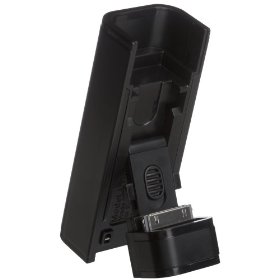
That brings me to the Energizer Energi To Go portable power for iPod. This was the Woot special of the day a couple weeks back and I ordered a few of them to try and give out to friends and family. Of course since it doesn’t say that it works with the iPhone or the iPhone 3G, I really wanted to give it a try and see how it would work. The iPhone 3G and all current model dockable iPods get their power over the USB pins. So only the most recent chargers tend to work with them.

_tlw7997

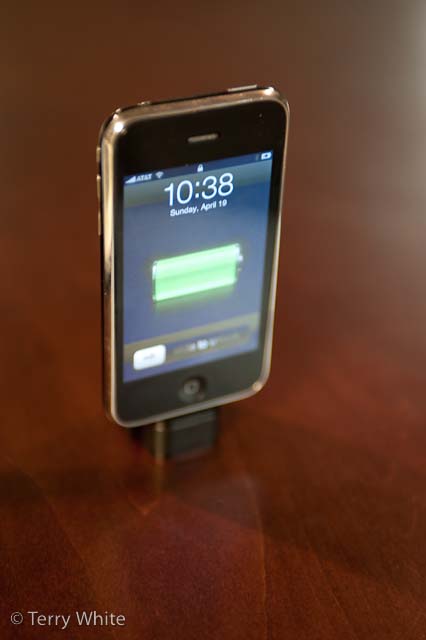
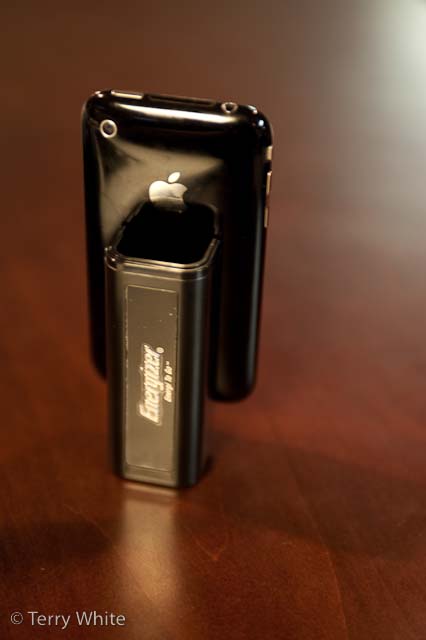
The Energi To Go is a simple device that you pop 2 AA batteries (included) into it and flip out the 30 pin dock connector and sit your iPod or iPhone on it to begin charging. You should be able to get at least 1-2 full charges from an almost dead iPhone battery out of AA’s.

_tlw7998

The Bottom Line

My FastMac charger is definitely more feature rich and is designed specifically for the iPhone. However, it’s also 3 times the price of the Energi To Go. The Energi To Go has a cheap feel to it. It feels as if it would break easily. However, as long as you don’t abuse it, it should last. Although I have not had any problems with it on my iPhone 3G, it does NOT specifically state that it is iPhone compatible. I also like the way it docks behind the iPod/iPhone instead of on the bottom like some other batteries. The 30 pin dock connector is also adjustable for the thickness of your iPod or iPhone for a good fit. The Energi To Go is $29.99 at Amazon.com.

iPhone App of the Week – TripIt

tripitlogo

I got hooked on TripIt.com when I first checked out another iPhone app called FlightTrack Pro (see my review here). FlightTrack Pro is strickly for checking your flight status, gates, departure, arrival times, etc. Although you can use the app in a standalone fashion, it really sings when you link it to your FREE TripIt account.

The TripIt service works great for me. I love it mostly because it requires very little effort on my part. I simply forward my email itinerary that received from my travel agent or airlines to plans@tripit.com and like magic my account populates with all the details of my trip. The flight portion of the trip is picked up by FlightTrack Pro.

Although TripIt does have an iPhone/iPod touch friendly version of their site (http://mobile.tripit.com), I was thinking how much I would love to have a dedicated app. FlightTrack Pro is cool for the flight info, but I want all the details of my itinerary at my finger tips. Nothing beats standing at a hotel reception desk and being able to go right to my confirmation number.

My wish was granted

tripit-upcoming

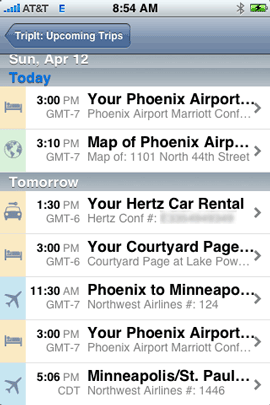
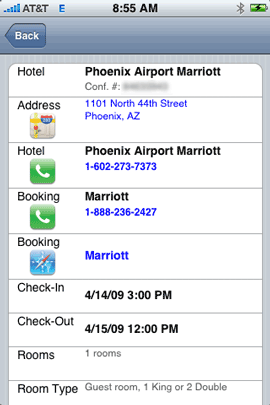
TripIt sent me an email this week letting me know that they had released their iPhone app and I clicked the link immediately to download it. Once I had the app on my iPhone I put in my TripIt account login info and as expected my upcoming trips were on screen. As a matter of fact I was already on one of those trips at the time. Everything was there just like the website. Confirmation numbers, check in/out times, phone numbers (which are clickable to dial), all the details of my trip were right there.

tripit-itinerary tripit-details

Room for improvement

The TripIt app works exactly as advertised! Although I’m happy with it in its current form, there are some things that would make it even better. The first improvemet is actually a biggy! The app only works when you have an internet connection. There’s no logical reason for this. The app should be able to DOWNLOAD your itineraries to your device and then only use the internet for updates. That’s the whole advantage of having a native app! Otherwise you might as well just use the website.

The next one is that revolves around social networking. I’ve started linking up with friends, colleagues and family on TripIt so that we can kinda know where each other is. The app doesn’t give you any access to your TripIt Network. Again, this should be an easy add since the info is already there in the database that the app is pulling from.

Lastly, the app doesn’t have any editing capabilites. Earlier this week I checked out of one hotel a day early and booked another one that was closer to the airport. I forwarded the confirmation for the new hotel to the plans@tripit.com address and it showed up properly, but there was no way to change the fact that I was checking out of the first hotel without going to the website to do it. So if your plans change or you have a new trip, you’ll have to make those changes via the website and email.

The Bottom Line

I love TripIt.com! It’s FREE! It just rocks! The TripIt app for iPhone/iPod touch is a great first start, but there is so much more potential for an even better app. If you have a TripIt account (and there’s no reason not to), then you should download the TripIt app from the App Store.

Be the One Billionth iPhone App Download and Win Big!

billion
Apple is about to hit the One Billionth App download mark! As usual their celebrating by giving some lucky person the chance to win some really cool prizes! The cool thing is that you can download either free or paid apps.

Download an app and you’ll automatically get the chance to win a $10,000 iTunes Gift Card, an iPod touch, a Time Capsule, and a MacBook Pro. Just go to the iTunes Store, browse the App Store, and download your best app yet.

See the details here.

iPhone App of the Week – Photogene

photogene

If you’ve been using your iPhone’s built-in camera, then chances are you’ve taken a shot or two that you wished were better. Sure we can download the shots to our computers and open them up in Photoshop and then go to town correcting them, but what if you want to send the pic while you’re out. Sometimes the whole reason you’re taking a iPhone picture is to share it via email, Facebook, Twitter, Flickr, MobileMe, etc. right then and there.

Photogene is an amazing iPhone app

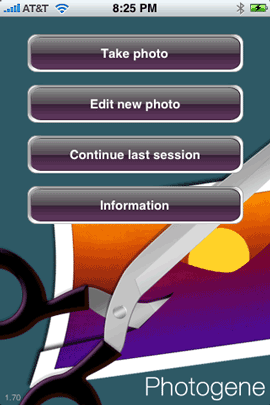
photogene1 photogene2

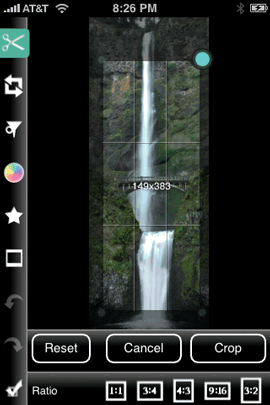
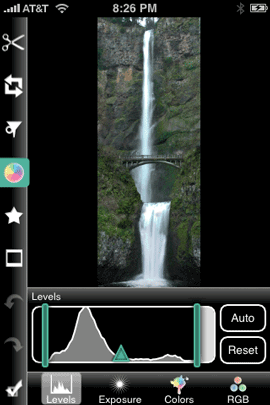
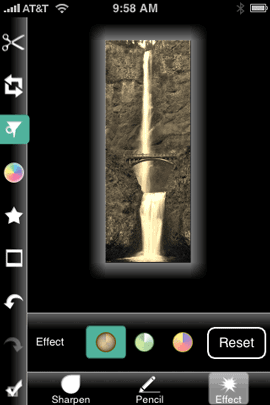
This was another one those apps that I saw featured in one of the latest iPhone TV spots. I was using another app before this that was good, but I was simply blown away by the number of features in Photogene. It’s not Photoshop! However, it does the things that most people will want to do with a photo taken with an iPhone.

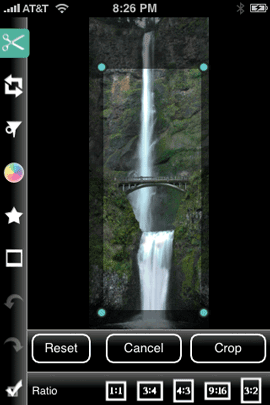
photogene3 photogene4

Photogene allows you to:

  • Crop and fix aspect ratios
  • Sharpen
  • Do Levels with a histogram
  • Color correct
  • Gamma correct
  • Adjust Exposure
  • Adjust Contrast
  • RGB Balance
  • Adjust Saturation (including making the photo black and white)
  • Adjust Color Temperature
  • Straighten
  • Rotate and mirror
  • Special effects such as sepia, pencil or heat map
  • Frames
  • Text bubbles
  • Even has multiple undos and redos and reset
  • You can even take the photo from within the app

The feature set is mighty impressive, but it’s even more fun to actually use the app. It’s very very easy to use as the interface is basically your finger. You move slides and handles around on your image or on the app. Very well laid out and one of my favorite features is that it automatically saves a copy of your image instead of writing over the original.

photogene5 photogene7

So the next time you take a picture with your iPhone and you’re just not feeling it, you should take it into Photogene on your iPhone and work wonders.

The Bottom Line

Although we would all like to see a better camera in the iPhone, the one that is there can give you good results under the right conditions. When those conditions are less than optimal AND you need to send the photo right then and there, Photogene is an app you’re going to want to have to make that photo better. Photogene is $2.99. It works with the iPhone and iPod touch. You can download it from the App Store here.

Lastly, who can forget the Photoshop for iPhone spoof by my buddies over at the NAPP?

Airfoil is the missing link

airfoillogo

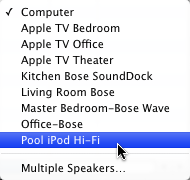
Although I’ve been enjoying streaming music wirelessly throughout the house using Apple’s AirTunes technology, there is one small problem. AirTunes only works with iTunes. AirTunes is built-in to the AirPort Express and now Apple TV hardware. The concept is simple. You put either an AirPort Express or Apple TV in any room that you want to stream music to and connect the device to a stereo, receiver or set of speakers. Then you launch iTunes from any computer on the network and choose the appropriate AirTunes speakers and when you play your music it will be streamed to your speakers (up to 3 rooms at a time).

airtunes

This is all well and good, but like I said, it only works with iTunes. What if you want to listen a different source app throughout your house? This is where Airfoil comes in. I have XM/Sirius satellite radio in my cars. With XM/Sirius account(s) you also get the ability to log on to their websites and listen to your favorite stations via the internet at no additional cost. While this is great, I want to be able to hear this content in any room and over my better speaker/stereo systems. I already have AirTunes setup, but again it only works with iTunes!

That’s were Airfoil comes in

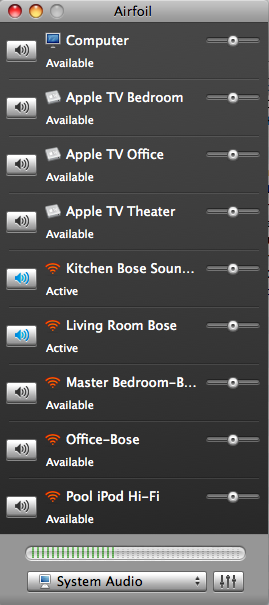
Airfoil is an app that you install on your Mac or PC that allows you to direct any app/source to your AirTunes speakers. It even comes with a bonus app called Airfoil Speakers that allows you to stream from one computer to another. Airfoil is very simple to setup. Once you download, install and launch it, it will automatically show all of your AirTunes speakers and make them available to any app or the system audio on your computer.

airfoil

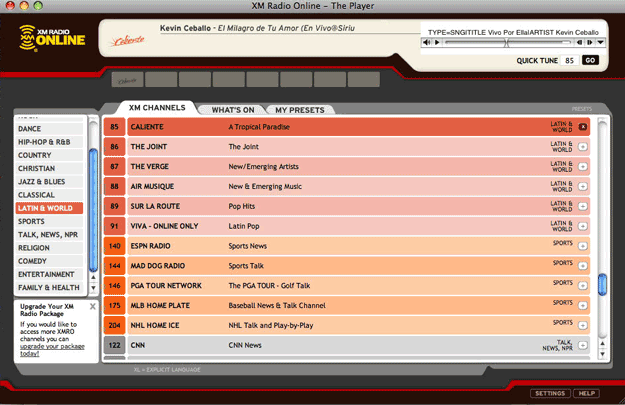
Once I installed Airfoil, I simply fired up my web browser and logged into the XM site. I selected a station, hit play and had music streaming throughout the house.

xm

The Bottom Line

Airfoil is by Rouge Amoeba. It goes for $25 and is available for both Mac and PC. If you use AirTunes and want to stream sources other than iTunes to your speakers then Airfoil is your answer!

iPhone app of the week – Skype

skypelogo

I gotta be honest! I never thought this app would see the light of day. However, I’m very excited to see Skype for the iPhone. I use Skype on occassion to do online interviews for podcasts and to talk with friends in different countries. It’s an amazing technology that’s virtually free to use (Skype to Skype). A couple of years back I traveled to Australia and I used the Skype video chat feature to phone home. It was a lot cheaper than doing international calls and better because of the webcam support. Although iChat is built-in to the Mac OS, I just have not had good luck connecting to various friends and family with it. However, I  always able to connect via Skype.

What does Skype on the iPhone mean?

skype1

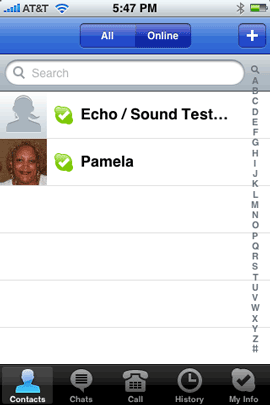
Having Skype on the iPhone means that as long as you’re on a Wi-Fi connection, you can talk for FREE to other Skype users no matter where they are or no matter whether they are on their computers or other Skype compatible devices. Just the other night while testing the Skype iPhone app, I saw my sister online. So I just tapped her name and I heard the familiar Skype ring. She picked up and we were talking. I put the iPhone up to my ear and it was crystal clear. She was at home by the way on her MacBook.
skype3

The beauty of this of course is that the Skype calls don’t go against your cellphone minutes. So you could talk for hours day or night without impacting your phone bill.

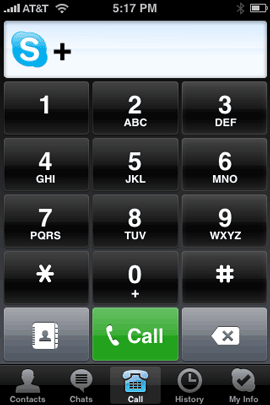
You can make Skype calls to landlines and cellphones too. Of course not everyone is going to be on a computer/phone with Skype and sometimes you may want to just call a regular landline or cellphone. Skype for iPhone (just like Skype on your computer) does allow you to dial any phone number. When you use Skype to call a regular landline/cellphone it’s not free.
skype2

However, it is reasonable. International calls start at 2.1¢ a minute and you can do a pay as you go plan or subscription. If you are going to be making a lot of calls to landlines/cellphones then it probably makes sense to go with a monthly subscription. Otherwise do the pay as you go. I do pay as you go just to have the option of calling regular phones even though I don’t do it often.

skypeplans

Once again, you don’t need to pay anything to make calls from Skype to Skype.

Really good news for 2nd generation iPod touch users

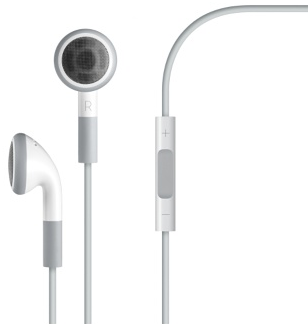
If you’re an iPod touch user, this is even better news for you! Although the 2nd generation iPod touch doesn’t have a built-in microphone, it does have the ability to use a either the Apple Earphones/mic or a 3rd party mic:
earphonesmic

The Apple Earphones with Remote and Mic go for $29.00. So with an iPod touch, a compatible mic, a Wi-Fi connection and the Skype app, suddenly your iPod touch becomes a phone that can make calls to anyone in the world!

How well does the Skype app work?
skype4

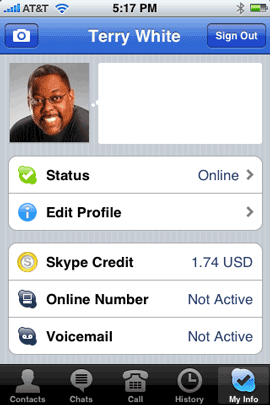
The Skype app worked fine for me as advertised, but there are some inherent gotchas that have less to do with the app and more to do with the current iPhone 2.x software. I launched the Skype app and logged in with my existing Skype username/password. It worked! I saw my user list of friends and online friends. Of course the first thing I wanted to do was try a call. So I tapped on one of my contacts and placed my first Skype call via the iPhone. Of course as luck would have it, I got no answer. He later emailed me to let me know that he couldn’t take the call right then and there. So the next thing I tried was the “Skype test” user and basically this allows you to test making call and recording your voice then playing it back to make sure your setup works. Since there were no other friends online at that moment, I tried the next best thing. I called a regular landline. It worked!

The only thing I didn’t try out was the text chatting. I didn’t try it because I just don’t use that feature of Skype.

Now for the gotchas. Although the Skype app works as advertised, there are some things to think about. The first thing is that since the iPhone doesn’t currently support background processing there’s no way to receive a Skype call unless the app is running. Once you quit the app you’re basically offline. So this would not be a good solution for people that want to receive Skype calls throughout the day. I’m sure this situation will improve in the upcoming iPhone 3.0 software update.

The next thing that I hadn’t really run into yet is what happens if you’re on a Skype call and your iPhone rings? Unfortunately, it’s not a smooth thing. Like most apps, when your iPhone rings they are put on hold. Same goes for Skype. So your Skype caller will just all of a sudden stop hearing you without warning. Worse, if you take the incoming call, your Skype caller will be disconnected. Again without warning. While this is not the end of the world, it’s not elegant. I read some of the other Skype reviews and some have complained about crashing. To date I’ve not had a single Skype crash.

When I dialed my own landline using Skype I noticed that there was no caller-ID info. Then I realized, why would there be? I’m not using their feature of having an incoming phone number. So I did the next best thing. Skype does allow you to configure the Caller-ID with your cellphone number. This way, if I make a Skype call to a landline or cellphone, it will look as if it’s coming from my cellphone. I’m happy with that solution.

A tip for traveling overseas! If you travel overseas with your iPhone and actually use it, you could be hit with substantial roaming charges. So as long as you have Skype for the iPhone and a Wi-Fi connection do this: Put your iPhone in Airplane Mode, which will disable the phone features, Wi-Fi and Bluetooth. Then simply go turn Wi-Fi back on. Now you can use your iPhone with Skype and make calls without the worry of roaming or being interupped by regular incoming cell phone calls.

The Bottom Line

A free VoIP solution for the iPhone is always welcome! The fact that it also works for 2nd generation iPod touch users is HUGE! Skype for the iPhone does have its limits, but nothing that’s a show stopper. Sure it would be nice to have it also work over a 3g or EDGE network too, but I’m sure AT&T and other carriers would never want to see that happen and probably blocked such apps somewhere on page 6936 of their contracts with Apple. You can download Skype for the iPhone and iPod touch here on the App Store. Setup your FREE Skype account here. Because Skype is cross platfom, it makes an excellent solution for doing video chats with your family and friends around the globe.


iPhone App of the Week – Shazam

shazam

By no means is Shazam a new app. I’ve had it for months (released in July 2008). However, this week my buddy Dave was looking at my iPhone apps and he said, “what’s Shazam?” Sometimes I take for granted that everyone already has the older cool apps. He had never heard of it. So I decided to make it my iPhone app of the week.

shazam01 shazam02

Have you ever wondered: What’s the name of that song?

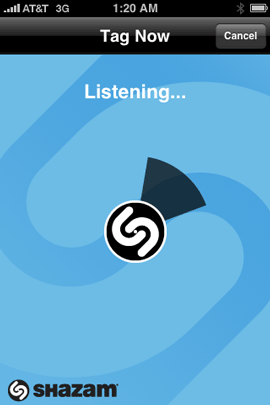
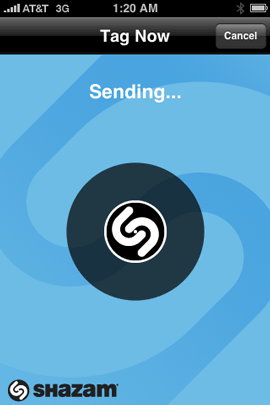
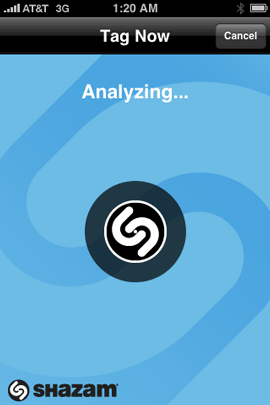
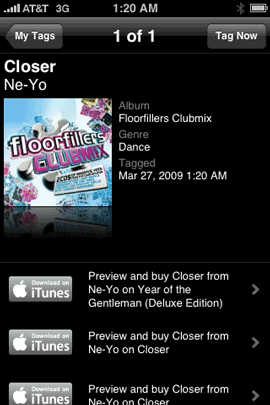
You hear a song playing and you really like it or it’s one that you know and you’ve heard before, but you just can’t place it. It happens to me all the time. Maybe it’s a song playing on the radio or a song playing at a party or gathering you’re at. That’s where Shazam comes in for your iPhone. When you launch the app there’s a simple button that says “Tag Now.” You tap the Tag Now button and your Shazam will “listen” to a few seconds of the song that’s playing. After it hears enough of the song, it uploads that information to the Shazam servers and then it analyzes it. After a few seconds, it will then come back with the results. If it recognized the song, you’ll get the song name, artist, album and even a link to go preview or buy it on the iTunes store! Pretty slick.
shazam03 shazam04

Your tagged songs are kept in the app so that you can tag as many songs as you want and then buy them if you like when you get back to your computer or directly on your iPhone.

The Bottom Line

Shazam is great, but it’s not perfect. While it gets most songs for me, it doesn’t always get the songs I try. However, it does work for me more times than not. Shazam works on the iPhone and the 2nd generation touch (the first generation doesn’t have a microphone capability/option). The best part is Shazam is a FREE app and you can download it from the App Store here.