In this episode of Adobe Creative Cloud TV, I’ll show you 5 hidden gems in Adobe Muse CC. Adobe Muse CC allows you to design websites visually without having to write code or deal with code at all. In this video I show you a few not too well known features that will make your life easier in using Adobe Muse CC to make your site pop.
Are you missing out on my Bonus Content?
See more of my Adobe Creative Cloud Videos on my Adobe Creative Cloud TV and get the App below. It features EXCLUSIVE CONTENT that no one else gets to see. This episode has a BONUS CLIP that is available only in the App! My iOS App is a Universal App for iPhone, iPad and iPod touch. I also have an Android version on the Amazon App Store:
The long awaited Lightroom mobile is here and I couldn’t be happier to give you your first look:
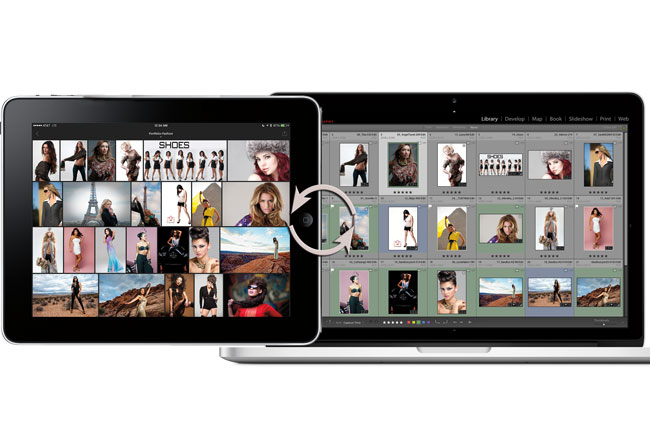
Today we’re announcing the immediate availability of Lightroom mobile. Lightroom mobile extends your existing workflows beyond the desktop. Lightroom mobile allows you to utilize your iPad to do all sorts of great things and have the changes sync back to your Lightroom catalog at home, including:
Access images in your Lightroom catalog
Make selects, reject unworthy photos
Apply a preset
Refine your adjustments using all your favorites from the Basic panel, including Highlights, Shadows, and Clarity
Import new photos directly from the camera roll
Lightroom mobile utilizes Smart Previews to provide raw editing functionality on your iPad. First introduced in Lightroom 5 beta, Smart Previews are:
Based on the DNG file format
Limited to 2560 pixels on the long edge
Smaller version original raw files
Can be used to make adjustments even when the original files aren’t available locally
Adjustments made to Smart Previews are applied to the original when the original files are available
How to get started:
1. Download Lightroom 5.4
Lightroom mobile is a companion to Lightroom desktop. Lightroom 5.4 is the first version of Lightroom desktop that includes the ability to sync images to Lightroom mobile. Please update to the latest version of Lightroom 5 using either the Creative Cloud app or by clicking on the “Help-> Check for Updates” menu option.
2. Sign In
Lightroom mobile utilizes cloud services to sync Smart Previews and changes between Lightroom desktop and Lightroom mobile. Lightroom mobile requires a qualifying Creative Cloud or Photoshop Photography Plan subscription:
Photoshop Photography Program (Get Photoshop CC, Lightroom 5 (including Lightroom mobile), 20GB of online storage for files (optional use), and a Behance Prosite for only $9.99/month.)
Creative Cloud complete plan
Creative Cloud Student and Teacher Edition
Creative Cloud for teams complete plan
A free 30-day trial of Lightroom mobile is available.
3. Sync a collection
Lightroom mobile is organized around Collections. Images within Collections will be synced and be available in Lightroom mobile.
4. Download Lightroom mobile for iPad
Visit the App Store on your iPad and download Lightroom mobile. Once you login with the same Creative Cloud account, you’ll see all of your synced Collections. .
5. Check out your photos at lightroom.adobe.com
In addition to Lightroom mobile, we’ve also launched Lightroom web, a new way to view and share your images from any web browser. Available at http://lightroom.adobe.com.
System Requirements
Lightroom mobile is available now on iPad 2 or later, and works on iOS7 or later.
Thanks!
Are you missing out on my Bonus Content?
See more of my Adobe Creative Cloud Videos on my Adobe Creative Cloud TV and get the App below. It features EXCLUSIVE CONTENT that no one else gets to see. This episode has a BONUS CLIP that is available only in the App! My iOS App is a Universal App for iPhone, iPad and iPod touch. I also have an Android version on the Amazon App Store:
In this episode of Adobe Creative Cloud TV I’ll show 5 hidden gems in Adobe InDesign CC. These are 5 little things that could make a big impact on your daily use of InDesign CC.
Are you missing out on my Bonus Content?
See more of my Adobe Creative Cloud Videos on my Adobe Creative Cloud TV and get the App below. It features EXCLUSIVE CONTENT that no one else gets to see. This episode has a BONUS CLIP that is available only in the App! My iOS App is a Universal App for iPhone, iPad and iPod touch. I also have an Android version on the Amazon App Store:
In this episode of Adobe Creative Cloud TV, I’ll show you a quick tip on how to change the aspect ratio of your portrait image to a square by extending the background in Photoshop CC.
Are you missing out on my Bonus Content?
See more of my Adobe Creative Cloud Videos on my Adobe Creative Cloud TV and get the App below. It features EXCLUSIVE CONTENT that no one else gets to see. This episode has a BONUS CLIP that is available only in the App! My iOS App is a Universal App for iPhone, iPad and iPod touch. I also have an Android version on the Amazon App Store:
In this episode of Adobe Creative Cloud TV, I’ll show you 4 hidden gems in Adobe Photoshop CC that I bet most of you didn’t know were there.
Are you missing out on my Bonus Content?
See more of my Adobe Creative Cloud Videos on my Adobe Creative Cloud TV and get the App below. It features EXCLUSIVE CONTENT that no one else gets to see. This episode has a BONUS CLIP that is available only in the App! My iOS App is a Universal App for iPhone, iPad and iPod touch. I also have an Android version on the Amazon App Store:
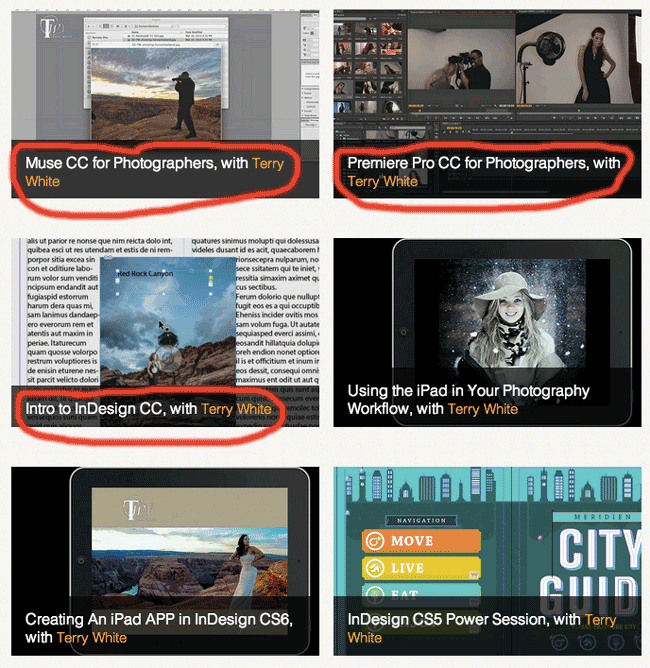
Hey everyone, I just wanted to give you a heads up about my three NEW Online Classes on KelbyOne. I visited KelbyOne studios a couple months back and recorded three in-depth online classes and now all three have been released.
You probably know that you need a website, but you’re not really into writing code. That’s why Adobe Muse CC was created. In this class Terry White shows you how to get started and create a complete website from scratch without having to write a single line of code. You can have your own website and more importantly update it as often as you need.
You would be hard-pressed to buy a camera that doesn’t shoot video today! However, as a photographer you probably never got into video editing. Now with Adobe Premiere Pro CC it couldn’t be easier to tell your story with photos and videos. The problem has been that all the other Premiere Pro classes out there are geared towards video people. In this class Terry White shows you how to go from start to finish with your videos, photos, and music without all the video jargon. Let a photographer show you how to use Premiere Pro CC.
InDesign CC lets you bring your photos, text, and graphics together in a seamless integrated workflow. In this class Terry White shows you how to get started from scratch even if you’ve never launched InDesign before. After this class you’ll be able to lay out just about any document that you want to create. Brochures, newsletters, magazines, business cards, flyers, and books are just a click away.
I’m really happy with the way these classes turned out and I hope you like them too!
My favorite training conference and expo is coming up soon! Photoshop World is coming April 8-10 in Atlanta Georgia. I’ll be there doing a series of classes. What makes this Photoshop World even better is that I get to give you $50 off your Full Conference Pass! That’s right, just register for Photoshop World here and enter promo code TWHPSW414 and $50 will be knocked off your price right on the spot. I look forward to seeing you all there!
Bonus Deal
In the market for a Nikon D7100? Well now you can save $500 on the D7100 kit. Check it out here.
Adobe Revel (originally known as Carousel) got off to a shaky start. There were features missing that many saw as a show-stopper and originally the only way to use the service was to pay for it. A LOT has changed since then. First off, what is Adobe Revel? Adobe Revel is a photo sharing and storage service. Imagine having access to all of your photos no matter if you’re on your computer or your iPhone or iPad. With Adobe Revel you can upload an unlimited number of photos to the cloud. You can share them with others and have shared albums with family members and friends. Best of all (at least for me) you can use the Adobe Revel iPhone/iPad app to show your photos off.
How do I get my photos into Adobe Revel?
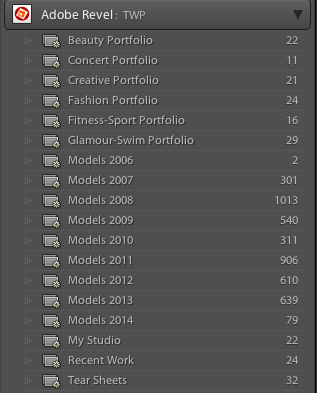
There are a couple of ways to do it. You can import photos using the Adobe Revel desktop App. You can import photos using the iPhone and iPad app or you can upload to Adobe Revel directly from Lightroom 4 or 5 using the Adobe Revel publish service (the method I use).
How many photos can I store on Adobe Revel?
Unlike other services, Adobe Revel doesn’t have a photo limit. You can upload as many as you want. This is important and makes Adobe Revel better than many other services because your photo library is only going to get larger, not smaller.
Once my photos have been uploaded to Adobe Revel how do I view them?
You can view your photos in the desktop app, iPhone App, iPad App or via the web. Since you’re logging in to each app and the web with the same Adobe ID, your photos are instantly available on all your devices.
What if I’m offline, can I still view my photos on my computer or iPad?
Yes, Adobe Revel caches your photos to your device and they are available even if you’re offline.
Terry, why do you like Revel so much?
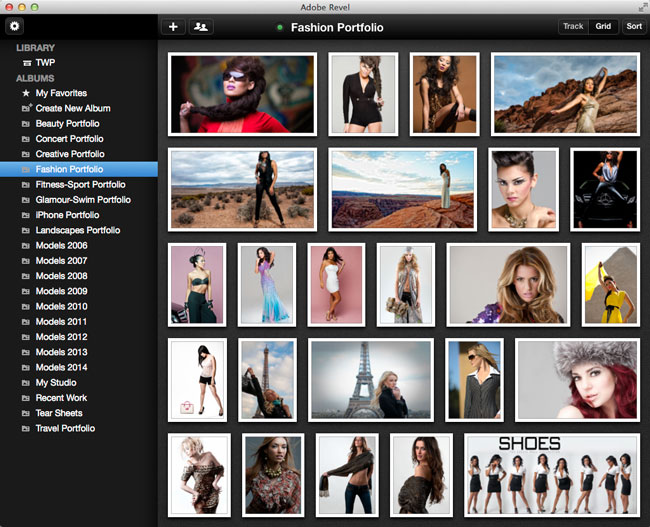
Adobe Revel gives me the thing I’ve always wanted. An easy way to have my portfolios with me and always up to date. Once I hit the publish button in Lightroom 5 on any of my published collections, I don’t have to think about it anymore. The next time I fire up Adobe Revel on my iPhone or iPad those photos are there. Sure there are more full featured portfolio apps out there, but all of them are a pain in the butt to keep photos updated in. Also the Revel team did a great job in redesigning the iPad App. It looks very elegant now.
If I share an album with others can they add photos/videos to it?
Yes, if you share albums with others they can add photos/videos from their devices. This is great for families on vacations or event photos.
Sounds too good; this must cost a fortune right?
This is why I said it’s time to take another look at Adobe Revel. You can start off with a 30-day trial and during those 30 days you can upload as many pics as you want. After that you can keep using Adobe Revel for free and have a limit of 50 new uploads a month. However, if you want to continue to have unlimited uploads it’s only $5.99/month for Revel Premium.
OK how much are the iPhone and iPad Apps?
They’re free to download. Actually it’s a Universal App and you can get it here:
In this episode of Adobe Creative Cloud TV, I’ll show you how to combine multiple Lightroom catalogs into one.
Are you missing out on my Bonus Content?
See more of my Adobe Creative Cloud Videos on my Adobe Creative Cloud TV and get the App below. It features EXCLUSIVE CONTENT that no one else gets to see. This episode has a BONUS CLIP that is available only in the App! My iOS App is a Universal App for iPhone, iPad and iPod touch. I also have an Android version on the Amazon App Store:
It’s 2014 and of course that means that we’re in for new feature updates for our Adobe Creative Cloud applications and services. I’m pleased to give you for first look at the first wave of new features for Adobe Photoshop CC, Adobe Illustrator CC and Adobe InDesign CC. There are over 20 new features among the three apps and now there are more than 900 Typekit Desktop Fonts for your design use. Rather than simply tell you about these features I figured it was easier to show you:
What’s New In Adobe Photoshop CC – January 2014 Update
What’s New In Adobe Illustrator CC – January 2014 Update
What’s New In Adobe InDesign CC – January 2014 Update
Also in case you missed it, here’s What’s New in Adobe Muse CC – November 2013 Update




 .
.